"How do I stop iPhone/iPad from asking for repeated Apple ID password requests?"
- from Apple Community
Many users encounter a frustrating issue during daily use of their iPad: the device keeps popping up windows asking for the Apple ID password. Even after entering the password, the prompt reappears after a while, seriously affecting the normal user experience. Sometimes it appears when unlocking the screen, other times during app downloads, iCloud data synchronization, and even when the device is in standby mode.
So, why does my iPad keep asking for a password? How do I get my iPad to stop asking for a password? This article will analyze the common causes, identify the root of the problem, and provide several effective solutions to help you quickly fix the "iPad keeps asking for password" issue.
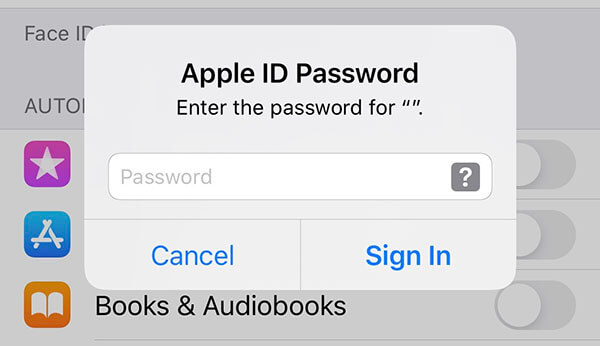
Before solving the problem, it's important to understand the underlying reasons. Generally speaking, the iPad repeatedly asking for a password may be caused by the following situations:
After we know the reasons for iPad keeps asking for password, below, we will introduce several common and effective solutions in order of simplicity to complexity. You can try them one by one.
In many cases, the iPad repeatedly asking for a password is just a temporary system verification error. Restarting the device can force the abnormal processes to end and refresh the system status, making it the most basic and safest troubleshooting method.
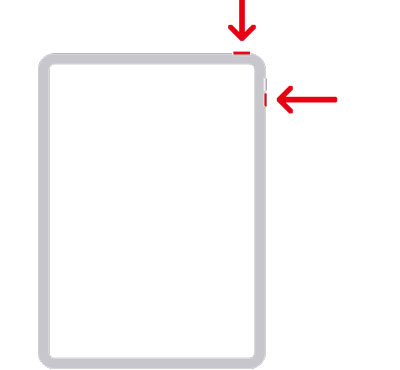
For iPads without a Home button: Press and quickly release the "Volume Up" button (near the Power button), then press and quickly release the "Volume Down" button (farther from the Power button). After that, press and hold the "Power" button until the Apple logo appears.
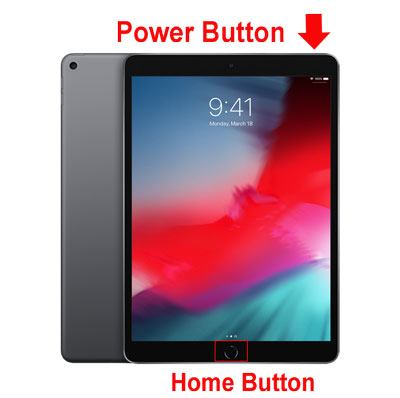
For iPads with a Home button: Press and hold both the "Top" button and the "Home" button until the Apple logo appears. Once it does, release the buttons, and your iPad will restart.
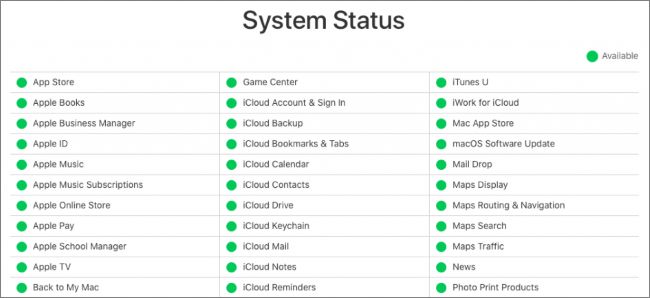
If there's an issue with iCloud services, your iPad may keep asking for the Apple ID password because it can't verify it. Check Apple's System Status page to see if any Apple ID or iCloud services are down. If they are, just wait for Apple to fix the problem.
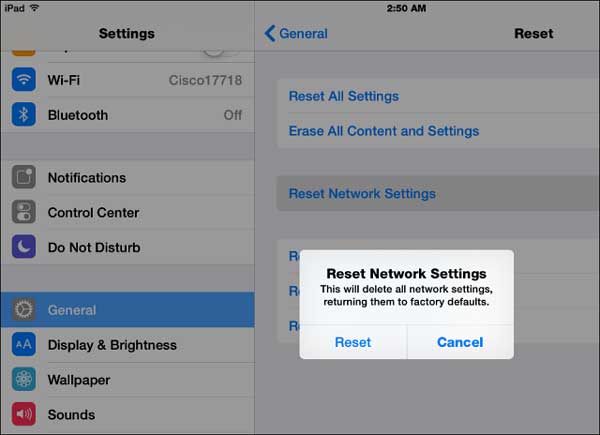
Incorrect or invalid Wi-Fi settings can cause your iPad to repeatedly ask for a password. To resolve this, reset your iPad's network settings by following these steps:
Step 1. Open the "Settings" app on your iPad.
Step 2. Go to "General" and scroll down to the bottom.
Step 3. Tap "Reset" and then select "Reset Network Settings".
Note: This action will not delete any data, but it will clear any saved Wi-Fi passwords.
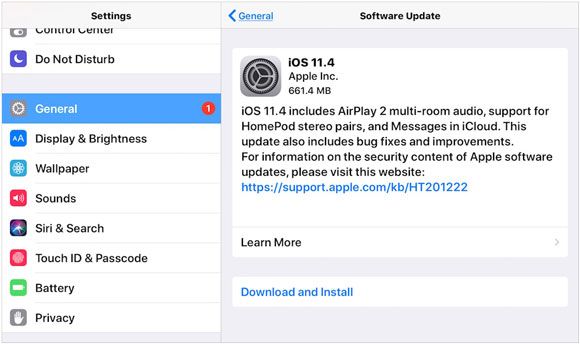
Some versions of iPadOS have known bugs that can cause abnormal Apple ID verification, leading to repeated password prompts. Updating the system usually fixes this kind of issue.
Here is how to update iPadOS to fix iPad keeps asking for password in App Store:
Step 1. Go to "Settings" > "General" > "Software Update".
Step 2. If a new version is available, select "Download and Install".
Many iPad errors or bugs can be linked to your iCloud account. Signing out of your Apple ID and signing back in can reset the verification process and is likely to resolve the iPad keeps asking for password to update apps issue. Here's how:
Step 1. Open the "Settings" app and tap on [Your Name] at the top of the screen.
Step 2. Scroll down and tap "Sign Out". (Can't sign out of your Apple ID?)
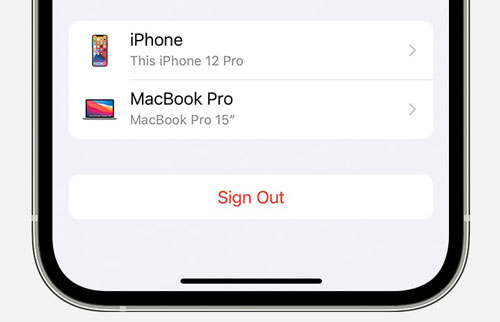
Step 3. Enter your Apple ID password and tap "Turn Off".
Step 4. On the same page, tap "Sign In" and enter your Apple ID credentials to log back in.
If Apple detects suspicious activity or a recent password change, your iPad may repeatedly prompt for verification. Resetting your password can restore normal authentication behavior.
To reset Apple ID password, follow the steps below:
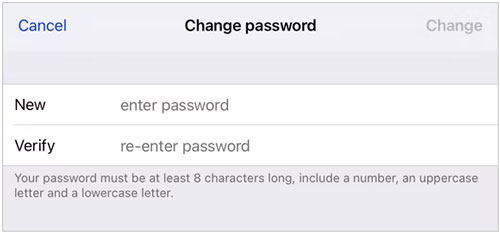
Step 1. Go to "Settings" > [Your Name] > "Password & Security" > Select "Change Password".
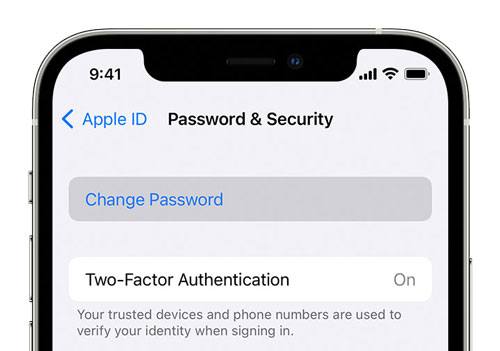
Step 2. Enter your current password or device password, then enter and confirm your new password. Tap "Change" or "Change Password" to complete the process.
If none of the above methods resolve the issue and your iPad keeps asking for the Apple ID password, and you've forgotten your Apple ID password, you may need to use third-party software to fix it. iPhone Unlocker is a user-friendly and intuitive tool that can help you remove the Apple ID (no password required) with just a few simple steps. Additionally, it offers features to unlock iOS screens, remove MDM restrictions, and more.
The key features of iPhone Unlocker:
* Completely and permanently fix the issue of your iPad repeatedly asking for a password.
* Easily bypass your Apple ID and iCloud account, and reset your iPad without needing a password.
* Effortlessly remove any screen passcodes, including patterns, Touch ID, and Face ID.
* Bypass MDM (Mobile Device Management) restrictions and remove MDM profiles without requiring login credentials.
* Recover or reset Screen Time passcodes without losing any data.
* Compatible with all iPad, iPhone, and iPod models, and works with all iOS versions (including iOS 26).
Here is how to fix iPad keeps asking for Apple ID password using iPhone Unlocker:
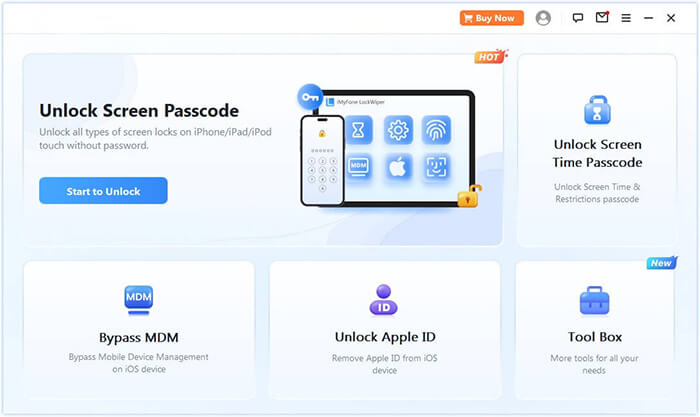
01Download and install iPhone Unlocker on your computer. Open the program and select "Unlock Apple ID" from the main screen.
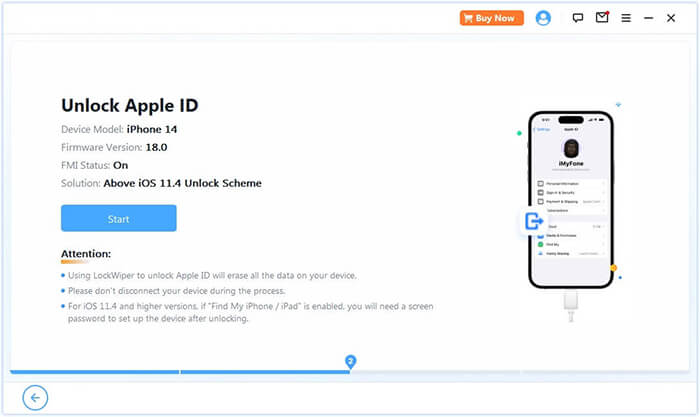
02Connect your iPad to the computer, and the program will automatically detect your device. Once detected, click "Start" to proceed.
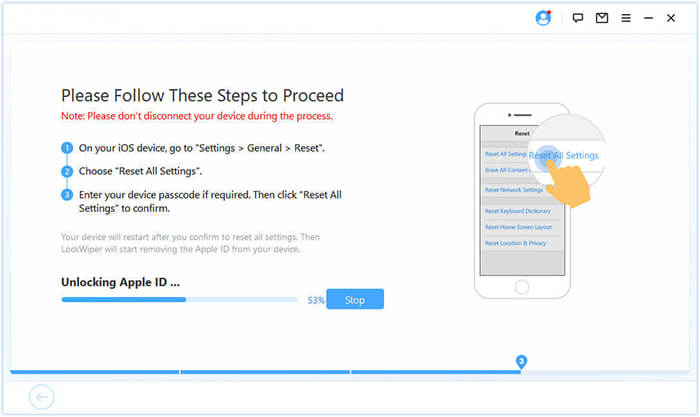
03If Find My is turned off, the program will begin unlocking your Apple ID immediately. If Find My iPad is enabled, go to Settings > General > Reset All Settings to disable it before continuing. If two-factor authentication is active, check and confirm the device status, then click "Next". A pop-up will appear asking you to confirm; enter "000000" and click "Unlock" to continue.
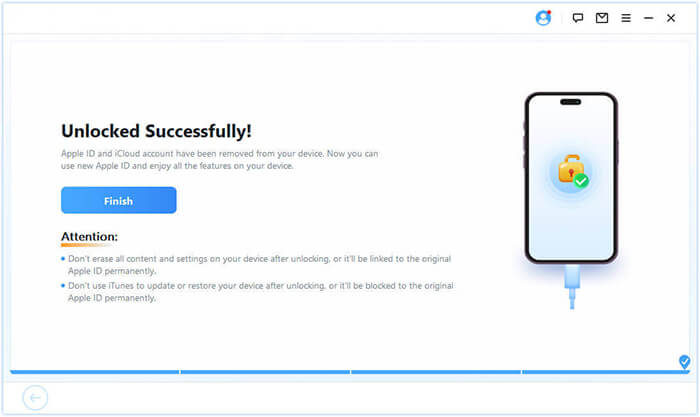
04Wait a moment, and the program will quickly unlock your Apple ID without any issues.
When your iPad keeps asking for password, the problem is usually linked to Apple ID verification issues, network instability, or system bugs. In most cases, simple fixes like restarting the device, updating iPadOS, or re-signing into Apple ID will solve the problem.
However, if the issue persists despite trying all standard methods, iPhone Unlocker offers a powerful and efficient solution to eliminate repeated Apple ID password prompts and restore your iPad to normal use.
Related Articles:
[SOLVED] How to Sign Out of iCloud without Password Step by Step?
4 Easy Fixes to iPad Is Disabled Connect to iTunes Issue
[100% Works] How to Bypass the Verification Required on App Store?
How to Fix iPhone Stuck on Verifying Update? 15 Fixes in 2026




 Free Download for PC
  Free Download for Mac


