TL;DR: Having trouble with the Screen Time passcode not working on your iPhone? This guide explains the common causes and provides 9 effective fixes, including restarting your device, updating iOS, resetting the passcode with Apple ID, and using a professional unlocking tool to quickly regain access to Screen Time settings.
The Screen Time feature helps iPhone users manage device usage, restrict app access, and control content and privacy settings. However, some users may encounter the issue of the Screen Time passcode not working on their devices. This article will explain why the Screen Time passcode is not working on iPhone and provide 9 effective solutions to help you quickly restore the Screen Time passcode functionality.
When you find that your iPhone Screen Time passcode is not working, there may be several common reasons behind this issue:
If your Screen Time passcode is not working properly, you can try the following methods one by one to fix the issue.
If you encounter the Screen Time passcode not working issue on your iPhone, turning the Screen Time feature off and then enabling it again may help resolve the problem. Although this method does not work in every situation, it is a simple troubleshooting step worth trying before moving on to more advanced solutions. Follow the steps below:
Step 1. Open "Settings" on your iPhone and tap "Screen Time".
Step 2. Scroll down to the bottom of the Screen Time page and select "Turn Off Screen Time".
Step 3. Enter your Screen Time passcode when prompted, then tap "Turn Off Screen Time" to confirm.
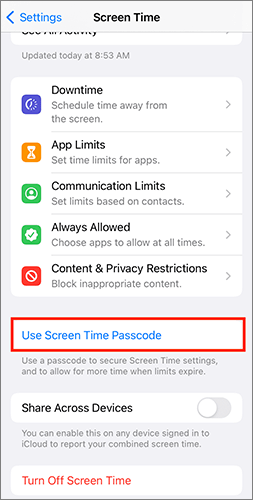
Step 4. Return to the "Settings" menu and open "Screen Time" again.
Step 5. Tap "Turn On Screen Time", then select "Continue" to re-enable the feature.
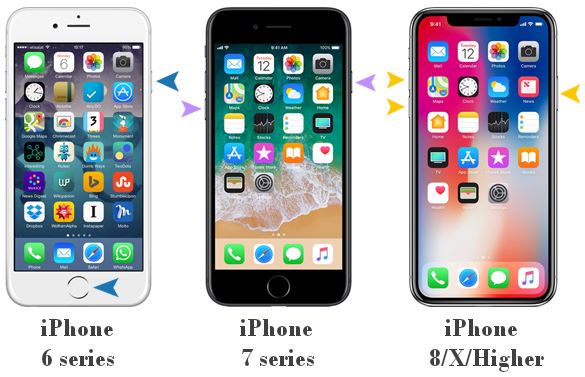
A force restart can sometimes help fix temporary system glitches on your iPhone or iPad and restore the device to normal operation. If the Screen Time passcode is not working due to a software issue, restarting your device may refresh the system and resolve the problem. Follow the steps below based on your iPhone model:
For iPhone 8 Plus, iPhone 8, iPhone X, or later:
For iPhone 7 Plus or iPhone 7:
For iPhone 6 or earlier models:
If your Screen Time passcode is not working, signing out of your Apple ID and then signing back in may help resolve the issue. Some users have reported that this method successfully fixed the problem. Follow the steps below to try this solution:
Step 1. Open the "Settings" app on your iPhone or iPad.
Step 2. Tap [your name] at the top of the screen to open the Apple ID settings page.
Step 3. Scroll down to the bottom and tap "Sign Out". (Can't sign out of your Apple ID?)
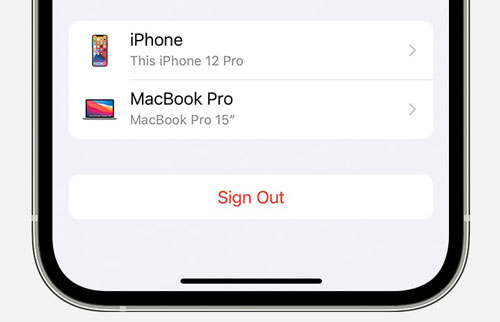
Step 4. When prompted, enter your Apple ID password, then tap "Turn Off" to disable Find My iPhone and sign out of your account.
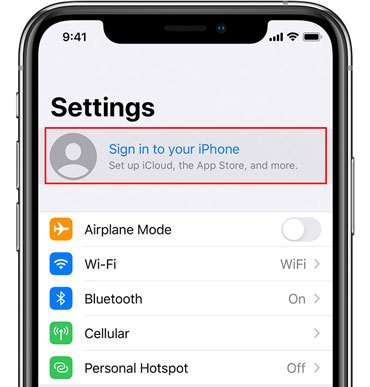
Step 5. After signing out, go back to "Settings" and tap "Sign in to your iPhone". Enter your Apple ID and password to sign back into your account.
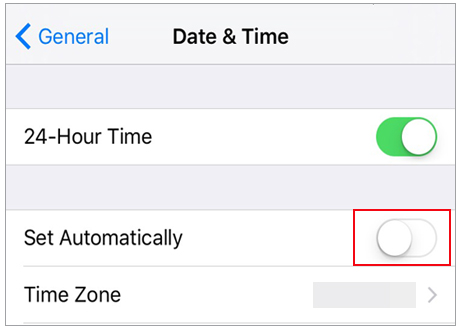
Some iPhone users have found that adjusting the date and time settings can help fix the Screen Time passcode not working issue. This method is simple and worth trying if your Screen Time passcode is not being accepted. Follow the steps below:
Step 1. Open "Settings" on your iPhone and tap "General".
Step 2. Select "Date & Time" and turn on the "Set Automatically" option.
Step 3. Once the date and time are updated automatically, try entering your Screen Time passcode again to check whether the issue has been resolved.
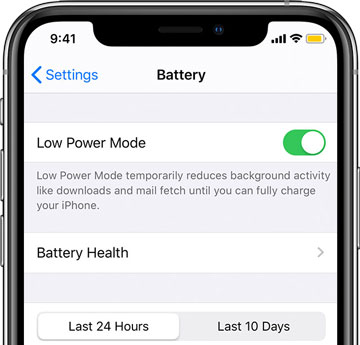
Low Power Mode may occasionally interfere with certain iPhone features, including Screen Time functionality. Disabling this option can help resolve the Screen Time passcode not working issue. To turn it off, follow these steps:
Step 1. Open "Settings" on your iPhone or iPad.
Step 2. Scroll down and tap "Battery" and toggle off "Low Power Mode".
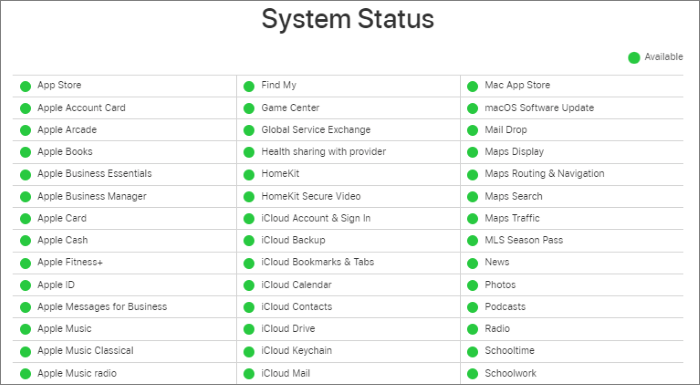
Sometimes, the Screen Time passcode not working issue may be caused by a temporary outage or server problem on Apple's side. You can check Apple's System Status page to confirm whether the Screen Time service is running properly.
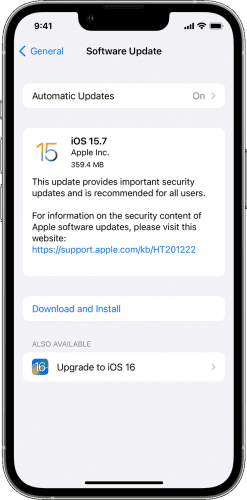
An outdated iOS version can sometimes cause software bugs and system compatibility issues, which may lead to problems such as the Screen Time passcode not working. Updating your iPhone to the latest iOS version can help fix known glitches and improve system stability.
Follow these steps to update your iOS:
Step 1. Open the "Settings" app on your iPhone.
Step 2. Tap "General" and select "Software Update".
Step 3. Check for available updates, then tap "Download and Install".
Step 4. Follow the on-screen instructions to complete the update process.
If you suspect that someone else has changed your Screen Time passcode or you simply cannot remember the correct one, you can reset the Screen Time passcode using your Apple ID. This method can help fix the Screen Time passcode invalid issue and restore access to your Screen Time settings.
Here is how to do it:
Step 1. Open the "Settings" app on your iPhone and tap "Screen Time" from the list of options.
Step 2. Select "Change Screen Time Passcode", then tap "Change Screen Time Passcode" again.
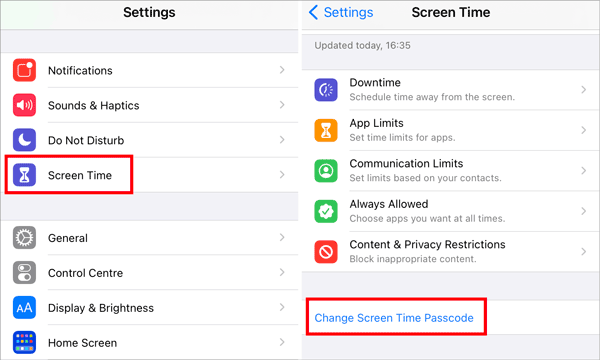
Step 3. Tap "Forgot Passcode?" and enter the Apple ID credentials associated with your iPhone.
Step 4. After your Apple ID is successfully verified, create a new Screen Time passcode and confirm it.
If you forgot your Screen Time passcode and the Apple ID reset method does not work, you can try a professional iPhone unlocking tool such as iPhone Unlocker. It can help bypass the Screen Time passcode without data loss. In addition, it can also remove the Apple ID, MDM configuration, screen lock, and other restrictions from your iPhone.
Key features of iPhone Unlocker:
Here is how to remove Screen Time passcode using iPhone Unlocker:
01Launch iPhone Unlocker on your computer and select the "Unlock Screen Time Passcode" mode.
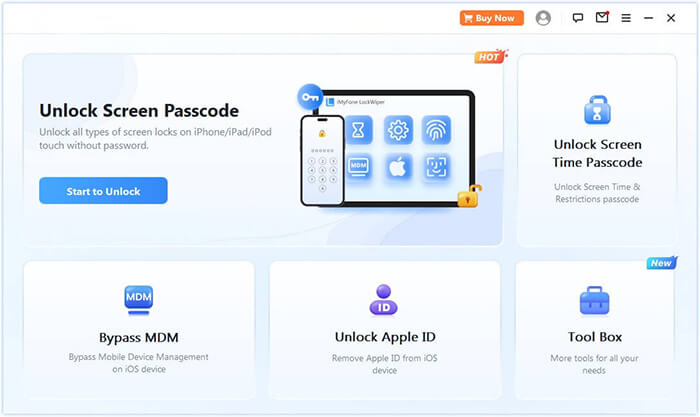
02Connect your iPhone to the computer using a USB cable. If prompted, tap "Trust" on your device to allow the connection. Then, click "Start" to begin removing the Screen Time passcode.
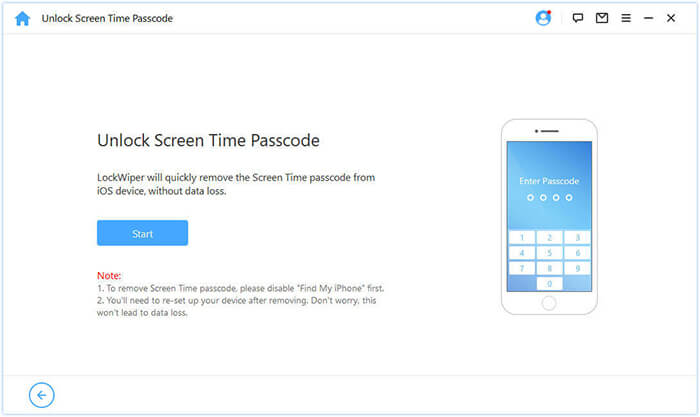
03If Find My iPhone is disabled, the software will automatically start removing the Screen Time passcode. If Find My iPhone is enabled, follow the on-screen instructions to turn it off, then click "Continue" to proceed.
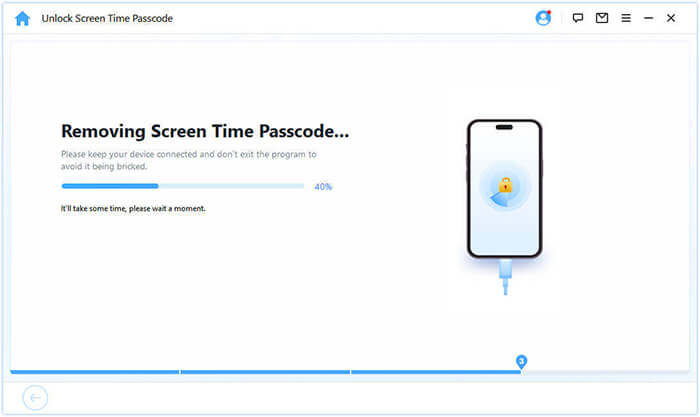
04Once the Screen Time passcode has been removed successfully, you will need to set up your iPhone again. Follow the on-screen instructions to complete the setup process and regain access to Screen Time settings.
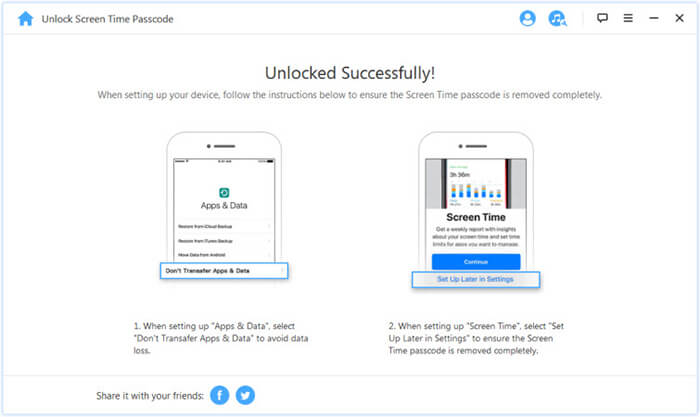
All the methods mentioned above can help you fix the Screen Time passcode not working issue on your iPhone. However, if you want a faster and more convenient solution, a professional unlocking tool like iPhone Unlocker is worth trying. It can remove the Screen Time passcode without erasing your data, allowing you to regain access to Screen Time settings quickly and easily. Give it a try and see how it works for you.
Related Articles:
[Solved] How to Fix No Option for Forgot Screen Time Passcode?
How to Fix Can't Reset Apple ID Password? in 6 Quick Ways
How to Remove Face ID on iPhone in 2 Ways: Step-by-Step Guide




 Free Download for PC
  Free Download for Mac


