TL;DR: Can't find the "Forgot Screen Time Passcode" option on your iPhone or iPad? This guide explains why the no option for forgot Screen Time passcode issue happens and walks you through proven fixes, including updating iOS, checking your Apple ID, and removing the Screen Time passcode when the reset option is unavailable.
"I am trying to reset my kids' screen time, and of course I have forgotten the passcode I used to set it. Following the steps above, in step 3, after tapping 'Change Screen Time Passcode' for the second time, the next screen (Step 4 above) has no 'Forgot Passcode?' option!? How else can I go about resetting this passcode?"
- from Apple Community
If you've forgotten your Screen Time passcode on an iPhone or iPad, you can usually reset it using your Apple ID by tapping the "Forgot Passcode?" option. However, some users encounter a more frustrating situation: no option for forgot Screen Time passcode. When this option doesn't appear, you may be unable to change your Screen Time settings or disable the restrictions.
What if there is no "Forgot Passcode?" option for Screen Time? This article explains why the option may be missing and provides effective solutions to fix the issue.
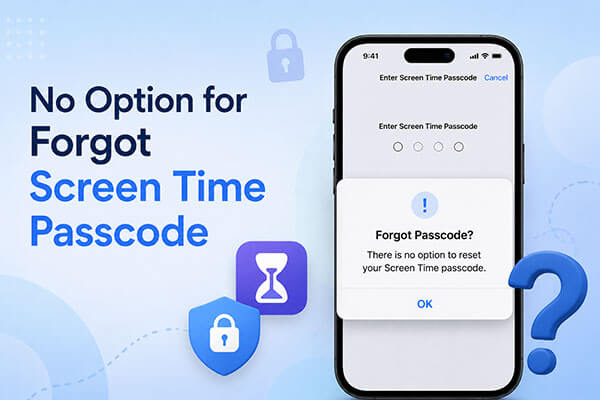
If there is no option for forgot Screen Time passcode option on your iPhone, the following are the possible reasons:
After identifying the possible causes, the next step is fixing the problem. When there is no option for forgot Screen Time passcode, you can try the following methods.
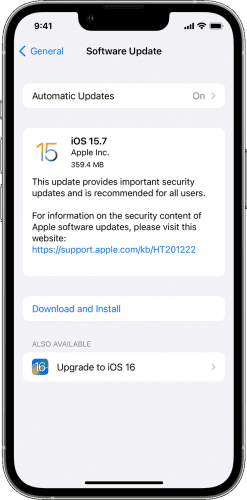
As mentioned earlier, only devices running iOS 13.4 or later support the "Forgot Passcode?" feature on iPhone or iPad. Please make sure your iPhone or iPad is updated to the latest version of iOS or iPadOS. Here is how to do it:
Step 1. Open "Settings" > "General" > "Software Update" on your iPhone/iPad.
Step 2. Tap "Download and Install" to download the latest update. (iPhone won't update?)
Step 3. Enter your screen passcode or Apple ID password when prompted, then tap "Install Now" to complete the update.
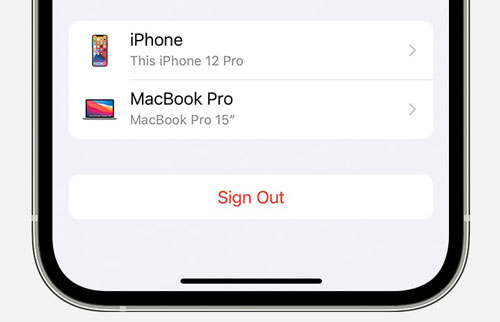
If the Apple ID currently signed in on your device is different from the one used to set up the Screen Time passcode, the "Forgot Passcode?" option may not appear. Try signing out and signing back in with the correct Apple ID. Here are the steps:
Step 1. Open "Settings" on your iPhone/iPad and tap your "Apple ID" name at the top.
Step 2. Scroll down and tap "Sign Out". (Can't sign out of your Apple ID?)
Step 3. After signing out, sign in again using the Apple ID that was originally used to set the Screen Time passcode.
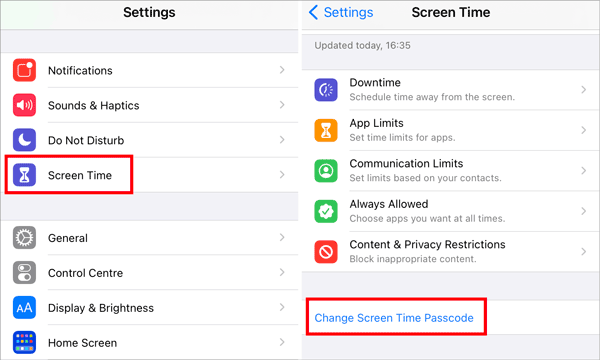
When a child's device is added to Family Sharing, there is no option for forgot Screen Time passcode. To change or reset your child's Screen Time passcode, the Family Organizer can use their own iPhone or iPad and follow these steps:
Step 1. Open "Settings" on the Family Organizer's iPhone or iPad, then tap "Screen Time".
Step 2. Scroll down to the "Family" section, select your child's name, and tap "Manage Screen Time".
Step 3. Select "Change Screen Time Passcode", then tap "Change Screen Time Passcode" again. Enter your device passcode to verify your identity.
Step 4. Create a new Screen Time passcode for your child's device and complete the confirmation process.
If you have tried all the methods above but the "Forgot Screen Time Passcode" option is still unavailable, you can try the following methods to remove the Screen Time passcode and regain access to the settings.
If you cannot find the "Forgot Screen Time Passcode" option, the quickest and easiest solution is to use a professional iOS unlocking tool. We highly recommend iPhone Unlocker, which can efficiently remove the Screen Time passcode without causing any data loss. In addition, the software can also be used to remove screen locks, Apple ID, and MDM restrictions.
Main features of iPhone Unlocker:
Here is how to remove Screen Time passcode using iPhone Unlocker:
01Launch Phone Unlocker on your computer and choose the "Unlock Screen Time Passcode" mode.
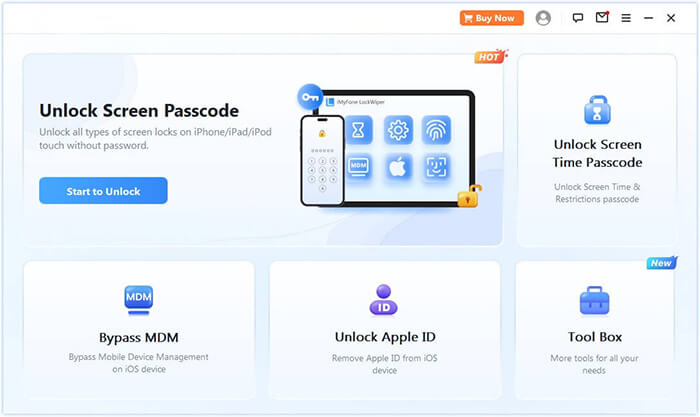
02Connect your iPhone to the computer using a USB cable and tap Trust on your device if prompted. Then, click "Start" to begin the process.
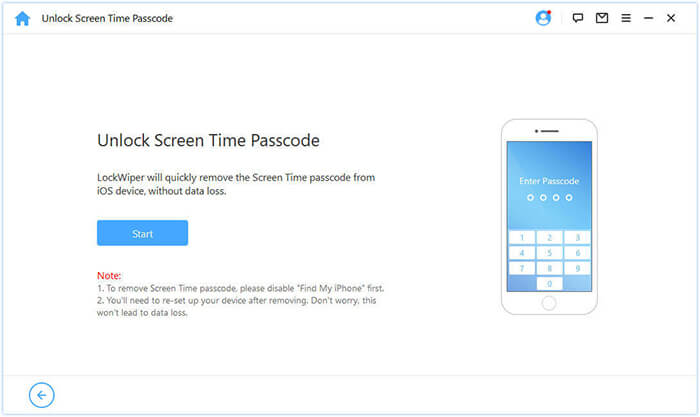
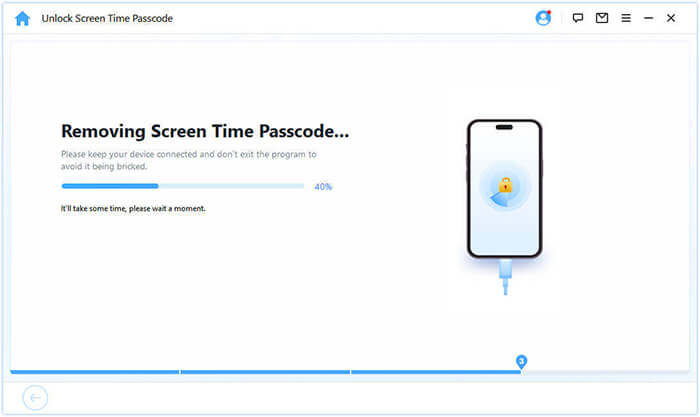
03If Find My iPhone is already turned off, the software will start removing the Screen Time passcode automatically. If Find My iPhone is enabled, follow the on-screen instructions to disable it, then click "Continue" to proceed.
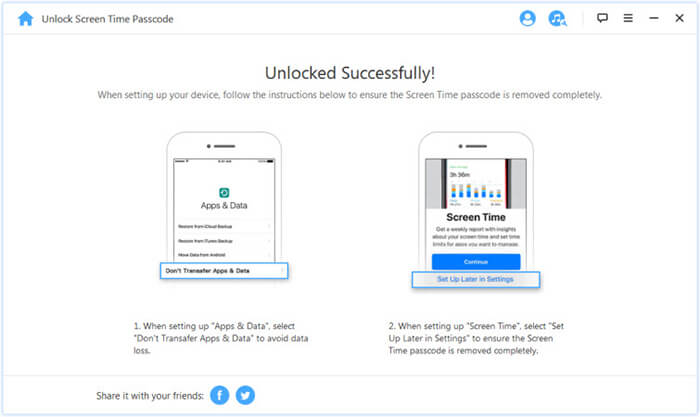
04After the Screen Time passcode has been removed, you will need to set up your device again. Follow the on-screen setup instructions to complete the process and ensure the Screen Time passcode is successfully removed.
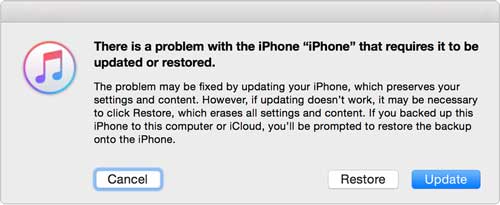
You can use iTunes on your computer to factory reset your iPhone or iPad, which will also remove the Screen Time passcode during the process. After the reset is complete, you can set up your device and create a new Screen Time passcode.
Please note that a factory reset will erase all data and settings on your device. Make sure to back up your important data in advance to avoid data loss.
To do it, follow these steps:
Step 1. Open iTunes or Finder on your computer, then connect your iPhone or iPad using a USB cable.
Step 2. Put your iPhone into Recovery Mode.
Step 3. Once your computer detects the device, a prompt will appear. Select "Restore" to proceed with the process.
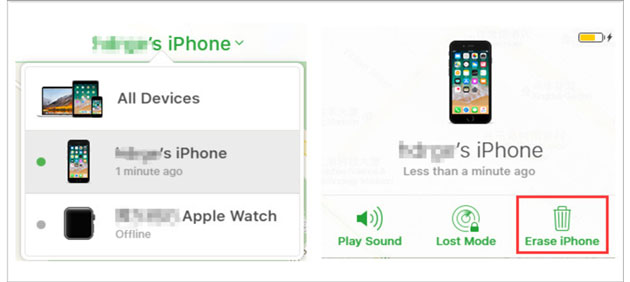
If you have enabled Find My and still remember your Apple Account password, you can erase your iPhone to remove the Screen Time passcode. This can be done either through the Find My feature on the iCloud website or the Find My app on another Apple device.
Step 1. Open a browser on a device with an internet connection and visit the iCloud Find My website.
Step 2. Sign in to your iCloud account using your Apple ID and password.
Step 3. Under "All Devices", find and select the device where the "Forgot Screen Time Passcode" option is unavailable.
Step 4. Click "Erase This Device" to factory reset the device. This will erase all data and settings, including the Screen Time passcode.
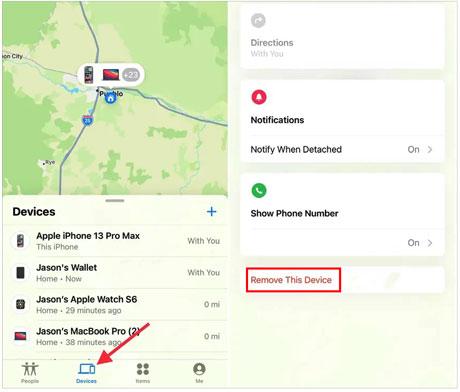
Step 1. Open the Find My app on another Apple device and tap the "Devices" tab at the bottom of the screen.
Step 2. Select your iPhone from the device list, then choose "Erase This Device".
Step 3. Tap "Continue" and enter the trusted phone number associated with your Apple Account.
Step 4. Confirm the action by tapping "Erase". This will remove all content and settings from your device, including the Screen Time lock.
If there is no option for Forgot Screen Time passcode, you can try the methods described in this article. With iPhone Unlocker, you can remove the Screen Time passcode from your iPhone without needing the passcode, while keeping your other data intact.
Try it out and experience how effective it can be.
Related Articles:
5 Solutions: How to Turn Off Screen Time Without Passcode
Forgot iPhone Password: 4 Easy Ways to Unlock It without Losing Data
Erase Data After 10 Failed Attempts on iPhone: Everything You Need to Know
[Answered] What Happens After 10 Failed Screen Time Passcode Attempts?




 Free Download for PC
  Free Download for Mac


