TL;DR: Want to know how to remove Face ID on iPhone? If you know your passcode, you can reset or disable Face ID directly in Settings > Face ID & Passcode. If you've forgotten your passcode, a professional iPhone unlocking tool can help remove Face ID and regain access to your device.
"How do I delete a Face ID? My son added his, so he can change settings in screen time by logging onto my phone."
- from Apple Community
Have you ever wondered, "How do I delete a Face ID?"—especially after discovering that someone else, like your child, has added their own Face ID and even changed Screen Time settings by logging into your iPhone? This can raise serious concerns about privacy, security, and device control.
If you are looking for a simple way on how to remove Face ID on iPhone and regain full control of your iPhone settings, this guide will walk you through everything step by step.

Face ID is a biometric authentication feature developed by Apple, first introduced with the iPhone X. It allows users to unlock their device effortlessly by recognizing them when needed.
By scanning and analyzing unique facial characteristics—such as the shape of the eyes, nose, mouth, and overall facial structure—Face ID can accurately verify the user's identity and grant access to the device. Compared with traditional Touch ID, Face ID provides a more advanced balance of security and convenience.
Most people know that Face ID lets you unlock an iPhone using your face instead of a fingerprint or passcode. However, Face ID is capable of much more than just unlocking your device. Let's explore some of the other useful and interesting things you can do with Face ID:
If you want to know how to remove Face ID on iPhone, this section explains two methods—one for situations where you have the passcode and one for when you don't.
If you know the passcode, removing Face ID from your iPhone is very simple. You can easily disable Face ID by following these steps:
Step 1. Open iPhone's "Settings" and go to "Face ID & Passcode".
Step 2. Tap "Face ID & Passcode", then enter your passcode when prompted.
Step 3. Select "Reset Face ID" to remove Face ID from your iPhone.
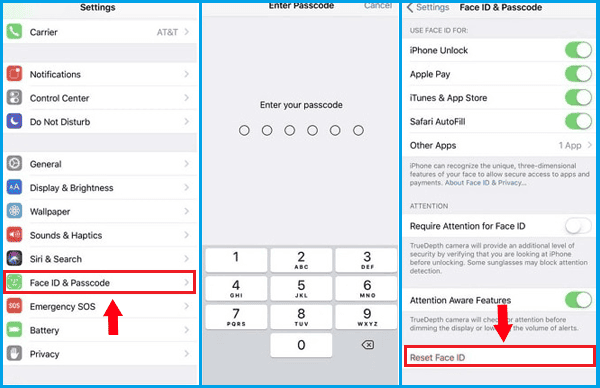
If you want to remove Face ID on iPhone for apps, follow the steps below:
Step 1. Go to "Settings" on your device.
Step 2. Find and tap "Face ID & Passcode", then enter your passcode when prompted to continue.
Step 3. Scroll to the "Use Face ID For" section and turn off the toggles next to each option.
If you have forgotten your iPhone passcode, you will not be able to access the Settings page to remove Face ID. In this case, you need a professional iPhone unlocking tool to remove Face ID and regain access to your device. iPhone Unloker is a widely used iOS unlocking tool that helps users remove screen locks, Apple ID restrictions, and Face ID without needing a passcode.
Key features of iPhone Unloker:
Here is how to remove Face ID on iPhone without Face ID or password:
01Download iPhone Unloker on your computer and connect your iPhone. Open the "Unlock Screen Passcode" mode and click "Start to Unlock" to begin removing Face ID.

02Put your device into DFU mode. The software will automatically detect your iPhone and download the correct firmware package for it.
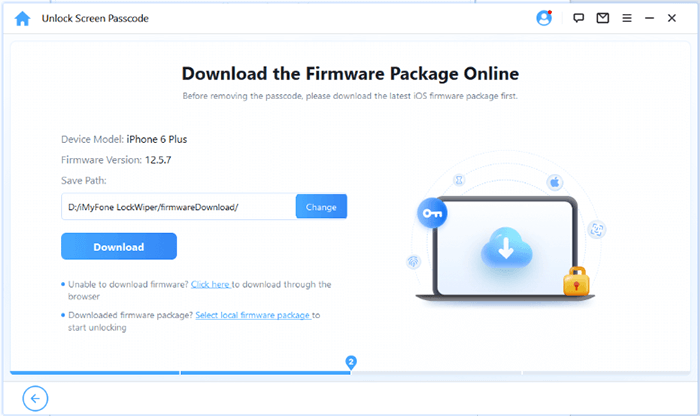
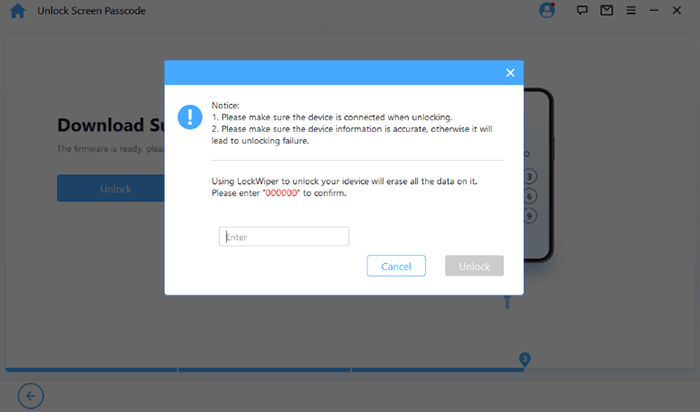
03After the verification process is completed, click "Start Unlock" to begin the unlocking process. Enter "000000" as the confirmation code and click "Unlock" to remove Face ID.
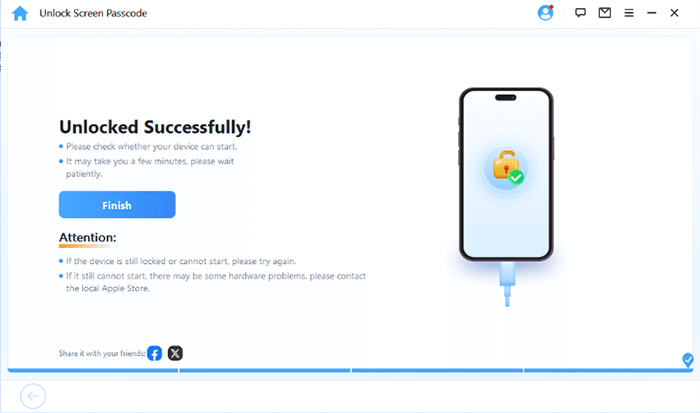
04Wait a few minutes until the process finishes, and you will be notified once Face ID has been successfully bypassed without a passcode.
Q1. Can I temporarily turn off Face ID without deleting my facial data?
Yes. You can temporarily disable Face ID for specific functions—such as iPhone Unlock, Apple Pay, or App Store purchases—by going to Settings > Face ID & Passcode and turning off the options under Use Face ID For. This will disable Face ID for those features without deleting your saved facial data.
Q2. How many Face IDs can I set up?
You can store one primary Face ID and one Alternate Appearance on your iPhone. If you want to replace either one, you'll need to reset Face ID and set it up again.
Q3. If I reset Face ID, will it affect other data on my iPhone?
No. Resetting Face ID only removes your saved facial recognition data. It does not delete your photos, apps, messages, or any other personal data stored on your iPhone. You can set up Face ID again at any time after resetting it.
Q4. Does Erase All Content and Settings automatically remove Face ID?
Yes. When you choose Settings > General > Transfer or Reset iPhone > Erase All Content and Settings, your iPhone will delete all personal data, including your Face ID information. After the reset, you'll need to set up Face ID again if you want to use it.
That's all about how to remove Face ID on iPhone. The built-in Settings method is the safest and easiest option when you know your passcode. However, if your device is locked or you forgot your password, tools like iPhone Unlocker can help you remove Face ID and regain access to your iPhone.
Always remember to back up your data before performing any reset or unlocking process to avoid permanent data loss.
Related Articles:
How to Unlock iPhone Without Swiping Up? [Comprehensive Guide]
6 Proven Fixes for Your Passcode is Required to Enable Face ID
iPhone Unavailable Lock Screen? Here're 4 Solutions to Fix It!




 Free Download for PC
  Free Download for Mac


