When too many incorrect passcodes are entered, the iPhone automatically enters the "iPhone is Disabled" state. The screen shows that no more attempts can be made, and may even prompt that it needs to be connected to iTunes for recovery. For those who don't have a computer on hand, this situation can be especially stressful. If you only have an Android phone with you, is it possible to unlock a disabled iPhone? This article will introduce how to unlock a disabled iPhone with an Android phone to help you restore your device as quickly and safely as possible.
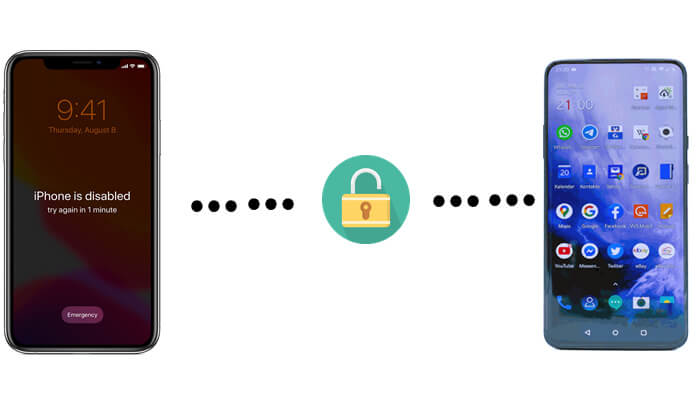
Can I unlock my iPhone using my Android phone? Of course. If your iPhone has "Find My iPhone" enabled and you remember your Apple ID password, then an Android phone can unlock it remotely by accessing iCloud through a browser.
If you don't have a computer with you and only have an Android phone, you can use the online iCloud "Find My" feature to remotely erase and unlock your iPhone. Although this will wipe the device's data, you can restore your content after unlocking if you have an iCloud backup.
Please note that this method requires the iPhone to have an internet connection, "Find My iPhone" to be enabled, and that you know the Apple ID account and password.
Here is how to unlock a disabled iPhone with an Android phone without a computer:
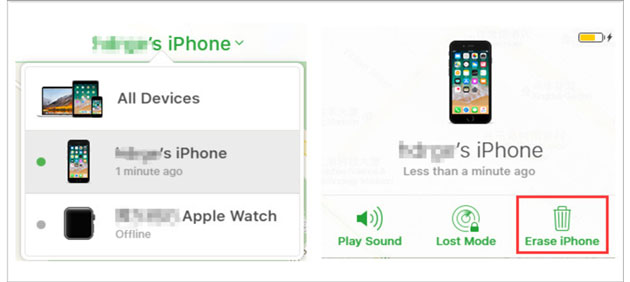
Step 1. Unlock your Android phone, open a browser, and go to iCloud.com. Sign in using the Apple ID linked to the disabled iPhone.
Step 2. On the iCloud homepage, you'll see several Apple services. Tap "Find My".
Step 3. Once inside Find My, select "All Devices". A drop-down list of devices will appear; choose the disabled iPhone.
Step 4. After selecting the device, several options will be displayed. Tap "Erase iPhone", then confirm by tapping "Erase" again. This will wipe all data from the device, including the disabled screen.
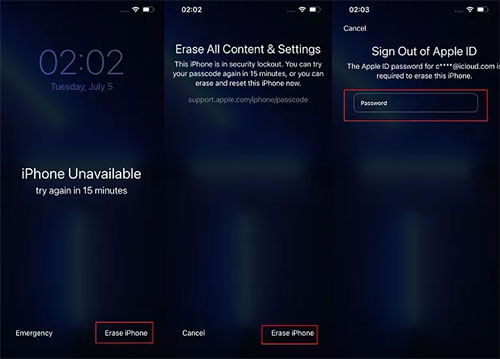
Aside from using an Android phone, there is another way to unlock a disabled iPhone without a computer. Starting from iOS 15.2, Apple introduced a feature that allows users to erase the iPhone directly from the lock screen, enabling a device reset without needing a computer when it becomes disabled.
For this method to work, your iPhone must be connected to the internet and signed in with your Apple ID.
For iOS 15.2 to iOS 16:
Step 1. On the lock screen, tap "Erase iPhone" in the lower-right corner.
Step 2. When the "Erase All Content & Settings" screen appears, confirm by tapping "Erase iPhone" again.
Step 3. Enter your Apple ID password to sign out of your account.
Step 4. Tap "Erase iPhone" once more to begin wiping all data and settings from the device, including the screen passcode.
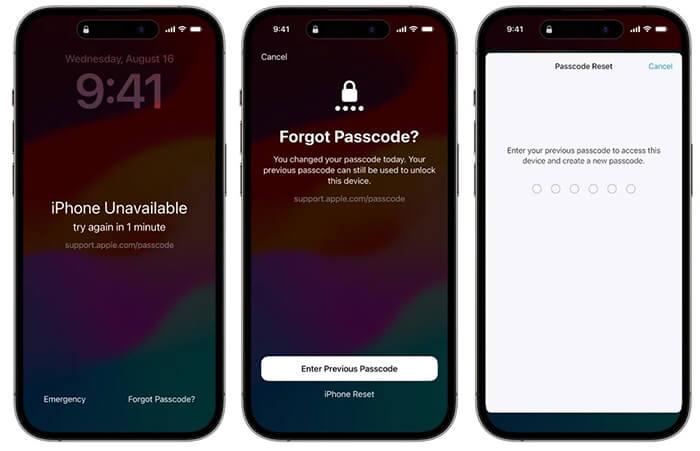
For iOS 17 and later:
Step 1. On the lock screen, tap "Forgot Passcode?" in the bottom-right corner.
Step 2. Select "iPhone Reset" and then tap "Start iPhone Reset".
Step 3. Enter your Apple ID password to sign out of your account.
Step 4. Tap "Erase iPhone" to erase all content and settings, including the screen passcode.
When you have access to a computer, unlocking a disabled iPhone becomes more reliable and manageable, especially if the device is offline or Find My is turned off. Below are two common ways.
If you don't know the correct Apple ID and password to use the Find My iPhone feature on an Android phone, you can try connecting your iPhone to a computer and restoring it via iTunes. If you've previously synced your iPhone with iTunes, you can restore it directly. If not, you'll need to put your iPhone into Recovery Mode first, then restore it through iTunes.
Here is how to reset a disabled iPhone with iTunes:
Step 1. Open the latest version of iTunes on your computer.
Step 2. Connect your iPhone to the computer using a USB cable.
Step 3. Enter Recovery Mode according to your device model:
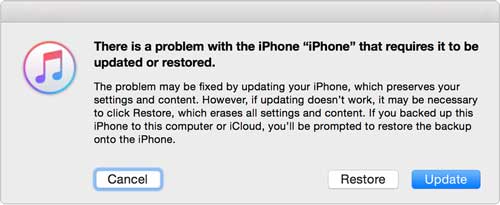
Step 4. Once your iPhone is successfully in Recovery Mode, iTunes will display a pop-up asking whether you want to "Update" or "Restore" your device. Select "Restore" to unlock your disabled iPhone.
If you don't want to use iTunes and prefer an easier way to unlock a disabled iPhone, you can use a third-party professional iOS Unlock tool. iPhone Unlocker is a great choice. It supports both Windows and Mac, offering an intuitive interface and guided steps, making it easy to use even if you have no technical experience.
Key features of iPhone Unlocker:
Here is how to unlock a disabled iPhone without iTunes using iPhone Unlocker:
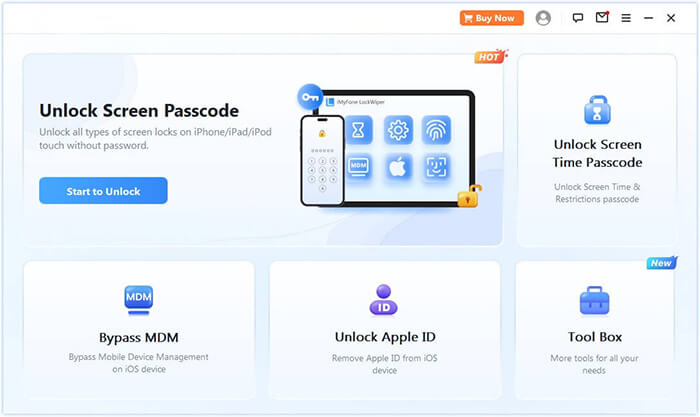
01Download and launch iPhone Unlocker on your computer. Select "Unlock Screen Passcode" and click "Start to Unlock". Then, connect your iPhone to the computer via USB.
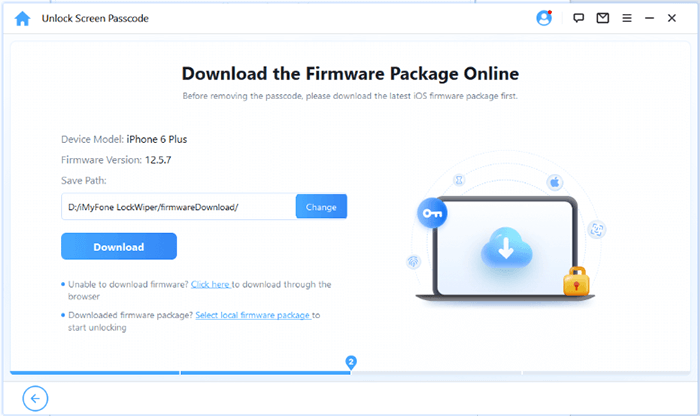
02Follow the on-screen instructions to put your iPhone or iPad into Recovery Mode or DFU Mode. Once detected, choose a location to save the firmware package and click "Download".
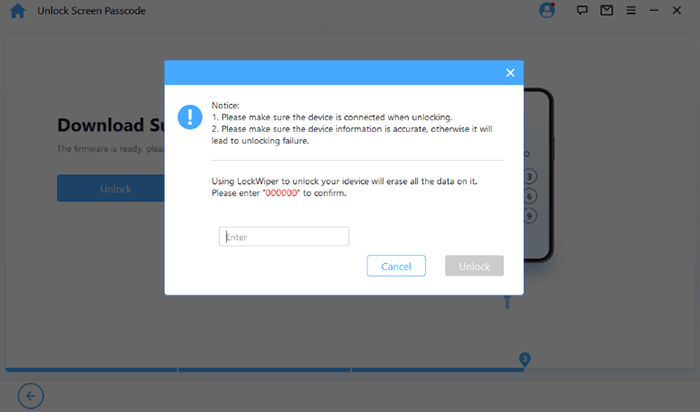
03After the firmware is downloaded, click "Unlock". Read the warning carefully, type "000000" to confirm, and click "Unlock" again to proceed.
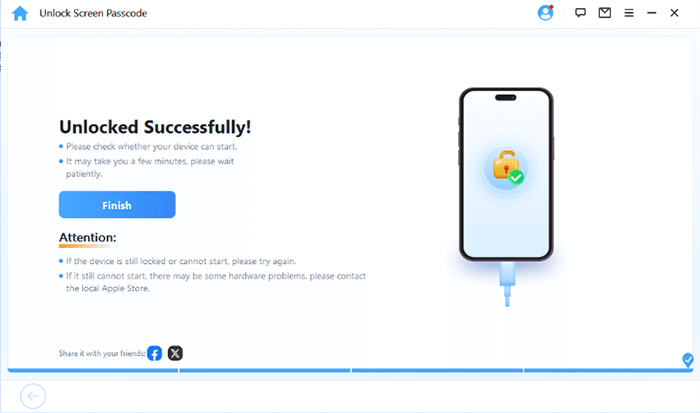
04Within a few minutes, your iPhone's screen passcode will be completely removed. You can now set up a new passcode, Face ID, or Touch ID as desired.
If you only have an Android phone, you can still remotely erase a disabled device via iCloud. You can also use the lock screen's "Erase iPhone" feature to unlock a disabled device without a computer. However, these methods rely on an internet connection and your Apple ID.
If you have access to a computer, using a professional tool like iPhone Unlocker can make the unlocking process faster, safer, and less prone to errors. It provides a more reliable solution for unlocking a disabled iPhone, making it ideal for users without technical experience.
Related Articles:
[3 Ways] How to Back Up A Locked/Disabled iPhone without Passcode?
How to Unlock iPhone Without Passcode Using Camera [2025 Updated]




 Free Download for PC
  Free Download for Mac


