TL;DR: Want to know how to remove TikTok watermarks in CapCut? This guide covers 4 easy methods, including AI Removal, stickers, cropping, and blur effects, to help you create cleaner videos for free. If you need a more professional solution with higher-quality results, Video Converter Ultimate offers advanced watermark removal and complete video editing features.
When you want to reuse videos on other social media platforms such as Instagram Reels, YouTube Shorts, or Facebook, TikTok watermarks can be annoying. The dynamic TikTok logo and username watermark may affect the appearance of your video, making your content look less professional. Many users are searching for how to remove TikTok watermark in CapCut because CapCut offers various editing features that can help hide or remove unwanted elements from videos.
So, can CapCut remove TikTok watermark? The answer is yes. In this article, we will explain in detail how to remove TikTok watermark using CapCut and share other more efficient alternatives.
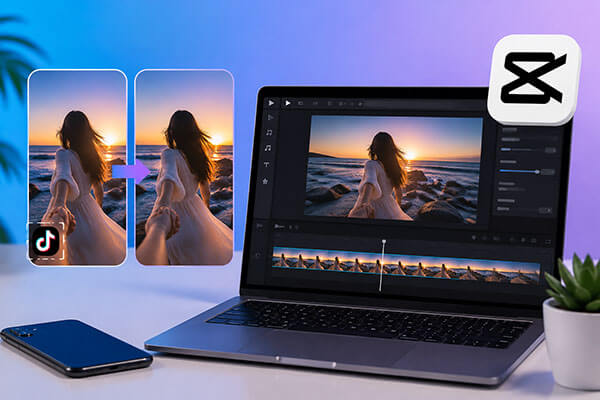
CapCut is a popular video editing software frequently used by many TikTok creators. In addition to supporting video trimming, effects, and visual adjustments, it also provides several methods for dealing with watermarks. Below are 4 practical ways to remove a TikTok watermark using CapCut.
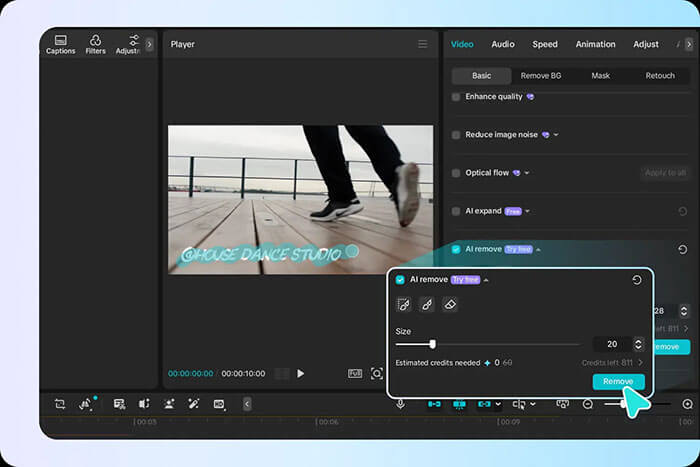
AI removal detects the watermark area, analyzes surrounding details, and intelligently fills in missing pixels for a natural-looking result. It is a simple way to get a clean video background without manual editing.
Here is how to remove a TikTok watermark in CapCut for free using AI removal:
Step 1. Launch CapCut and click "Create project" from the homepage.
Step 2. Import the TikTok video with the watermark, then go to "Video" > "Basic" and enable "AI Remove" to let CapCut automatically detect the watermark area.
Step 3. Select the brush tool and adjust its size for more precise editing. Paint over the watermark area to help CapCut identify the part you want to remove.
Step 4. Click "Remove", and CapCut's AI will analyze and rebuild the selected area, creating a cleaner video without the watermark.
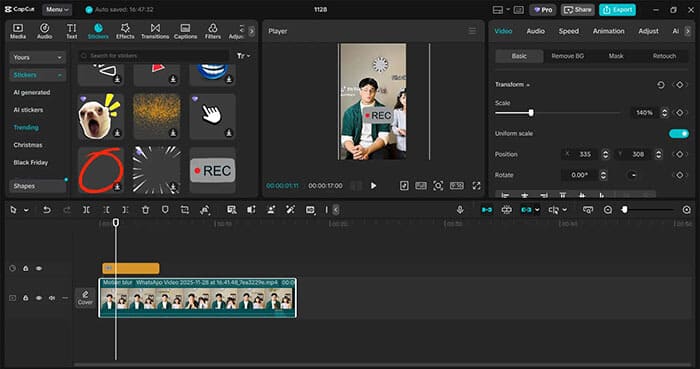
Another simple method is to cover the TikTok watermark with stickers, text, or images. By adding stickers, text, or other decorative elements, you can directly hide the watermark area while giving your video a more personalized design.
Here is how to remove the TikTok watermark in CapCut PC via stickers or text:
Step 1. Open the "Stickers" panel and choose a sticker or text element that matches your video style.
Step 2. Resize, rotate, and move the sticker or text to fully cover the TikTok watermark area.
Step 3. Customize the design by adding text effects, templates, filters, or other adjustments to make it blend naturally with your video.
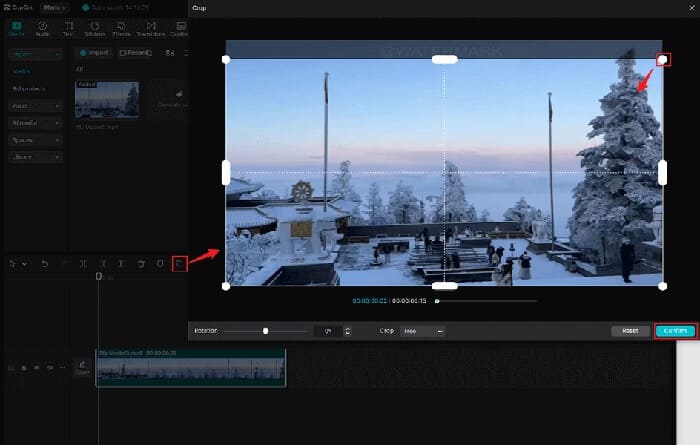
Cropping the video is one of the most common ways to remove TikTok watermarks in CapCut. Since TikTok watermarks usually appear along the edges of the video, you can quickly get a cleaner frame by cropping out the area where the watermark appears.
Here is how to remove a watermark in TikTok using CapCut by cropping:
Step 1. Select the video clip in the timeline and open the "Crop" tool, which works best when the watermark appears near the edges of the frame.
Step 2. Adjust the crop area by dragging the handles to remove the watermark while keeping important parts of the video visible.
Step 3. Review the new framing and click "Confirm" to apply the crop and save the changes.
Another way to hide a TikTok watermark is by using the Blur effect in CapCut. By applying a blur effect to the watermark area, you can reduce its visibility and make the video look more natural.
Here is how to remove a TikTok watermark in CapCut using a blur effect:
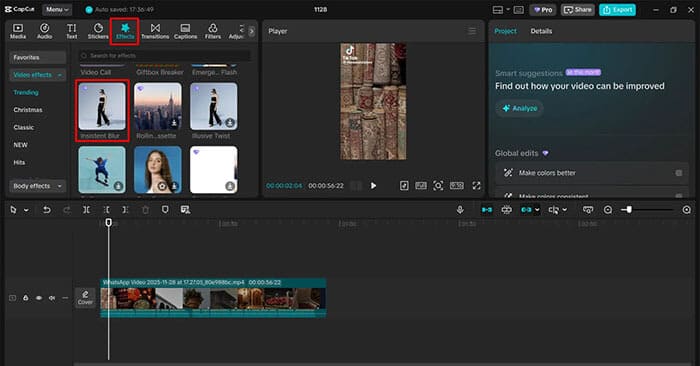
Step 1. Go to "Effects" > "Video effects" from the left toolbar and search for a suitable blur effect.
Step 2. Add the blur effect to the timeline and adjust its position to cover the watermark area in your video.
Step 3. Fine-tune the blur intensity and softness using the adjustment sliders until the watermark is less visible while keeping the video quality intact.
CapCut provides several free methods to remove TikTok watermarks. For users who need a more professional solution, Video Converter Ultimate is a powerful CapCut alternative for removing unwanted elements from videos.
It not only supports video editing but also integrates various features such as video conversion, enhancement, compression, cropping, and watermark processing, making it suitable for everything from basic editing to advanced video processing.
Key features of Video Converter Ultimate:
Here is how to remove TikTok watermark via Video Converter Ultimate:
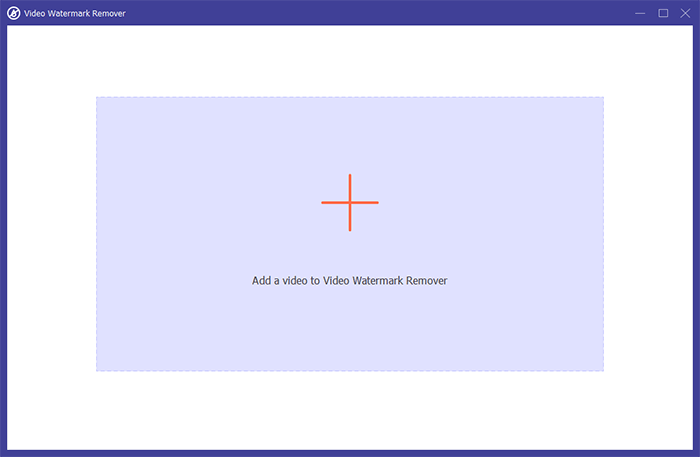
01Launch Video Converter Ultimate on your computer and open the "Home" tab. Select "Video Watermark Remover" under the "Video" section, then import the TikTok video with the watermark.
02Click "Add Watermark Removing Area" and adjust the selection box to cover the TikTok logo or username watermark. You can resize and reposition the area for better accuracy. If the watermark appears only in certain parts of the video, set the specific start and end time for removal.
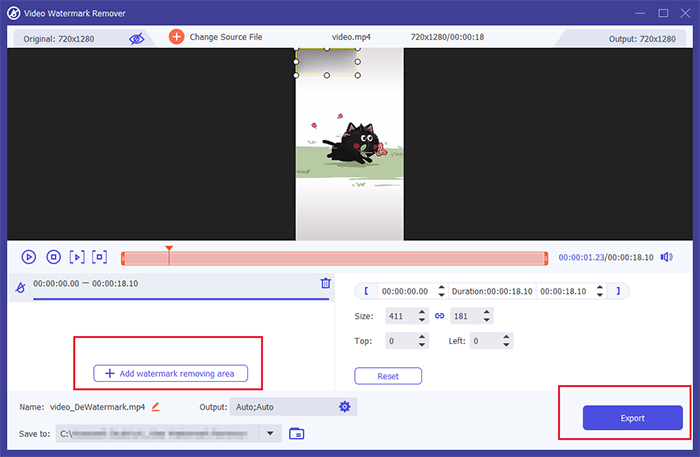
03Preview the edited video to make sure the TikTok watermark has been removed completely. Once satisfied, click "Export" to save the clean video while keeping the original quality.
If you want to learn how to remove TikTok watermark in CapCut, you can use several methods, including AI removal, stickers, cropping, and blur effects. These solutions are simple and free to use. For users who want higher-quality and more reliable watermark processing, Video Converter Ultimate is a better choice.
It not only helps remove TikTok watermarks but also offers complete video processing features, including video conversion, enhancement, compression, and editing, making it a more comprehensive solution for professional video editing needs.
Related Articles:
How to Remove TikTok Watermark for Instagram in 2 Easy Ways
[7 Ways] How to Download TikTok Videos Without Watermark on iPhone
5 Best Video Watermark Remover Tools in 2026 (Desktop & Online)
How to Remove Watermark from Video Without Blur? 4 Easy Ways




 Free Download for PC
  Free Download for Mac


