3uTools is a popular all-in-one iOS management tool that allows users to manage files, flash devices, and even change GPS locations through its virtual location feature. However, some users may encounter the "3uTools failed to modify location" error when trying to spoof their GPS, which can be quite frustrating.
If you are facing the 3uTools failed to modify location issue, don't worry. This guide will walk you through the possible reasons behind it and provide effective solutions to help you fix the problem quickly.
There are several reasons why 3uTools may fail to change your location:
Understanding the root cause helps you apply the right fix more efficiently.
Now that you know the common causes, let's walk through the step-by-step fixes to resolve the "3utools failed to modify location" error.
A stable internet connection is the foundation for 3uTools to successfully modify your device's location, because the tool needs to load maps and communicate with its servers in real time. If the network is unstable, slow, or restricted, the location modification process may fail or not respond at all. Therefore, checking your connection should always be the first step.
Step 1. Make sure your computer is connected to a stable Wi-Fi or Ethernet network, then open a browser and visit a website such as Google to confirm the internet is working normally.
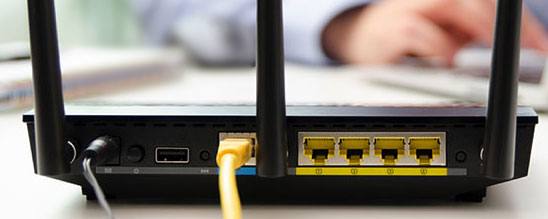
Step 2. If the connection is slow or unstable, restart your router by unplugging it for about 30 seconds and then reconnecting it to refresh the network.
Step 3. Try switching to another network, such as a different Wi-Fi or a mobile hotspot, to rule out issues caused by your current connection.
Step 4. Temporarily disable any VPN or proxy services, as well as check whether your network environment (such as office or public Wi-Fi) is blocking 3uTools.
After completing these steps, reopen 3uTools and try modifying the location again.
In some cases, the problem is not caused by your device or network, but by the map service used within 3uTools. If the map fails to load properly or cannot locate your selected position, switching to another map source can often resolve the issue quickly.
Step 1. Launch 3uTools and connect your iOS device to the computer using a USB cable, making sure the device is successfully recognized.
Step 2. Go to the "Toolbox" tab on the main interface and select "Virtual Location" to enter the map screen.
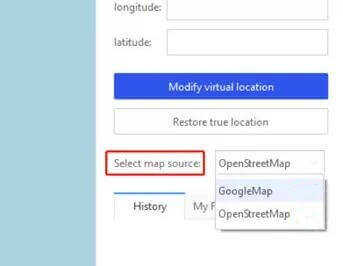
Step 3. Locate the "Map Source" option, which is usually displayed in the upper-right corner of the map interface.
Step 4. Choose a different map source, such as switching from Google Maps to OpenStreetMap, and wait for the new map to fully load.
Step 5. Enter your target location or place a pin on the map, then click "Modify Virtual Location" to check whether the issue has been resolved.
If the above methods do not work, the issue may be related to the software itself. An outdated version of 3uTools or incomplete installation files can lead to compatibility problems, especially when working with newer iOS systems. Updating or reinstalling the program is an effective way to eliminate these issues.
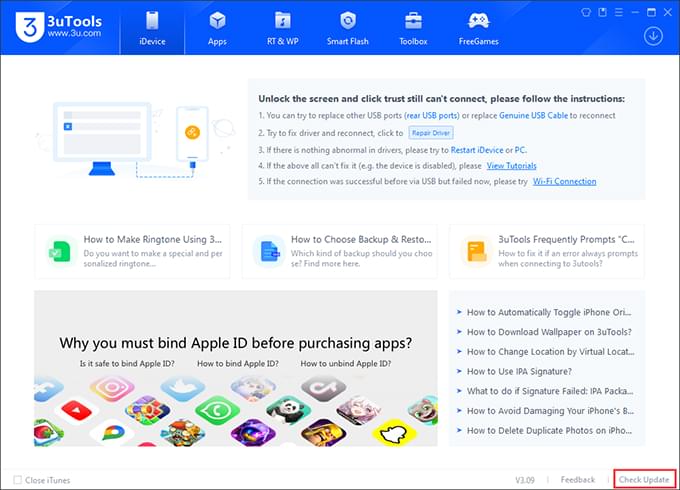
Step 1. Open 3uTools and find the "Check Update" option, then install the latest available version and restart the program after the update is complete.
Step 2. If updating does not fix the problem, uninstall 3uTools from your computer, restart your system to remove any leftover files, and then download the latest version from the official website.
Step 3. Install the program again by following the on-screen instructions, then reconnect your device and try using the Virtual Location feature once more.
Step 4. Ensure that the latest version of iTunes is installed on your computer, as 3uTools relies on its drivers to properly recognize your iOS device.
If you've already tried the fixes above but still encounter the 3uTools failed to modify location issue, the problem is likely related to deeper compatibility limitations, especially with newer iOS versions or system restrictions. In such cases, continuing to troubleshoot 3uTools may not be the most efficient approach.
A more reliable solution is to switch to a dedicated location-changing tool like Location Spoofer. Compared with 3uTools, this tool is specifically designed for GPS spoofing, which means it delivers a higher success rate, smoother performance, and better compatibility with the latest systems. It not only avoids common errors but also provides more advanced location control features.
Key features of Location Spoofer:
How to change iPhone location using the 3uTools alternative?
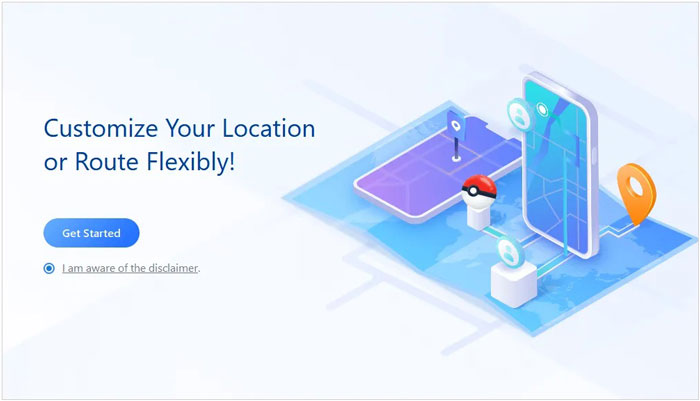
01Download and install the program on your computer, launch it, and click the "Get Started" button to proceed.
02Connect your iPhone to the computer with a USB cable, unlock the device, and tap "Trust This Computer" if a prompt appears.
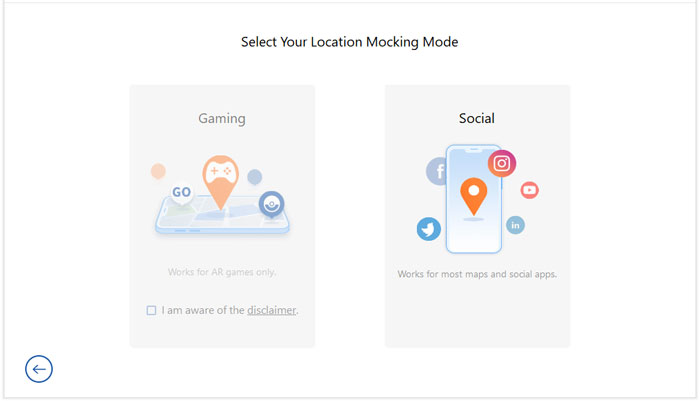
03After the device is detected, select a preferred mode based on your needs, such as gaming or general location modification.
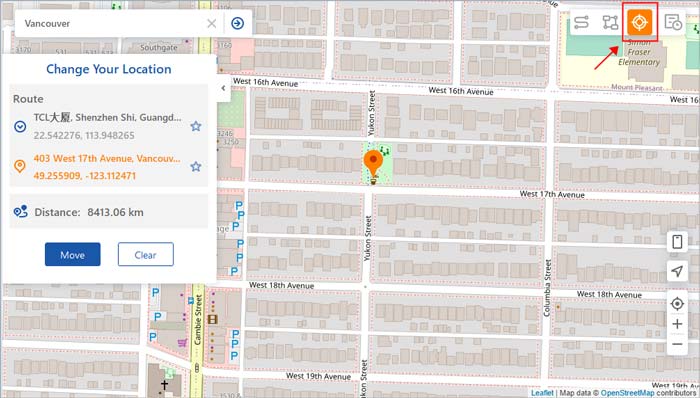
04Enter the target location in the search bar or pick a spot directly on the map, then click "Move" to update your GPS position immediately.
Encountering the 3uTools failed to modify location issue can be frustrating, but in most cases, it can be resolved by checking your internet connection, switching the map source, or updating the software. These basic fixes are often enough to restore the Virtual Location feature.
However, if the problem continues due to system limitations or compatibility issues, switching to a more stable tool like Location Spoofer is a smarter choice, helping you change location smoothly without repeated errors.
Related Articles:
3uTools Virtual Location Not Working? Common Issues and Fixes
Why Is There No Location Found on iPhone? Fix the Issue in Reliable Ways




 Free Download for PC
  Free Download for Mac


