TL;DR:
"Location Expired" on iPhone means that your shared location is no longer available through Find My. This issue can happen due to expired sharing sessions, disabled location settings, network problems, or iOS-related issues. In this guide, we will explain the reasons behind this message and provide effective solutions to fix Location Expired on iPhone.
"Hi, so when me and my friends are trying to share our location one of theirs says 'Location Expired' before the location could even load in. I'm the Find My app it's also says no location found. I was wondering why was that."
- From the Apple Community
Have you ever shared your location with friends or family but suddenly found that your iPhone shows "Location Expired"? This message means that others can no longer view your current location through Find My, which can be confusing when you rely on location sharing for communication, safety, or convenience.
In this guide, we will explain what "Location Expired" means on iPhone and provide practical methods to help you restore location sharing and get Find My working properly again.
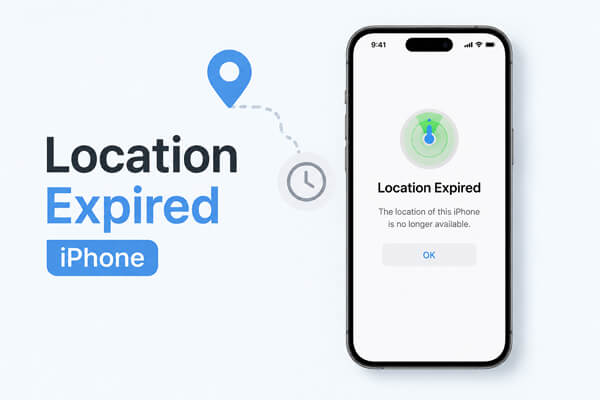
"Location Expired" on iPhone means that your previously shared location is no longer available to another person through Apple's Find My service. In most cases, it indicates that the location-sharing session has ended or Find My cannot access your current location.
When you share your location on iPhone, you can choose different sharing durations. If the selected sharing period expires, other people may see "Location Expired" when trying to check your location.
Besides an expired sharing period, this message can also appear because of:
After understanding what causes the "Location Expired" message, the next step is to troubleshoot the issue on your iPhone. Start with the basic settings and gradually move to more advanced solutions. The following methods can help you restore location sharing and get Find My working normally again.
The first thing to check is whether your iPhone is still sharing your location correctly. If Share My Location is disabled or Find My does not have the necessary location permission, other people may see "Location Expired" when trying to view your location.
This method is helpful if:
Follow these steps to check your location sharing settings:
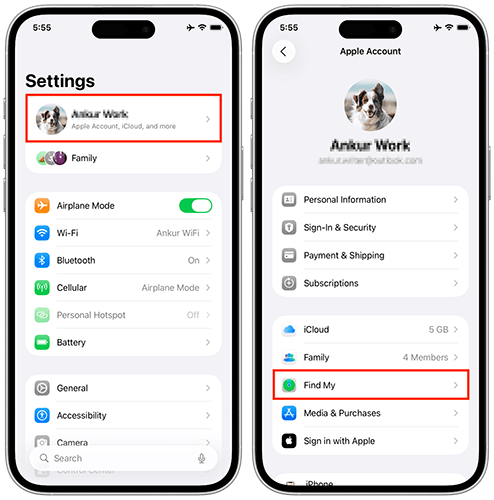
You should also confirm that Find My can access your location:
If the "Location Expired" message only appears when a specific person checks your location, the problem may be related to the location-sharing connection between you and that contact. Sometimes, the sharing session may no longer be active because the other person stopped sharing their location, changed their settings, or the invitation was interrupted. In this situation, asking the contact to share their location again can refresh the connection.
They can follow these steps:
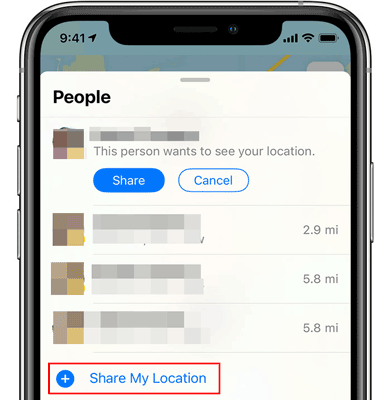
You can also remove the previous sharing relationship and create a new one from your side. Once the location-sharing request is accepted again, check whether the expired message disappears.
A temporary software issue may prevent Find My from updating your location properly. Restarting your iPhone can refresh background services and reconnect location-related features.
This solution is worth trying when:
To restart your iPhone:
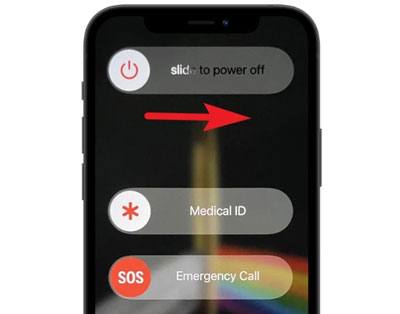
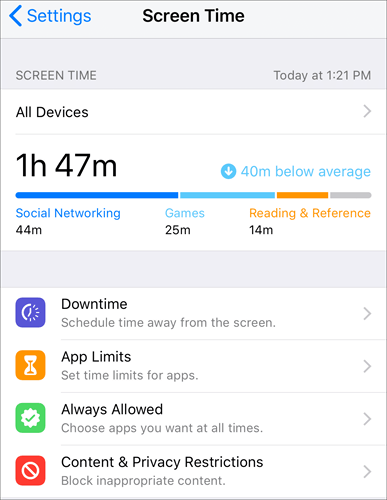
Screen Time restrictions can limit certain privacy and location-related changes on your iPhone. If location settings are restricted, Find My may not be able to update or share your location properly. (How to turn off Screen Time without passcode?)
This method can help if:
To disable location-related restrictions:
Find My needs an active internet connection to send your current location to other people. If your iPhone has unstable Wi-Fi or cellular data, location updates may fail and result in a "Location Expired" message.
You can refresh your network connection with the following methods.
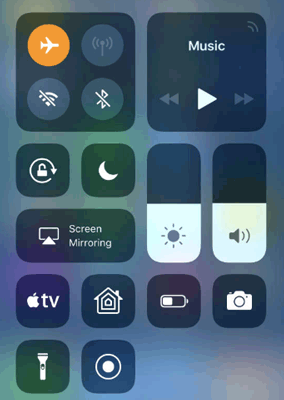
Option 1. Turn Airplane Mode On and Off
Airplane Mode can quickly reconnect your iPhone to available networks.
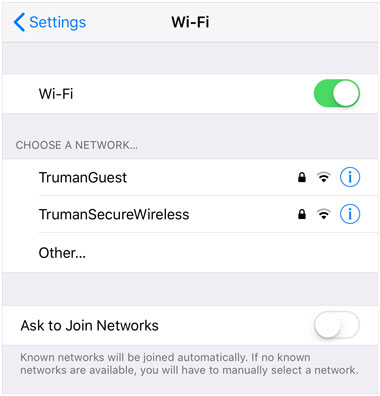
Option 2. Switch Between Wi-Fi and Cellular Data
If your current network is unstable, try using another connection:
Option 3. Reset Network Settings
If network issues continue, resetting network settings may help.
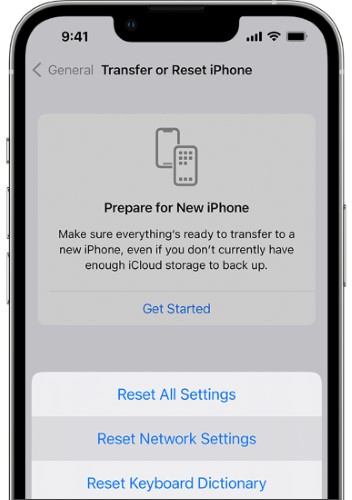
Note: This action will remove saved Wi-Fi passwords and network preferences, but it will not delete your photos, apps, or other personal data.
An outdated iOS version may contain bugs that affect Find My and location-sharing features. Updating your iPhone can install the latest fixes and improve system compatibility.
You should consider updating iOS if:
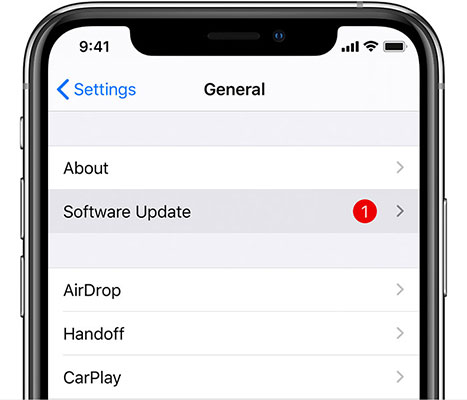
To update your iPhone:
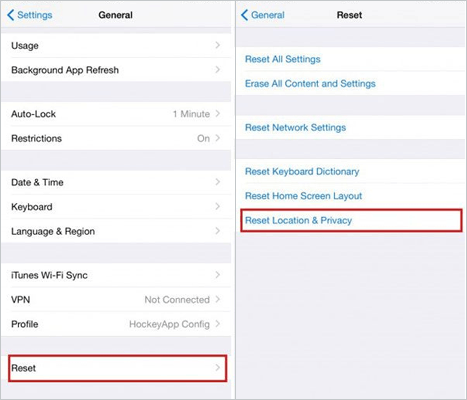
If the previous methods do not solve the problem, incorrect location permissions may be preventing Find My from accessing your device location. Resetting Location & Privacy settings will restore location permissions to their default state. It does not erase your personal files, but apps will need to request permission again.
This method is useful when:
Follow these steps:
1. How long does iPhone location sharing last?
iPhone location sharing can last for different periods depending on the option you choose:
If you choose a limited duration, location sharing will stop automatically after the time expires, and others may see "Location Expired" in Find My.
2. Does Location Expired mean someone stopped sharing?
Not always. "Location Expired" may appear when someone stops sharing their location, but it can also happen because the sharing period ended, location permissions changed, the network connection failed, or Find My encountered a temporary issue. You can check the "People" tab in Find My or ask the person to share their location again.
3. What's the Difference Between "Location Expired" and "No Location Found" on iPhone?
"Location Expired" usually means the location-sharing session is no longer active, while "No Location Found" means Find My cannot retrieve the device's current location.
The first is often related to sharing settings, while the second is commonly caused by issues like no internet connection, disabled Location Services, or the device being offline.
Besides fixing location-sharing problems, some users may also want to change their iPhone location without physically traveling. For example, you may need to test location-based apps, protect your privacy, or access services that depend on your GPS location.
In this case, a GPS location changer like Location Changer can help simulate a different location on your iPhone. It allows you to change your GPS position instantly and customize your virtual location without modifying your device.
Key features of Location Changer
Follow these steps to change your iPhone location without moving:
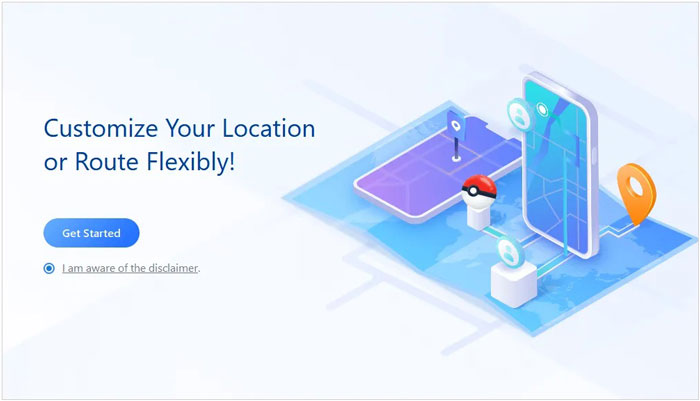
01Install and open Location Changer on your computer, then click "Get Started" from the main interface. Connect your iPhone with a USB cable, unlock the device, and tap "Trust" when a connection prompt appears.
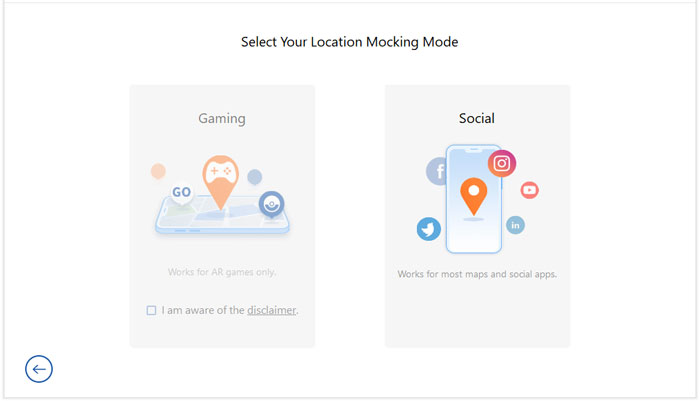
02After your iPhone is detected, select a suitable mode based on your purpose: Gaming mode or Social mode.
03Wait for the map interface to load, then choose your preferred location mode. You can explore the map manually by adjusting the zoom level or search for a specific place using an address or GPS coordinates.
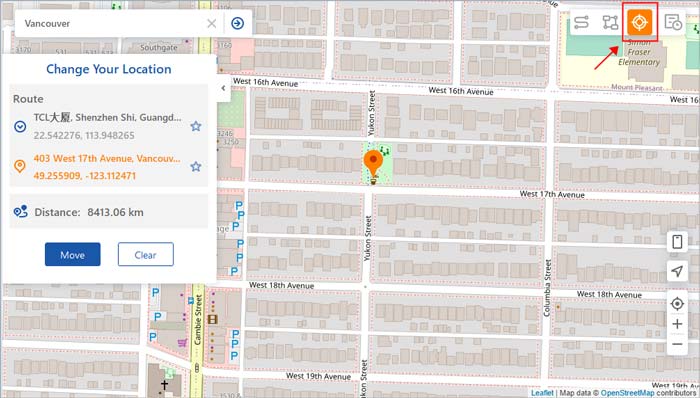
04Once you select the target location, check the information displayed in the sidebar, including the location name and coordinates. Click the "Move" button to apply the new GPS location to your iPhone immediately.
The "Location Expired" message on iPhone is usually related to location-sharing settings, permissions, network connections, or temporary system issues. In most cases, you can restore Find My location sharing by checking your settings, refreshing the connection, updating iOS, or resetting location permissions.
If you want more control over your iPhone's GPS location beyond fixing location-sharing problems, tools like Location Changer can help you change your virtual location without physically moving. By following the solutions in this guide, you can quickly resolve Location Expired issues and keep your iPhone location features working properly.
Related Articles:
How to Check iPhone Location History and Protect You from Being Traced
Share Location Unavailable on iPhone? 12 Proven Fixes that Work
Why Is My Location Wrong on My iPhone? (Fixes Included)
How to Share Location Between iPhone and Android in Real Time




 Free Download for PC
  Free Download for Mac


