TL;DR: If you encounter share location unavailable on iPhone, it usually results from disabled location services, network issues, Apple ID sync errors, incorrect date/time settings, or iOS glitches. To fix it, start by enabling Location Services and Share My Location, allowing Find My access, checking your internet connection, turning off Airplane Mode, and adjusting date/time. You can also sign out and back into your Apple ID, reset Location & Privacy settings, restart your iPhone, or update to the latest iOS. For persistent issues, tools like iOS System Recovery can repair system-level problems without data loss. If all else fails, contact Apple Support for expert assistance.
"Some people already have my location, but I'm trying to share it with new people, and it always says 'Share location unavailable. Please try again later.' It is not my connection because I've tried this in various locations and even with Wi-Fi. I have no restrictions on my phone, and my location services are turned on. The people who already have my location can see it just fine as well. What do I do to fix this?"
- from Apple Community
When using iPhone's Find My or Messages location-sharing feature, many users encounter the error message "Share Location Unavailable. Please try again later", which prevents them from sending or updating their location normally.
Why does it say "Share Location Unavailable. Please try again later"? How can you fix the "Share Location Unavailable" error on iPhone? In this article, we'll explain the common causes of the share location unavailable on iPhone and provide a series of practical solutions to help you quickly restore location sharing functionality.
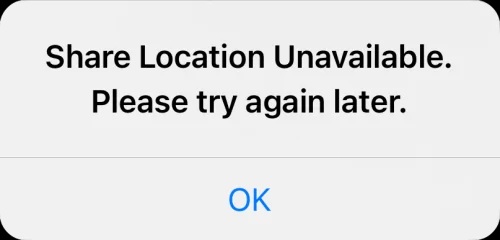
When you encounter the message "Share Location Unavailable. Please try again later", you may wonder why your location sharing is not working. Below are some of the most common reasons behind the "Share Location Unavailable" error on iPhone.
If location sharing is not working on your iPhone, don't worry. Below are 12 proven solutions that can help you quickly fix the issue and restore location sharing functionality.
The first step is to make sure that Location Services are enabled on your iPhone. Without this feature, location sharing cannot work properly. Follow these steps to check:
Step 1. Open the "Settings" app on your iPhone.
Step 2. Scroll down and select "Privacy & Security".
Step 3. Tap "Location Services".
Step 4. Verify that "Location Services" is turned on.
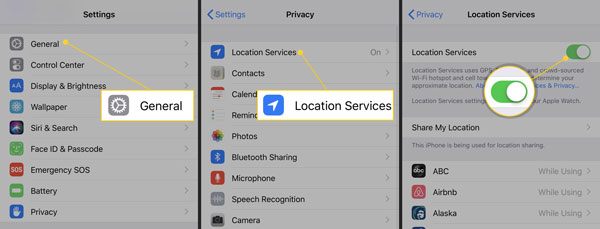
If Location Services is already enabled, try turning it off for a few seconds and then turning it back on. This can refresh the service and help resolve temporary location-sharing issues.
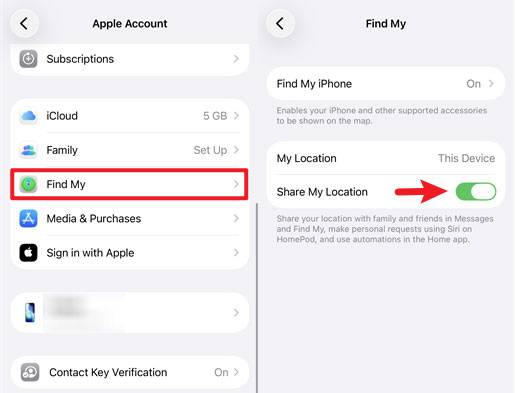
Another important setting to check is "Share My Location". Even if Location Services is enabled, you won't be able to share your real-time location with others unless this feature is turned on. To enable Share My Location on your iPhone, follow these steps:
Step 1. Open the "Settings" app and tap your "Apple ID" profile at the top of the screen.
Step 2. Select "Find My", then turn on the "Share My Location" option. This allows your iPhone to share your location with family members, friends, and approved contacts.
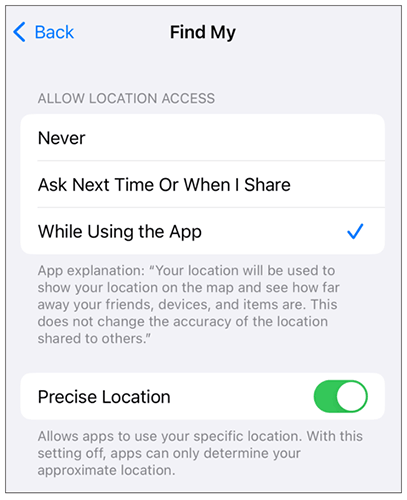
If you're unable to share your live location through the Find My app, the app may not have the necessary location permissions. Ensuring that Find My can access your location can help resolve the issue. Here is how to do it:
Step 1. Open "Settings" and go to "Privacy & Security" > "Location Services".
Step 2. Scroll down and tap "Find My".
Step 3. Under "Allow Location Access", choose an option other than Never, such as "While Using the App".
Step 4. Turn on "Precise Location" to allow Find My to access your exact location for more accurate location sharing.
Location sharing relies on a stable internet connection. If your iPhone is not connected to Wi-Fi or cellular data, you may encounter the "Share Location Unavailable" error.
Step 1. Swipe down from the top-right corner of your iPhone screen to open Control Center.
Step 2. Check the "Wi-Fi" icon and make sure your iPhone is connected to a working Wi-Fi network.
Step 3. If Wi-Fi is unavailable, tap the "Cellular Data" icon and ensure that mobile data is turned on.
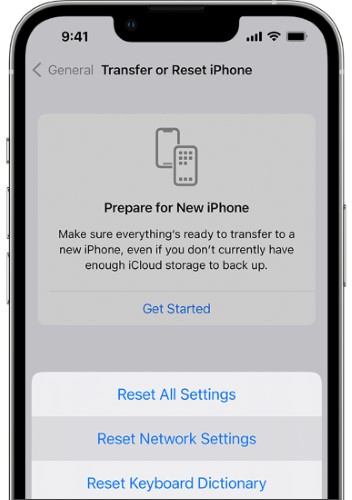
Step 4. If the "Share Location Unavailable" error persists, try resetting your network by going to "Settings" > "General" > "Transfer or Reset iPhone" > "Reset" > "Reset Network Settings".
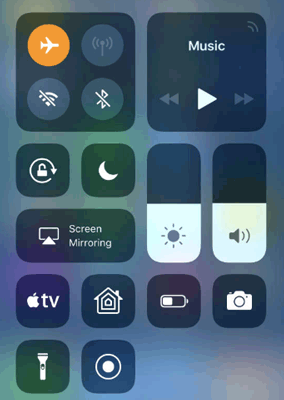
When Airplane Mode is enabled, your device disconnects most wireless connections, including the cellular network, Wi-Fi, and Bluetooth. Even if Location Services are working properly, your location data cannot be sent to Apple's servers. Turning off Airplane Mode restores network connections, allowing location data to sync normally.
Swipe down from the top-right corner of the screen to open Control Center and check if the airplane icon is highlighted. If it is on, tap the icon to turn off Airplane Mode.
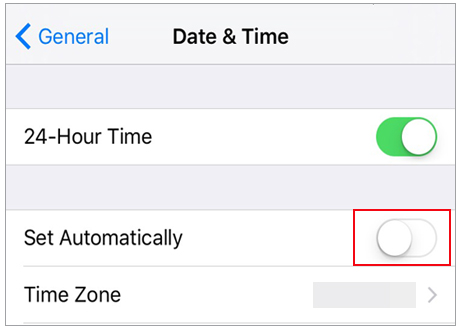
Incorrect date and time settings can prevent your iPhone from sharing location properly. To ensure your settings are accurate:
Step 1. Go to "Settings" > "General "> "Date & Time".
Step 2. Turn on "Set Automatically" to let your iPhone update the date and time based on your time zone.
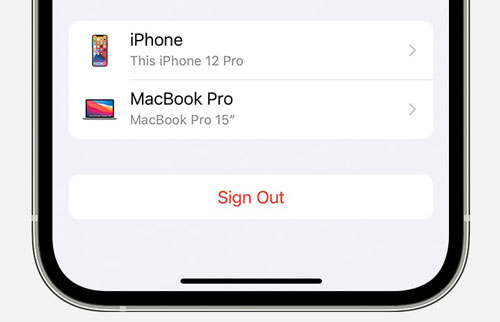
The "Share Location Unavailable" error can sometimes be caused by a connection issue between your iPhone and Apple's servers. Signing out of your Apple ID and then signing back in can restore location sharing.
Here are the steps:
Step 1. Open "Settings" and tap your "Apple ID" at the top.
Step 2. Scroll down and tap "Sign Out". (Can't sign out of your Apple ID?)
Step 3. After signing out, sign back in with your Apple ID. Once re-signed in, try sharing your location again to see if the issue is resolved.
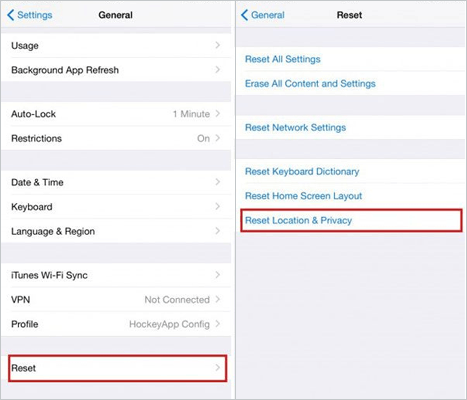
Sometimes, location permission settings may conflict, preventing the system from properly accessing location services. Resetting Location & Privacy settings can restore all app permissions to their default state, which may help fix the "Share Location Unavailable" issue on iPhone.
Here is how to do it:
Step 1. Open "Settings" > "General" > "Transfer or Reset iPhone".
Step 2. Tap "Reset", then select "Reset Location & Privacy".
Step 3. Tap "Reset" again and enter your screen passcode to confirm the action.
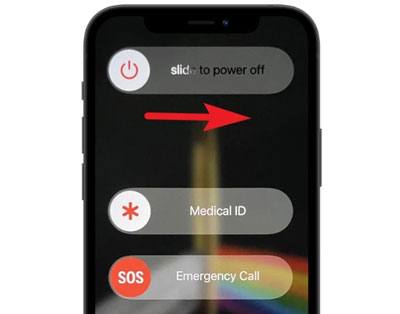
Sometimes, a simple restart can resolve temporary system glitches that may be causing the issue. Here's how to restart your iPhone:
Step 1. Press and hold the "Side" button and one of the "Volume" buttons until the power-off slider appears.
Step 2. Drag the slider to turn off your iPhone.
Step 3. After the device is fully powered off, press and hold the "Side" button again until the Apple logo appears.
The "Share Location Unavailable. Please try again later" issue may be caused by bugs in your current iOS version. Updating your iPhone to the latest version can help resolve the problem.
Step 1. Go to "Settings" > "General" > "Software Update".
Step 2. Tap "Update Now" to download the latest firmware. (iPhone won't update?)
Step 3. Tap "Install Now", then enter your screen passcode to confirm and complete the update.

If you've tried every setting-related solution and still see the "Share Location Unavailable" error on iPhone, the underlying problem may be within iOS itself. System corruption, failed updates, damaged firmware files, and hidden software bugs can all interfere with location services. iOS System Recovery is a professional iPhone repair tool that can fix various iOS issues, and its Standard Mode is designed to fix internal system issues without erasing your personal data.
Main features of iOS System Recovery:
Here's how to fix share location is not working on iPhone using iOS System Recovery:
01Download and install iOS System Recovery on your computer. Launch the program and select "iOS System Recovery" from the main interface. Connect your iPhone to the computer using a USB cable and click "Start".
02Choose "Standard Mode" to fix the issue without data loss. If the problem is more serious, select "Advanced Mode" for a deeper system repair. Then, click "Confirm" to continue.

03Confirm the detected device information and click "Repair" to begin the process. Once completed, your iPhone will restart automatically and the issue should be resolved.

If none of the above solutions work, the issue may be more complex. In this case, it's recommended to contact Apple Support for further assistance.
Reaching out to Apple Support can provide expert help, especially if the problem is related to hardware or persistent software glitches that cannot be fixed through standard troubleshooting.
This article covers the "Share My Location Unavailable" issue, explains the possible causes, and provides 12 practical solutions to fix it. If you want a quick fix without losing data, iOS System Recovery is a reliable option. Once the problem is resolved, you can use the Find My app to share your location with others as usual.
Related Articles:
How to Fix iPhone Unavailable Try Again in 1 Minute Error - 100% Working
How to Change Location on iPhone 17/Air/16/15/14 Easily?




 Free Download for PC
  Free Download for Mac


