"My iPhone keeps showing the wrong location. It is almost as if it gets stuck somewhere and doesn't move from there on, no matter how far I go from that specific location."
- From iPhone Community
If you've ever wondered why is my location wrong on my iPhone, you're not alone. It can be confusing when your device shows the wrong city, places you far from where you actually are, or just fails to pinpoint your position accurately.
This kind of issue can affect everyday use, from navigation and weather apps to social media and location-based services. The good news is that it's usually not a serious problem and can often be resolved with a few simple adjustments. In this guide, we'll break down the possible reasons behind the issue and show you how to fix it step by step.
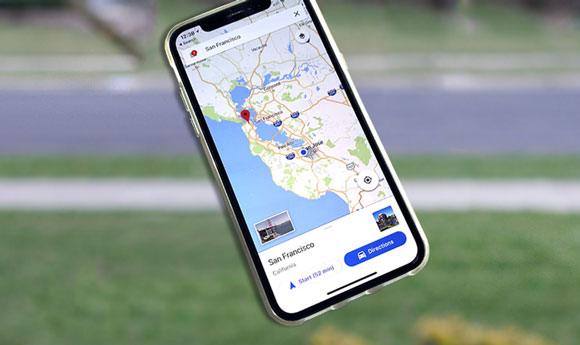
Many factors may cause your iPhone to show an incorrect location or even make it seem like your phone thinks you are in a different city. Here are the most common reasons:
If location services is turned off, your iPhone cannot access GPS data properly, which may lead to inaccurate or missing location information.
iPhone location accuracy depends not only on GPS but also on Wi-Fi and cellular data. A weak or unstable connection can easily cause location errors.
If your system or apps are not updated, bugs or compatibility issues may interfere with location tracking and result in incorrect positioning.
Some apps may not have permission to access your location. In this case, they may display a default or inaccurate location instead of your real one.
If your iPhone location is incorrect, try the following methods one by one until the issue is resolved.
The first and most important step is to ensure Location Services is turned on, and that the app you're using has permission to access your location. Here's how to do it:
Step 1. Open the Settings app on your iPhone.
Step 2. Tap "Privacy & Security" (or Privacy on older iOS versions).
Step 3. Tap "Location Services" at the top.
Step 4. Make sure the toggle next to Location Services is turned on (green).
Step 5. Scroll down to find the app that's showing the wrong location (e.g., Maps, Find My) and tap it.
Step 6. Select "While Using the App" or "Always" to grant location access. For most apps, "While Using the App" is sufficient and more private.
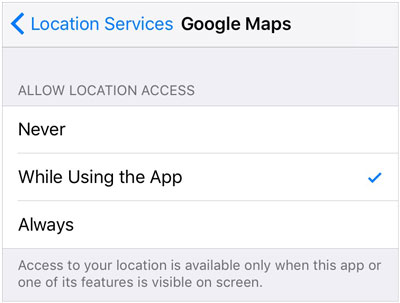
Also, ensure the "Precise Location" toggle is turned on for the app—this lets it use your exact GPS coordinates instead of a rough estimate.
Your iPhone needs a stable internet connection (Wi-Fi or cellular data) to complement GPS and get accurate location data. Here's how to check:
Open "Settings" > "Wi-Fi", and make sure you're connected to a reliable network. If the signal is weak, move closer to the router or switch to a different network.
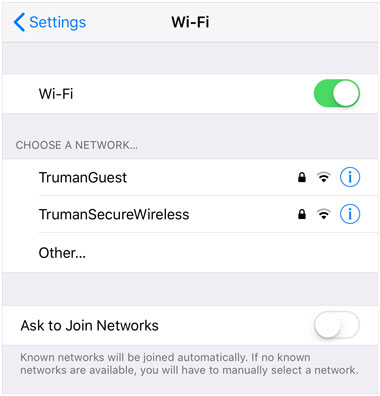
Open "Settings" > "Cellular" (or Mobile Data) and ensure it's turned on. If you're in an area with poor cellular service, try moving to a location with better signal.
If your connection is unstable, turn Airplane Mode on for 10 seconds, then turn it off to reset the network connection. This often fixes temporary connectivity issues that affect location.
A simple restart can fix many temporary glitches, including those causing wrong location. The process varies slightly depending on your iPhone model:
Press and hold the "Side" button and either "Volume" button until the power slider appears. Drag the slider to turn off your iPhone. Wait 30 seconds, then press and hold the Side button again to turn it back on.
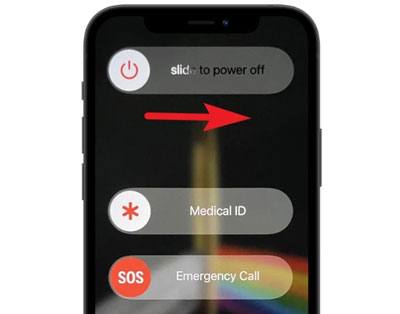
Press and hold the "Side" (or Top) button until the power slider appears. Drag the slider to turn off your iPhone, wait 30 seconds, then press the "Side/Top" button again to restart.
After restarting, open the location-based app again to see if your location is accurate.
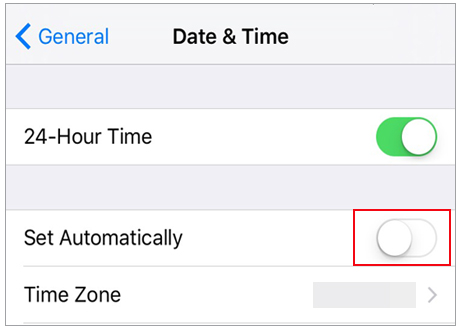
Incorrect date, time, or timezone settings can disrupt GPS sync, leading to wrong location. To fix this, enable automatic date and time:
Step 1. Open "Settings" > "General".
Step 2. Tap "Date & Time".
Step 3. Turn on the toggle next to "Set Automatically".
This ensures your iPhone uses network data to set the correct date, time, and timezone, which is essential for accurate GPS performance. (iPhone GPS not working?)
If location services has corrupted data or misconfigured settings, resetting it can resolve the issue. This will reset all location permissions, apps will ask for location access again.
Here's how:
Step 1. Open "Settings" > "General".
Step 2. Scroll to the bottom and tap "Transfer or Reset iPhone".
Step 3. Tap "Reset" > "Reset Location & Privacy".
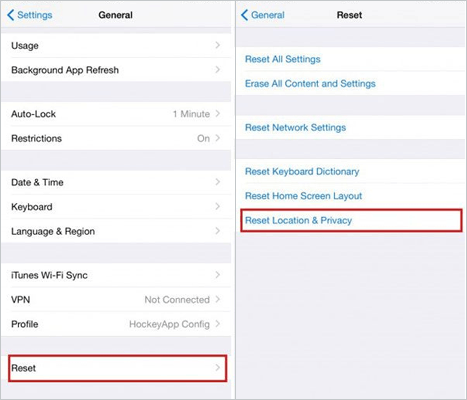
Step 4. Enter your passcode if prompted, then confirm the reset.
After resetting, open the app with the wrong location and grant it location permission when prompted. This should refresh the location data.
Outdated iOS versions often have bugs that affect GPS and location services. Apple releases updates to fix these issues, so keeping your iPhone updated is key:
Step 1. Open "Settings" > "General".
Step 2. Tap "Software Update".

Step 3. If an update is available, tap "Download and Install".
Step 4. Follow the on-screen instructions to complete the update (your iPhone will restart automatically).
If you want to change your iPhone location intentionally instead of fixing it, a professional tool like Location Changer can make the process quick and effortless. It allows you to set a virtual location anywhere in the world without physically moving.
The key features of Location Changer:
Follow these steps to change your iPhone location without moving:
01Install and launch the program on your computer, then click "Get Started" on the main screen. Connect your iPhone using a USB cable, unlock it, and tap "Trust" when prompted to allow the connection.
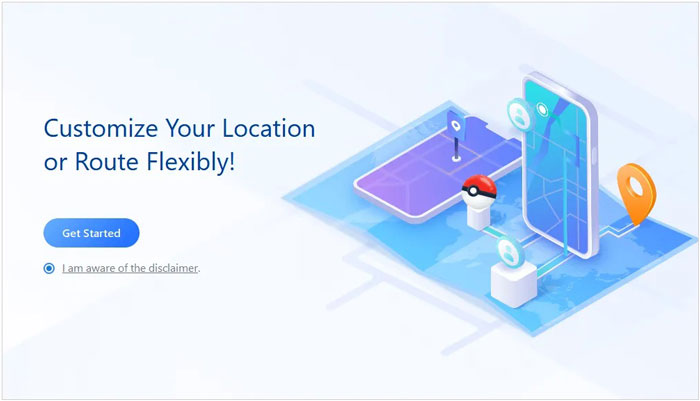
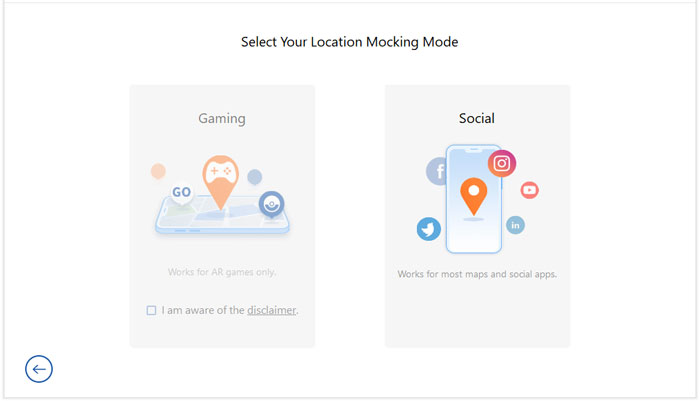
02Once your device is recognized, choose a mode that fits your needs, gaming or social mode.
03After the map loads, select "Teleport Mode" in the upper right corner. You can move around the map by zooming in or out, or enter a specific address or GPS coordinate in the search bar to locate your desired destination.
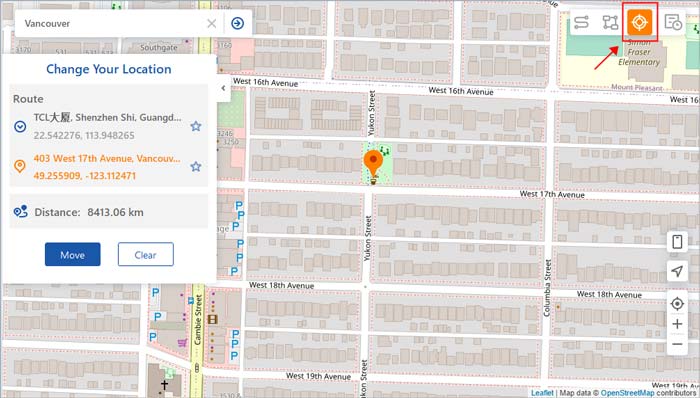
04When the location is selected, a sidebar will show details like the place name and coordinates. Click the "Move" button, and your iPhone location will be changed instantly.
Location issues on iPhone are quite common and are usually caused by simple factors like settings, network conditions, or temporary system glitches. By following the methods above, you should be able to fix most cases where your iPhone shows the wrong location.
If you need more control over your location, for example, to protect your privacy or use location-based apps more flexibly, tools like Location Changer can offer a convenient solution to adjust your GPS location without actually moving.
Related Articles:
How to Fix Find My iPhone Not Working? Try the 10 Fixes Here!
How to Change Home Address on iPhone? 5 Ways You Will Need
How to Stop Sharing Location on iPhone Without Someone Knowing?
How to Send Fake Live Locations on WhatsApp [Protect Privacy]




 Free Download for PC
  Free Download for Mac


