Backing up your iQOO photos is essential to avoid losing precious memories due to accidental deletion, system crashes, or phone damage. Fortunately, there are multiple ways to safely store your pictures, ranging from cloud-based solutions to local backups on your computer. In this guide, we will explore five reliable methods to back up your iQOO photos, covering both official tools and third-party software so you can choose the option that best suits your needs.
iQOO Cloud Backup, powered by vivo's official cloud service, is a seamless and integrated solution for backing up photos on your iQOO device. As the native backup option, it offers easy setup and automatic synchronization, making it ideal for users who want a hassle-free way to keep their photos safe without third-party tools.
Step-by-step instructions:
Step 1. Unlock your iQOO device and navigate to Settings from the home screen or app drawer.
Step 2. Scroll down and tap on "Account & Sync" (or "vivo/iQOO Cloud" directly, depending on your device's OriginOS version).
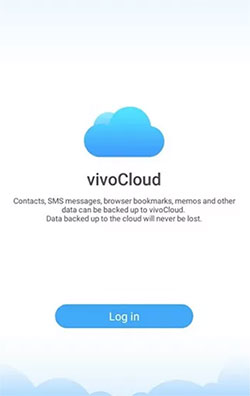
Step 3. Log in with your vivo or iQOO account. If you don't have an account, tap "Sign Up" to create one for free.
Step 4. Once logged in, select "Cloud Backup" from the list of available cloud services.
Step 5. Toggle on the "Photos" option to include your photos in the backup. You can also customize other data types (e.g., contacts, messages) if needed.
Step 6. To enable automatic backups, tap "Auto Backup Settings" and configure the trigger conditions (e.g., when the device is charging, connected to Wi-Fi, and locked). By default, automatic backups run once every 7 days under these conditions.
Step 7. For an immediate backup, tap "Back Up Now" and wait for the process to complete. The time taken depends on the number of photos and your Wi-Fi speed.
Note: iQOO Cloud offers 5GB of free storage. If you need more space for high-resolution photos, you can purchase additional storage (starting from 50GB) through the cloud service settings.
Google Photos is a popular cross-platform cloud service that integrates seamlessly with Android devices, including iQOO smartphones. It offers free (compressed) or paid (original quality) storage, automatic synchronization, and easy access from any device with a Google account. This method is perfect for users who want to back up photos to a widely used cloud service and access them on multiple platforms (e.g., PC, iOS, other Android devices).
Here are instructions to back up iQOO photos through Google Photos:
Step 1. If Google Photos isn't pre-installed on your iQOO device, download it from the Google Play Store and open the app.
Step 2. Log in with your Google account. If you don't have one, create a new account for free.
Step 3. On the welcome screen, tap "Get Started" and follow the prompts to set up backup preferences.
Step 4. Select your backup quality:
Step 5. Tap "Next" and select the folders you want to back up (e.g., Camera, Screenshots, Downloads). Ensure the Camera folder is selected to back up your main photos.
Step 6. Toggle on "Back up & Sync" to enable automatic synchronization. Google Photos will now automatically back up new photos as you take them, provided your device is connected to Wi-Fi (you can enable backup over mobile data in settings if needed).
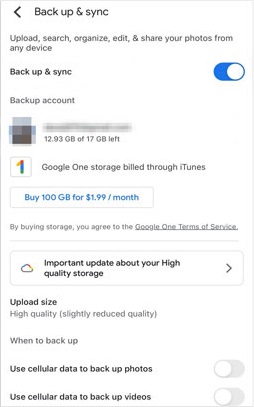
Step 7. To check the backup status, tap your profile picture in the top-right corner and select Photos settings > "Backup status".
vivo Mobile Assistant is the official desktop tool for vivo and iQOO devices, designed for efficient data management and backup. It supports one-click backup of photos, contacts, messages, and other data, as well as incremental synchronization (only backing up new or changed files) to save time. This method is ideal for users who prefer to back up photos to their PC for offline storage and full control over their data. But there is no official Mac version. Here are the steps:
Step 1. Download and install vivo Mobile Assistant on your Windows PC (compatible with Windows 7/8/10/11; 32/64-bit). You can download it from the official vivo website or trusted software platforms.
Step 2. Launch vivo Mobile Assistant on your PC.
Step 3. Connect your iQOO device to the PC using a USB cable. On your phone, when prompted to select a USB connection mode, tap "File Transfer (MTP)".
Step 4. On your iQOO device, enable USB debugging (if required).
Step 5. On your phone, a pop-up will appear asking for permission to allow USB debugging for the connected PC. Tap "Allow" to grant access.
Step 6. Once the PC recognizes your iQOO device, vivo Mobile Assistant will display your device information on the main screen.
Step 7. Click on the "Backup" tab in the top menu.
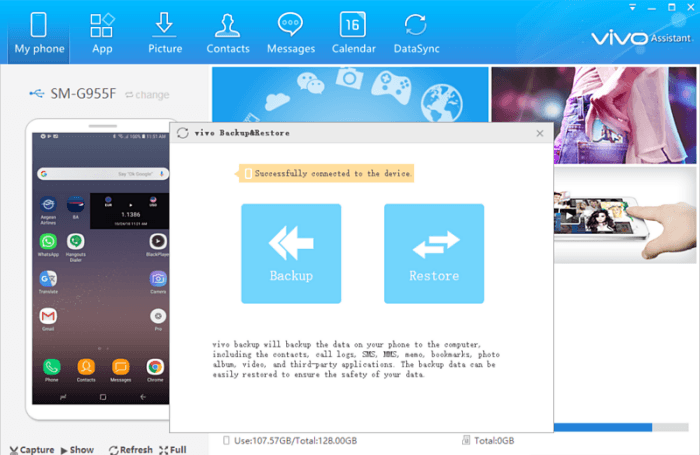
Step 8. In the backup options, check the "Photos" box (you can also select other data types if needed).
Step 9. Click "Browse" to choose a save location on your PC for the backup files.
Step 10. Click "Start Backup" and wait for the process to complete. The tool will display the progress in real time.
If you're looking for a reliable and user-friendly solution to back up your iQOO photos, third-party software like Coolmuster Android Backup Manager can be a great choice. This tool not only offers a straightforward way to back up your photos but also allows you to back up other important data all in one go. It's especially useful if you prefer to have more control over your backup process and want a solution that doesn't rely on cloud storage.
Key features of Coolmuster Android Backup Manager:
How to back up iQOO photos easily with Android Backup Manager?
01Download and install Android Backup Manager on your Windows or Mac computer by clicking the buttons.
02Use a USB cable to connect your iQOO phone to your PC, then enable USB Debugging if necessary.
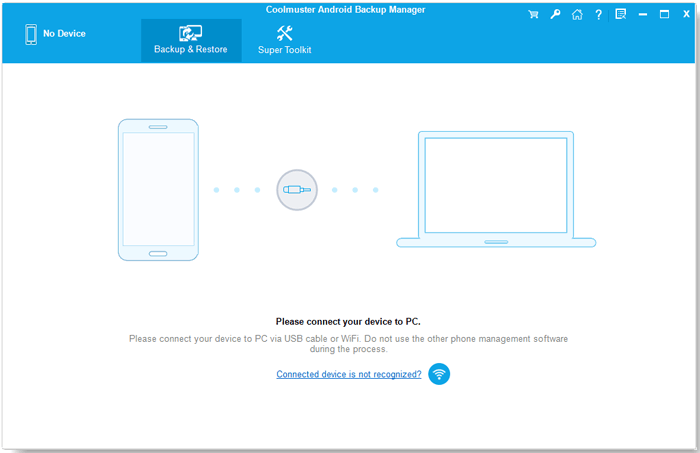
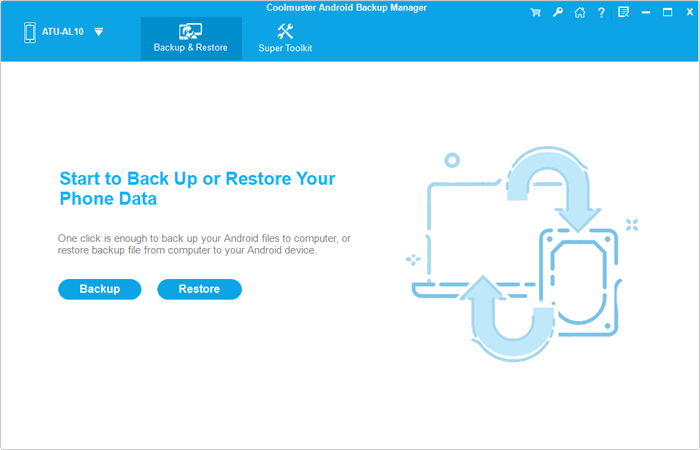
03After your iQOO phone is successfully recognized by the computer, the interface below will appear. Click "Backup" to proceed.
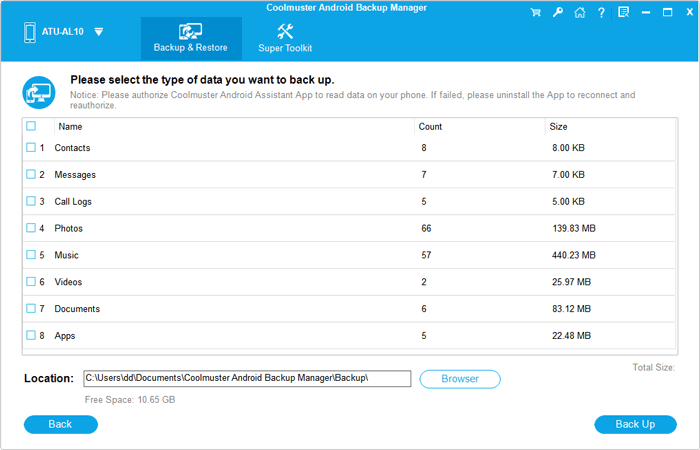
04Choose "Photos" in the software, select a backup location on your PC, and click "Start Copy" to complete the process.
For a more detailed guide on how to back up your iQOO photos with Coolmuster, check out the video tutorial below.
If you prefer a simple, no-software approach, backing up iQOO photos to your PC via drag-and-drop is the most straightforward method. This offline method requires no additional tools or cloud services, just a USB cable and a PC. It's ideal for users who want full control over their backup files and don't want to rely on third-party software or internet connectivity.
Follow these steps to transfer photos to a computer for backup:
Step 1. Connect your iQOO device to your PC using a USB cable. On your phone, select "File Transfer" or "MTP" mode in the notification panel.
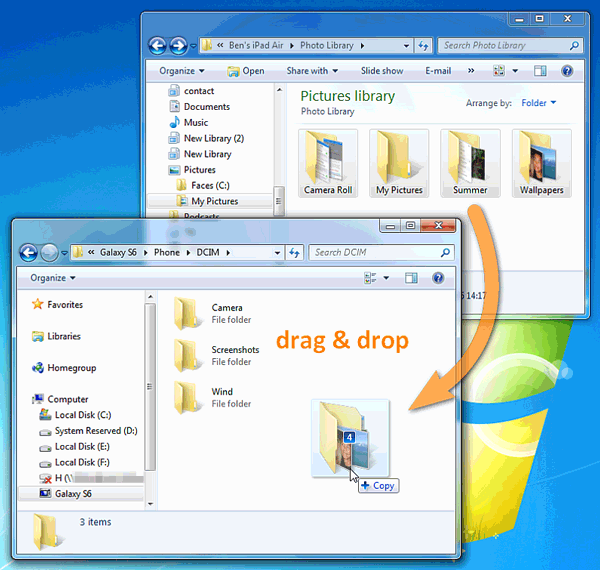
Step 2. Open your phone storage on the computer, navigate to the DCIM folder for camera photos or the Pictures folder for other images.
Step 3. Select the files or folders you want to back up and drag them to a folder on your PC. Once copied, your photos are safely stored offline.
Backing up your iQOO photos is a simple yet crucial step to protect your precious memories from unexpected data loss. Each of the methods outlined above offers unique advantages, so you can choose the one that best fits your needs:
Considering these trade-offs, Coolmuster Android Backup Manager stands out as the most well-rounded solution for most iQOO users. Feel free to leave a comment below if you have any questions.
Related Articles:
How to Conduct iQOO Backup and Restore [4 Proven Methods]
Back Up iQOO Apps Easily: 4 Proven Methods You Can Trust
Top 6 Methods to Sync IQOO to PC [A Comprehensive How-to Guide]
[Step-by-Step Guide] How to Transfer Photos from iQOO to iPad?





 Free Download for PC
  Free Download for Mac


