Have you ever missed important appointments or meetings because your phone displayed the wrong time? Are you curious about "why is my phone not changing to the correct time"? Congratulations, you've come to the right place. This article is specifically prepared for situations like yours. We will uncover the reasons behind this issue and demonstrate how to fix the wrong time on Android in this passage. Keep reading to learn more.
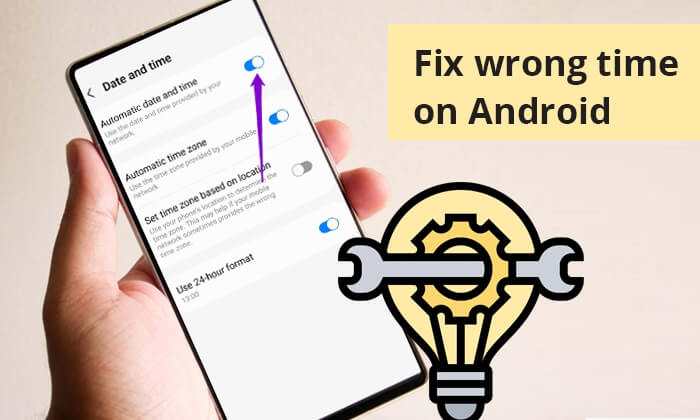
Before diving into the solutions, let's understand why your Android phone is showing the wrong time:
Automatic Date and Time Settings: If these settings are disabled or malfunctioning, your phone may not sync with the correct time.
Automatic Time Zone: Without automatic time zone detection, your phone might not adjust to changes when you travel.
System Errors or Glitches: Sometimes, software bugs or glitches can cause time-related issues on Android devices.
Outdated Software: An outdated operating system could lead to time-related problems.
How do I fix the wrong time on my Android phone? Here are several simple fixes for you:
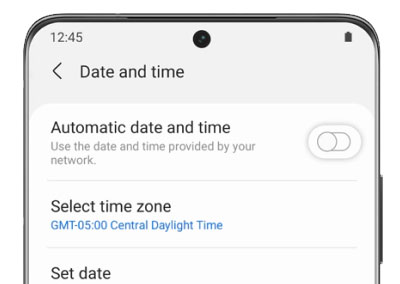
The "Automatic date and time" feature lets your phone automatically fetch the correct date and time from your network, ensuring that your system clock is always accurate. Simply switching on and off may fix an Android phone clock showing the wrong time. Here are the steps:
Step 1. On your Android phone, go to the "Settings" app > scroll to "System" or "Additional settings" > select "Date and time".
Step 2. Turn off "Automatic date and time", wait a few seconds, and then turn it back on. This can reset the synchronization with your network provider.
Ever experienced your phone not turning on, no matter how many times you've tried? If you're an Android user, take a look at the article below. It might help you resolve the issue of your Android phone not powering on.
What to Do When Android Phone Won't Turn On | 8 Solutions [Tested]How do I get my phone at the correct time? Incorrect timezone settings are a common factor affecting time accuracy. Follow these steps to turn on the automatic time zone:
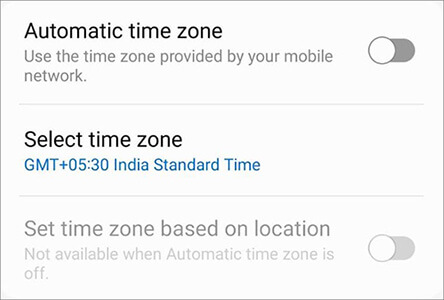
Step 1. Access "Settings" on your Android phone. Then, navigate to "System" or "Additional settings".
Step 2. Turn on "Automatic time zone". This ensures your device adjusts to the correct time zone based on your location.
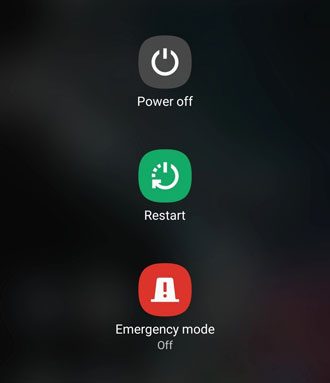
Sometimes, restarting the phone can solve many problems, including fixing the incorrect time on your Android phone. To restart your Android phone, simply press and hold the "Power" button until a menu bar pops up. Then, select "Restart" from the options.
How do you fix it when the time on your Android phone is wrong? If automatic settings do not work, you can also try manually setting the date and time. The manual and automatic time settings are located in the same position.
Step 1. Follow the steps in Fix 1 to reach the "Date and time" page, and you will see two options: "Set date" and "Set time".
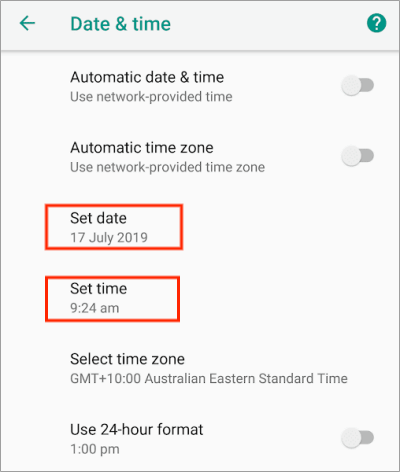
Step 2. Click on them to manually set the correct time and date.
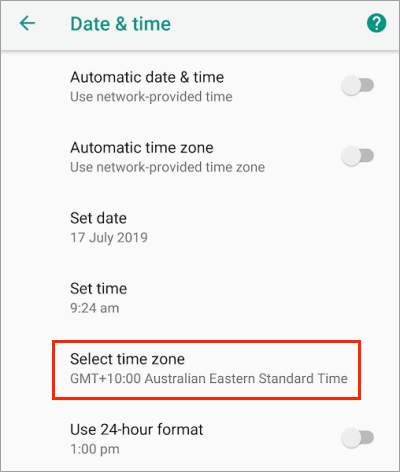
If you prefer not to enable the location services on your phone but still want to change the time on your Android device by adjusting the timezone, you can manually select the timezone. Just like the previous method, this option is also located in the same place. Once you reach the "Date and time" settings page, choose "Select time zone" to manually change the time zone.
Mismatched system versions may also cause time errors. You can follow these steps to learn how to fix the wrong time on Android by updating the Android system:
Step 1. To update your Android phone, open "Settings", then go to "System" and choose "System update".
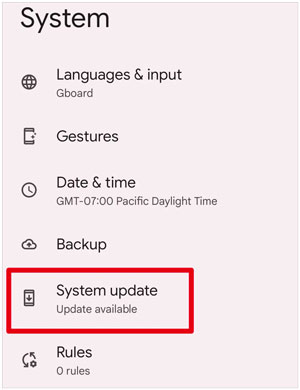
Step 2. If updates are available, download and install them. Software updates often contain bug fixes that can resolve issues with time settings.
May Like: Don't worry if your Android system suddenly crashes during the troubleshooting process. Clicking on this link can help you easily handle this issue.
If your Android phone is experiencing system-related issues, such as showing the wrong time, you can use Android Repair to fix it. This tool is designed to resolve various Android problems, including incorrect time, app crashes, black screen death, and unresponsive system functions.
Highlights of Android Repair:
Below is the step-by-step guide on how to fix the wrong time on Android with Android Repair:
01Launch Android Repair on your computer and enter the "System Repair" module.
02Connect your Android device to the PC using a USB cable. Then, select "Android" > "Android Repair" > "Repair Now" to begin.
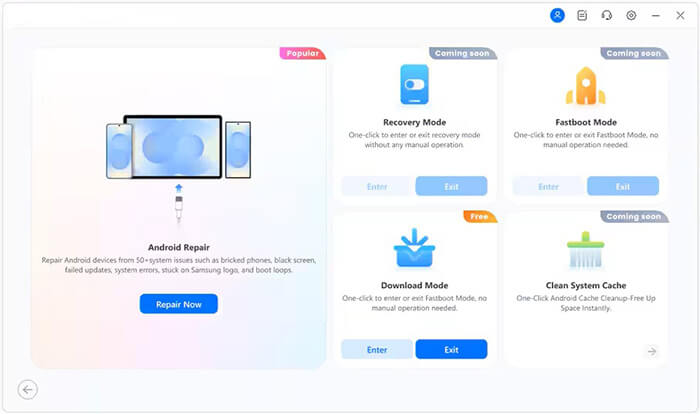
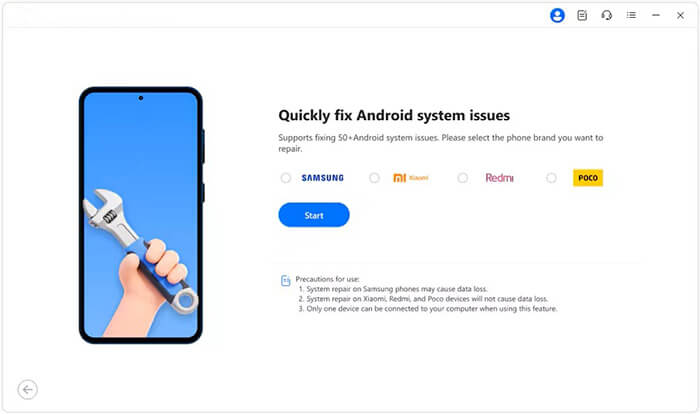
03When prompted, choose the brand of your device (Samsung, Xiaomi, Redmi, or POCO) and click "Start" to proceed.
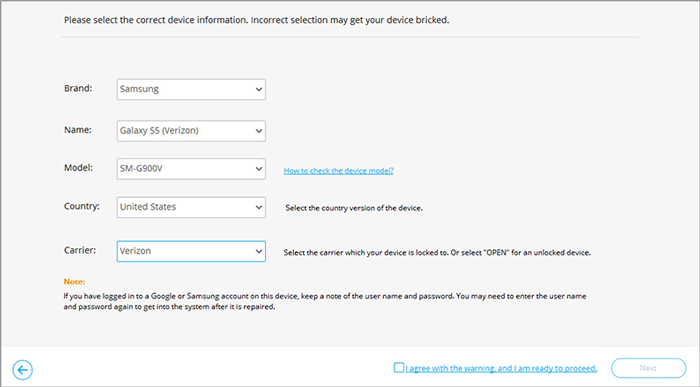
04Select the correct device information from the available options. Check "I agree with the warning", then click "Next". In the pop-up window, enter "000000" and click "Confirm" to continue.
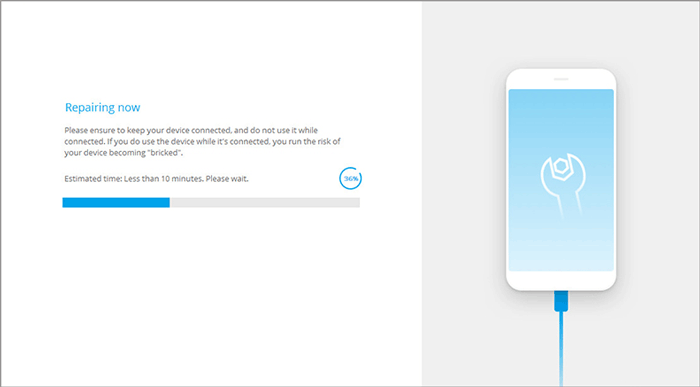
05Follow the on-screen instructions to put your device into Download Mode. Once completed, click "Next". The program will automatically download and verify the firmware, then repair the system issue causing the wrong time.
By following these methods, you can effectively fix an Android phone clock showing the wrong time. Each solution helps you address this problem, whether through manual adjustments, automatic updates, or professional repair software.
For users experiencing persistent system issues on Samsung, Xiaomi, Redmi, or POCO devices, we recommend using Android Repair. It can resolve not only incorrect time problems but also other system-related issues, restoring your device to normal operation with ease.
If you have any further questions about fixing the wrong time on your Android phone, feel free to leave a comment below, and we'll respond as soon as possible.
Related Articles:
How to Repair Boot Loop on Android Phone in Top 11 Ways?
Calling All Solutions: Navigating the Android Phone Dropping Calls Fix
Is Android Phone Stuck on Boot Screen? Repair It via Effective Tricks
Troubleshooting Guide: com.android.phone Has Stopped on Android Devices




 Free Download for PC


