If you're facing issues with your POCO phone frozen and unresponsive, you're not alone. Many POCO phone users have encountered this frustrating problem at some point. A frozen POCO phone can prevent you from accessing important apps, messages, or making calls, and it can be caused by various factors. Fortunately, there are several ways to resolve the issue and get your POCO phone frozen problem back on track.
In this article, we will guide you through the common causes of a frozen POCO phone and provide effective solutions to help you fix the issue quickly and easily. Let's dive into the potential causes and how to get your POCO phone frozen issue fixed.

There are several factors that can cause a POCO phone to freeze or become unresponsive. Some of the most common causes include:
Now that we've identified the common causes of your POCO phone frozen issue, let's move on to the solutions. Below are the step-by-step methods you can try to resolve the freezing problem and get your device back to normal.
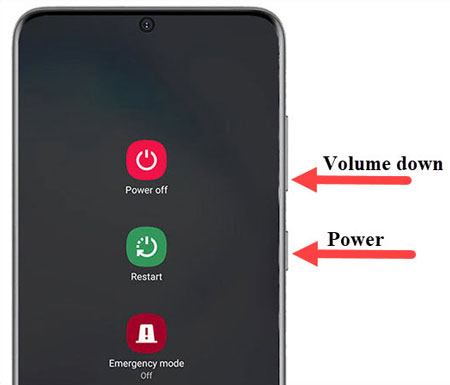
The first and simplest solution when your POCO phone is frozen is to perform a force restart. This can help if the phone is unresponsive due to a temporary glitch or freeze. Press and hold the "Power" button and "Volume Down" button simultaneously for about 10 seconds. Your phone will vibrate and restart automatically.
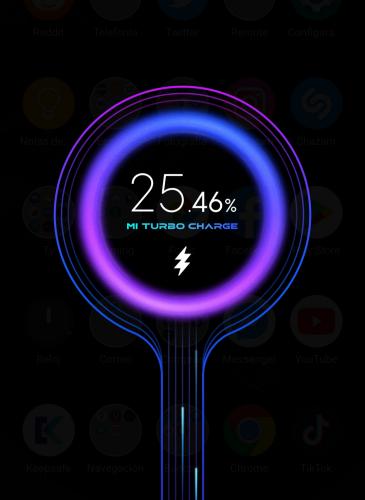
If your phone's battery is very low, it might cause the device to freeze or become unresponsive. It's important to make sure the phone is adequately charged. Plug your POCO phone into a charger and leave it for at least 15 - 20 minutes. After charging, try restarting the phone to check if it resolves the freezing issue.
When your phone's storage is near full, it can cause slow performance and freezing. You can clear some space by deleting unnecessary files and apps. By clearing out the storage, you can speed up the phone and prevent future freezing issues.
Steps to clear storage:
Step 1. Go to "Settings" > "Storage".
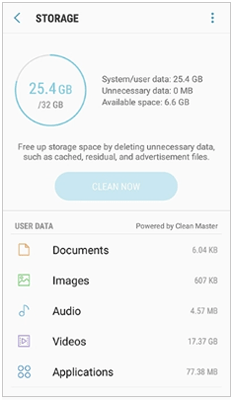
Step 2. Delete old photos, videos, or apps you no longer need.
Step 3. Clear the cache of frequently used apps.
If the freezing is caused by third-party apps, you can start your phone in Safe Mode to troubleshoot the issue. In Safe Mode, only pre-installed apps will run, which can help you identify if a particular app is causing the problem.
Steps to enter Safe Mode:
Step 1. Press and hold the "Power" button until the POCO logo appears.
Step 2. Then, press and hold the "Volume Down" button until your phone starts in Safe Mode.
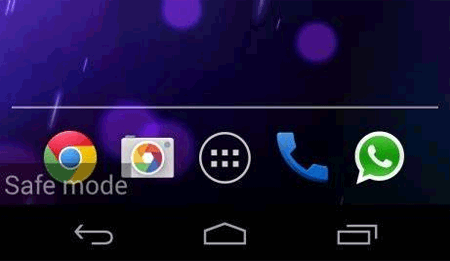
Step 3. Once in Safe Mode, check if the phone still freezes. If it doesn't, it's likely an app causing the issue.
You can then uninstall apps one by one to find the culprit.
Outdated software can often lead to performance issues, including freezing. Make sure your phone is running the latest system updates. This can fix any known bugs and improve the overall performance of your device.
Steps to update software:
Step 1. Go to "Settings" > "About Phone" > "System Updates".
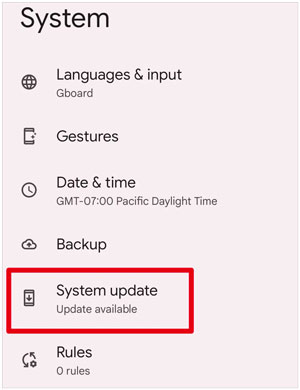
Step 2. If an update is available, tap on "Download and Install".
If your POCO phone is frozen due to deeper system issues, using Android Repair can be an effective solution to resolve the problem without the need for advanced technical skills. Android Repair is designed to fix a wide range of Android system issues. It provides a quick and straightforward method to restore your POCO phone to normal functionality, ensuring that no data is lost during the repair process.
Key features of Android Repair:
Here's how to use Android Repair to fix your POCO phone if it's frozen:
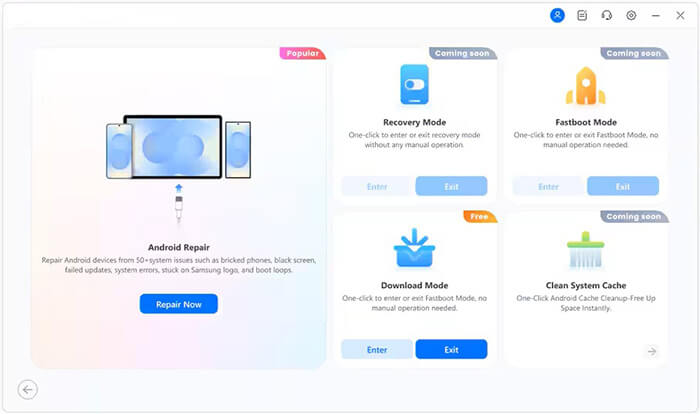
01Open Android Repair on your computer and connect your POCO phone via USB. Select "System Repair", choose "Android" as your device type, then click "Android Repair" > "Repair Now" to begin.
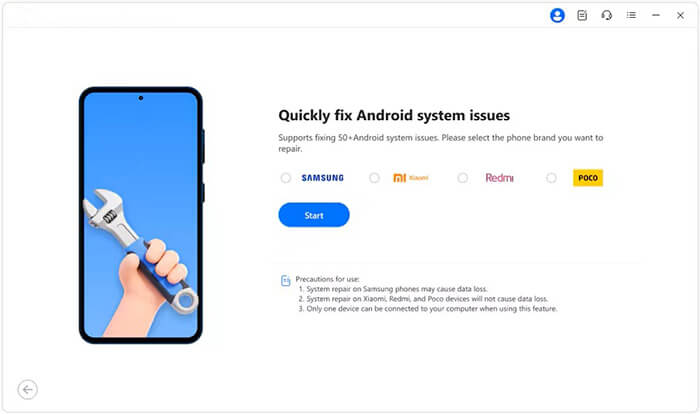
02When prompted, select "POCO" as your device brand, then click "Start". This ensures that Android Repair scans the correct firmware and device-specific repair options.
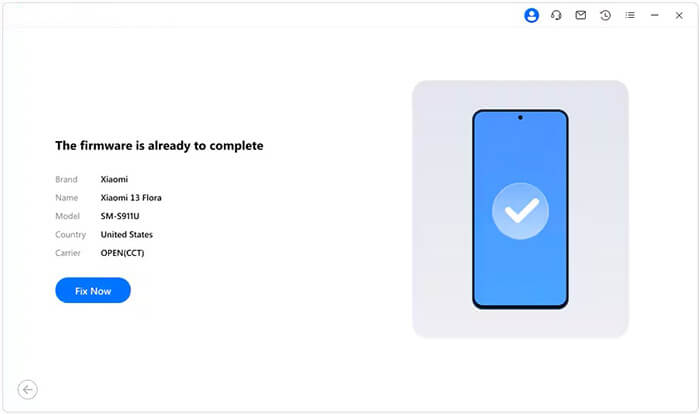
03Android Repair will automatically detect the correct firmware for your POCO phone, download it, and prepare the system repair. Review the details and confirm, then click "Fix Now" to begin the repair process.
04The software will run the system repair and show real-time progress. Do not disconnect your phone during this process. Once complete, a success message will appear, and your POCO device will reboot with the system fully repaired.
As a last resort, performing a factory reset can solve severe freezing issues. This will erase all data on your phone, so make sure to back up your important files beforehand.
Steps to perform a factory reset using the key combination:
Step 1. Turn off your POCO phone. If your phone is frozen, you might need to force it to shut down by holding the "Power" button for 10 - 15 seconds until the device turns off completely.
Step 2. Once the phone is powered off, press and hold the "Volume Up" button and the "Power" button simultaneously.
Step 3. Keep holding both buttons until the POCO logo appears, and the phone enters Recovery Mode.
Step 4. In Recovery Mode, use the "Volume Up/Down" buttons to navigate through the options.
Step 5. Select "wipe data/factory reset" using the "Power" button to confirm.
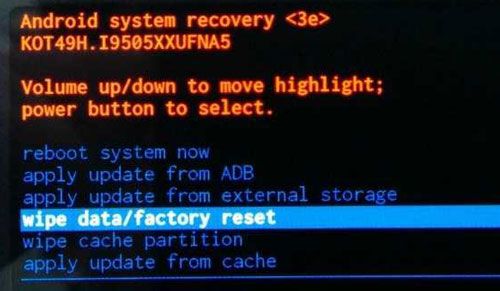
Step 6. A warning message will appear asking you to confirm the reset. Select "Yes" to proceed with the factory reset.
Step 7. Wait for the process to complete. Once done, the phone will show a confirmation message, and it will automatically reboot to its factory settings.
After the reset, your phone will be restored to its original factory settings, and you can set it up again as a new device.
If all else fails and your POCO phone continues to freeze, it's time to contact POCO customer support. They may be able to diagnose and resolve hardware issues or suggest additional solutions. You can visit the official POCO support website or use the POCO Community app. Provide your device's details, and follow the instructions to get assistance.
In this article, we covered the common causes of POCO phone freezing and provided several solutions to help you fix the issue. Whether it's restarting the device, clearing storage, updating the software, or performing a factory reset, there are multiple ways to resolve the problem. If nothing works, don't hesitate to contact POCO support for further assistance.
Additionally, if your POCO phone continues to experience freezing or system crashes, we recommend using Android Repair. This tool is designed to fix a wide range of Android system issues without the risk of data loss, offering a quick and easy solution to get your device back to normal.
Related Articles:
What to Do When Android Phone Won't Turn On | 7 Solutions [Tested]
How to Flash a Dead Android Phone for Software & Hardware Issues [Solved]
How to Perform POCO Backup and Restore Easily [Full Guide 2026]
How to View POCO Text Messages on Computer Easily and Effectively




 Free Download for PC


