TL;DR:
If your Samsung phone is stuck in Airplane Mode, find the possible causes and try the right solutions to restore normal connectivity:
"Since this morning, my phone (S20 FE) has been stuck on Airplane mode. The symbol is a light blue colour. I've tried everything to turn it off and reset my phone, but nothing is working. Because of this, I have no network connection to make or receive calls or texts. Can anyone offer any advice?"
- From Samsung Community
Airplane Mode is a useful feature that quickly disables wireless connections on Samsung phones. However, some users may find that their device remains stuck in Airplane Mode even after trying to turn it off, leaving them unable to use mobile data, make calls, or connect to Wi-Fi and Bluetooth.
This issue can happen due to temporary system glitches, incorrect network settings, software bugs, or even hardware problems. Fortunately, most cases can be fixed with simple troubleshooting methods. In this guide, we will explain why your Samsung phone is stuck in Airplane Mode and walk you through several solutions, from basic restarts to advanced system repair methods.
A Samsung phone may get stuck in Airplane Mode for different reasons. Understanding the possible causes can help you choose the right fix.
If your Samsung phone is stuck in Airplane Mode, try the following fixes in order. Start with simple solutions first, as many Airplane Mode issues are caused by temporary system glitches or incorrect network settings.
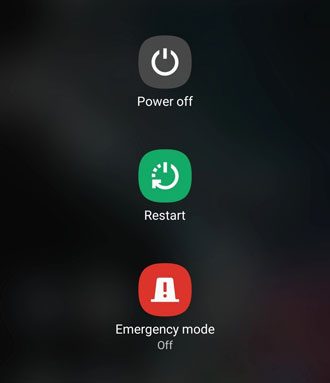
Restarting your Samsung phone is one of the easiest ways to fix Airplane Mode problems. A temporary software glitch may prevent the system from properly updating the wireless status, causing Airplane Mode to remain enabled even after you turn it off.
Steps:
Step 1. Press and hold the "Power" button until the power menu appears.
Step 2. Tap "Restart". Wait for your phone to reboot completely.
Check whether the Airplane Mode icon disappears and whether mobile networks are restored.
If your phone is frozen or the screen is unresponsive, try a force restart:
Step 1. Press and hold the "Power" button + "Volume Down" button together.
Step 2. Keep holding them for about 7-10 seconds.
Step 3. Release the buttons when the Samsung logo appears.
Before trying advanced troubleshooting, make sure Airplane Mode is actually disabled. Sometimes the Quick Panel button may not respond correctly due to a temporary interface or system issue.
Option 1. Disable Airplane Mode from Settings
Step 1. Open the Settings app.
Step 2. Tap "Connections".
Step 3. Find Airplane mode.
Step 4. Turn off the switch. Wait a few seconds for your phone to reconnect to mobile networks.
Option 2. Disable Airplane Mode from Quick Panel
Step 1. Swipe down from the top of the screen to open the Quick Panel.
Step 2. Tap the "Airplane Mode" icon. Wait for the icon to turn off.
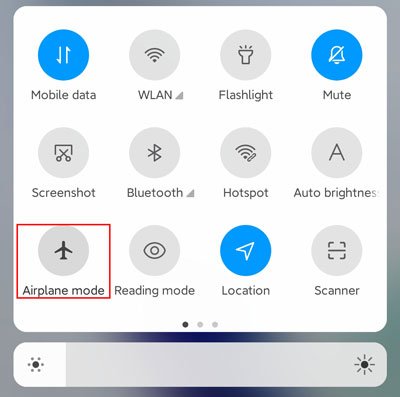
Step 3. Check whether Wi-Fi, Bluetooth, and mobile data become available again.
A SIM card problem can prevent your Samsung phone from reconnecting to cellular networks after leaving Airplane Mode. Removing and reinserting the SIM card forces the device to detect the carrier connection again.
Step 1. Turn off your Samsung phone.
Step 2. Locate the SIM tray and remove it using a SIM ejector tool.
Step 3. Take out the SIM card and check whether it has dust, scratches, or visible damage.
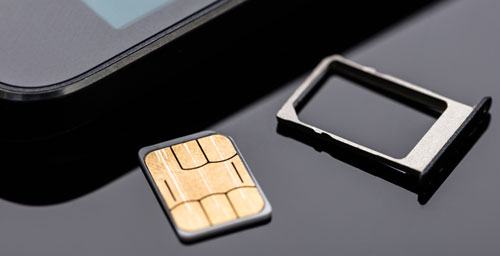
Step 4. Wait for a few seconds, then place the SIM card back correctly.
Step 5. Turn on your phone and check the network status.
You can also try inserting the SIM card into another phone to confirm whether the issue comes from the SIM card or the device.
Incorrect network configurations can sometimes cause Airplane Mode, Wi-Fi, Bluetooth, or mobile data issues. Resetting network settings restores all wireless-related settings to their default state.
Step 1. Open Settings.
Step 2. Select "General management".
Step 3. Tap "Reset".
Step 4. Choose "Reset network settings".
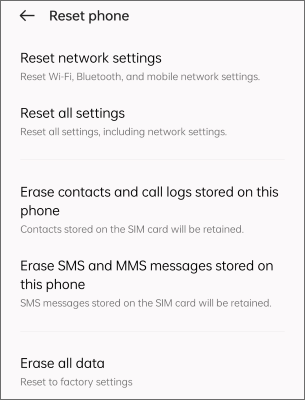
Step 5. Tap "Reset settings" to confirm.
After the reset:
Your photos, apps, and personal files will remain untouched.
Samsung regularly releases software updates to fix bugs and improve system stability. If your phone started getting stuck in Airplane Mode after a system update or has been running an outdated version of One UI, installing the latest update may solve the problem.
Step 1. Open Settings.
Step 2. Scroll down and tap "System update".
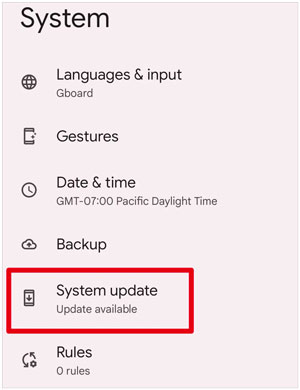
Step 3. Select "Download and install".
Step 4. Install any available updates.
Step 5. Restart your phone after the update completes.
Make sure your phone has enough battery power and a stable Wi-Fi connection before updating.
Some third-party apps can interfere with Android's network functions. Apps such as VPN tools, security apps, battery optimizers, or network management apps may prevent Airplane Mode from working correctly.
Safe Mode starts your Samsung phone with only essential system apps, helping you determine whether a third-party app is causing the problem. Here is how to enter Safe Mode:
Step 1. Press and hold the "Power" button.
Step 2. Touch and hold "Power off".
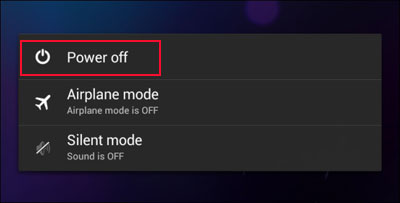
Step 3. Tap "Safe mode" when the option appears. Wait for your phone to restart.
Step 4. Try turning Airplane Mode off.
If the problem disappears in Safe Mode, uninstall recently installed apps one by one until you find the problematic application.
Cached system files help your Samsung phone run faster, but corrupted cache data can sometimes cause unexpected system issues, including wireless connection problems.
Clearing the cache partition removes temporary system files without deleting your personal data.
Step 1. Turn off your Samsung phone.
Step 2. Connect it to a computer with a USB cable if required by some newer Samsung models.
Step 3. Press and hold the "Volume Up" + "Power" buttons until the Recovery Mode screen appears.
Step 4. Select "Wipe cache partition" using the volume buttons.
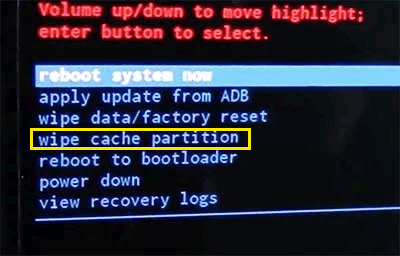
Step 5. Press the "Power" button to confirm.
Step 6. Select "Reboot system now".
After restarting, check whether Airplane Mode works normally.
If your Samsung phone is still stuck in Airplane Mode after trying the previous fixes, the issue may be caused by deeper Android system problems, such as corrupted firmware, system errors, or software failures that affect built-in functions.
In this case, Android Repair can help repair Android system-related issues that may interfere with features like network connectivity and Airplane Mode. It provides a guided repair process, making it suitable even for users without advanced technical knowledge.
Key features of Android Repair:
How to use Android Repair to fix Airplane Mode issues?
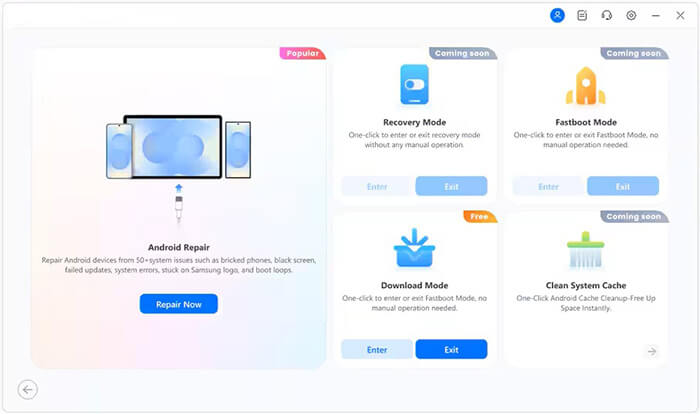
01Launch Android Repair on your computer. Select "System Repair" from the main interface, then choose "Android Repair" to continue.
02Connect your Samsung phone to the computer with a USB cable. After the program detects your device, click "Repair Now".
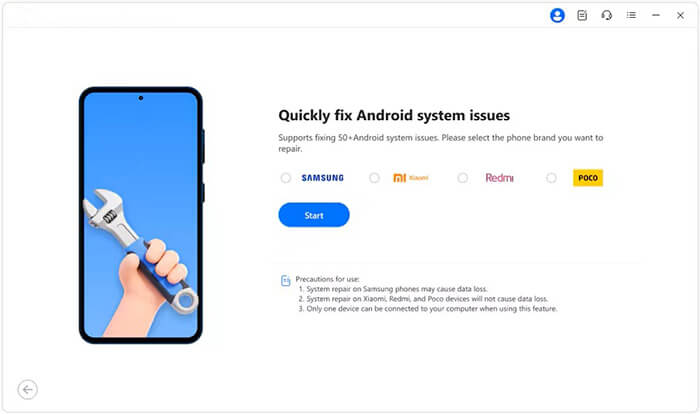
03Enter your device information. Provide details such as your phone brand, model, region, and carrier if required, then click "Start".
04Put your phone into Download Mode or Odin Mode. Follow the on-screen instructions to enter the required mode for your Samsung device.
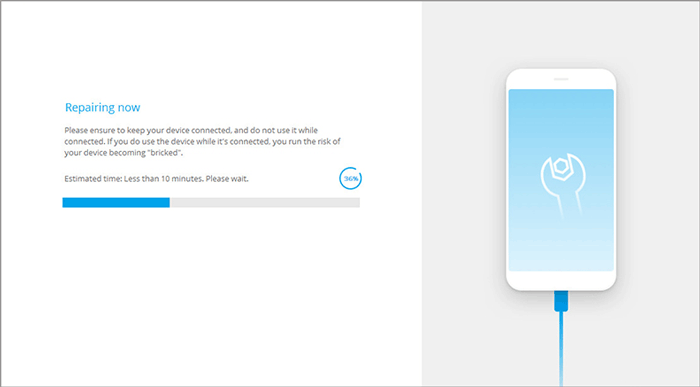
05Repair the Android system. The program will automatically download the correct firmware and repair your device. Once completed, restart your phone and check whether Airplane Mode works normally again.
A factory reset removes all user data and restores your Samsung phone to its original settings. It can fix serious software conflicts that prevent Airplane Mode from working properly. However, this should be your last option because it permanently deletes your personal data.
Before resetting:
Follow these steps to factory reset your Samsung phone:
Step 1. Open Settings.
Step 2. Go to "General management".
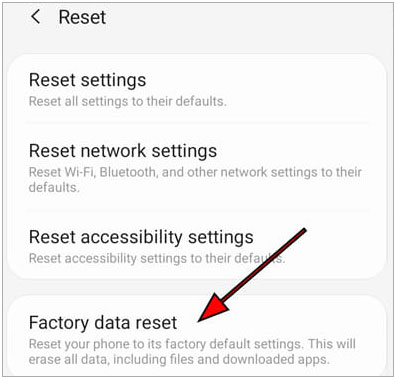
Step 3. Tap "Reset".
Step 4. Select "Factory data reset".
Step 5. Review the information and tap "Reset". Follow the instructions to complete the process.
After the reset, set up your phone again and check whether the Airplane Mode issue is resolved.
If your Samsung phone remains stuck in Airplane Mode after trying all software solutions, the issue may be related to hardware.
Possible signs of hardware problems include:
In these cases, contact Samsung Support or visit an authorized repair center for further inspection.
That's all. A Samsung phone stuck in Airplane Mode can usually be fixed with simple troubleshooting methods, such as restarting the device, resetting network settings, or updating the software. However, if the issue is caused by deeper system errors or firmware problems, Android Repair provides an easier way to repair Android system issues that may affect built-in functions like network connectivity. With its guided repair process and support for many Android devices, it can be a helpful option before considering a factory reset or professional repair.
Related Articles:
How to Fix Samsung Phone Hang Issue? [Updated in 2026]
How to Fix a Bricked Samsung Phone with 5 Effective Solutions
Samsung Phone Keeps Restarting? Swiftly Find Out Reasons and Solve It
Samsung Stuck on Logo: Causes and 6 Effective Solutions to Fix It







 Free Download for PC

 Download for Mac

