Some users use Lenovo tablets and phones. If you are a user of Lenovo mobile devices, and want to transfer data from a Lenovo phone to a computer, follow this guide. We've provided 3 effective methods below, so you can easily move your photos, videos, documents, and other data from your Lenovo mobile device to your computer without any data loss. Then easily free up the device's memory.
If you only want to transfer photos, videos and music files from Lenovo phone to computer, you can follow the below guide to get started. What you need is just a USB cable:
Step 1: Use the USB cable to connect your Lenovo phone to your computer. You may get a prompt about selecting a connection type, just choose the Media Device MTP.
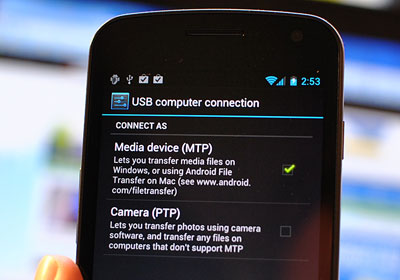
Step 2: Click the Windows logo from the bottom left corner of your computer's screen and then click the folder-shaped icon in the lower-left side of the Start window, which will open the File Explorer program. Turn to the left side bar of the File Explorer to click the name of your Lenovo phone.
Step 3: Click the "Internal Storage" or the "SD card" folder, according to the location where your photos are saved. Double-click to open the folder of "DCIM" -> "Camera" where your Lenovo photos are stored. You should choose other folders if your wanted files are not all in the Camera folder.
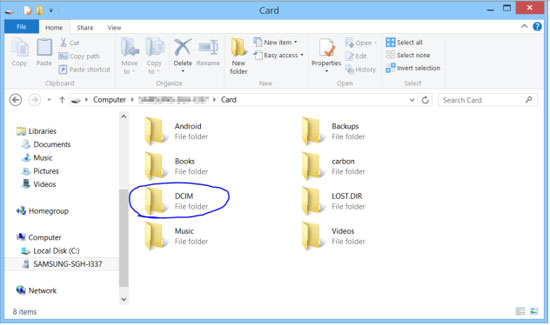
Step 4: Select the photos you want to move to your computer, copy them up and paste them to a folder on your computer where you want to save the transferred Lenovo photos.
The method above only works for media files like photos, videos and music files. If you want to transfer more files from Lenovo phone to computer, such as contacts and text messages, you can refer to other two methods in the below:
Basically, the idea of the transferring skill is very simple via Coolmuster Android Assistant (Windows/Mac), which is the best and easy-to-use Lenovo mobile manager that allows you to export text messages, contacts, photos, videos, movies and more from their Lenovo mobile to computer and import files from computer to your phone without any complicated process of rigmarole. All the exported Lenovo files can be managed on your computer directly.
The software also provides you with the considerate function of texting messages from computer to any phone number without limitation. You can back up all your data from your Lenovo device to your computer at once, and restore the backup without any hassle.
Take a trial version of this Android managing tool with below buttons and then follow the guide below.


Step 1. Connect Your Lenovo Phone to Computer
After installing and launching the Lenovo transfer tool on your computer, connect your Lenovo phone to the computer via a USB cord and it will be detected by this program automatically.
If it is the first time to run this software, you will be required to enable USB debugging on your phone at first. If your phone can be detected by the program, you can skip to the next step.
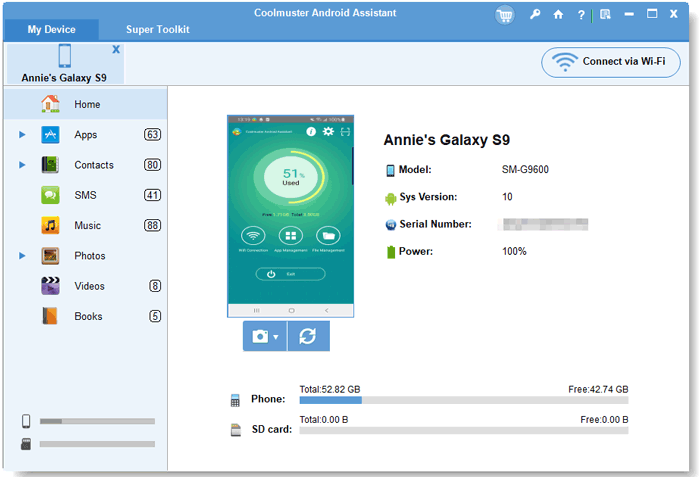
Step 2: Preview and select files for transfer
When your phone is successfully detected by the program, all the files in your phone will be displayed on the left side menu in categories, including Music, Videos, Photos, eBooks, App, Contacts, etc. Click these icons from the left and you will see all the contained files show in list on the right.
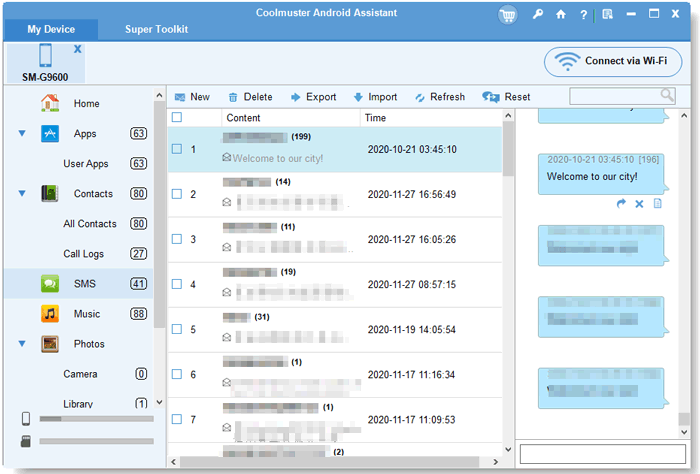
Step 3. Start to export the selected Lenovo data
Mark the files you want to save to the computer and click the button of "Export". After that, a "Path" dialog will appear, asking you to choose an output location to save the exported files. Just choose a place on your computer and then click the "Ok" button to begin the transfer process.
As its name implies, Coolmuster Lab.Fone for Android (Windows/Mac) is an Android data recovery program that can help you recover lost data from overall Android phones and tablets. Actually, this Android data recovery tool can also export existing files from Android phone to computer. That's to say, it can extract both deleted and existing files, including contacts, SMS, call logs, photos, videos, music, apps and more from Lenovo phone to computer.
Just click the following button to free download the Lab.Fone for Android and read the following guide for reference.
You may be interested in: How to Recover Data from Bricked Android?
Step 1. Connect your Lenovo phone to your computer
Use your USB data cable to link your Lenovo phone to the computer and run the Lab.Fone for Android software. The software will automatically detect your Lenovo device and portray an interface like below.
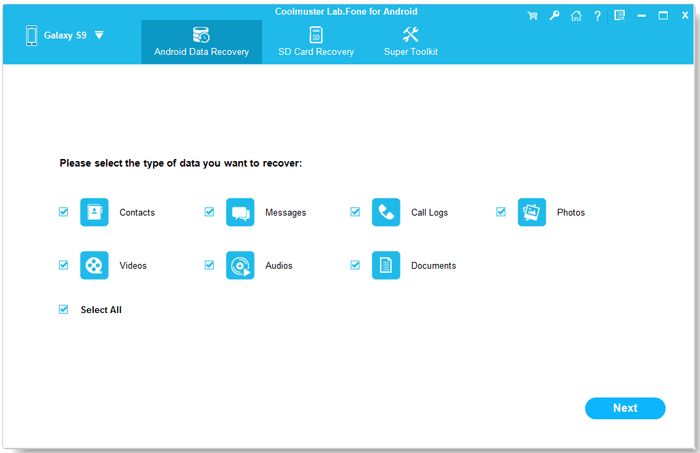
Tips: if you haven't enabled the USB debugging on your phone, the Android data recovery tool will be failed to detect your phone. Therefore, you have to follow the instructions here to open USB debugging on your phone.
Step 2. Scan your Lenovo phone for wanted data
Select the types of data you want and then click "Next" button, then, the software will perform a deep scan on the device and display all the scanned out files in the next window.
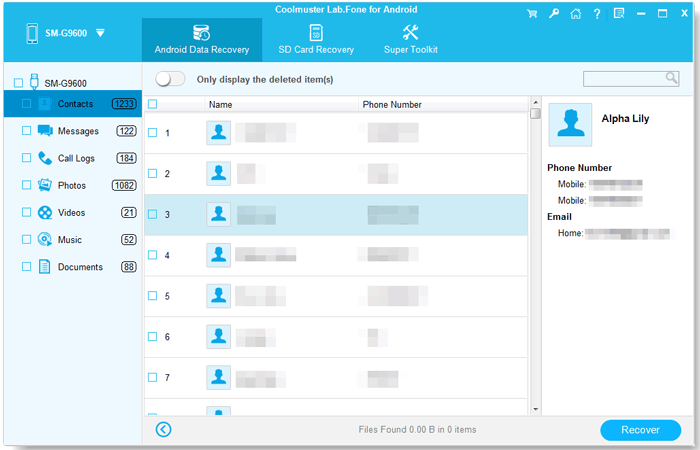
Step 3. Start to transfer files from Lenovo phone to computer
Preview and select the files that you want to export to computer and click on the "Recover" button. Then, you will be able to specify an output location on your computer to save the transferred Lenovo data.
See? It's easy to transfer files from a Lenovo phone or table to a computer. Even though you plan to transfer lots of files at once, Coolmuster Android Assistant can help you complete the task, Its one-click backup feature can transfer all kinds of data at one go. You won't lose any quality to transfer your videos, photos, and audio files.
Related Articles:
How to Transfer Contacts from Android Devices to Computer
Recover Deleted Text Messages from Samsung Cell Phone
How to Restore Android Phone from Google Backup in Easy Steps
How to Transfer Data from Samsung to Lenovo Phone in 3 Effective Ways?







 Download for PC
 Download for Mac

