TL;DR: Want to permanently delete files on a PC without recovery? This guide covers secure ways to erase files on Windows 10/11, including Shift + Delete, File Explorer, CMD, PowerShell, Cipher, and professional data erasure software. Learn how to remove sensitive files completely and prevent anyone from recovering your private data.
When you delete files on a PC, they are usually not removed completely. Deleted files may remain recoverable through professional data recovery software until they are overwritten by new data. This can put your personal documents, private photos, financial information, and sensitive files at risk, especially when you plan to sell, donate, or dispose of your computer.
So, how to permanently delete files on a PC without recovery? In this guide, we will introduce several effective ways to permanently erase files from Windows 10/11. These solutions can help you protect your privacy and ensure deleted files cannot be recovered.

The easiest and most reliable way to permanently delete files on a PC without recovery is to use a professional data erasing tool like Coolmuster Data Erasure. Unlike normal deletion methods, this software uses advanced data wiping technologies to overwrite deleted files multiple times, making it almost impossible for recovery tools to retrieve them.
Coolmuster Data Erasure allows you to permanently erase files, folders, hard drives, and other storage devices. It supports various data erasing standards and ensures that your private information is completely removed from your computer.
The highlights of Coolmuster Data Erasure:
Here is how to permanently delete files on a PC without recovery on Windows 11/10:
01Launch Coolmuster Data Erasure and choose the "File Shredder" mode to permanently delete files from your PC.
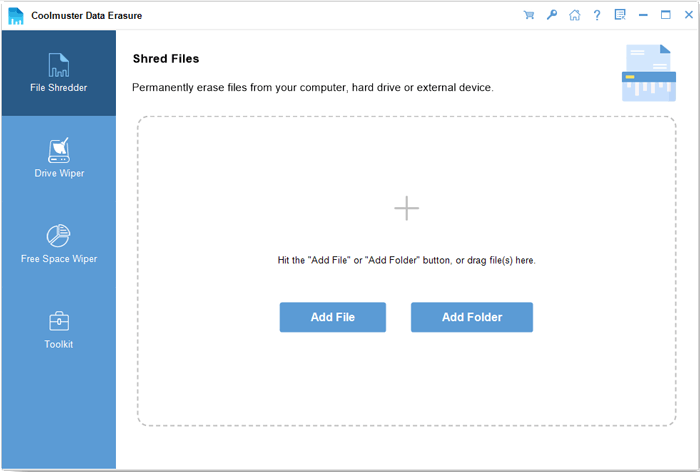
02Add the files or folders you want to remove and select the specific data you need to erase.
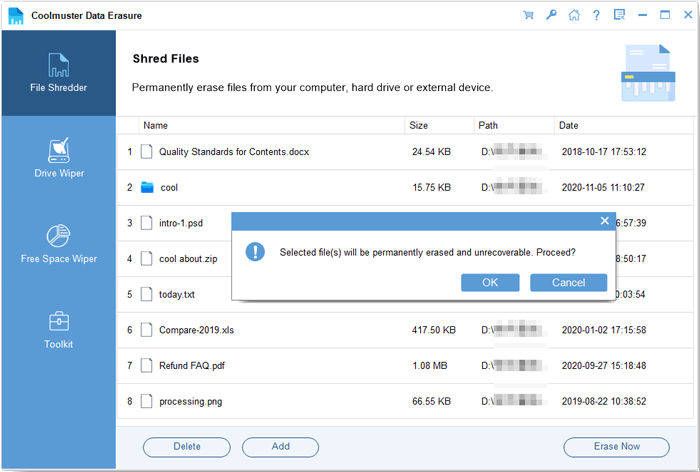
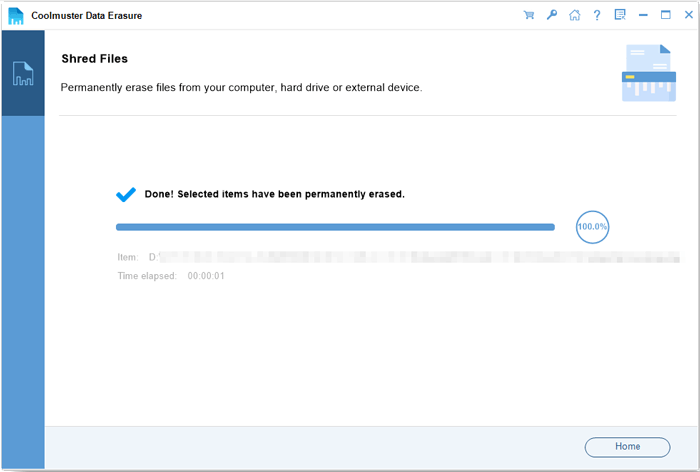
03Click "Erase Now" and confirm the deletion. The selected files will be permanently wiped and cannot be recovered.
Video Tutorial:
Besides using professional data erasing software, Windows also provides several built-in methods to delete files permanently.
Normally, when you delete a file on Windows, it moves to the Recycle Bin. You can restore these files easily before emptying the Recycle Bin. The Shift + Delete shortcut allows you to delete files without sending them to the Recycle Bin.
Here is how to permanently delete files on a PC without recovery using a shortcut key:
Step 1. Open File Explorer on your Windows PC.
Step 2. Locate the file or folder you want to permanently delete.
Step 3. Select the file and press "Shift" + "Delete" on your keyboard.
Step 4. Click "Yes" when Windows asks for confirmation.
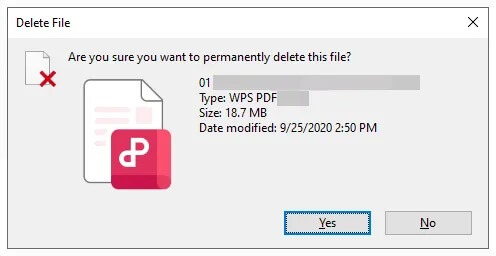
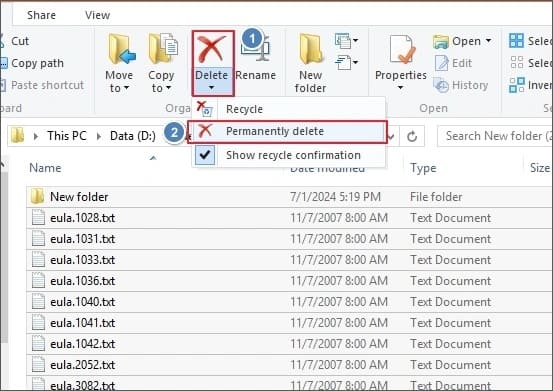
In addition to the Shift + Delete shortcut, the File Explorer ribbon also allows you to bypass the Recycle Bin and permanently delete files. Here is how to permanently delete files on a PC without recovery with the File Explorer ribbon:
Step 1. Open File Explorer and navigate to the files you want to permanently delete.
Step 2. Hold "Ctrl" and click to select specific files, or press "Ctrl" + "A" to select all files in the folder.
Step 3. Click the "Delete" icon in the File Explorer ribbon, open the drop-down menu, and choose "Permanently delete" to remove the files without sending them to the Recycle Bin.
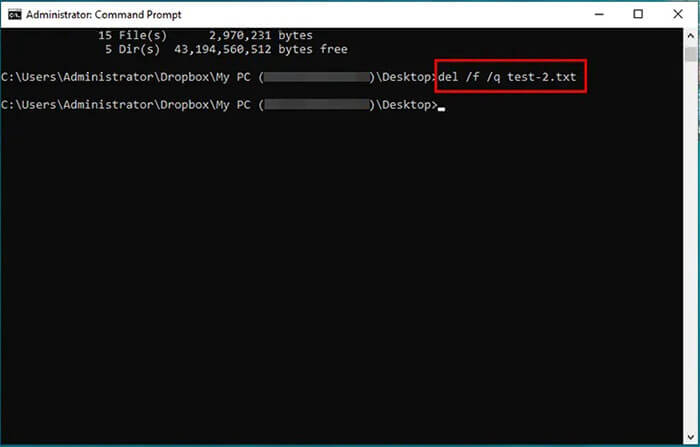
Command Prompt is a powerful Windows utility that allows users to perform advanced file management tasks through commands. It can delete files that are difficult to remove through normal methods. Using Command Prompt is especially useful for experienced users who need more control over file deletion.
Here is how to permanently delete files on a PC without recovery on Windows 11/10:
Step 1. Press Windows + R, type cmd, and press Enter.
Step 2. Enter the "del /f /s /q file_path" command and replace "file_path" with the location of the file you want to delete.
Step 3. Press "Enter" to execute the command.
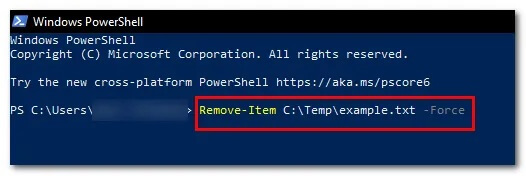
PowerShell is another built-in Windows tool that allows users to delete files using commands. Follow the steps below to permanently delete files on a PC without recovery on Windows 10/11 using PowerShell:
Step 1. Search for "PowerShell" in the Windows "Start" menu.
Step 2. Right-click "Windows PowerShell" and select "Run as administrator".
Step 3. Type "Remove-Item -Path "filename.txt" -Recurse" and replace "filename.txt" with the actual file or folder path. Use the "-Recurse" parameter to delete folders and all their contents.
Step 4. Press "Enter" to complete the deletion.
Cipher is a Windows command-line tool originally designed for managing encrypted files, but it also includes a function to overwrite free disk space. This helps remove traces of previously deleted files.
Here is how to permanently delete files on a PC without recovery via Cipher:
Step 1. Open PowerShell from the "Start" menu on your Windows PC.
Step 2. Enter "cipher /w:C:" and press "Enter".
Step 3. The Cipher tool will overwrite unused space on the selected drive, permanently removing deleted data while keeping existing files unchanged.
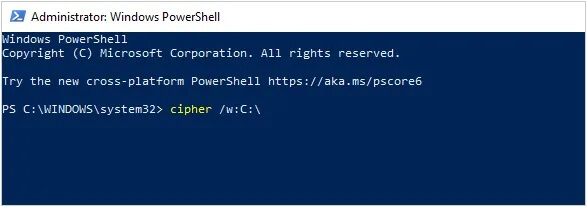
You can replace "C:" with another drive letter to wipe deleted files from a different partition. The process may take a long time depending on the drive size. To clean deleted data from a specific folder, enter the folder path in the command instead.
Q1. Does formatting a hard drive permanently delete everything?
Not always. A quick format only removes file system information, while the actual data remains on the drive and may still be recovered with data recovery tools.
Q2. Is resetting a PC enough before selling it?
Not always. For better security, choose the "Clean the drive" option during the reset process or use professional data erasure software to completely wipe the drive before selling.
Q3. What's the difference between deleting a file and shredding it?
Deleting only removes the file reference from the system, while shredding permanently overwrites the storage space where the file was saved, preventing recovery.
Knowing how to permanently delete files on a PC without recovery is important when protecting personal privacy or preparing a computer for resale. Windows provides several built-in methods, but most of them cannot guarantee that deleted files are completely unrecoverable. For users who need a safer and more reliable solution, Coolmuster Data Erasure is a recommended choice.
It permanently removes files by overwriting data and helps ensure that sensitive information cannot be restored with recovery software. With its simple operation and secure erasing technology, it provides an effective way to protect your privacy when deleting files from a Windows PC.
Related Articles:
How to Force Delete a File on Windows and Mac: Complete Guide
[Ultimate Guide] How to Permanently Delete PDF Files on Computer?
How to Prevent Deleted File Recovery on Windows/Mac: Full Guide






 Free Download for PC


