"In the past, when iTunes was used to backup iPhone to your Mac, you could see voice memos in the backup section. But now that you have to use the Finder folder to back up your iPhone, I can't find voice memo backups anywhere (and I don't want to use iCloud, I want to back them up to my laptop only). Any ideas?"
- from Apple Community
Voice Memos on iPhone are widely used to record meetings, lectures, interviews, and personal ideas. Over time, these recordings can become extremely valuable. However, if your iPhone is lost, damaged, updated incorrectly, or runs out of storage, your voice memos may disappear without warning. That's why knowing how to back up voice memos on iPhone is essential.
In this guide, we'll walk you through several reliable ways to back up iPhone voice memos. You can choose the most suitable approach based on your needs.
Backing up voice memos to a computer is one of the safest and most controllable solutions. Unlike cloud-based backups, computer backups allow you to store files locally, manage them freely, and keep long-term archives without relying on an internet connection. Below are two common ways to back up iPhone voice memos to a computer.
If you want to export voice memos individually, freely choose files, and save them in common audio formats, it is highly recommended to use a professional iOS data management tool. Coolmuster iOS Assistant supports one-click scanning of iPhone data and allows you to back up voice memos directly to your computer. Unlike iTunes, iOS Assistant does not perform a full device backup; instead, it lets users precisely select the types of data they need, making it ideal for users who only want to back up voice memos.
Main features of iOS Assistant:
How do I back up my voice memos on my iPhone to a computer using iOS Assistant?
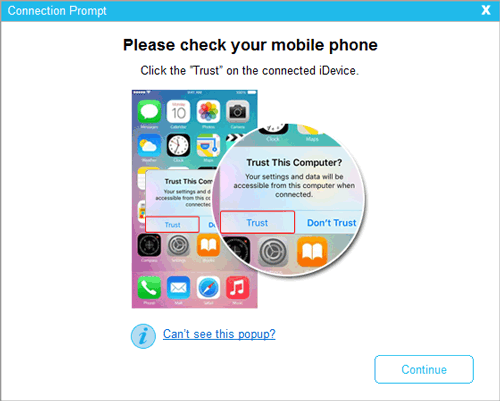
01Download and install the appropriate version of the program on your PC or Mac. Use a USB cable to connect your iPhone to the computer, then launch the program. You will see an interface similar to the one shown below. Follow the on-screen instructions by tapping "Trust" on your iPhone and clicking "Continue" in the program to proceed.
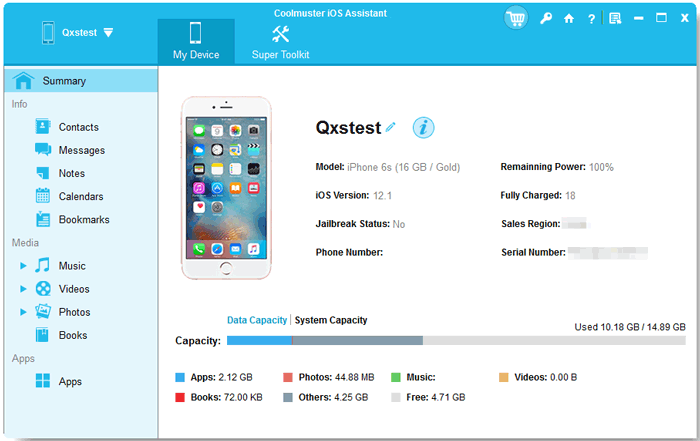
02Once your iPhone is successfully connected, the main interface will display your device information along with the available data categories.
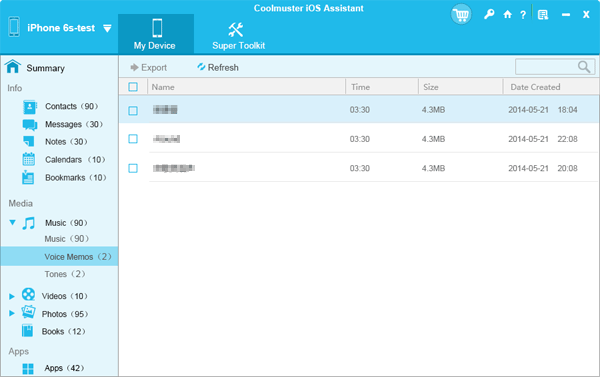
03In the left panel, click "Music" > "Voice Memos". All voice memos on your iPhone will appear in the right panel. Simply select the voice memos you want and click the "Export" button to save them instantly to your computer's local storage.
Video Tutorial:
If you prefer an official Apple solution, you can use iTunes or Finder to back up voice memos on iPhone. You can back up iPhone voice memos using iTunes or Finder in two main ways: syncing as individual audio files or creating a full device backup. Below is how to back up iPhone voice memos using iTunes/Finder.
via iTunes Sync:
Step 1. Make sure you're using the latest version of iTunes.
Step 2. Open iTunes and connect your iPhone to the computer via USB cable.
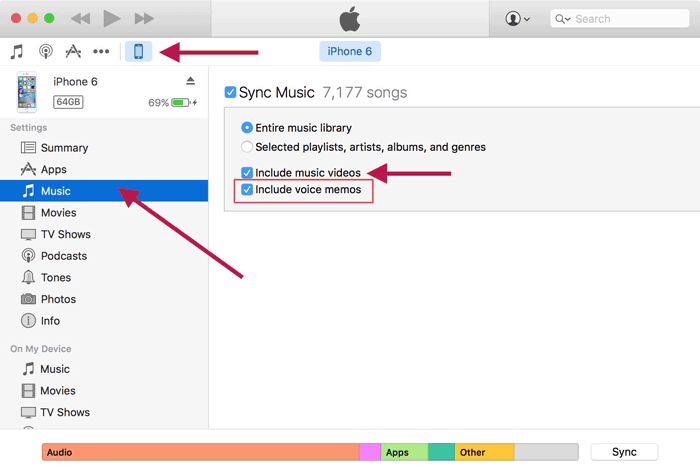
Step 3. Click the iPhone icon in the left sidebar, then select "Music".
Step 4. Check the "Sync Music" box, and also ensure the "Include voice memos" box is selected.
Step 5. Click "Apply" to sync. Your saved voice memos will be located on your computer at the following paths:
via iTunes Backup:
Step 1. Connect your iPhone to the computer via USB and tap "Trust This Computer" on your iPhone if prompted.
Step 2. In iTunes, click the iPhone icon and go to the "Summary" tab. In Finder, select your iPhone from the sidebar and go to the "General" tab.
Step 3. Select "This Computer" (iTunes) or "Back up all of the data on your iPhone to this Mac" (Finder).
Step 4. For extra security, enable "Encrypt local backup" (iTunes) or "Encrypt backups" (Finder) and set a password.
Step 5. Click "Back Up Now" to start the backup process. (iTunes Back Up Now greyed out?)
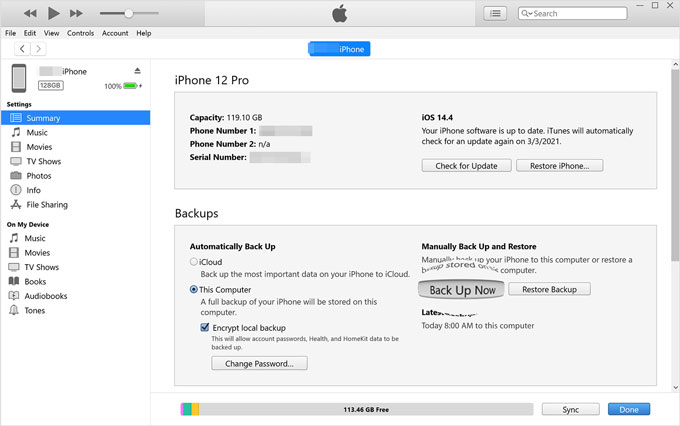
Note: Syncing via "Include Voice Memos" saves individual audio files, while a full backup saves all data but requires restoring to access voice memos.
If you prefer wireless backups, iCloud offers an official and convenient solution.
iCloud syncing allows voice memos to stay automatically in sync across multiple Apple devices, making it ideal for users who use an iPhone, iPad, or Mac at the same time. Once enabled, voice memos are automatically uploaded to iCloud and synced to all devices signed in with the same Apple ID.
Here is how to back up voice memos on iPhone via iCloud sync:
Step 1. Make sure you're signed in to iCloud with your Apple ID on your iPhone.
Step 2. Go to "Settings" > [Your Name] > "iCloud".
Step 3. Tap "Show All" (or "View All") and toggle on "Voice Memos".
Step 4. Your voice memos will automatically upload to iCloud and sync across all devices signed in with the same Apple ID.
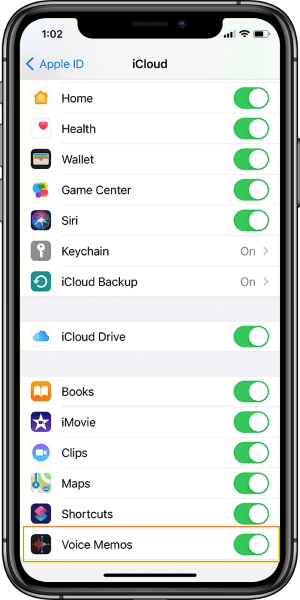
If you want to be able to restore all your data at once in case your device is lost or the system encounters issues, using an iCloud backup is a better option. With this method, voice memos are saved to the cloud as part of the system data.
Here is how to back up voice memos on iPhone via iCloud backup:
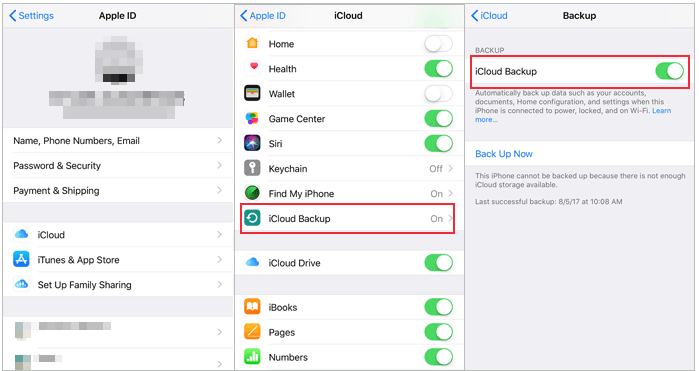
Step 1. Open "Settings" and tap your "Apple ID".
Step 2. Select "iCloud" → "iCloud Backup".
Step 3. Turn on "iCloud Backup".
Step 4. Tap "Back Up Now" and keep your iPhone connected to Wi-Fi.
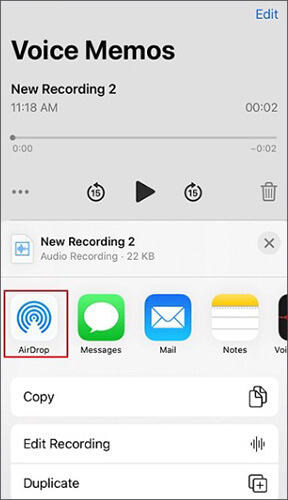
If you only need to back up a few voice memos, the built-in Share feature offers a quick and simple solution. This method allows you to export individual recordings without additional software.
Here is how to back up iPhone voice memos via the Share feature:
Step 1. Open the Voice Memos app on your iPhone.
Step 2. Select the voice memo you want to back up.
Step 3. Tap the "Share" icon.
Step 4. Choose a destination such as "Mail", "AirDrop", or a cloud storage app.
Step 5. Complete the transfer to save the recording.
There are multiple ways to back up voice memos on iPhone, and the best method depends on how you plan to use your recordings. That said, if you want maximum control, selective backups, and easy access to your voice memo files, Coolmuster iOS Assistant stands out as the most reliable solution. It allows you to back up iPhone voice memos efficiently without unnecessary data or limitations.
Related Articles:
6 Ways to Transfer Voice Memos from iPhone to Computer without iTunes
How to Transfer Voice Memos from iPhone to iPhone? [Top 6 Ways]
How to Recover Deleted Voice Memos on iPhone with or Without Backup?
How to Recover Voice Memos from iCloud Smoothly | 2 Advanced Solutions







 Free Download for PC
  Free Download for Mac


