TL;DR:
If your iPhone screen won't rotate as expected, this guide will show you how to enable screen rotation and fix common rotation issues with simple solutions.
In daily iPhone use, you may sometimes find that the screen stays in one orientation instead of rotating with your device, which can be frustrating when watching videos, browsing the web, or using apps in landscape mode. This usually happens because of settings issues or temporary software glitches. If your iPhone screen rotation is not working, this guide will show you how to enable screen rotation and fix common rotation problems with simple methods.
iPhone screen rotation works through the Portrait Orientation Lock feature. When this lock is disabled, your iPhone can automatically switch between portrait and landscape modes in supported apps.
Rotate the screen on an iPhone without a Home button:
Step 1. Swipe down from the top-right corner of your screen to open Control Center.
Step 2. Tap the "Portrait Orientation Lock" button to turn it off if it is enabled.
Step 3. Turn your iPhone sideways to change the screen orientation.
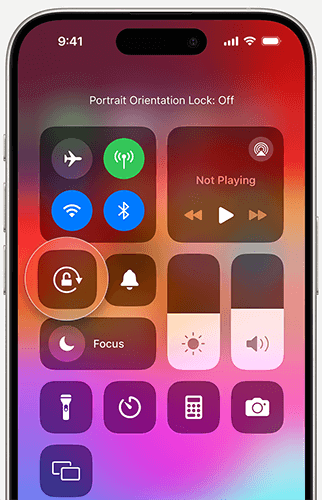
Rotate the screen on an iPhone with a Home button:
Step 1. Swipe up from the bottom edge of the screen to open Control Center.
Step 2. Tap the "Portrait Orientation Lock" button to disable it.
Step 3. Turn your iPhone sideways to switch between portrait and landscape modes.
Note: Not all apps support screen rotation. If your iPhone screen does not rotate after disabling Portrait Orientation Lock, try opening an app like Safari or Messages that supports landscape mode.
If your iPhone screen isn't rotating, it could be caused by one of the following reasons:
Is your iPhone touch screen not working? It can be a frustrating occurrence. This guide shows you how to fix it effortlessly. Check it out.
How to Fix iPhone Touch Screen Not Working in 10 Useful Ways
Now that we understand the main reasons for a locked screen rotation. Then, how do I unlock the screen rotation on my iPhone? Here are a few methods to help you unlock iPhone screen to rotate:
A straightforward solution for a locked screen rotation is to disable the rotation lock. When turned off, the rotation lock allows your iPhone or iPad screen to switch between portrait and landscape modes. However, enabling it will fix your screen in one orientation.
Here is how to turn off the orientation lock:
Step 1. Open the Control Center on your iPhone. On iPhone X and later models, swipe down from the top-right corner of the screen; on iPhone 8 and earlier models, swipe up from the bottom of the screen.
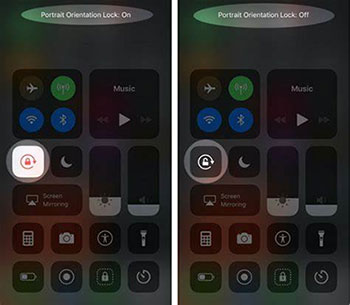
Step 2. Find the button to lock the orientation (a lock icon with an arrow around it). If the icon is red, it means the orientation lock is enabled.
Step 3. Tap the icon to turn off the orientation lock. You can verify this by checking for the "Portrait Orientation Lock: Off" message at the top of your screen.
Step 4. Try rotating the screen to see if it works properly.
Not every iPhone app supports landscape mode. If your iPhone screen does not rotate even after turning off Portrait Orientation Lock, the app you are using may not support screen rotation.
To check whether the issue is caused by the app, try opening an app that supports landscape mode, such as Safari, Messages, or Photos, and rotate your iPhone sideways. If the screen rotates normally in another app, your device is working properly, and the original app simply does not support this feature.
You can also check the app's settings or update the app to the latest version, as some rotation issues may be related to app compatibility or temporary bugs. If the screen still does not rotate across multiple supported apps, continue with the following troubleshooting methods.
Occasionally, software glitches may cause your iPhone or iPad to stop auto-rotating. This issue can occur even if the orientation lock and Display Zoom are disabled. Fortunately, restarting your iOS device can quickly fix these software problems.
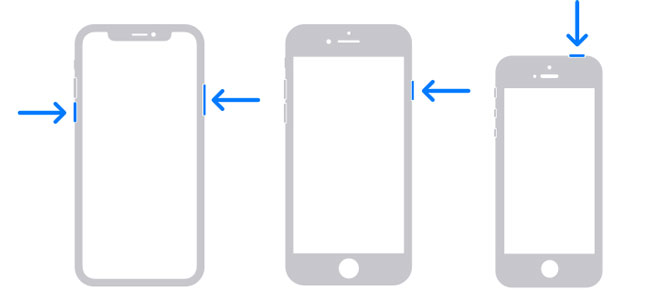
The restart process varies depending on your iPhone model. Here are the steps:
For iPhone X, 11, 12, 13, or later:
For iPhone 6, 7, 8, or SE (2nd or 3rd generation):
For iPhone SE (1st generation), 5, or earlier:
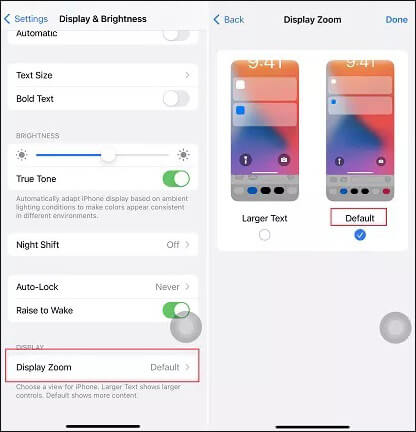
Display Zoom is a handy feature on iOS devices that enlarges text and icons for easier navigation and better visibility. However, it can also lock your device's screen to a specific orientation, even if the orientation lock is disabled. To unlock screen rotation, you can turn off Display Zoom. (iPhone Screen Zoomed in Stuck?)
How do I unlock my iPhone screen rotation? Follow the steps below:
Step 1. Open the "Settings" app on your device and select "Display & Brightness".
Step 2. Scroll down and tap on "Display Zoom".
Step 3. On the next screen, tap "Default". This will return the text and icons to their standard size and disable Display Zoom.
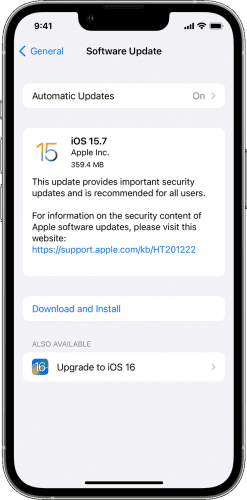
An outdated iOS version can cause various system issues, including problems with screen rotation. Make sure your device is running the latest version of iOS.
Step 1. Open the "Settings" app and go to "General".
Step 2. Tap "Software Update". (iPhone software update failed?)
Step 3. If an update is available, tap "Download and Install".
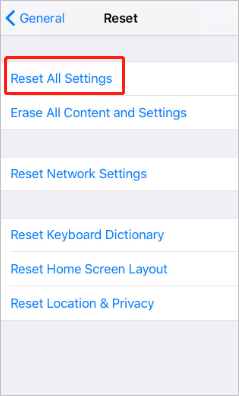
If the above methods don't work, you can try resetting all settings to their default values and then reconfigure the screen rotation. Restoring settings to default will not affect the data on your iPhone.
Here is how to do it:
Step 1. Open the "Settings" app and go to "General".
Step 2. Tap "Reset" and select "Reset All Settings".
Step 3. Enter your password to confirm the action.
If you want to know the difference between Reset All Settings and Erase All Content and Settings, you can read the following article.
Reset All Settings vs Erase All Content [Informative Comparison]If your iPhone screen rotation is still not working after trying the basic fixes above, the issue may be caused by underlying iOS system errors. In this case, a professional iOS system repair tool like iOS System Recovery can help diagnose and fix system-related problems without erasing your data.
Key features of iOS System Recovery:
Here is how to use iOS System Recovery to unlock iPhone screen to rotate:
01Download and install the program on your computer, then open it following the on-screen instructions. On the main interface, select the "iOS System Recovery" option. Connect your iPhone to the computer via USB and tap "Trust" if prompted.
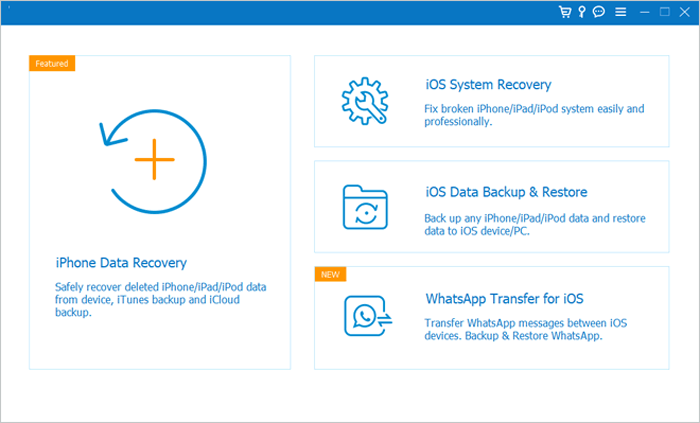
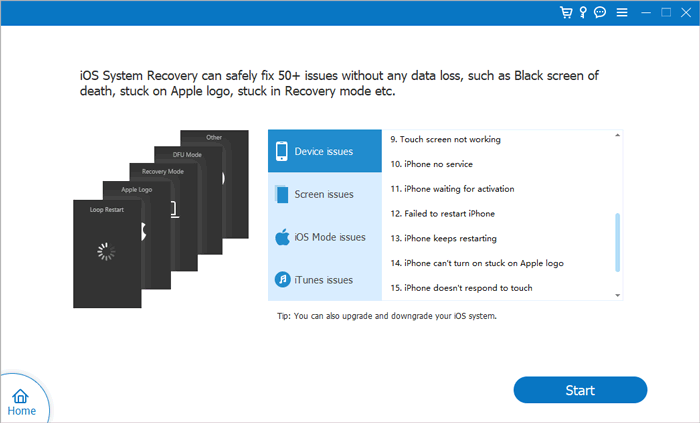
02A popup will show various issues the tool can resolve. Click the "Start" button to proceed.
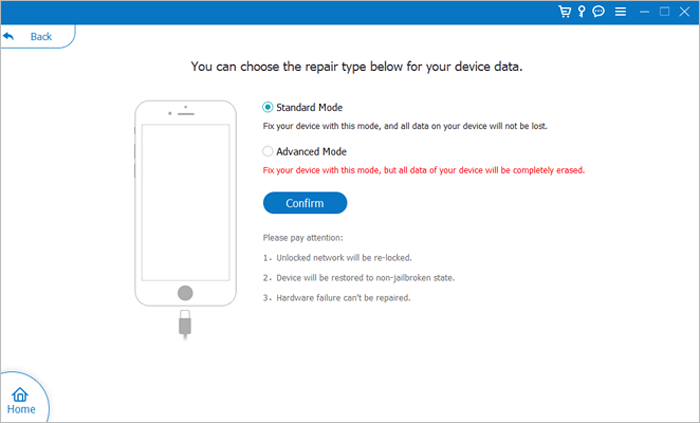
03Choose between "Standard Mode" or "Advanced Mode." The tool will detect your iPhone's basic information; tap "Confirm" to continue.
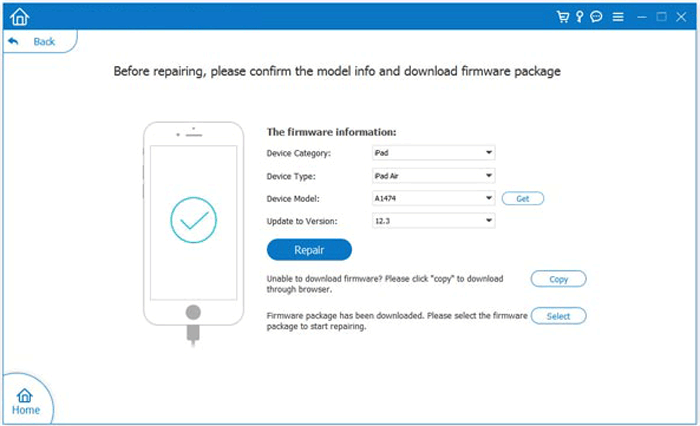
04Click the "Repair" button to begin downloading the firmware package and fixing your iOS device.
If your iPhone still cannot rotate the screen, it may be a hardware issue. It is recommended to contact Apple Support or schedule an appointment at an Apple Store for inspection and repair.
Q1. Why won't my iPhone screen rotate?
If your iPhone screen won't rotate, check whether Portrait Orientation Lock is enabled first. You should also make sure the app you are using supports screen rotation. If the issue continues, try restarting your iPhone, updating iOS, or resetting all settings.
Q2. How do I turn off screen rotation lock on my iPhone?
To turn off screen rotation lock, open Control Center, then tap the Portrait Orientation Lock icon to disable it. On iPhones without a Home button, swipe down from the top-right corner. On iPhones with a Home button, swipe up from the bottom edge.
Q3. Why does my iPhone rotate in some apps but not others?
Some iPhone apps do not support landscape mode, so the screen will stay in portrait orientation even when Rotation Lock is turned off. Try using apps like Safari, Photos, or Messages to test whether screen rotation is working properly.
Q4. How do I fix my iPhone stuck in portrait mode?
If your iPhone is stuck in portrait mode, make sure Portrait Orientation Lock is disabled, restart your device, update iOS, or reset your settings. If it is caused by a system issue, an iOS system repair tool may help fix the problem.
Q5. Does every iPhone support screen rotation?
Most iPhone models support screen rotation, but the available rotation options depend on the device model and the app being used. Some apps and features may only work in portrait mode.
That's all about how to enable and fix screen rotation issues on iPhone. In most cases, you can get the feature working again by disabling Portrait Orientation Lock, checking app compatibility, restarting your device, or updating iOS. If the problem is caused by iOS system errors, a professional tool like iOS System Recovery can help repair the issue without affecting your data. However, if none of these methods work, the problem may be related to hardware, and contacting Apple Support is recommended.
Related Articles:
Bottom of iPhone Screen Not Working? Fix It with 11 Easy Ways
How to Unlock iPhone with Unresponsive Screen? [Full Guide]
Troubleshooting the Bottom of iPhone Screen Not Working
[Solved] How to Fix a Glitching iPhone Screen - 12 Easy Methods




 Free Download for PC
  Free Download for Mac


