"I have an issue with my iPhone sending text messages to Android devices. My phone only receives messages from android but the sender never receives my reply."
- From the Apple Community
There's nothing more frustrating than hitting "Send" on an important text from your iPhone, only to discover that it never reaches an Android phone. Whether it's a personal message, a work update, or time-sensitive information, this issue can seriously disrupt communication.
The good news is that iPhone not sending texts to Android is usually caused by simple settings conflicts or temporary network glitches, not hardware damage. In this guide, we'll first explain the most common reasons why iPhones fail to send SMS to Android devices, then walk you through practical, step-by-step solutions to fix the problem. We'll also introduce a hassle-free way to transfer text messages from iPhone to Android if needed.

Before diving into fixes, understanding the root causes can help you target the right solution faster. Here are the most common reasons:
We've organized the fixes from simplest to most advanced, so start with the first steps and work your way down if needed. Most users resolve the issue with the first few solutions.
iMessage only works between Apple devices, so when it's enabled, messages sent from an iPhone to an Android phone may fail to deliver. This is one of the most common causes of an iPhone not sending texts to Android.
Here's how to fix it:
Step 1. On your iPhone, open "Settings" and tap "Messages".
Step 2. Locate the "iMessage" toggle and switch it off. Wait a few seconds for the change to take effect.
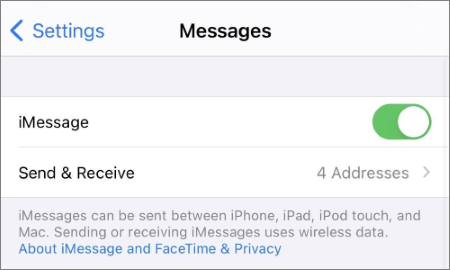
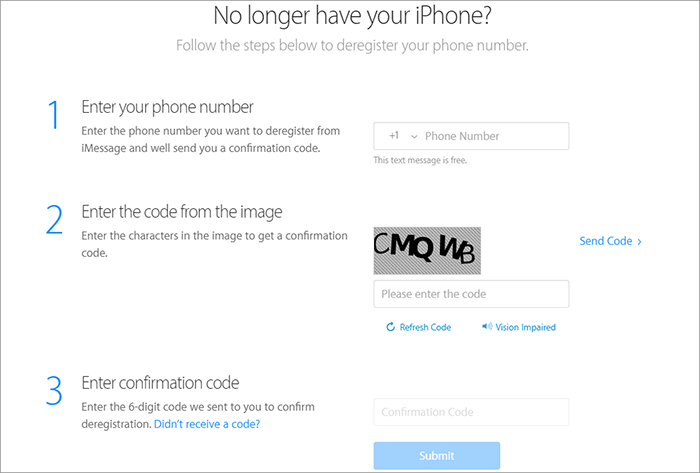
If the issue persists (for example, texts still won't go through), deregister your phone number from iMessage using Apple's official tool:
Texts sent from an iPhone to Android rely on cellular service, not just Wi-Fi, so a stable network connection is essential. If your signal is weak or your carrier service is interrupted, SMS and MMS messages may fail to send.
Try the following steps:
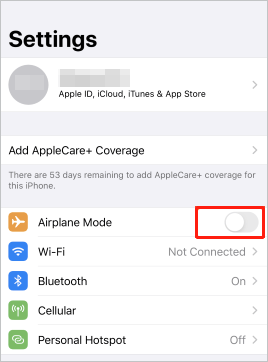
Step 1. Toggle Airplane Mode
Open "Settings" and turn "Airplane Mode" on. Wait 10-15 seconds, then turn it off. This refreshes your cellular connection and often resolves temporary network glitches.
Step 2. Check Signal Strength
Look at the signal bars in the top-right corner of your iPhone. If you see only 0-1 bars, move to an area with better reception, such as near a window, outdoors, or away from thick walls.
Step 3. Verify Cellular Service
Go to "Settings" > "Cellular" (or "Mobile Data" in some regions) and make sure cellular data is enabled, and your mobile plan is active.
Step 4. Check for Network Outages
Contact your carrier (such as AT&T, Verizon, or T-Mobile), or check their official website or app for any reported network outages in your area. Carrier outages can temporarily disrupt SMS and MMS services.
Your iPhone needs SMS and MMS enabled to send texts to non-Apple devices. Here's how to confirm these settings:
Step 1. Open "Settings" on your iPhone and tap "Messages".
Step 2. Look for "SMS Messaging" and toggle it on. This allows your iPhone to send standard text messages to non-iPhone devices.
Also, enable "MMS Messaging" (this is required for sending photos, videos, or group texts to Android devices).
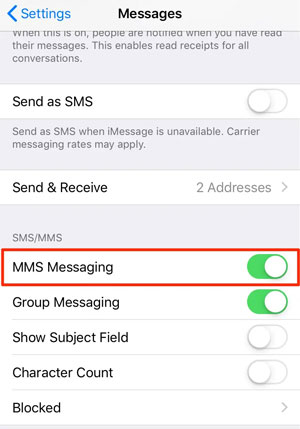
Step 3. Ensure "Send as SMS" is enabled (this setting automatically sends a message as SMS if iMessage fails, which is useful for cross-platform communication).
A simple restart can resolve temporary software glitches that may be blocking text delivery. The restart process varies slightly by iPhone model:
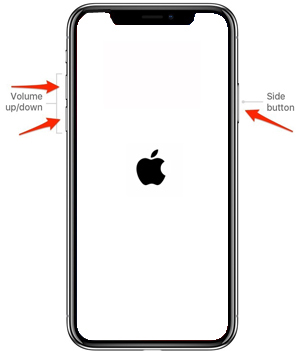
For iPhone 8 or later:
Press and quickly release the "Volume Up" button, then press and quickly release the "Volume Down" button. Finally, press and hold the "Side" button until the Apple logo appears. Release the "Side" button and wait for the phone to restart.
For iPhone 7 or 7 Plus:
Press and hold both the "Volume Down" button and the "Sleep/Wake" button until the Apple logo appears. Release both buttons and wait for a restart.
For iPhone 6s or earlier (including SE 1st gen):
Press and hold both the "Home" button and the "Sleep/Wake" button until the Apple logo appears. Release both buttons and wait for a restart.
Outdated iOS versions often contain bugs that can affect messaging. Updating to the latest iOS can resolve these issues:
Step 1. Open "Settings" > "General" > "Software Update".
Step 2. Your iPhone will check for available updates. If an update is available, tap "Download and Install". Ensure your phone is connected to Wi-Fi and has at least 50% battery (or plug it in) to avoid interruptions during the update.
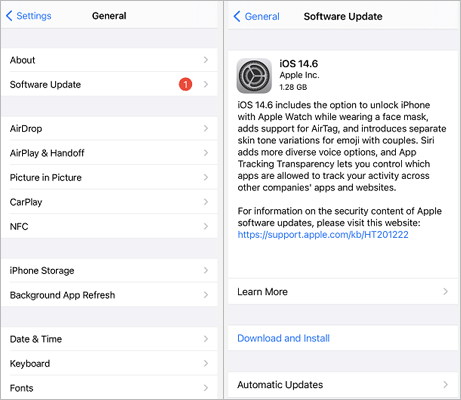
Also, check for carrier settings updates: Open "Settings" > "General" > "About". Wait 10-15 seconds. If a carrier settings update is available, a prompt will appear. Tap "Update to install" it. Carrier settings updates improve compatibility between your iPhone and your carrier's network, which can fix SMS/MMS issues.
Accidentally blocking the Android user's number will prevent texts from being sent. Here's how to check and unblock:
Step 1. Open "Settings" on your iPhone and tap "Phone".
Step 2. Scroll down and tap "Blocked Contacts".
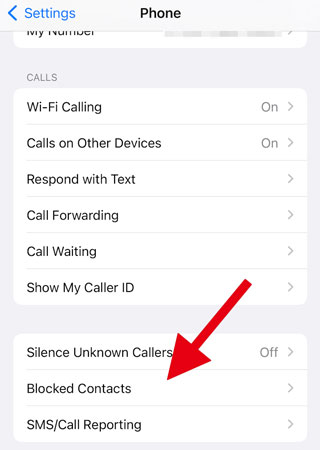
Step 3. If the Android user's number is listed, swipe left on it and tap "Unblock". Alternatively, tap "Edit" in the top-right corner, tap the red minus sign next to the number, then tap "Unblock".
Ask the Android user to check if they've blocked your iPhone number, too. On most Android devices, this can be done by opening the Messages app > "Settings" > "Blocked Numbers". If your number is listed, they should unblock it.
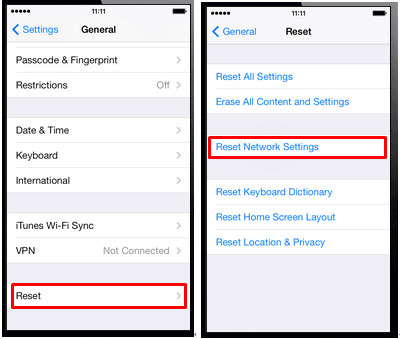
If the above fixes haven't worked, incorrect network settings (e.g., APN, SMS center number) may be the issue. Resetting network settings will restore these to default, which often resolves messaging problems. This will erase your saved Wi-Fi passwords, so make sure you have them handy before proceeding.
Step 1. Open "Settings" > "General".
Step 2. Tap "Reset", then select "Reset Network Settings".
If your iPhone still cannot send texts to Android after trying all other fixes, the problem may be caused by a deeper iOS system issue. iOS System Recovery is a professional tool that can repair system glitches safely, without losing your data.
Why use iOS System Recovery?
How to fix iPhone not sending texts to Android using iOS System Recovery?
01Install and open iOS System Recovery on your computer. Connect your iPhone via a USB cable and select "iOS System Recovery" to start.

02The software will automatically identify any system issues affecting your iPhone. Once detected, click "Start" to proceed.

03Verify your iPhone's model and iOS version on the interface. Adjust the information if needed using the drop-down menus. Finally, click "Repair" to fix the problem. After completion, your iPhone should be able to send texts to Android again.

If your iPhone still cannot send texts to Android after trying all the above fixes, the issue may be related to your carrier or SIM card. In this case, contacting your mobile service provider is the most reliable solution. They can check whether your SMS service is active, verify your account status, and troubleshoot any network or SIM-related problems that might be preventing messages from being delivered. This step ensures that any carrier-side issues are addressed quickly so your iPhone can send texts without interruption.
After trying all the troubleshooting steps above, you may also want an easy way to move your messages from iPhone to Android, especially if you're switching devices. Manual methods can be slow, complicated, and prone to errors. A dedicated tool like Coolmuster Mobile Transfer provides a simple, reliable solution. With just a few clicks, you can transfer texts, contacts, photos, videos, and other data between devices without any technical expertise.
Unlike manual methods, Coolmuster Mobile Transfer supports multiple scenarios: iPhone to Android, Android to iPhone, Android to Android, and iPhone to iPhone. This makes it a versatile tool for users who need to switch phones or back up data quickly and safely. With Coolmuster Mobile Transfer, moving your important messages and other data between devices has never been easier.
How to transfer text messages from iPhone to Android by Coolmuster Mobile Transfer?
01Download the tool for your computer (Windows or Mac) and install it following the on-screen instructions.
02Connect both your iPhone and Android device to the same computer using USB cables. Follow the on-screen prompts to complete the connection. Once the program detects your devices successfully, you'll see an interface like this. Make sure the positions of the iPhone and Android are correct on the screen.
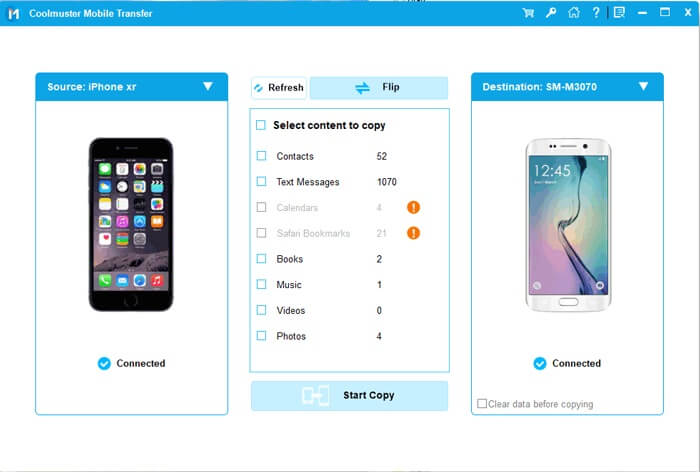
03In the middle panel, select the data you want to transfer. Here, we'll choose "Text Messages" and then click "Start Copy". The program also supports many other data types. When transferring messages from iPhone to Android, ensure that your iPhone is unlocked, and watch for any unlock prompts that may appear on the iPhone screen.
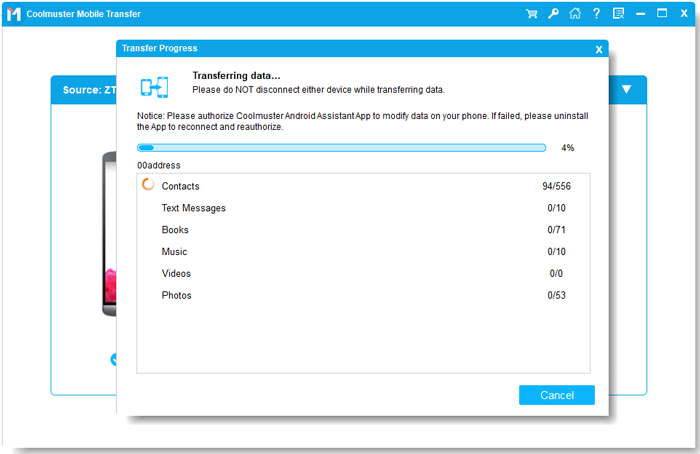
Video Guide
Now, following the steps above, you can quickly resolve the problem of iPhone not sending texts to Android. For more stubborn issues, iOS System Recovery provides a safe and reliable way to fix underlying system glitches without losing any data.
And if you're switching devices or want to transfer messages, contacts, photos, and other important data between iPhone and Android (or even between two iPhones or two Androids), Coolmuster Mobile Transfer makes the process fast, easy, and secure. By combining these solutions, you can ensure smooth messaging and seamless data management across your devices.
Related Articles:
Fix Switched from iPhone to Android Not Receiving Texts with 7 Solutions
iPhone Not Receiving Texts from Android? Why and How to Fix
How to Fix Text Messages Didn't Transfer from Android to iPhone
How to Fix iPhone Text Messages Disappeared Issue in 2026? [11 Fixes]







 Free Download for PC
  Free Download for Mac


