"Help ! All displays black & white suddenly, everywhere, including during FaceTime. I've tried everything."
- from Apple Community
Are you unable to use your iPhone due to the iPhone screen black and white error? Being unable to use your iPhone is very disappointing, especially if you want to make a serious call or access an important document stored on the device. Although iPhones are known for their reliability, iPhone users have complained of this unusual error.
However, you don't have to worry if your iPhone goes black and white because there are several ways of fixing the issue. Let us discuss several techniques for fixing the iPhone stuck in black and white error.
Why is my iPhone screen only showing black and white? Several things can make your iPhone's screen turn black and white. They include:
Now that we know the potential causes of the iPhone screen black and white problem, let's explore the methods to fix it.
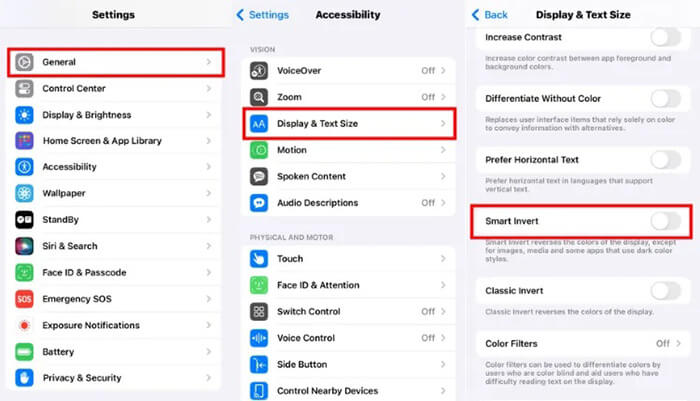
"Grayscale mode" is an accessibility feature on the iPhone designed to help users with visual impairments by displaying the screen content in black and white for better clarity. If you accidentally enabled this mode, the screen will appear in black and white. You can check and turn off Grayscale mode by following these steps:
Step 1. Open the "Settings" app.
Step 2. Scroll down and tap on "Accessibility".
Step 3. Under the "Vision" section, select "Display & Text Size".
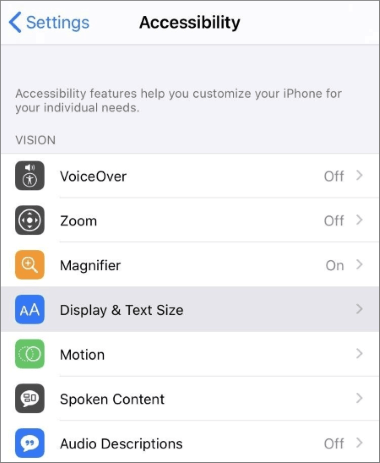
Step 4. Look for the "Color Filters" option, and toggle it off if it's on.
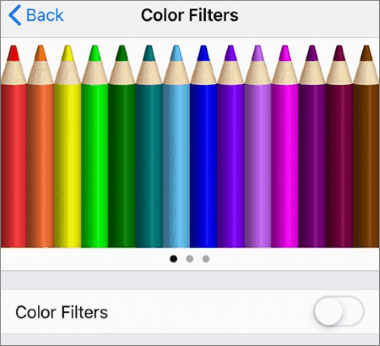
Step 5. If the Grayscale filter is enabled, this will immediately bring color back to your screen.
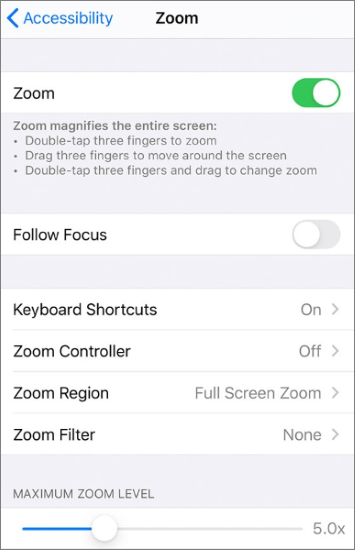
Other accessibility settings that might cause your iPhone screen to turn black and white include the Zoom filter. This feature is designed to magnify parts of the screen for users with visual impairments. If Zoom is accidentally enabled with the grayscale filter, it can make the entire screen appear black and white. This could be the reason why your iPhone screen looks black and white.
To check the Zoom function, follow the steps below:
Step 1. Go to "Settings" > "Accessibility" > "Zoom".
Step 2. If the "Zoom" toggle is on, turn it off. (iPhone screen zoomed in stuck?)
"Smart Invert" reverses the colors on your display to their opposites. While it won't make your iPhone screen black and white, it can create a similar effect with inverted colors. To check this setting:
Step 1. Go to "Settings" > "Accessibility" > "Display & Text Size".
Step 2. Locate the "Smart Invert" option and turn it off.
Sometimes, a system glitch can cause the screen to display in black and white. A simple solution is to force restart your iPhone, which can help resolve temporary software issues. Here's how to force restart:

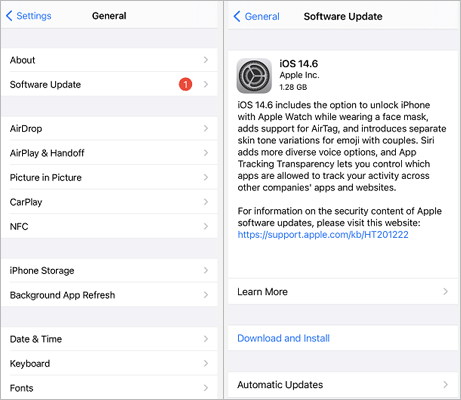
Sometimes, a bug in the current version of iOS may cause display issues, including a black and white screen. Updating to the latest version of iOS can help resolve these problems. To update your iPhone:
Step 1. Go to "Settings" > "General" > "Software Update".
Step 2. If an update is available, tap "Download and Install".
If none of the previous methods fix the iPhone screen black and white problem, it might indicate a more complex system problem with your device. In this case, you can use a professional iOS repair tool to fix it. iOS System Recovery is a powerful tool that can repair various system issues, including an iPhone screen black and white, an iPhone stuck on the Apple logo, a water-damaged iPhone, a frozen iPhone, and more, all without causing any data loss.
What can iOS System Recovery do for you?
How do I fix the iPhone screen black and white lines without losing data?
01Download and install the tool on your Mac or Windows computer. Open the application and select "iOS System Recovery".

02The tool will automatically detect the issue with your iPhone. Once detected, click "Start" to proceed.

03Select the repair mode as "Standard Mode" so that your iPhone will be repaired without losing the stored data. Then, click "Confirm" to continue.

04Click on the "Repair" button so that the application will fix the iPhone's black-and-white screen issue. After that, wait for a few minutes, and the issue will be fixed permanently.

You can also fix the iPhone screen black and white issue by erasing all its settings and content. This will erase all content from your device, so be sure to back up important data first. Follow the steps below to erase all your iPhone's content and settings:
Step 1. Launch your iPhone's "Settings" application and tap the "General" button. Scroll down the screen and hit the "Reset" button.
Step 2. Tap the "Erase All Content And Settings" button. Authenticate the action by keying in your iPhone's password.

If your iPhone screen only shows black and white even after trying all the above fixes, it could be a hardware problem. Issues with the screen or internal components may cause color display issues. Visit an Apple Store or an authorized service center to get your iPhone checked by a professional technician.
One of the most nagging things today is being unable to use your mobile device whenever you require it. The iPhone screen black and white problem is one of the issues that can hinder you from using your iPhone. You can use the troubleshooting tips discussed in this article to fix the issue and continue using your iPhone normally. However, we recommend using the iOS System Recovery application as it is easy to use, secure, has a high repair success rate, and is already trusted by many users.
Related Articles:
How to Fix iPhone 16/17 Black Screen of Death? - 6 Proven Fixes
How to Fix iPhone Black Screen But Still On Issue? [Tips and Tricks]
[Can't Miss] 8 Effective Methods to Fix iPhone Grey Screen of Death
6 Tricks to Fix iPhone White Screen of Death Without Effort (Updated)




 Free Download for PC
  Free Download for Mac


