In an era where file sharing often relies on cloud services, data caps, and privacy compromises, finding a tool that prioritizes speed, security, and offline accessibility is a game-changer. LocalSend has emerged as a standout option for users seeking a hassle-free way to share files across devices without relying on the internet or third-party servers. This in-depth review will break down everything you need to know about LocalSend, from its core features to its pros and cons, usage guide, alternatives, and frequently asked questions.
LocalSend is an open-source file-sharing tool designed for fast and secure data transfer between devices on the same local network. Unlike cloud-based services, it does not require account registration, internet access, or external servers.

* Cross-Platform Compatibility
LocalSend supports Windows, macOS, Linux, Android, and iOS, allowing files to be shared easily between phones, tablets, and computers without system limitations. It also works on platforms such as Fire OS, making it suitable for a wide range of devices.
* Secure Encrypted Transfers
All file transfers are protected by encrypted peer-to-peer connections, ensuring that data can only be accessed by the sender and the receiving device. Optional PIN verification helps prevent unauthorized devices from receiving files on the same network.
* Completely Offline Operation
LocalSend works entirely within a local network and does not rely on the internet or cloud servers. Files never leave the LAN, which reduces privacy risks and makes it usable even in environments without internet access.
* Fast Local Network Speeds
By using the full capacity of the local Wi-Fi network, LocalSend delivers much faster transfer speeds than Bluetooth-based solutions, with no file size limits or bandwidth restrictions.
While LocalSend focuses on simple, secure, and local file sharing, this approach naturally comes with both clear advantages and certain limitations. Understanding these pros and cons helps determine whether it suits different usage scenarios.
LocalSend is designed to keep the file-sharing process simple and friction-free, so getting started does not require any account setup or complex configuration. Once the app is installed, devices on the same local network can quickly discover each other and begin transferring files.
Step 1. Install LocalSend on all devices
Download and install LocalSend on each device you want to use, whether it is a phone, tablet, or computer. No registration, login, or server setup is required, and the app is ready to use immediately after installation.
Step 2. Select the files you want to share
Open LocalSend on the sending device and choose the files you want to transfer. You can select photos, videos, documents, or text, as LocalSend supports almost all file types without size restrictions.
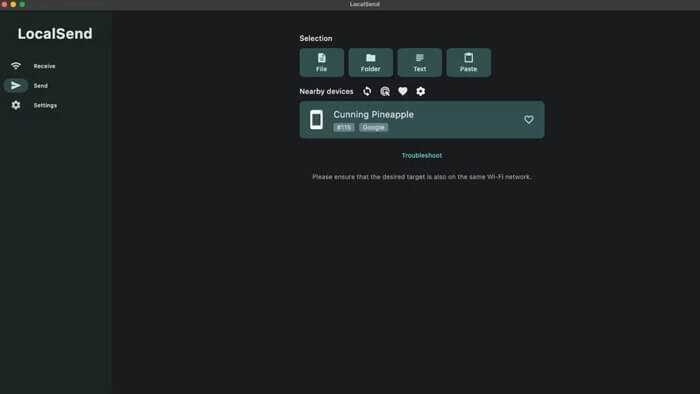
Step 3. Choose a nearby device and start the transfer
From the list of detected devices on the same local network, select the target device. Confirm the request on the receiving device, and the file transfer will begin instantly and complete through the local connection.
While LocalSend shines in LAN-based peer-to-peer file sharing, it has limitations such as reliance on the same network and a lack of systematic data migration features. So, what is the best alternative to LocalSend? For users who need dedicated cross-device data transfer, especially for phone-to-phone migration, Coolmuster Mobile Transfer stands out as the top choice. It complements LocalSend's strengths while addressing scenarios where LocalSend falls short, making it ideal for device upgrades.
Key Features of Coolmuster Mobile Transfer:
How to transfer data from phone to phone with the LocalSend alternative?
01Download the version compatible with your computer (Windows/macOS). Install the program and launch it after completion.
02Connect both your source device (old phone) and target device (new phone) to the computer via USB cables. For Android devices, enable USB debugging as prompted; for iOS devices, tap "Trust" on the device screen to authorize the connection.
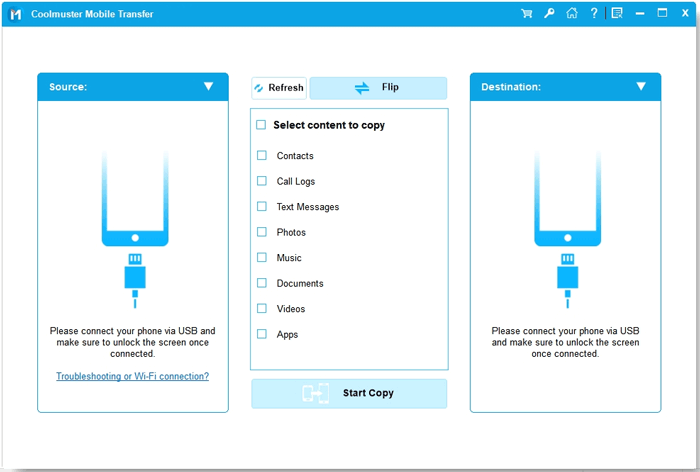
03Once the program detects both devices, confirm the source and target devices (use the "Flip" button to swap them if needed). Here, we show you the interface of Android to Android.
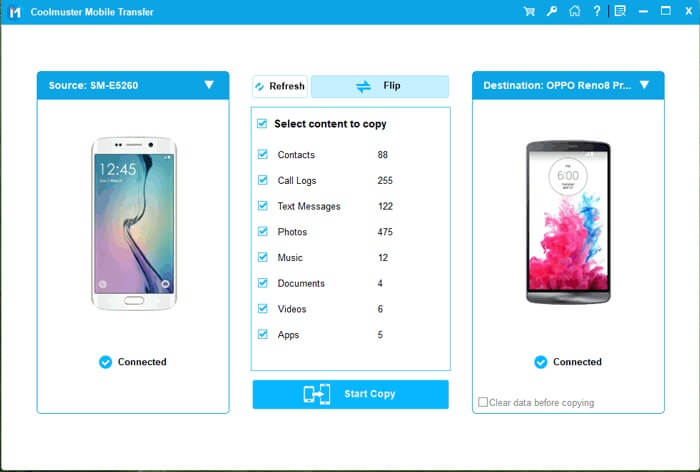
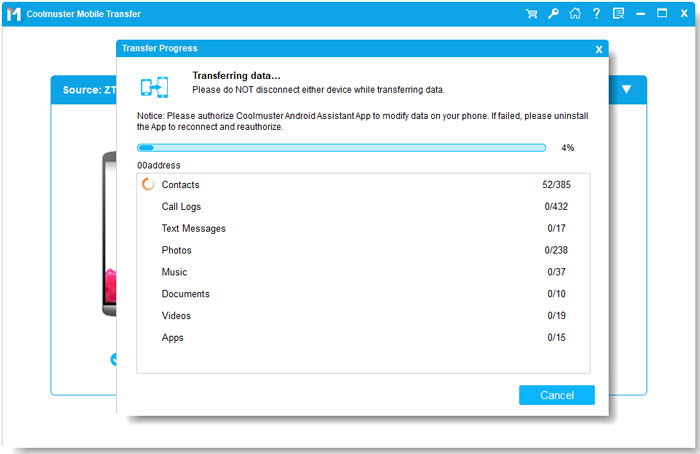
04Check the data types you want to transfer (e.g., contacts, photos, videos) from the middle panel and click the "Start Copy" button to initiate the transfer. Wait for a few minutes (depending on the data size), and the process will complete automatically without manual intervention.
If you prefer visual guidance to master the operation more quickly, a detailed video tutorial is available to walk you through each step with clear demonstrations.
1. Is LocalSend trustworthy?
Yes. LocalSend is generally considered trustworthy due to its open-source nature, which allows its code to be publicly reviewed. File transfers are protected with encrypted connections, and optional PIN verification helps prevent unauthorized access. Since all data stays within the local network, there is no involvement of third-party servers.
2. Is LocalSend free to use?
Yes. LocalSend is completely free to use, with no ads, subscriptions, or in-app purchases. All core features, including cross-platform file sharing, encryption, offline transfers, and support for large files, are available at no cost.
3. Does LocalSend collect data?
No. LocalSend does not require user accounts and does not collect personal data or transfer history. It does not rely on cloud services, and all data is exchanged directly between local devices, which helps minimize privacy concerns.
LocalSend is a solid choice for users who want a simple, fast, and secure way to share files across multiple platforms within the same local network. Its cross-platform compatibility, end-to-end encryption, and offline operation make it especially convenient for transferring photos, videos, documents, or text between nearby devices without the need for accounts or internet access. For local file sharing, it delivers a reliable and privacy-conscious solution.
However, for users who need more advanced phone-to-phone data migration, structured transfers, or support for larger and more diverse data types, Coolmuster Mobile Transfer is a strong alternative. With its guided process and broad device compatibility, it complements LocalSend by covering scenarios that go beyond local network transfers, providing a more complete solution for complex data transfer needs.
Related Articles:
Top 7 Phone Transfer Apps Help with Phone to Phone Transfer
How to Transfer Data from Android to Android Wirelessly in 7 Methods
Which Is the Best Phone Transfer Software for Android & iOS in 2026?
How to Switch Android Phones Without Any Trouble? Top 5 Solutions







 Free Download for PC
  Free Download for Mac


