Transferring contacts from one phone to another is a crucial task when switching to a new device. If you're an HONOR user, you might be wondering how to move your contacts between two HONOR devices. Whether you want to use an app or manual methods, there are multiple ways to accomplish this. In this guide, we'll explore the best options to help you seamlessly transfer contacts from HONOR to HONOR.
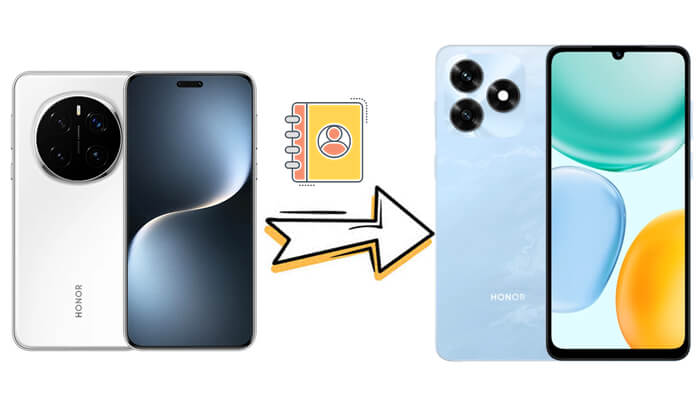
If you're looking for the fastest and most hassle-free way to transfer contacts from HONOR to HONOR, Coolmuster Mobile Transfer is the top choice. This professional mobile transfer tool is designed to simplify data migration between devices, supporting not only contacts but also messages, photos, videos, and more. It requires no technical skills, and the entire transfer process can be completed in just a few clicks, with zero data loss.
Key features of Coolmuster Mobile Transfer:
How to transfer contacts from HONOR to HONOR with Coolmuster Mobile Transfer?
01Download and install Coolmuster Mobile Transfer on your computer (Windows or Mac). Launch the program.
02Connect both your old and new HONOR phones to the computer using USB cables. Enable USB debugging on both devices to ensure the program can detect them successfully.
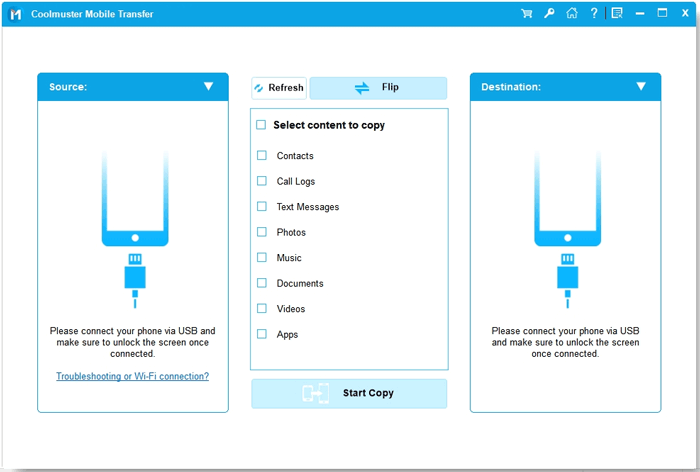
03Once detected, the phones will be displayed as "Source" (old HONOR) and "Destination" (new HONOR) on the screen. You can click the "Flip" button if the positions are reversed.
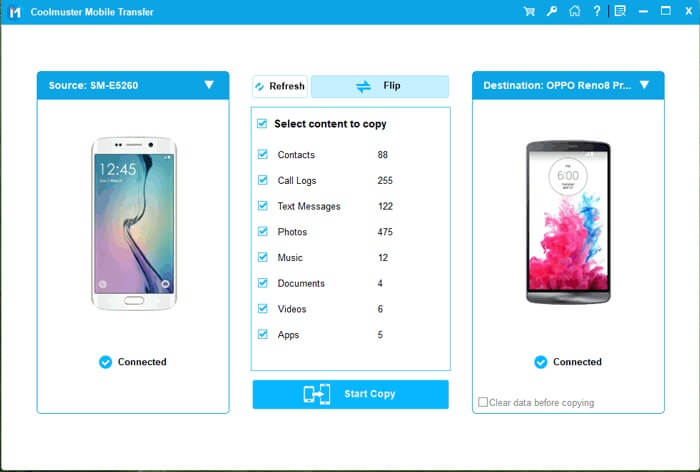
04On the middle panel, select the "Contacts" option (you can also select other data types if needed). Then, click the "Start Copy" button to begin the transfer.
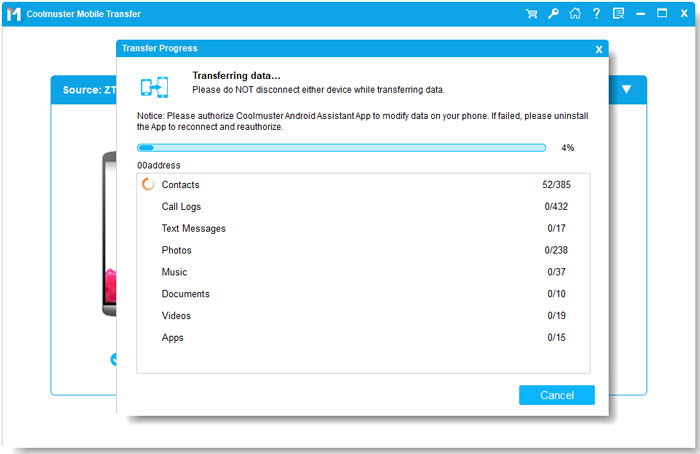
If you prefer a more visual guide, here's a video tutorial that walks you through the entire process of transferring contacts from HONOR to HONOR using Coolmuster Mobile Transfer.
Device Clone is HONOR's official built-in app designed specifically for data migration between HONOR devices (or between HONOR and other Android devices). It's pre-installed on most new HONOR phones; if not, you can download it for free from the HONOR AppGallery. This method uses Wi-Fi Direct to transfer data, so you don't need a computer or mobile data. (HONOR Device Clone Review for you.)
Follow these steps:
Step 1. Download HONOR Device Clone and open the app on both devices.
Step 2. On the respective device, choose either "This is the new device" or "This is the old device" depending on which device you're setting up.
Step 3. On the new device, select the type of your old device. Here, we choose "HONOR". It can be an HONOR, HarmonyOS, another Android brand, or even iOS.
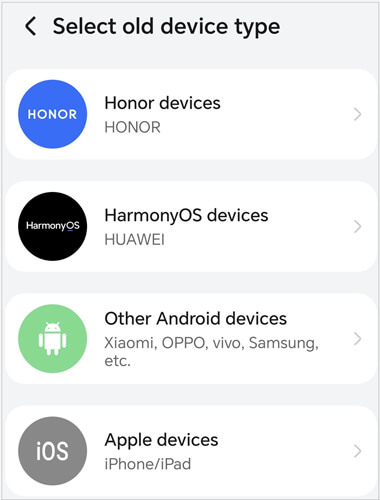
Step 4. On the old device, after selecting "This is the old device", the QR code scanning screen will appear. Use the old device to scan the QR code on the new device to establish a connection between the two phones.
Step 5. Once the connection is established, select the data you wish to transfer, such as contacts, photos, messages, etc.
Step 6. After the selection is complete, tap "Next" to begin the migration process. The transfer will begin, and it may take a few minutes depending on the amount of data.
If you use a Google account on your HONOR phone, you can easily sync your contacts between devices via Google's cloud service. This method is convenient because it automatically syncs contacts in real-time once set up, and you don't need to connect the two phones directly. Here's how to do it:
Step 1. On your old HONOR phone, go to "Settings" > "Accounts & backup" > "Accounts". Select your Google account from the list.
Step 2. Tap on "Sync account" and ensure that the "Contacts" option is enabled. If not, toggle it on. Then, tap "Sync now" to sync all contacts from the old phone to your Google account.
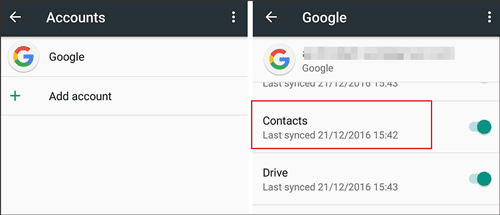
Step 3. On your new HONOR phone, sign in to the same Google account. Go to "Settings" > "Accounts & backup" > "Accounts" > [Your Google Account] > "Sync account".
Step 4. Enable the "Contacts" sync option and tap "Sync now". The contacts synced to your Google Account will be automatically downloaded to the new HONOR phone.
If you prefer an offline method without using any apps or cloud services, transferring contacts via a SIM card is a reliable option. Most SIM cards can store up to 250-500 contacts (depending on the SIM card type), so this method is ideal if you have a small number of contacts. Here's the step-by-step guide:
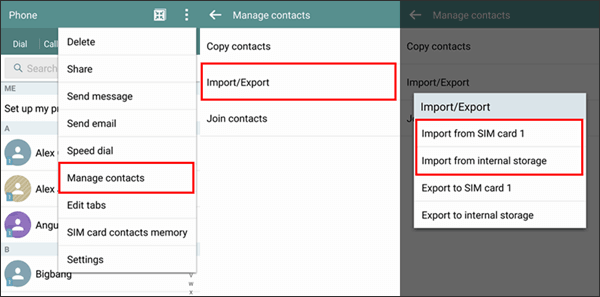
Step 1. On your old HONOR phone, insert the SIM card (if not already inserted). Go to "Contacts" app > Tap the three-dot menu icon in the top-right corner > Select "Manage contacts".
Step 2. From the manage contacts options, select "Import/Export contacts" > "Export to SIM card". Choose the contacts you want to transfer (or select "All contacts") and tap "Export". Wait for the export process to complete.
Step 3. Power off the old HONOR phone, remove the SIM card, and insert it into the new HONOR phone.
Step 4. On the new HONOR phone, open the "Contacts" app > Three-dot menu > "Manage contacts" > "Import/Export contacts" > "Import from SIM card". Select the contacts you want to import and tap "Import" to save them to the new phone.
Another offline method is to manually export contacts from the old HONOR phone as a VCF (Virtual Contact File) and then import the file to the new phone. VCF is a universal contact format supported by almost all smartphones, making this method highly compatible. You can transfer the VCF file via a USB cable, Bluetooth, or a microSD card. Here's how:
Step 1. Export contacts from the old HONOR phone.
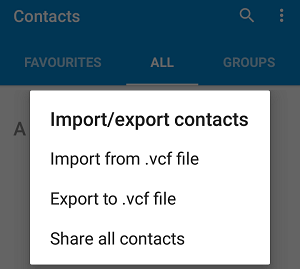
Open the "Contacts" app > Three-dot menu > "Manage contacts" > "Import/Export contacts" > "Export to storage" (or "Export to SD card"). Select the contacts to export and tap "Export". The contacts will be saved as a VCF file in the phone's internal storage or SD card.
Step 2. Transfer the VCF file to the new HONOR phone.
You can use a USB cable to connect the old phone to a computer, copy the VCF file to the computer, then connect the new phone to the computer and paste the file. Alternatively, use Bluetooth to send the VCF file directly from the old phone to the new one, or insert the microSD card (if used for export) into the new phone.
Step 3. Import the VCF file to the new HONOR phone.
Open the "Contacts" app > Three-dot menu > "Manage contacts" > "Import/Export contacts" > "Import from storage" (or "Import from SD card"). Locate the VCF file you transferred and tap "Import" to add the contacts to the new phone.
Now that you know the options for transferring contacts between HONOR phones, you can choose the method that best suits your needs. Whether you go with Coolmuster Mobile Transfer for a quick, hassle-free transfer, or use Device Clone or your Google Account, the process is simple. For more control, you can also try SIM card transfer or manual VCF export/import. Whatever method you choose, your contacts will be safely transferred and your new phone will be ready to use.
For the easiest, fastest, and most reliable transfer experience, we recommend Coolmuster Mobile Transfer, especially if you're not just looking to transfer contacts but also other important data like photos, messages, and apps. This method ensures that your entire mobile experience is seamlessly moved to your new HONOR device with minimal effort.
Related Articles:
How to Transfer Contacts from Android to Android Phone [8 Best Ways]
How to Conduct HONOR Backup and Restore with 4 Effective Ways
How to Edit HONOR Phone Contacts on Computer | 4 Easy Ways
How to Transfer Contacts from HONOR to iPhone Easily (2026 Guide)







 Free Download for PC
  Free Download for Mac


