When switching from a Vivo phone to an OPPO device, transferring your important data is usually the first task to complete. Contacts, photos, messages, videos, and apps often contain valuable information that you don't want to lose during the transition.
Fortunately, there are several reliable ways to transfer data from Vivo to OPPO. You can use professional phone transfer software, official migration tools, cloud services, or wireless features built into Android devices. In this guide, we will introduce four practical methods to help you move your data smoothly from Vivo to OPPO.
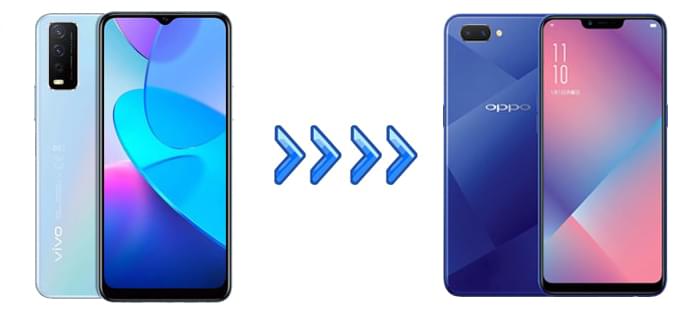
If you want to move data between two phones quickly and safely, using a professional phone transfer tool is often the easiest solution. Coolmuster Mobile Transfer allows you to transfer various types of data directly from one Android device to another with just a few clicks.
It supports a wide range of Android brands, including Vivo and OPPO, and enables direct device-to-device data transfer without complicated setup.
Key features of Coolmuster Mobile Transfer:
Follow these steps to transfer data from Vivo to OPPO with Coolmuster Mobile Transfer:
01Download and install Mobile Transfer on your computer. Launch the software after installation.
02Use USB cables to connect both the Vivo phone and the OPPO phone to the computer. Enable USB debugging on both devices when prompted so the software can detect them successfully.
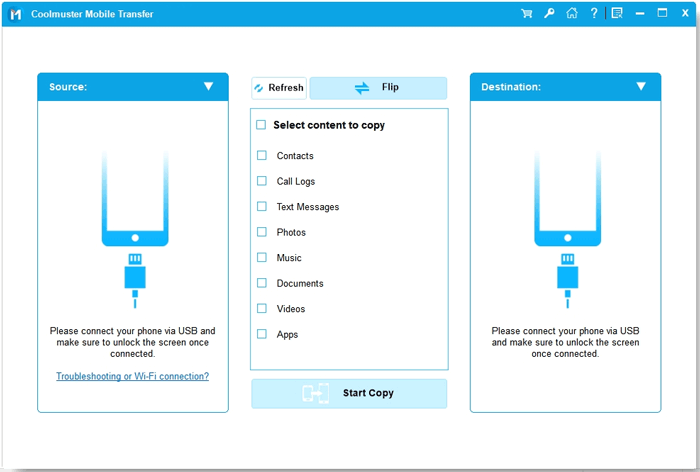
03Once both devices are recognized, the program will display them on the screen. Make sure the Vivo phone is shown as the Source device and the OPPO phone as the Destination device. If they are reversed, click "Flip" to switch them.
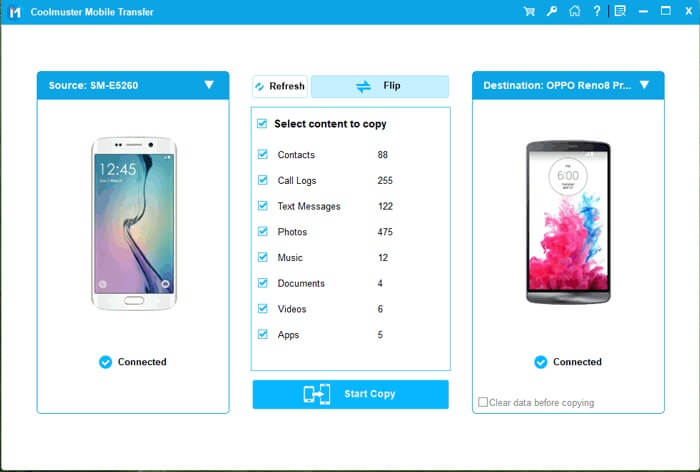
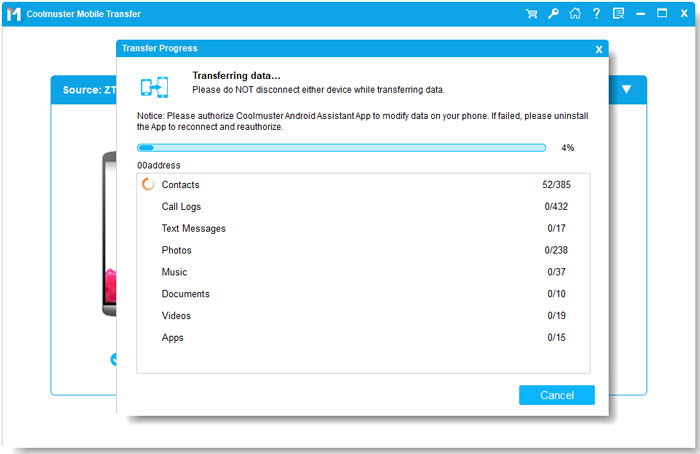
04Choose the data types you want to transfer, such as contacts, messages, photos, or videos, and then click "Start Copy" to begin transferring data from Vivo to OPPO.
If you'd prefer a step-by-step video demonstration, take a look at this tutorial:
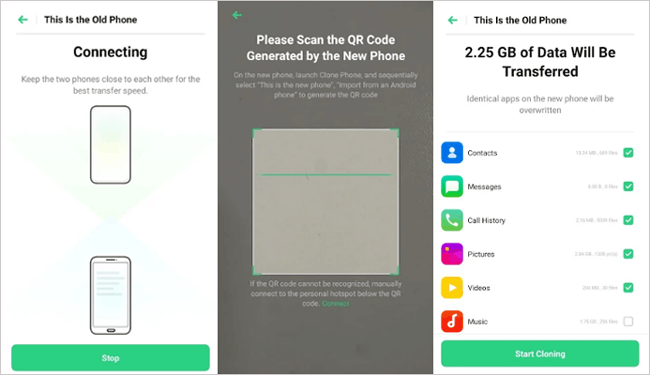
Another convenient method is using OPPO Clone Phone, which is the official phone migration tool provided by OPPO. It allows users to transfer data from an old phone to a new OPPO device wirelessly.
This method does not require a computer and works directly between two phones.
Step 1. First, install Clone Phone on the Vivo device if it is not already available. Then open the app on both devices.
Step 2. On the OPPO phone, select "This is the new phone", and on the Vivo phone, choose "This is the old phone". The OPPO phone will generate a QR code.
Step 3. Use the Vivo phone to scan the QR code displayed on the OPPO device to establish a connection between the two phones.
Step 4. Once connected, select the types of data you want to transfer, such as contacts, photos, messages, or apps. Tap "Start Cloning", and the data will be migrated from the Vivo phone to the OPPO phone.
Google account sync is a lightweight, cloud-based method ideal for migrating basic data (contacts, calendars, photos) between Android devices. It's best for users who only need to transfer essential files and don't want to use cables or desktop tools.
Step 1. Start by opening Settings on the Vivo phone and navigating to "Accounts" or "Google".
Step 2. Sign in with your Google account and enable the sync options for the data you want to back up, such as contacts and calendar.
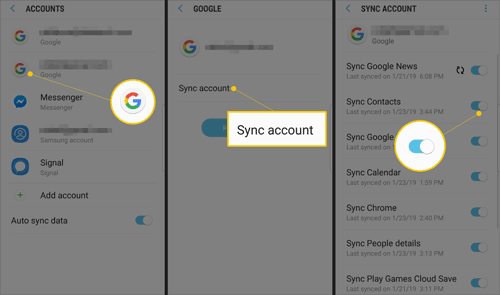
Step 3. After the data is synchronized to your Google account, switch to the OPPO phone. Log in with the same Google account during device setup or from the account settings.
Step 4. Once the account is added, enable the synchronization options on the OPPO phone. The previously synced data will automatically appear on the new device.
Bluetooth is a basic, cable-free method for transferring small files (e.g., contacts, photos, documents) between Vivo and OPPO. It's not suitable for large files (videos, apps) but works well for quick, on-the-go transfers. Here are the steps for moving Vivo files to OPPO using Bluetooth:
Step 1. On Vivo and OPPO, go to "Settings" > "Bluetooth" and toggle it on. Make both phones "Discoverable" (enable "Visible to nearby devices").
Step 2. On OPPO, click "Search for devices" and select your Vivo phone from the list.
Step 3. On Vivo, confirm the pairing request (enter the same PIN if prompted). Once paired, the Bluetooth icon will show "Connected".
Step 4. Next, open the file you want to send on the Vivo phone, tap the "Share" icon, and choose "Bluetooth" as the sharing method. Select the OPPO phone from the available devices.
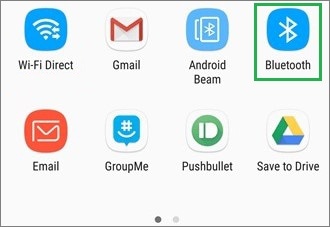
Step 5. Accept the transfer request on the OPPO phone, and the selected file will be sent wirelessly.
Transferring data from Vivo to OPPO is not difficult as long as you choose the right method. In this guide, we introduced four practical ways to help you move your important data, including contacts, photos, messages, and more.
Among them, OPPO Clone Phone is a convenient wireless solution, but it may experience connection instability and sometimes cannot migrate all data types. Google account works well for syncing contacts and calendars, yet it does not support transferring most local files such as videos, music, or documents. Bluetooth is suitable for sending a few files quickly, but the transfer speed is slow and it is not ideal for large data transfers.
If you want a faster, more stable, and comprehensive solution, Coolmuster Mobile Transfer is a great choice. It allows you to transfer multiple types of data directly from Vivo to OPPO in one click, making the switching process much easier and more efficient.
Related Articles:
[Solved] How to Transfer Data from OPPO to Vivo in 6 Powerful Ways
Everything You Need to Know About Clone Phone App: A Comprehensive Guide
How to Transfer Data from Vivo to OnePlus? [Must-Read Tips]
How to Export Contacts from Vivo Phone [Quick and Simple Steps]







 Free Download for PC
  Free Download for Mac


