TL;DR: Need to transfer music from Huawei to iPhone? This guide covers three simple solutions: a dedicated phone transfer tool, iTunes, and cloud storage.
Choose the method that best fits your needs and transfer your favorite songs with ease.
If you are trying to transfer music from Huawei to iPhone, you will quickly notice that the process is not as simple as moving files between two phones of the same system. Huawei uses Android, while iPhone runs iOS, which means there is no direct built-in transfer method like AirDrop or quick migration tools.
So, how can you successfully transfer music from Huawei to iPhone without losing files or quality? In this guide, we will show you three practical ways to transfer music from Huawei to iPhone. You can choose the one that best fits your needs.
The easiest and most efficient way to transfer music from Huawei to iPhone is by using a dedicated mobile transfer tool. One of the most reliable solutions is Phone Transfer. It is designed specifically for transferring data between Android and iOS devices, making it ideal for users switching from Huawei to iPhone.
It supports recognizing both Android and iPhone devices on Windows or Mac computers and allows users to transfer music files directly between systems without first exporting and then importing, greatly simplifying the process. It also supports batch transfer, meaning you can move your entire music library at once while maintaining the original audio quality.
What can Phone Transfer do for you?
Here is how to transfer music from Huawei to iPhone using Phone Transfer:
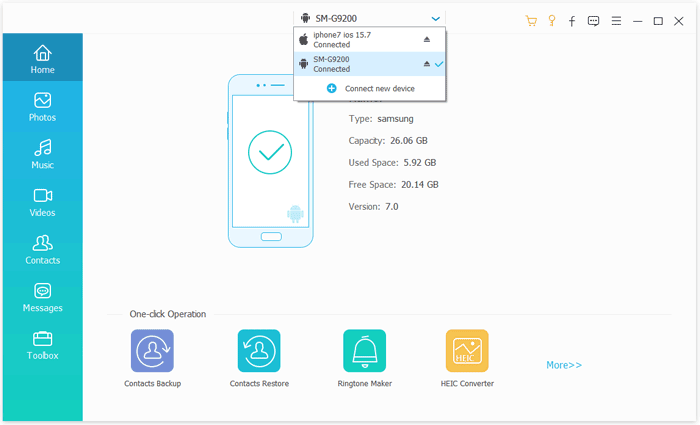
01Download, install, and launch Phone Transfer on your computer. Then connect both your Huawei device and your iPhone using USB cables.
02The software will automatically detect both devices and display them on the screen. Make sure your source device is shown at the top center. If it isn't, use the drop-down menu to manually select the correct source phone.
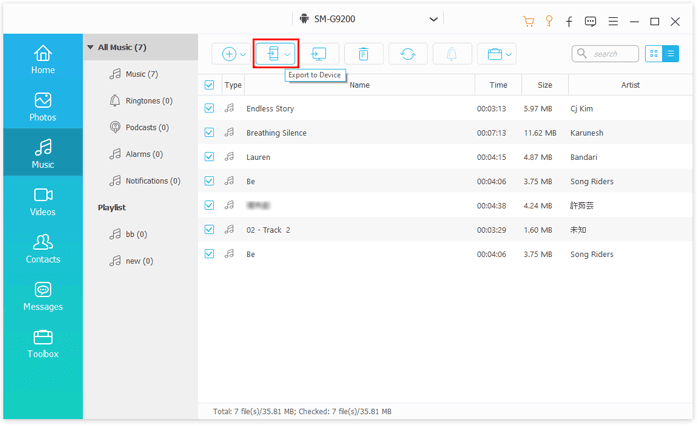
03Select the "Music" category to proceed. Choose the songs you want to transfer, then click "Export to Device". The selected music will be quickly transferred from your Huawei phone to your iPhone.
Another common method to transfer music from Huawei to iPhone is by using iTunes. Although iTunes does not support direct Android connections, it can still be used as a bridge by transferring music through your computer.
This method is relatively manual and requires extra steps. However, if you prefer using Apple's official ecosystem and do not want to install third-party software, it is very practical. The core of the whole process is: first export the music from your Huawei phone to a computer, and then sync it to your iPhone via iTunes.
Here is how to send music from Huawei to iPhone using iTunes:
Step 1. Connect your Huawei phone to your computer using a USB cable.
Step 2. Open your Huawei device on the computer and navigate to the "Music" folder.
Step 3. Copy the songs you want to transfer and paste them into a new folder on your computer.
Step 4. Launch iTunes or the Apple Music app on a Mac.
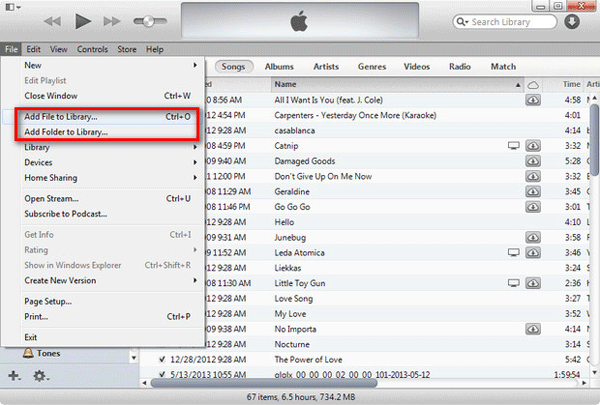
Step 5. Click "File" > "Add File to Library" or "Add Folder to Library", then select the folder containing your Huawei music to import it.
Step 6. Connect your iPhone to the computer using a USB cable.
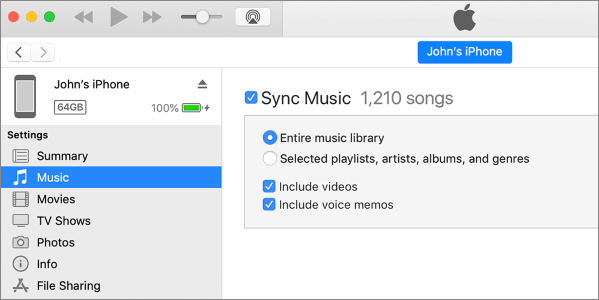
Step 7. In iTunes, click the iPhone icon, open the "Music" tab, and enable "Sync Music".
Step 8. Select the songs or playlists you want to transfer, then click "Apply" or "Sync" to copy the music to your iPhone.
If you prefer a wireless solution, you can use cloud storage to transfer music from your Huawei device to your iPhone. By uploading songs to a cloud service, you can access them on your iPhone anytime, anywhere. Google Drive, Dropbox, and iCloud are all popular options.
However, this method heavily depends on internet speed and available cloud storage space, so it may not be suitable for large music libraries. Here, we will use Google Drive as an example to illustrate the process.
Here is how to sync music from Huawei to iPhone with Google Drive:
Step 1. Open Google Drive on your Huawei phone. Sign in with your Google account.
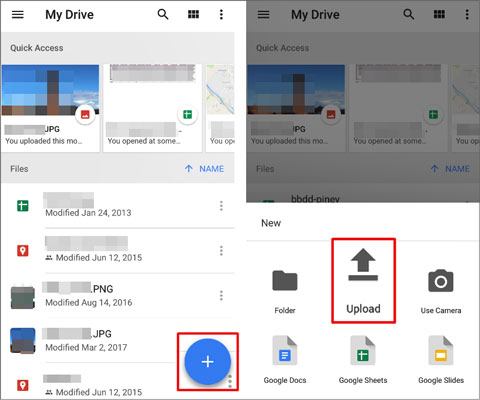
Step 2. Tap the "+" button and choose "Upload". Select the music files you want to transfer, and wait for the upload process to complete.
Step 3. Install Google Drive on your iPhone, and log in with the same Google account.
Step 4. Locate the uploaded music files, download the files to your iPhone storage or Files app, and access and play music on your iPhone.
Q1. Can you AirDrop from Huawei to iPhone?
No. AirDrop only works between Apple devices, so it cannot be used to transfer music from Huawei to iPhone.
Q2. Will music quality be reduced during transfer?
No. If you transfer original audio files such as MP3, FLAC, or AAC, the quality will remain unchanged.
Q3. Do I need a computer to transfer music from Huawei to iPhone?
Not always. Google Drive can transfer files without a computer, but tools like Phone Transfer and iTunes require a PC or Mac.
When it comes to transferring music from Huawei to iPhone, the three methods mentioned above can help you quickly solve the problem. Among the various methods, the most recommended one is still Phone Transfer. It enables direct music transfer from Huawei to iPhone, with simple operation and high efficiency, and it does not require complicated syncing steps. If you want to complete the music transfer quickly and safely, Phone Transfer will be a more hassle-free choice.
Related Articles:
How to Transfer Music from HONOR to iPhone Quickly and Easily?
How to Transfer Files from Android to iPhone [Top 7 Ways]
How to Transfer Music from HONOR to HONOR: 4 Easy Methods Explained






 Free Download for PC
  Free Download for Mac


