If you've recently switched from a HONOR phone to an iPhone, one of the most common questions you may have is: how to send video from HONOR to iPhone without losing quality? Since HONOR devices run on Android, and iPhone is developed by Apple, direct file sharing is not always seamless. Large video files, especially 4K recordings, can be difficult to transfer due to compatibility issues, file size limits, or slow wireless speeds.
Don't worry. In this guide, we'll explain how to send video from HONOR to iPhone using 7 different methods to help you complete the transfer smoothly.
If you want to transfer large video files at high speed, without compression, and with stable performance, Phone Transfer is highly recommended. It is a professional mobile data transfer tool that supports one-click transfer of videos, photos, music, and other data between Android and iOS devices. It is especially suitable for importing HD videos in batches, and no internet connection is required.
The highlights of Phone Transfer:
How do I transfer videos from HONOR to iPhone without losing quality?
01Download and install Phone Transfer on your computer, then open the program. Connect both your HONOR phone and iPhone to the computer using USB cables.
02The software will automatically recognize the two devices and display their information on the screen. Make sure the source device appears at the top center. If not, use the drop-down menu to switch to the correct source phone.
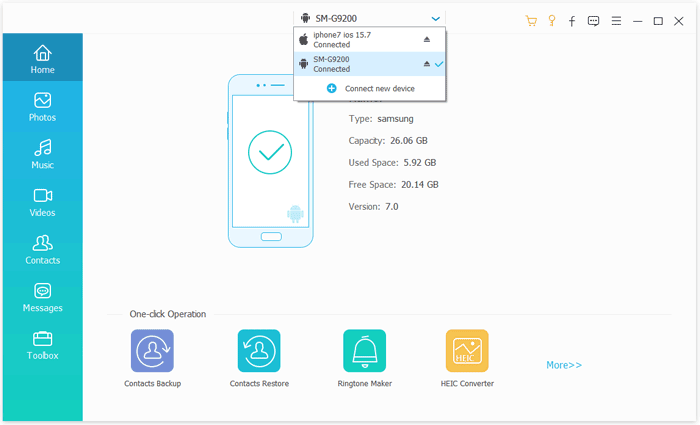
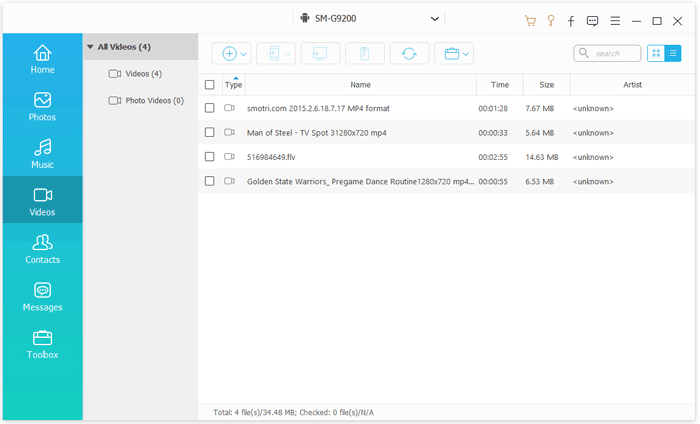
03Next, click on "Videos" on the left, select the videos you'd like to transfer, and then choose "Export to Device". The selected files will be quickly transferred from your HONOR phone to your iPhone.
If you don't want to install additional software, you can also use your computer as an intermediary to complete the transfer. The process is straightforward: first, copy the videos from your HONOR to your computer, then import them to your iPhone.
Here is how to move videos from HONOR to iPhone using a computer:
Step 1. Connect your HONOR phone to the computer using a USB cable.
Step 2. On your HONOR device, choose File Transfer (MTP) mode when prompted.
Step 3. Open File Explorer (Windows) or Finder (Mac) and locate your HONOR phone.
Step 4. Go to the "DCIM" or "Videos" folder, then copy the videos you want to transfer to a folder on your computer.
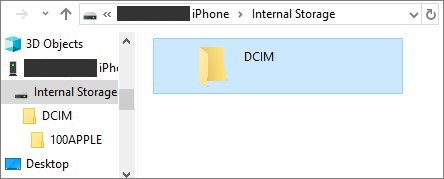
Step 5. Disconnect the HONOR phone and connect your iPhone to the computer using a USB cable.
Step 6. Open iTunes (on Windows) or Finder (on Mac) and select your iPhone when it appears.
Step 7. Drag and drop the copied videos into the "Movies", "TV Shows", or "File Sharing" section, depending on where you want them stored.
Step 8. Click "Sync" (or Apply) to start the transfer. Once syncing is complete, the videos will be available on your iPhone.
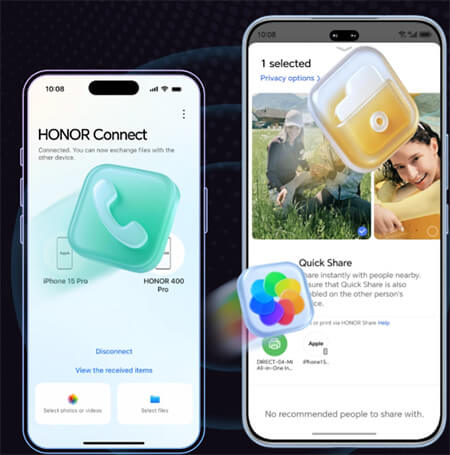
If your HONOR phone supports HONOR Connect, you can use it to wirelessly share videos with your iPhone. Before starting, make sure both devices are connected to the same Wi-Fi network and have Bluetooth enabled.
Note: This feature is only supported on iOS devices running iOS 15.6 or later.
Here is how to send videos from HONOR to iPhone via HONOR Connect:
Step 1. On your HONOR phone, open the "Gallery" or "Videos" app, select the video(s) you want to transfer, and tap "Share".
Step 2. On your iPhone, open HONOR Connect.
Step 3. After your HONOR phone detects the iPhone, tap the device name icon on the HONOR phone.
Step 4. Follow the prompts on the iPhone to agree to establish a connection with the HONOR phone and start the file transfer.
Step 5. Wait for the transfer to complete; the videos will appear in the Photos app on your iPhone.
If you're setting up a brand-new iPhone, Move to iOS can help transfer data during the initial setup process. Please note that it only works during initial iPhone setup, and the transfer speed depends on Wi-Fi stability.
Here is how to move videos from HONOR to iPhone with Move to iOS:
Step 1. Download and install the Move to iOS app from the Google Play Store on your HONOR phone.
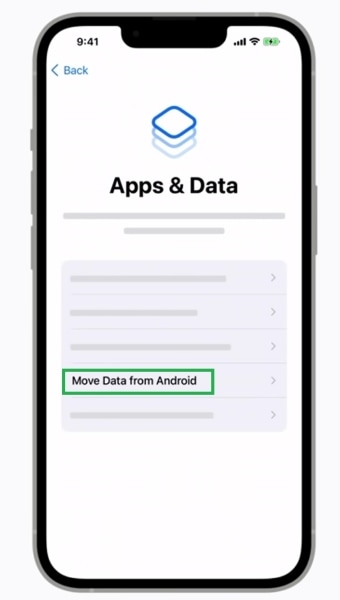
Step 2. On your iPhone, during setup, choose "Move Data from Android" on the "Apps & Data" screen.
Step 3. Open Move to iOS on your HONOR phone and tap "Continue". On the iPhone, tap Continue and wait for the 6- or 10-digit code to appear.
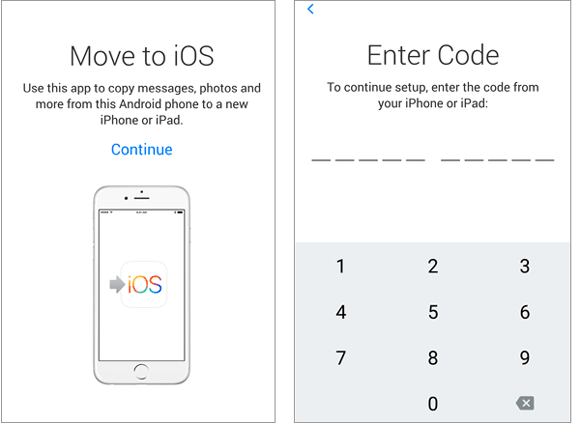
Step 4. Enter the code from the iPhone into your HONOR phone to establish a secure connection.
Step 5. On the HONOR phone, select the videos (and any other data) you want to transfer, then tap "Next" to start the transfer.
Step 6. Keep both devices close together and connected to power until the transfer completes.
Step 7. After the transfer finishes, continue setting up your iPhone; the videos will appear in the Photos app.
Using Google Drive to transfer videos from HONOR to iPhone is an easy and convenient cloud-based solution that doesn't require any cables or extra software. Simply upload your videos from your HONOR phone to Google Drive, and you can quickly access and download them on your iPhone from anywhere with an internet connection. This method is perfect for sharing large videos or keeping a cloud backup of your files. Keep in mind that transfer speed depends on your Wi-Fi network, so a stable connection will make the process faster and smoother.
Here is how to sync videos from HONOR to iPhone via Google Drive:
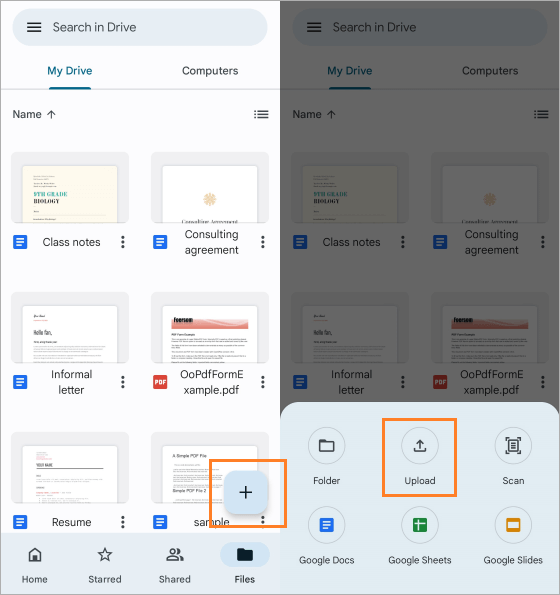
Step 1. On your HONOR phone, open the Google Drive app (download it from the Play Store if needed).
Step 2. Tap the "+" (Add) button and select "Upload", then choose the videos you want to sync.
Step 3. Wait for the videos to upload completely to your Google Drive account.
Step 4. On your iPhone, open the Google Drive app and sign in with the same account used on your HONOR phone.
Step 5. Locate the uploaded videos in Google Drive. You can either view them directly or download them to your iPhone by tapping "More" > "Send a copy" > "Save Video".
Step 6. The videos will then be saved in the Photos app on your iPhone for offline access.
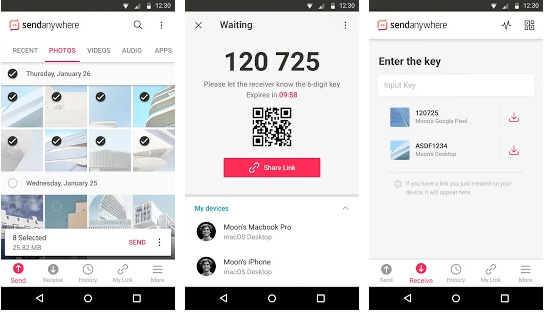
Send Anywhere is a fast and reliable app for transferring videos from HONOR to iPhone without cables or complicated setups. It works across Android and iOS, allowing you to share large HD videos directly over Wi-Fi or the internet.
With Send Anywhere, you can quickly send videos using a simple 6-digit code or QR code, making it a user-friendly solution for keeping your files synced between devices. This method is especially useful for large files, as it avoids email or cloud storage limits.
Here is how to share videos from HONOR to iPhone with Send Anywhere:
Step 1. Download and install Send Anywhere on both your HONOR phone (from Google Play) and your iPhone (from the App Store).
Step 2. Open Send Anywhere on your HONOR phone and tap "Send", then select the video(s) you want to transfer.
Step 3. Tap "Send" again to generate a 6-digit code or QR code.
Step 4. Open Send Anywhere on your iPhone and tap "Receive".
Step 5. Enter the 6-digit code from your HONOR phone or scan the QR code to start the transfer.
Step 6. Wait for the transfer to complete; the videos will be available in the Photos app or directly in Send Anywhere on your iPhone.
If your video file is small (usually under 25MB), email is the simplest solution. Here is how to transfer videos from HONOR to iPhone using email:
Step 1. Open the email app on your HONOR phone and create a new message.
Step 2. Enter your own email address or the recipient's email address as the receiver.
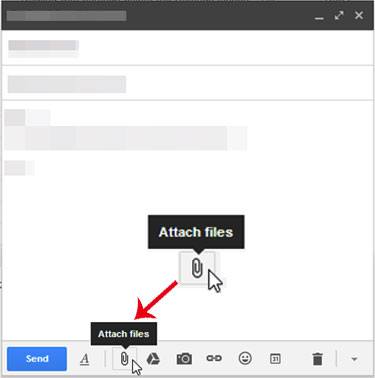
Step 3. Tap "Attach" or the paperclip icon and select the video(s) you want to send.
Step 4. Add a subject and message if desired, then tap "Send".
Step 5. On your iPhone, open the email account you sent the video to.
Step 6. Download the attached video(s) to your iPhone. They will appear in the Files app or can be saved to the Photos app for easier access.
In conclusion, if you are wondering how to send video from HONOR to iPhone, there are several practical solutions depending on your needs. However, if you need to transfer large or multiple videos quickly without quality loss, using a professional tool like Phone Transfer is usually the most efficient and reliable option.
Related Articles:
How to Transfer Music from HONOR to iPhone Quickly and Easily?
How to Send High-Quality Videos from Android to iPhone [Data Transfer Tips]
How to Transfer Apps from Android to iPhone [Ultimate Guide 2026]
HONOR Device Clone Review | Key Features, Pros, Cons & Alternatives







 Free Download for PC
  Free Download for Mac


