TL;DR: Switching from iPhone to Huawei and worried about losing important text messages? This guide shows you 3 easy ways to transfer SMS from iPhone to Huawei, including Huawei Phone Clone, Coolmuster Mobile Transfer, and iSMS2droid. Whether you prefer a wireless method or a faster one-click transfer solution, you can safely move your messages and keep your valuable conversations. For the most reliable and hassle-free experience, Coolmuster Mobile Transfer offers a simple way to transfer SMS from iPhone to Huawei without complicated settings or data loss.
Switching from an iPhone to a Huawei phone can be exciting, but moving important data between iOS and Android devices is often challenging. While photos and contacts can be transferred easily, many users find it difficult to transfer SMS from iPhone to Huawei. Fortunately, there are several ways to move messages from iPhone to Huawei.
In this article, we will introduce three practical methods to help you copy text messages from iPhone to Huawei. Whether you prefer a wireless solution or a more professional transfer method, you can find a suitable way to migrate your SMS quickly and safely.
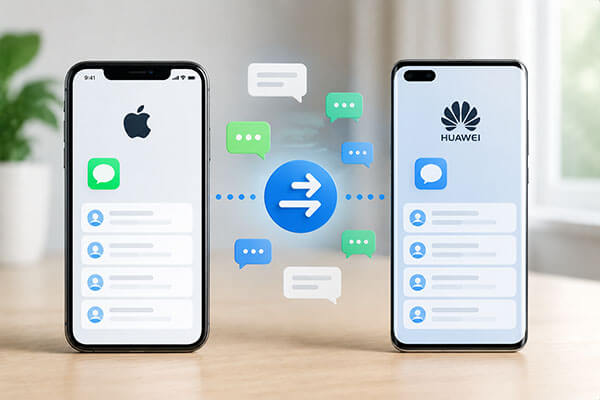
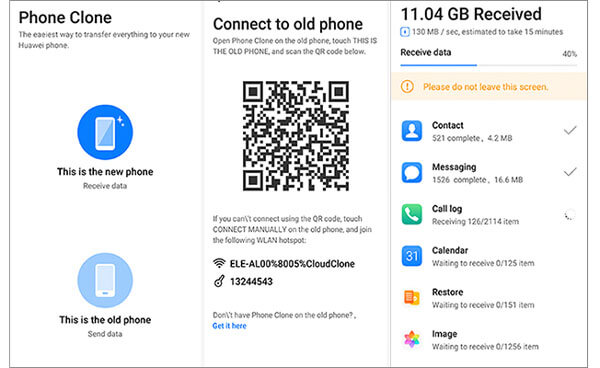
Huawei's official Phone Clone is a simple and convenient data migration tool that helps users transfer contacts, photos, videos, text messages, and other data from an old phone to a new Huawei device. However, due to iOS system limitations, the types of data supported by Phone Clone may be restricted. On some iPhone models, the SMS transfer feature may not be fully supported, so it is recommended to check device compatibility in advance.
Follow the steps below to transfer text messages from iPhone to Huawei wirelessly:
Step 1. Open the Phone Clone app on your Huawei phone and select "This is the new device". Then choose "iPhone/iPad" as the old phone type.
Step 2. Install and open Phone Clone on your iPhone, then select "This is the old device".
Step 3. Connect your iPhone and Huawei phone by scanning the QR code displayed on the Huawei device or connecting to the Huawei phone's Wi-Fi hotspot.
Step 4. Wait for the connection to complete, then check the available data types on your iPhone. Select "Messages/SMS" if the option is available.
Step 5. Tap "Transfer" to start moving SMS messages from your iPhone to your Huawei phone. Keep both devices connected and avoid closing the app during the process.
Step 6. Once the transfer is finished, open the Messages app on your Huawei phone to check whether your iPhone SMS messages have been successfully transferred.
If you want a more stable and comprehensive way to transfer SMS from iPhone to Huawei, Coolmuster Mobile Transfer is a highly recommended option. It is a professional phone data transfer tool that supports data migration between iOS and Android devices, allowing users to move SMS messages, contacts, photos, music, and other files between different smartphone brands.
Compared with regular transfer tools, Coolmuster Mobile Transfer can directly connect two phones and quickly complete data copying without complicated settings. In addition, it does not delete any content from the original phone, allowing users to transfer their data safely and confidently.
What can Coolmuster Mobile Transfer do for you?
Here is how to transfer SMS from iPhone to Huawei in 1 click via Coolmuster Mobile Transfer:
01Download and install Coolmuster Mobile Transfer on your computer. Open the program and connect both your iPhone and Huawei phone to the computer using USB cables. Wait until the software recognizes both devices successfully.
02After the connection is established, make sure your iPhone is displayed as the source device and your Huawei phone is set as the target device. If the positions are incorrect, click the "Flip" button to switch them.
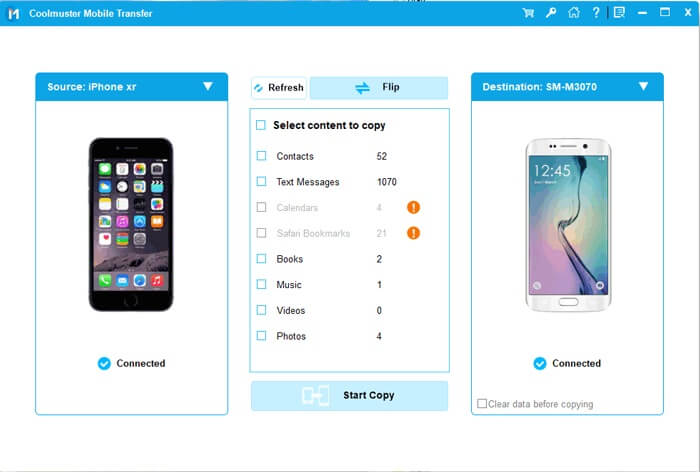
03The program will show all available data types on your iPhone. Select "Text Messages", choose the SMS messages you want to transfer, and click the "Start Copy" button. The selected messages will then be transferred from your iPhone to your Huawei phone quickly and securely.
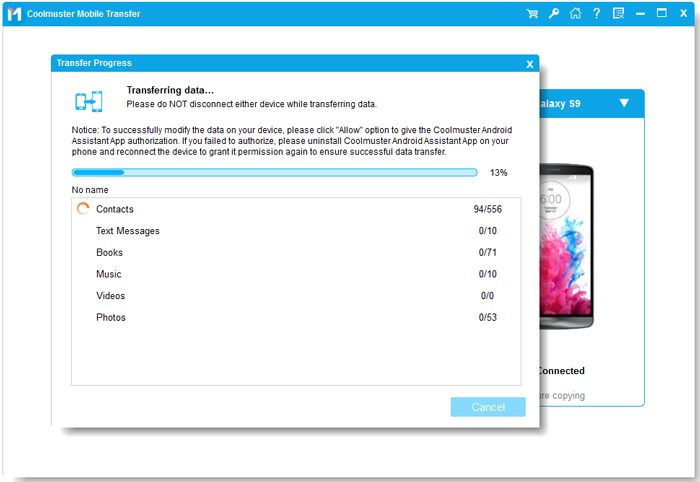
Video guide
The iSMS2droid app provides a more manual yet flexible method for transferring SMS messages from an iPhone to a Huawei device. Instead of transferring data directly between phones, it extracts SMS messages from an iTunes backup file and then imports them to your Android device. Before starting the process, it is recommended to enable Airplane Mode on your iPhone or remove the SIM card to prevent new messages from interfering with the transfer.
Here is how to copy messages from iPhone to Huawei via iSMS2droid:
Step 1. Connect your iPhone to your computer and open iTunes.
Step 2. Create a local backup of your iPhone. Make sure to select an unencrypted backup, as encrypted backups may prevent SMS extraction.
Step 3. After the backup process is complete, locate the iTunes backup folder on your computer.
Step 4. Find the SMS database file in the backup folder. It is usually a file with a long name, such as 3d0d7e5fb2ce288813306e4d4636395e047a3d28.
Step 5. Connect your Huawei phone to the computer and copy the SMS database file to your Huawei device storage. You can rename the file to something easier to recognize, such as SMS_backup.
Step 6. Install and launch the iSMS2droid app on your Huawei phone.
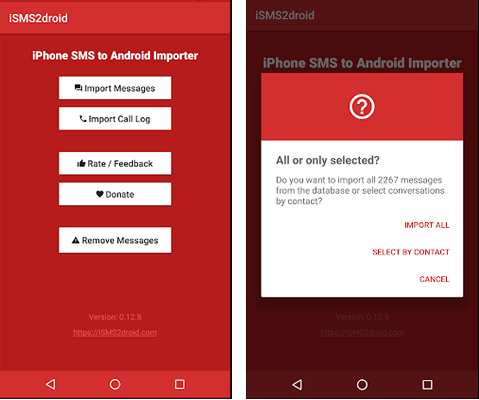
Step 7. Tap "Import Messages" and select the SMS backup file you transferred to your device.
Step 8. Choose whether to import all messages or specific conversations, then confirm to start transferring SMS from your iPhone backup to your Huawei phone.
When you need to transfer SMS from iPhone to Huawei, choosing the right method can make the migration process much easier. For users who want a simple, stable, and efficient way to move messages from iPhone to Huawei, Coolmuster Mobile Transfer is highly recommended. It allows you to transfer SMS and other important data directly between devices without complicated steps, making it an ideal solution when switching from iPhone to Huawei.
Related Articles:
How to Transfer Messages from iPhone to Android [8 Methods]
Fix Switched from iPhone to Android Not Receiving Texts with 7 Solutions
A Full Guide to Huawei Data Transfer: 7 Useful Huawei Transfer Tools
Transfer iCloud Messages to Android with 3 Hassle-free Methods






 Free Download for PC
  Free Download for Mac


