TL;DR: This guide shows 3 effective ways to back up Kik messages on iPhone—using a professional iOS data tool for selective backup, iCloud for automatic cloud syncing, and iTunes/Finder for full local backups. Among them, the dedicated backup tool provides the most flexible and secure way to protect Kik messages and attachments without overwriting your data.
Kik is a widely popular instant messaging app, but many iPhone users often face a common issue: how to back up Kik messages on iPhone. Since Kik does not provide a complete built-in cloud backup feature for chat history, messages can easily be lost when switching devices, accidentally deleting data, or experiencing system failures. Therefore, it is very important to know reliable backup methods. This article will introduce three practical ways to help you easily back up Kik chats on your iPhone.

When it comes to safely and selectively backing up Kik messages on iPhone, using a professional tool is the most efficient method. Unlike iCloud or iTunes, which create full-device backups, third-party software lets you back up only the data you need, such as Kik messages, attachments, and app data.
iOS Data Backup & Restore is designed specifically for iOS data management. It helps users create encrypted backups of Kik messages on a computer and restore them anytime without overwriting existing iPhone data.
The highlights of iOS Data Backup & Restore:
Here is how to back up Kik chat history using iOS Data Backup & Restore:
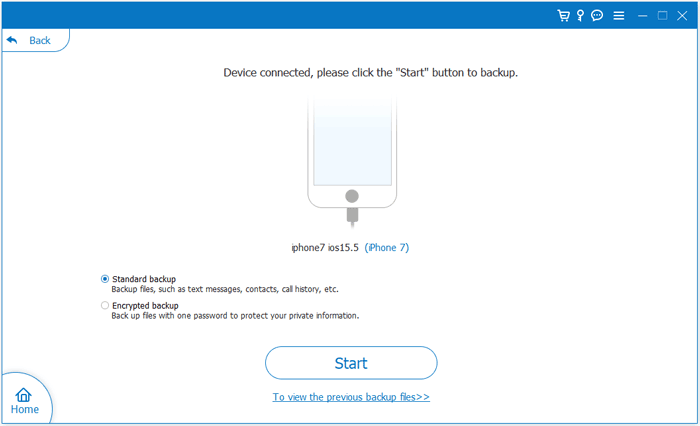
01Download and install the software on your PC or Mac. Open the program and connect your iPhone to the computer using a USB cable. Select "iOS Data Backup", then choose "Standard Backup" or "Encrypted Backup" based on your needs.
02Select "Kik" and "Kik Attachments" from the list of data types. You can also add other files you want to back up.
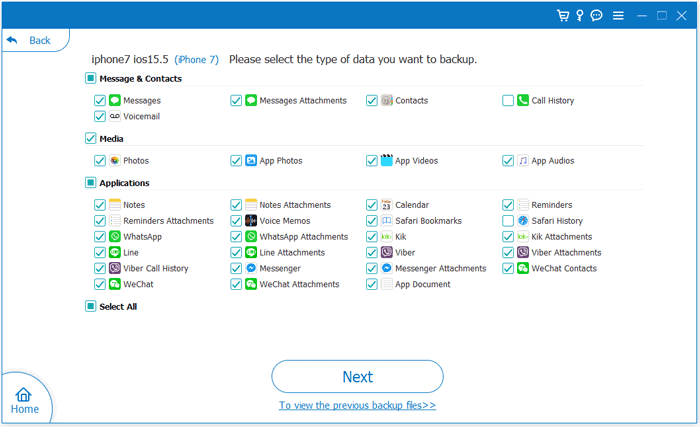
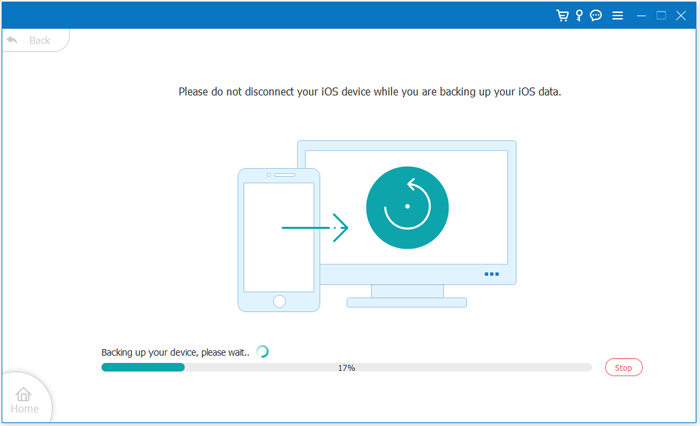
03Click "Next", choose a save location on your computer, and start the backup process. Your Kik chats and attachments will be securely saved on your PC or Mac.
If you are looking for an automatic and wireless way to back up Kik messages on iPhone, iCloud is the most convenient built-in option. However, it's important to understand that iCloud does not back up Kik messages individually—it performs a full iPhone backup that may include Kik data if it is stored in the app data.
Here is how to back up Kik messages on iPhone to iCloud:
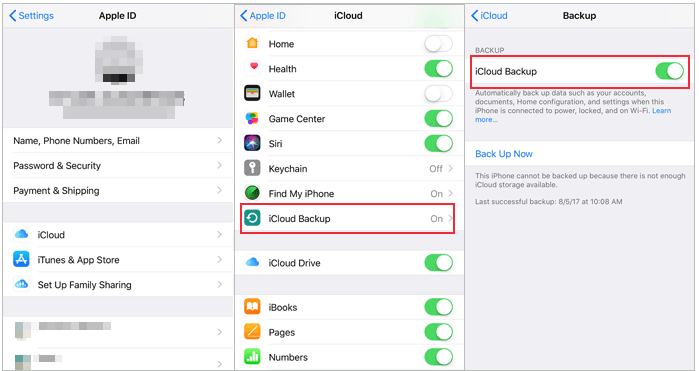
Step 1. Open "Settings" on your iPhone, then tap your "Apple ID" at the top of the screen and go into iCloud settings.
Step 2. Scroll down to find "iCloud Backup," then turn on the "iCloud Backup" switch to allow automatic backups when your iPhone is connected to Wi-Fi and power. (iCloud Backup greyed out?)
Step 3. Tap "Back Up Now" to start an immediate backup, and keep your device connected to Wi-Fi and powered until the process is complete.
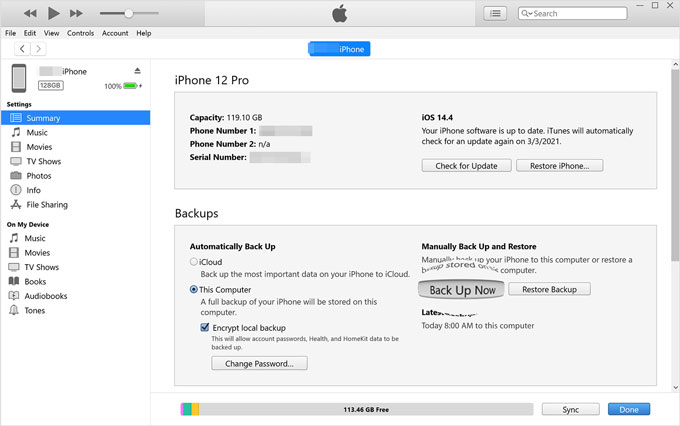
Another common solution to back up Kik messages on iPhone is using iTunes (Windows) or Finder (Mac). This method creates a full local backup of your iPhone data on your computer, making it a reliable offline option. While it is secure and widely used, it does not allow you to extract Kik messages separately—you can only restore the entire backup.
Here is how to back up Kik chats on iPhone using iTunes/Finder:
Step 1. Connect your iPhone to your computer using a USB cable and unlock your device. If prompted, tap "Trust This Computer" on your iPhone.
Step 2. Open iTunes on Windows or macOS Mojave and earlier. On macOS Catalina or later, open Finder instead.
Step 3. Select your iPhone when it appears in iTunes or the Finder sidebar.
Step 4. In the device "Summary" screen, choose "This Computer" as the backup location.
Step 5. (Optional but recommended) Enable "Encrypt local backup" to include saved passwords, Health data, and more app data.
Step 6. Click "Back Up Now" and wait until the process finishes. (iTunes Back Up Now greyed out?)
Once completed, your entire iPhone data—including Kik chats stored on the device—will be included in the backup file.
That's all about how to back up Kik messages on iPhone. Overall, if you simply want an efficient and secure way to back up and manage Kik messages on iPhone individually, the most recommended method is still using a professional tool - iOS Data Backup & Restore. It not only supports Kik data backup, but also allows you to flexibly manage various important data on your iPhone, making it more convenient and efficient than iCloud and iTunes/Finder.
Related Articles:
How to Retrieve Deleted Kik Messages on iPhone in 4 Easy Methods?
A Comprehensive Guide to Recover Kik Photos on iPhone & Android
How to Delete Kik Data on iPhone in 3 Effective Methods
How to Retrieve Deleted Kik Messages on Android with 4 Solutions







 Free Download for PC
  Free Download for Mac


