TL;DR:
Changing your WhatsApp number does not have to mean losing your chats or account information. This guide explains how to change WhatsApp number on the same phone or a new device, including the steps to transfer your account, restore chats, and back up WhatsApp data safely before making changes.
Changing your phone number does not mean you have to lose your WhatsApp account, chats, or important conversations. WhatsApp offers a built-in Change Number feature that allows you to transfer your account information, including your profile, groups, and settings, to a new number while keeping your existing data.
If you are wondering how to change WhatsApp number without losing chats, this guide will walk you through the process on both Android and iPhone. We will explain how to change your number on the same phone or a new device, answer common questions, and introduce a reliable way to back up WhatsApp data to a computer before making any changes.
Yes. You can change your WhatsApp number without losing your chats by using WhatsApp's built-in Change Number feature. This function transfers your existing account information from your old phone number to your new one while keeping your profile, groups, and settings.
Before changing your number, make sure that:
If you are keeping the same phone but replacing your current phone number with a new one, WhatsApp's Change Number feature can help you transfer your account to the new number. Your profile information, group memberships, and settings will be moved to the new number, while your chats will remain available on the same device. The steps are similar on Android and iPhone.
Steps to change WhatsApp number on the same phone:
Step 1. Open WhatsApp on your phone.
Step 2. Go to "Settings".
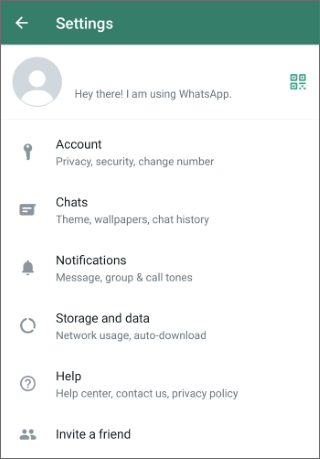
Step 3. Tap "Account" > "Change Number".
Step 4. Tap "Next", then enter your current WhatsApp number in the first field and your new phone number in the second field.
Step 5. Tap "Next" to continue.
Step 6. Choose whether to notify your contacts about your new number.
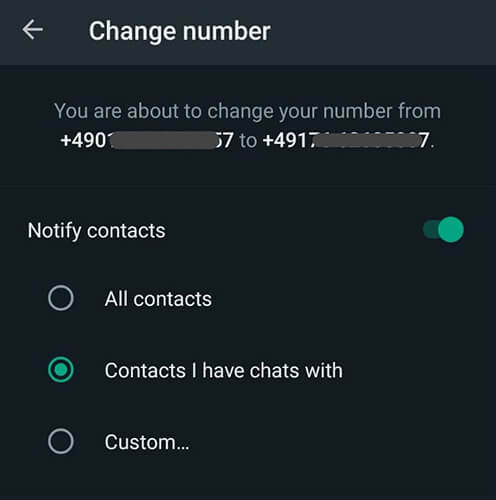
Step 7. Tap "Done" and complete the verification process for your new phone number.
After verification, your WhatsApp account will be linked to the new number, and you can continue using WhatsApp on the same phone without setting up your account again.
If you are switching to a new phone and changing your WhatsApp number at the same time, you need to update your number on your old phone first and then transfer your chats to the new device. WhatsApp backups can only be restored with the same phone number used when the backup was created, so make sure to create a new backup after changing your number.
Steps to change WhatsApp number on a new phone:
Step 1. Open WhatsApp on your old phone and use the "Change Number" feature to switch your account to the new phone number.
Step 2. Create a new WhatsApp backup using the updated number.
Step 3. Install WhatsApp on your new phone.
Step 4. Register WhatsApp with your new phone number.
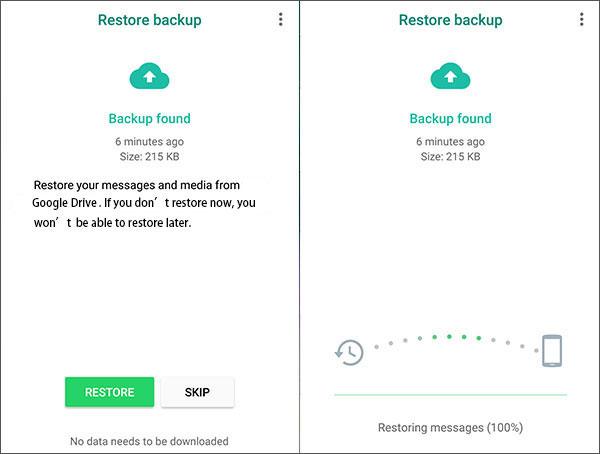
Step 5. When prompted, restore your chat backup to transfer your conversations and media files.
After the restoration process is complete, your WhatsApp account and chat history will be available on your new phone.
1. Why can't I change my WhatsApp number?
You may fail to change your WhatsApp number because your new number cannot receive verification codes, your old number is not registered with WhatsApp, or there are network and app-related issues.
Try these solutions:
2. Will I lose my WhatsApp conversations if I change phones?
No, you will not lose your WhatsApp conversations if you properly back up and restore your chats. WhatsApp allows users to transfer chat history between devices through cloud backups or built-in transfer features.
However, if no backup exists before changing phones, some chats may not be recoverable. Creating an additional backup is recommended before switching devices or changing numbers.
3. What happens to my old WhatsApp number after changing it?
After you change your WhatsApp number, your old phone number will no longer be linked to your WhatsApp account. Your account information, including your profile, group memberships, chats, media, and settings, will be transferred to the new number. If someone else registers WhatsApp with your old number in the future, they will not be able to access your previous account data.
Although WhatsApp provides built-in backup options, creating an additional backup on your computer can give you extra protection before changing your phone number or moving to a new device. A local backup allows you to keep a separate copy of your WhatsApp chats, media files, and attachments in case you encounter unexpected issues during the transfer process.
Since Android and iPhone use different systems, you need different solutions to save WhatsApp data to a computer. Below are two dedicated WhatsApp tools that can help you create a local WhatsApp backup before changing your number, allowing you to keep your conversations and attachments safely stored outside your phone.
For Android users, Coolmuster Android WhatsApp Recovery is a professional WhatsApp backup solution that helps export WhatsApp messages, photos, videos, and other attachments from an Android phone to a computer. It provides a simple way to keep a separate copy of your WhatsApp data before changing your phone number, switching devices, or restoring your account.
Steps to back up Android WhatsApp data to a computer:
01Download and install Android WhatsApp Recovery on your computer.
02Connect your Android phone to your computer using a USB cable. Select your device on the software interface and click "Next".
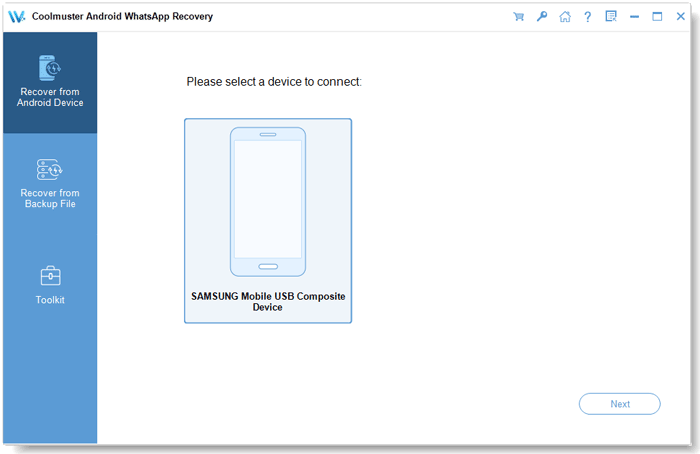
03Once the connection is established, the program will start scanning your WhatsApp data, including messages, media files, and attachments.
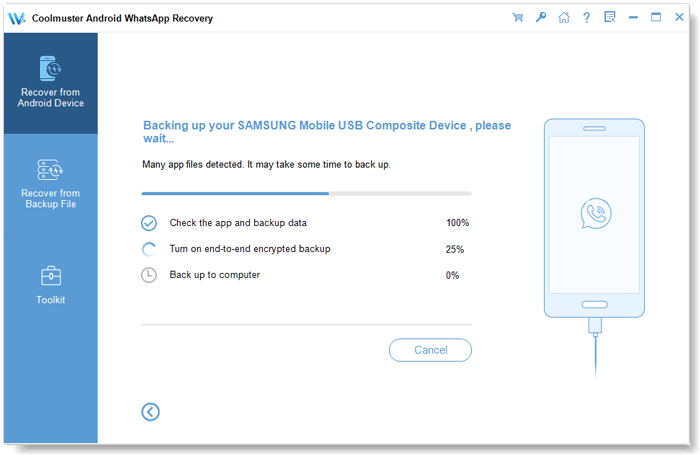
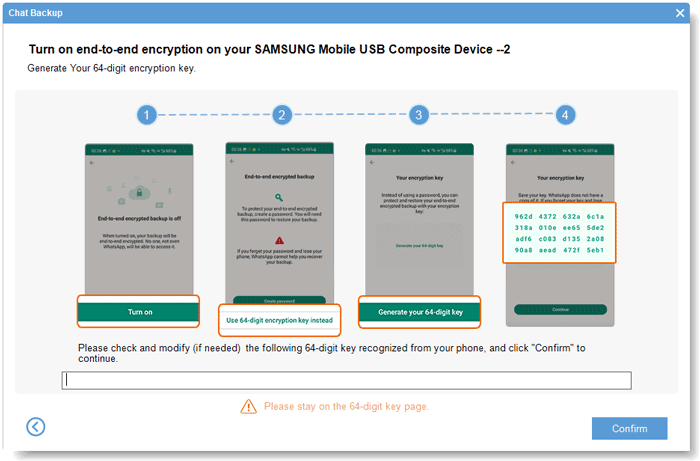
04Enable end-to-end encryption on your phone by following the on-screen instructions. After obtaining the encryption key, the software will automatically detect it and continue the process.
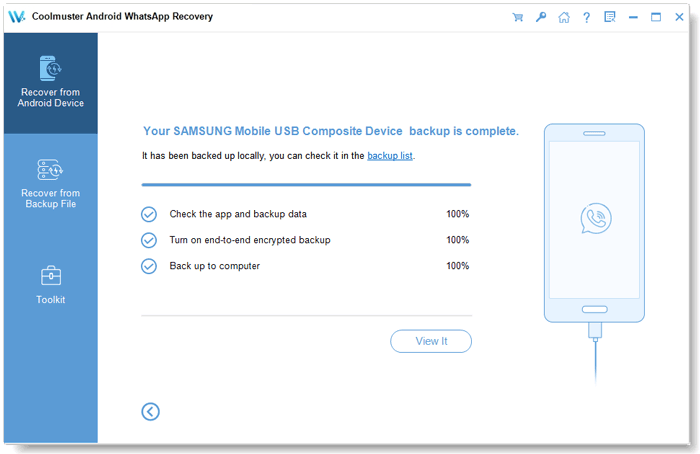
05After the scan is complete, preview your WhatsApp chats and media files, then back them up to your computer. You can keep these files safely stored before changing your WhatsApp number.
You can also watch the video tutorial below to learn how to back up Android WhatsApp data to your computer step by step.
For iPhone users, Coolmuster iPhone WhatsApp Recovery allows you to back up WhatsApp conversations and attachments from your iPhone directly to a computer. It can scan WhatsApp data stored on your device, let you preview the available information, and export selected files for local storage.
Steps to back up iPhone WhatsApp data to your computer:
01Download and install iPhone WhatsApp Recovery on your computer.
02Open the software and select "Recover from iOS Device" to begin the process.
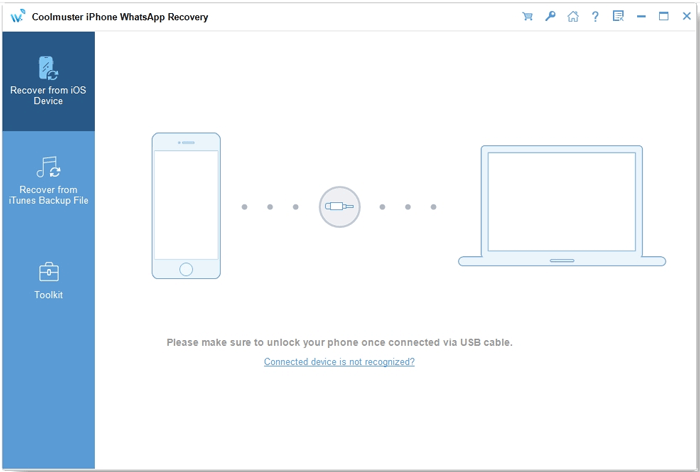
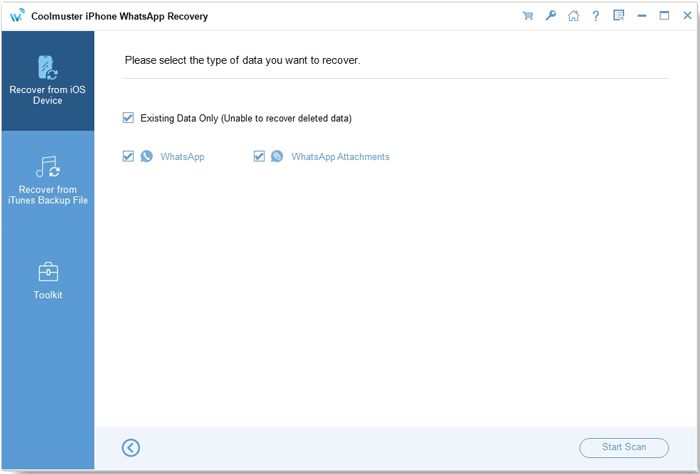
03Connect your iPhone to the computer using a USB cable. Once the connection is established, select the data types you want to back up and click "Start Scan". (You may need to unlock your device and confirm the prompt.)
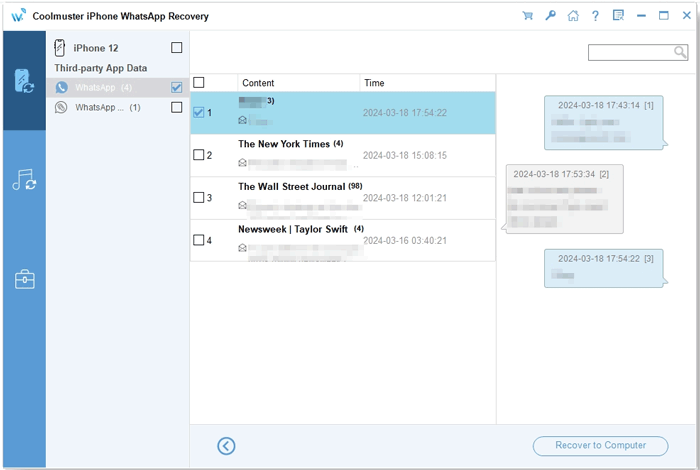
04After the scan is completed, preview the WhatsApp data found on your iPhone and select the items you want to save. Then, click "Recover to Computer" to back up WhatsApp data from your iPhone to your computer.
For a more detailed walkthrough, check the video tutorial below to see how to back up iPhone WhatsApp data to your computer.
Changing your WhatsApp number is a simple process when you use the built-in Change Number feature. Whether you are updating your number on the same phone or transferring WhatsApp to a new device, following the correct steps and creating a backup beforehand can help keep your chats and account information safe.
For extra protection before changing your number, you can save your WhatsApp data to a computer. Coolmuster Android WhatsApp Recovery and Coolmuster iPhone WhatsApp Recovery provide convenient ways to back up WhatsApp messages, media files, and attachments from Android and iPhone devices separately. With an additional computer backup, you can reduce the risk of unexpected data loss and make the number change process smoother.
Related Articles:
[Stepwise Guide] How to Manage WhatsApp Account on Android Devices?
How to Add WhatsApp Contacts on Android with 4 Methods
[4 Solutions] How to Transfer WhatsApp Chats from Android to Android/Samsung







 Free Download for PC
  Free Download for Mac


