WhatsApp, being a widely-used communication tool, necessitates individuals to access its messages on another device for various reasons, such as parents monitoring their children's social activities or assisting friends and family in recovering lost information. So, the question arises: how to read WhatsApp messages from another device? This article will guide you through achieving this goal via backups, linked devices, WhatsApp Web, and third-party tools.
Can I read my WhatsApp message on another phone? Of course, you can. As long as you regularly back up your WhatsApp data to Google Drive (mainly for Android) or iCloud (mainly for iPhone), you can use the backup to restore WhatsApp messages so that you can read WhatsApp messages on another phone.
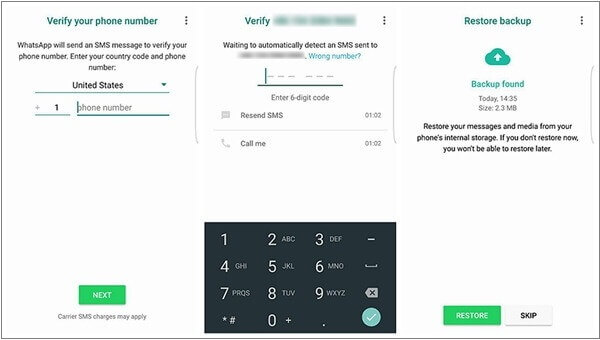
Here is the guide on how to read others WhatsApp messages on Android from Google Drive:
Step 1. Install WhatsApp on your Android phone. If you have it before, you need to uninstall WhatsApp and reinstall it.
Step 2. Activate WhatsApp, accept the terms and conditions, and provide your mobile phone number (the one with backup data).
Step 3. After the mobile phone number is verified successfully, click "RESTORE" to start the recovery. After the recovery is completed, you can see others' WhatsApp chats on your phone.
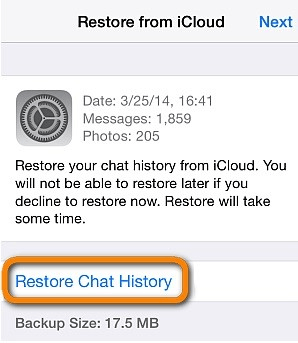
For iPhone users, you can see others WhatsApp messages on your phone from iCloud:
Step 1. Install and launch WhatsApp on your iPhone. Enter the phone number you backed up for verification.
Step 2. Upon encountering the "Restore from iCloud" screen, tap on the "Restore Chat History" option to initiate the process of retrieving your WhatsApp backup from iCloud. Other WhatsApp messages will be on your iPhone.
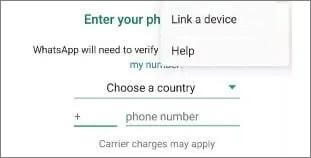
You can also link the target WhatsApp account to your own phone to read WhatsApp messages from another device. Please note that you must connect to the target phone every 14 days to keep the linked device logged in to the WhatsApp account. Here are the specific steps:
Step 1. Reinstall the WhatsApp application on your own phone.
Step 2. Open the newly installed WhatsApp application. Click the three-dot button in the upper right corner and select "Link a device". Then, you will see a QR code on the screen.
Step 3. Use the target device you want to monitor to scan the QR code. After scanning the QR code, you will be able to access the target WhatsApp account on your device.
Read More: How to view WhatsApp chat history on PC? Here is a step-by-step guide.
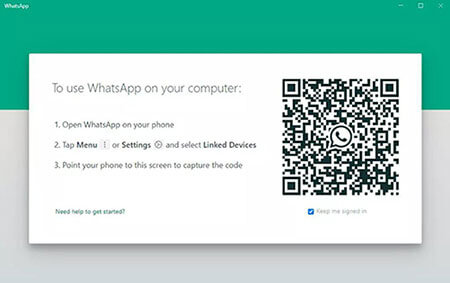
You can also access WhatsApp data from other devices on your computer through WhatsApp Web. WhatsApp Web is an official feature of WhatsApp that allows users to chat and send messages through a web browser on their computer. Follow these steps to establish a connection between your phone and computer so that you can see someone's WhatsApp chats:
Step 1. Open WhatsApp on the target phone.
Step 2. For Android, tap on the "Menu" option; for iPhone, tap on "Settings". Then, select "Link Devices" > "Link a Device".
Step 3. After that, use the target phone to scan the QR code displayed on your computer to establish the connection. Once connected, all WhatsApp messages from the target phone will be displayed on your computer.
If you haven't made a backup or find the previous methods too complicated, you can transfer WhatsApp data from one phone to another. In this case, you will need software like WhatsApp Transfer. With WhatsApp Transfer, you can quickly transfer various WhatsApp contents from one phone to another, whether switching from Android to iPhone, iPhone to Android, or between phones with the same system. This ensures that you can easily view WhatsApp messages from other devices.
Main features of WhatsApp Transfer:
As we mentioned earlier, WhatsApp Transfer is compatible with both iOS and Android. Below, learn how to transfer WhatsApp chats from iPhone to Android, enabling message access across devices.
01Go to the official website of WhatsApp Transfer, download the program, install it on your PC, and launch it. Then connect both smartphones to the computer using reliable USB cables.
02After the devices are successfully detected, set the iPhone as the Source device and the Android phone as the Destination device. If the positions are reversed, click the "Flip" button to switch them.
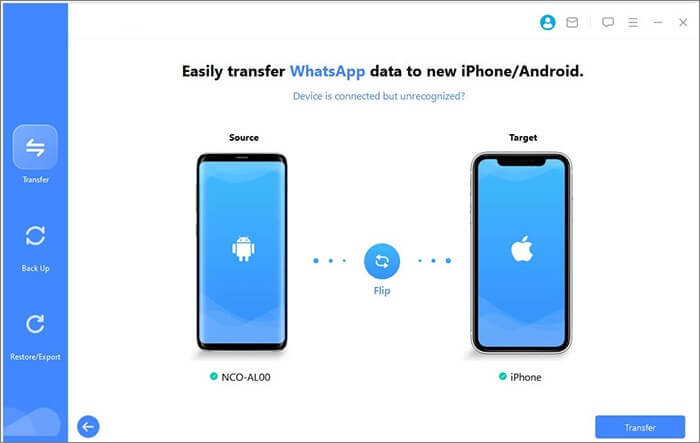
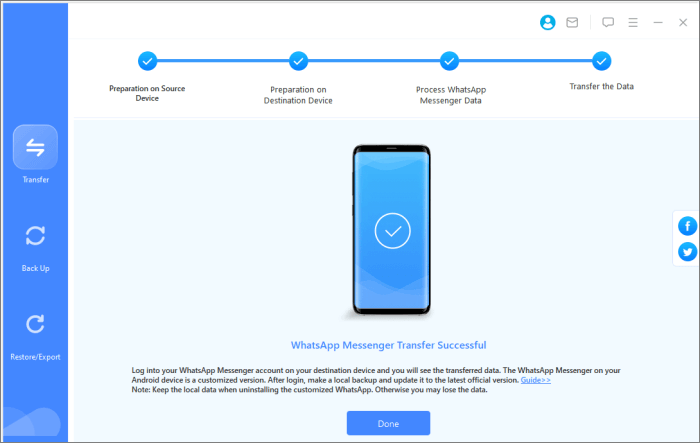
03Once the device order is confirmed, click the "Transfer" button to initiate the process. The transfer progress will be displayed on the screen.
Sometimes, you may want to directly access WhatsApp messages from a device on a computer without restoring them to another phone. For Android users, Coolmuster Android WhatsApp Recovery allows you to back up and read Android WhatsApp data on your PC efficiently. For iPhone users, Coolmuster iPhone WhatsApp Recovery offers similar functionality for reading and backing up WhatsApp chats on a PC.
Main features of Android WhatsApp Recovery:
Steps to read WhatsApp messages via Android WhatsApp Recovery:
01Download and install Android WhatsApp Recovery on your PC and launch the program.
02Connect your Android device to the computer using a functional USB cable. Enable USB debugging on your phone as prompted, and click "Next" once the connection is successfully established.
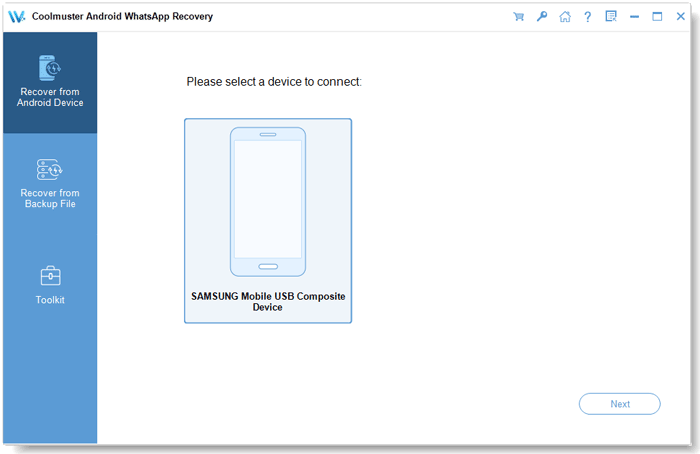
03The software will automatically scan your device for WhatsApp data. During the process, you may be asked to enable end-to-end encryption on your Android device and generate a 64-digit encryption key. Enter the key into the program and wait patiently until the scanning process is complete, then click "View It" to proceed.
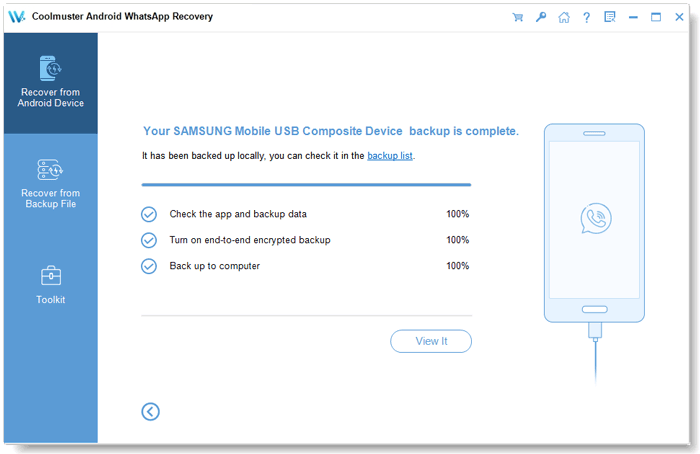
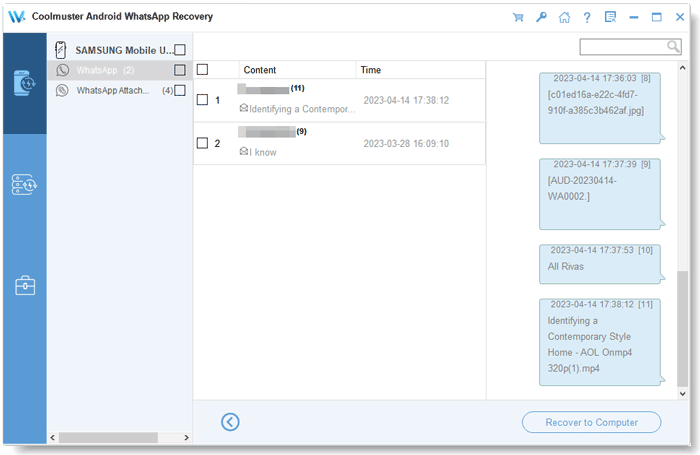
04After scanning, click on the "WhatsApp" section to read your chat history or select "WhatsApp Attachments" to view media files such as photos, videos, and documents directly on your computer.
For a clearer understanding of the process, you can also refer to the detailed video tutorial below.
Through the methods mentioned above, you can read WhatsApp messages from another device. Each method has its own advantages and suitable scenarios, allowing you to choose based on your actual needs.
For efficient management, transfer, and backup of WhatsApp messages, using software tools is highly recommended. WhatsApp Transfer provides a quick and easy way to move WhatsApp chats between phones, while Coolmuster Android WhatsApp Recovery allows you to read and back up messages directly on a PC. iPhone users can achieve the same goal using Coolmuster iPhone WhatsApp Recovery, ensuring secure and convenient access to WhatsApp data across platforms.
Related Articles:
[Full Guide] Where Are WhatsApp Messages Stored On Your Device?
Simple Ways of How to Read WhatsApp Backup from Google Drive on PC
How to See WhatsApp Deleted Messages by the Sender in Minutes
How to See Deleted WhatsApp Messages Without Any App [Android & iPhone]






 Free Download for PC
  Free Download for Mac


