WhatsApp Business not only facilitates instant communication with customers but also carries a wealth of crucial business information. However, the issue of how to restore this data in case of data loss or device replacement has emerged as a pivotal concern. This article delves into the methods of restoring WhatsApp Business backups across different operating systems (Android and iPhone).
How do I restore my WhatsApp Business chat backup? If you use an Android phone, there are two methods for you: local backup and Google Drive. Next, we will introduce these two methods one by one.
Local backup is one of the most commonly used backup methods when using Android devices. Restoring WhatsApp Business data through local backup is a quick and straightforward process. Here are the specific steps:
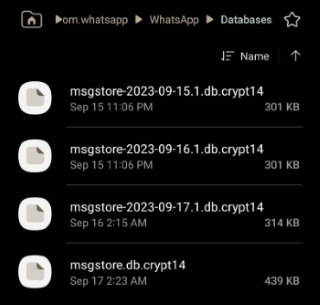
Step 1. Ensure that you have a local backup file on your Android device. Typically, these files are located in the /sdcard/WhatsApp/Databases/ folder, with filenames resembling msgstore-YYYY-MM-DD.1.db.crypt14.
Step 2. Uninstall the currently installed WhatsApp Business application. Then, re-download and install WhatsApp Business from the Google Play Store.
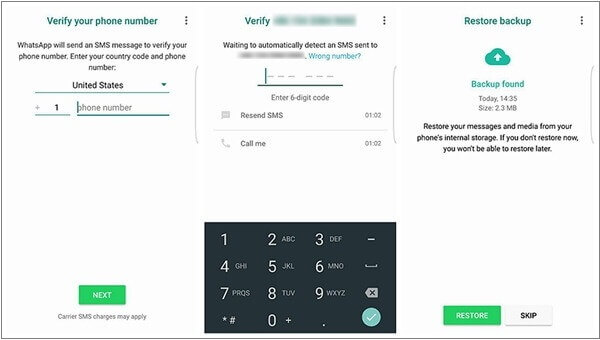
Step 3. Launch the newly installed WhatsApp Business, enter your phone number, and follow the on-screen instructions to complete the setup.
Step 4. When you reach the "Restore Backup" option, tap on it. WhatsApp Business will automatically search for and restore the most recent local backup file.
Below is an article that gives a detailed introduction to WhatsApp Local Backup. If you need it, please click the link below.
WhatsApp Local Backup: A Complet Guide [2026 Updated]Those who back up WhatsApp Business to Google Drive may want to know how to restore WhatsApp Business backup from Google Drive. The restoration process is equally straightforward:
Step 1. Ensure your device is logged into your Google account and that Google Drive sync is enabled.
Step 2. Uninstall and reinstall the WhatsApp Business application.
Step 3. Launch the newly installed WhatsApp Business and enter your phone number.
Step 4. When prompted to restore a backup, select the "Restore from Google Drive" option. Choose the most recent backup file, hit "RESTORE", and initiate the restoration process. Once completed, your chat history and media files will be restored to your new device.
iCloud and iTunes are the most popular ways for iPhone users to back up their data. To learn more about how to recover WhatsApp Business backups from both iCloud and iTunes backups, read on.
How do I restore my WhatsApp Business chat backup? Below is the guide on how to recover WhatsApp Business backup from iCloud:
Step 1. Ensure that your WhatsApp Business has iCloud backup enabled and that the backup is stored in iCloud.
Step 2. Uninstall the WhatsApp Business. Then, re-download and install WhatsApp Business from the App Store.
Step 3. Open the application and enter your phone number for verification.
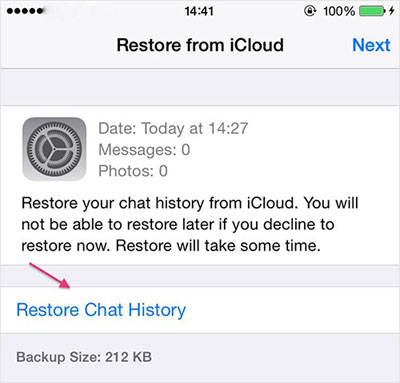
Step 4. After verification, select "Restore from iCloud Backup". Tap "Restore Chat History" and wait for the process to complete.
Note: Where is WhatsApp backup stored on Android/iPhone/Google Drive? This post will tell you the answer.
Although WhatsApp does not directly support restoring from an iTunes backup, you can indirectly restore WhatsApp Business data by using iTunes to back up your entire iPhone and then restoring the entire device when needed. Here are the steps:
Step 1. Ensure that your WhatsApp Business backup is stored in iTunes.
Step 2. Connect your iPhone to your computer and open iTunes.
Step 3. Select your device in iTunes and click on the "Restore Backup" option.
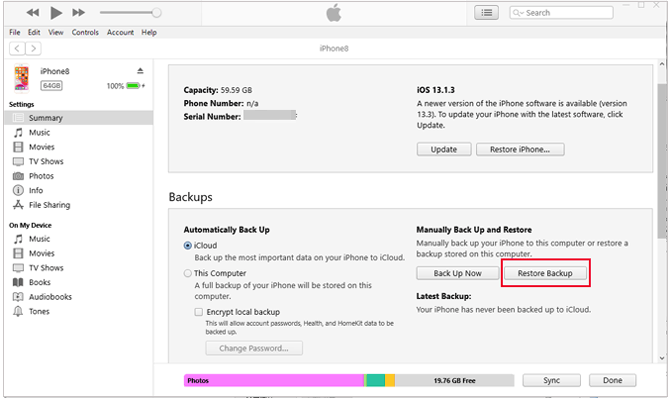
Step 4. Choose the backup file that contains your WhatsApp Business backup and start the restoration process. Once completed, your chat history and media files will be restored to their previous backup state.
If you fail to restore WhatsApp Business using the official backup options, a professional recovery tool can provide a more flexible solution. WhatsApp Recovery is designed to recover lost or deleted WhatsApp and WhatsApp Business data directly from devices or backups. It allows users to preview chats and selectively restore the needed conversations without complicated procedures.
Key features of WhatsApp Recovery
How to restore WhatsApp Business with WhatsApp Recovery?
01Download and install WhatsApp Recovery on your computer. Launch the program and choose a recovery mode from the main interface. Here, select "Recover from Device".
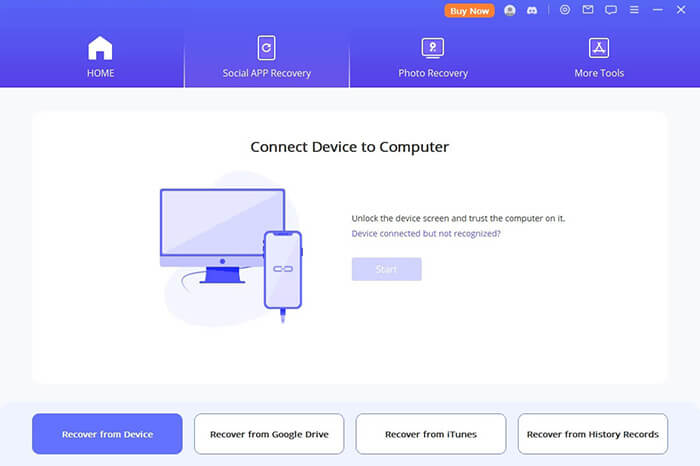
02Connect your device to the computer using a USB cable. If you are using an Android device, enable USB debugging when prompted. For iPhone or iPad users, tap "Trust This Computer" when the notification appears. Before clicking "Start," you can also choose a location on the computer to save the device data.
03The program will then begin the scanning process. The exact steps may vary slightly depending on whether you are using an Android or iOS device. In this guide, we mainly demonstrate the process on an iOS device.
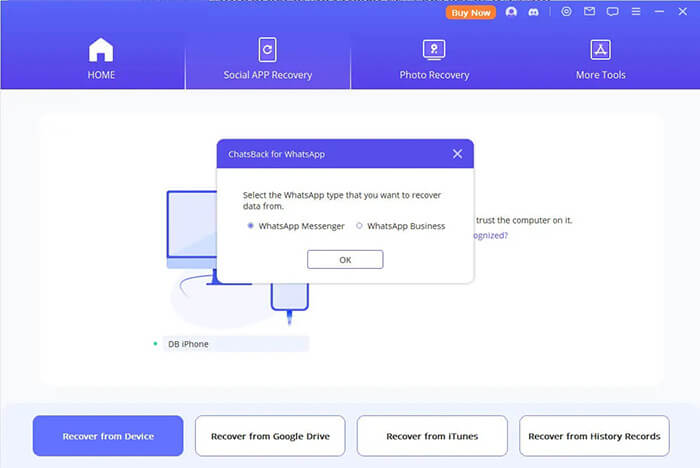
04On your iPhone, select the WhatsApp type you want to recover. Here, choose "WhatsApp Business" and click "OK" to continue. The program will start scanning your device for recoverable data.
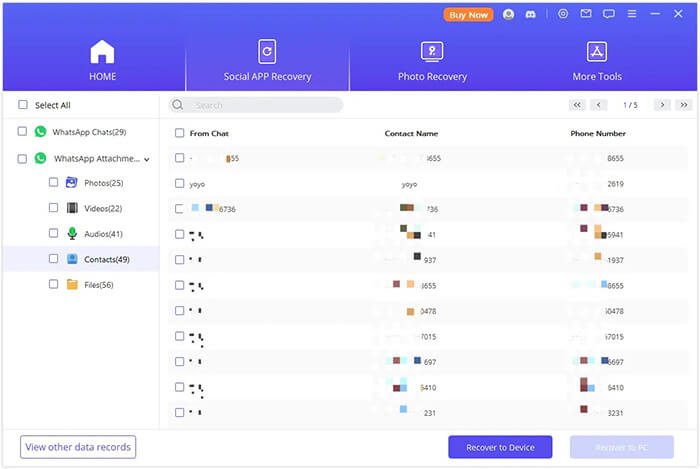
05After the scan is complete, all recoverable WhatsApp Business data will be displayed as shown in the preview window. Select the files you want, then click "Recover to PC" or "Recover to Device" to restore the selected data to your computer or back to your phone.
Thanks for reading this guide. Now, you should know how to recover WhatsApp Business backups on both Android and iPhone. It's pretty easy to get back your WhatsApp Business info, whether you use local backups, Google Drive, iCloud, or third-party tools like WhatsApp Recovery. We recommend using WhatsApp Recovery because it is feature-rich, easy to use, efficient, and not limited by your phone's operating system. Hopefully, this information has been helpful to you.
Related Articles:
How to Access WhatsApp Backup on iPhone/PC/Google Drive/iCloud without a Hitch?
Fast Fix WhatsApp Backup Stuck with Practical Tips in 2026
6 Easy Ways on How to Backup WhatsApp Messages from Android to PC
How to Restore Whatsapp Backup Without Uninstalling on Android & iOS?







 Free Download for PC


