WhatsApp is one of the most reliable messaging apps, but sometimes you may notice your messages only show a single gray tick, or worse, don't send at all. This can be frustrating, especially when you need to communicate urgently.
If you're wondering, "Why are my WhatsApp messages not delivering?", the answer usually lies in network issues, app problems, or recipient-related factors. In this guide, you'll learn the most common causes and practical fixes to get your messages delivered again.
Before trying any fixes, it's important to understand why your WhatsApp messages are not being delivered. In most cases, the issue is related to connectivity, account status, or temporary system problems. Below are the most common reasons.
If the person you're messaging has their phone turned off, is in airplane mode, or doesn't have an active internet connection, your message will not be delivered. It will stay at a single gray check mark until they come back online.
If someone has blocked you, your messages will never be delivered to them. In addition, you may no longer see their profile photo, last seen status, or updates, which are common signs of being blocked.
If you entered the wrong number or the contact is not using WhatsApp, your messages won't go through.
Sometimes the issue isn't on your side. If WhatsApp's servers are experiencing downtime or outages, messages may fail to send or deliver for many users at once.
An outdated app version can cause compatibility issues and bugs, which may prevent messages from being delivered properly.
If you're sending media files, they may fail to deliver if the file size exceeds WhatsApp's limits or if the format is not supported. Large videos or uncommon file types are common causes of this issue.
Once you understand the possible causes, you can start applying the fixes below. You don't have to try all of them, just work your way down the list until your messages are delivered normally again.
A weak or unstable internet connection is the most common reason why WhatsApp messages fail to deliver. Even if your device shows a connection, it may not be strong enough to send data in real time. Before trying more advanced fixes, make sure your network is working properly.
Start by opening a website or streaming content to check if your connection is responsive. If pages load slowly or fail to load, your network may be the issue.
Step 1. Switch between Wi-Fi and mobile data to see which one provides a more stable connection.
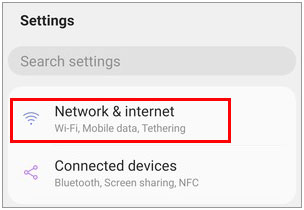
Step 2. Turn on airplane mode for about 30 seconds, then turn it off to refresh your network connection.
Step 3. If you're using Wi-Fi, move closer to the router or restart it to improve signal strength.
Step 4. Disable any VPN services temporarily, as they may interfere with WhatsApp connectivity.
Temporary system or app glitches can prevent WhatsApp from functioning correctly. Restarting the app or your device helps clear these issues and re-establish connections.
On iPhone:
Step 1. Swipe up from the bottom of the screen (or double-click the Home button) to open the app switcher.
Step 2. Find WhatsApp and swipe it away to close it completely.
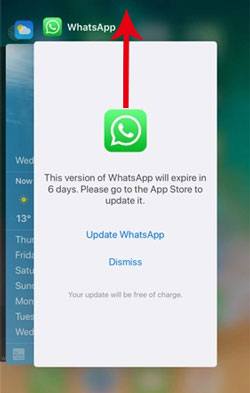
Step 3. Reopen WhatsApp and try sending the message again.
On Android:
Step 1. Open the recent apps screen.
Step 2. Swipe away WhatsApp to force close it.
Step 3. Launch it again and resend the message.
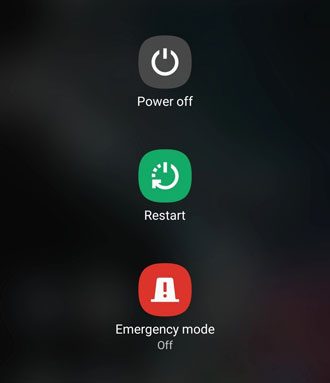
If the issue persists, restart your phone by powering it off and turning it back on, then test WhatsApp again.
Using an outdated version of WhatsApp can cause bugs or compatibility issues that affect message delivery. Keeping the app updated ensures you have the latest fixes and improvements.
To update WhatsApp:
Step 1. Open the App Store (iPhone) or Google Play Store (Android).
Step 2. Search for WhatsApp.
Step 3. Tap "Update" if a new version is available.
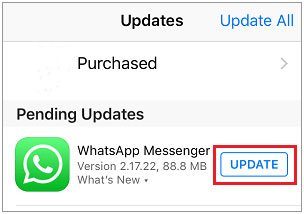
If updating doesn't solve the problem, reinstalling the app can remove corrupted data.
To reinstall WhatsApp:
Step 1. Uninstall WhatsApp from your device.
Step 2. Restart your phone to clear system cache.
Step 3. Download and install WhatsApp again from the app store.
Step 4. Verify your phone number and restore your chat backup (iCloud for iPhone, Google Drive for Android).
Over time, WhatsApp stores temporary files (cache) that can become corrupted and lead to issues like messages not delivering. Clearing the cache can refresh the app without affecting your chats.
On Android:
Step 1. Go to "Settings" on your phone.
Step 2. Tap Apps (or App Management).
Step 3. Select WhatsApp.
Step 4. Tap "Storage".
Step 5. Tap "Clear cache".
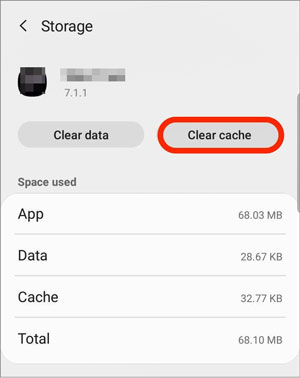
iOS does not provide a direct option to clear the app cache. The best way is to reinstall WhatsApp (as described in Method 2.3), which removes cached data automatically.
If your messages are not delivering to one specific contact, there's a possibility that you've been blocked. While WhatsApp doesn't notify you directly, you can look for several signs.
Step 1. Check if you can see the contact's "last seen" or "online" status.
Step 2. Look at their profile picture; if it disappears or hasn't been updated for a long time, it may be a sign.
Step 3. Try making a WhatsApp call; if it doesn't connect, this could indicate blocking.
Step 4. Attempt to add the contact to a group chat. If you receive an error, it's very likely you've been blocked.
If you confirm this, there's no built-in way to bypass the block, you'll need to contact the person through other means.
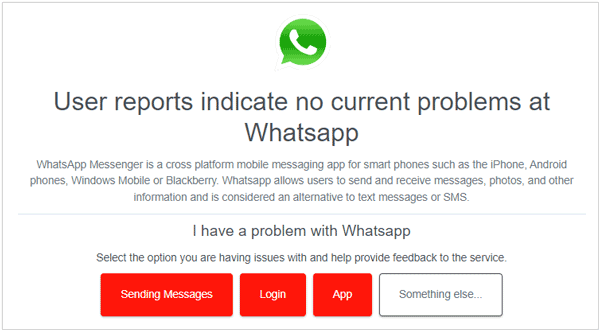
If your messages are not delivering to anyone, the issue might be related to WhatsApp servers rather than your device. Server outages can temporarily disrupt message delivery worldwide.
Step 1. Visit a website like Downdetector.
Step 2. Search for "WhatsApp" and check recent reports.
Step 3. Look at the outage graph or user comments to confirm if the issue is widespread.
If WhatsApp servers are down, the only solution is to wait until the service is restored.
Insufficient storage space can prevent WhatsApp from sending or receiving messages, especially media files. The app requires available storage to function properly.
Step 1. Open your phone's Settings and check storage usage.
Step 2. Delete unnecessary apps, photos, or large videos to free up space.
In WhatsApp:
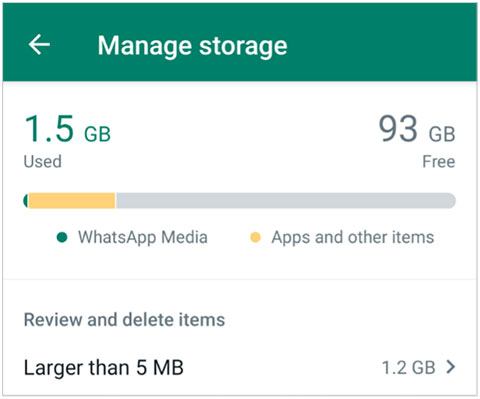
After freeing up space, reopen WhatsApp and try sending your message again.
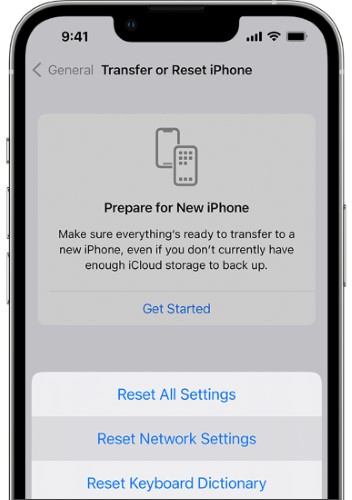
If your network settings are misconfigured or corrupted, resetting them can resolve persistent connectivity issues affecting WhatsApp.
On iPhone:
Step 1. Go to "Settings".
Step 2. Tap "General".
Step 3. Tap "Transfer or Reset iPhone".
Step 4. Tap "Reset".
Step 5. Select "Reset Network Settings".
On Android:
Step 1. Open "Settings".
Step 2. Go to "System" (or "General Management").
Step 3. Tap "Reset".
Step 4. Select "Reset Network Settings".
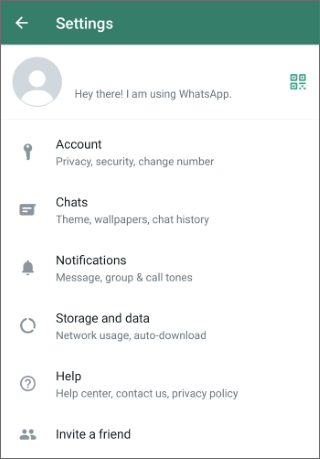
If none of the above methods work, the issue may be account-related or more complex than standard troubleshooting can fix. In this case, contacting WhatsApp support is the best option.
Step 1. Open WhatsApp.
Step 2. Go to "Settings" > "Help" > "Contact Us".
Step 3. Describe your issue clearly, including when it started and what you've tried.
Step 4. Provide details such as your phone model, operating system, and WhatsApp version.
After submitting your request, wait for a response. Support usually replies within a few days with further guidance.
If your WhatsApp messages are still not delivering after trying all the fixes above, or if you're planning to switch to a new phone, it's a good idea to secure your chat data in advance. Instead of relying on unstable network backups, using a dedicated transfer tool can be more reliable and efficient.
WhatsApp Mover is designed to help you move WhatsApp messages between devices seamlessly, whether you're switching from Android to iPhone or vice versa. It avoids common issues like backup failures or incomplete restores.
What can WhatsApp Mover do for you?
How to transfer WhatsApp messages between phones using WhatsApp Mover?
01Download and install WhatsApp Mover on your computer, then open the program to access its main interface.
02Use USB cables to connect both your Android device and iPhone to the computer, and wait until they are detected successfully.
03Choose the "Transfer" option, then check that the source and destination devices are correctly arranged. If not, click "Flip" to switch their positions.
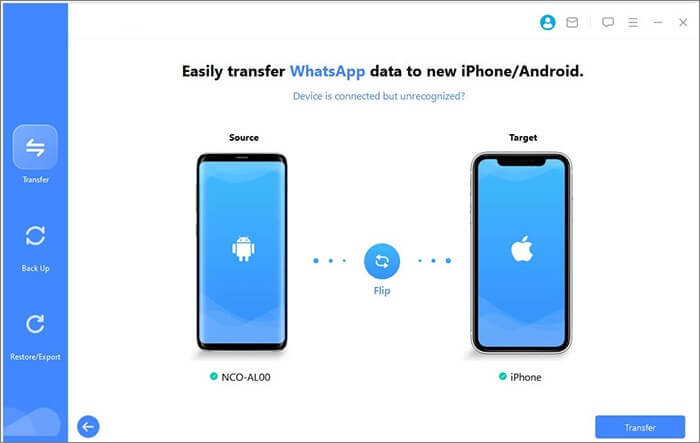
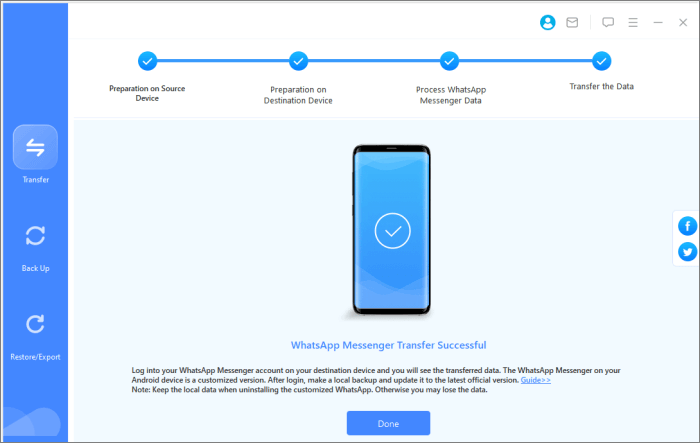
04Click the "Transfer" button to start the process. The tool will handle the data migration automatically, without requiring complex configurations.
When WhatsApp messages are not delivering, the cause is usually related to network issues, app errors, or recipient status. By checking your connection, updating the app, clearing cache, or resetting network settings, most problems can be resolved quickly.
If the issue persists or you want to protect your chat history, transferring your WhatsApp data with a reliable tool like WhatsApp Mover is a practical solution. It ensures your important messages are safe and accessible, no matter what happens.
Related Articles:
Cannot Send & Receive WhatsApp Messages, How to Fix?
WhatsApp Download Failed | Fix the Issue with 8 Solutions
WhatsApp Not Working with Wi-Fi? Explore Reasons and Proven Fixes
WhatsApp Chat Transfer Not Working? Fix It with Proven Solutions







 Free Download for PC
  Free Download for Mac


