TL;DR:
FRP (Factory Reset Protection) can lock an Android device after a factory reset and require the previously synced Google account for verification. If you cannot access the account or do not have an OTG cable, you can try the following methods to bypass Google account without OTG:
Factory Reset Protection (FRP) is a built-in Android security feature designed to protect your phone after a factory reset. Once FRP is activated, you must sign in with the previously synced Google account to access the device again. However, many users get stuck on the Google verification screen because they forget their account credentials or purchase a second-hand phone that is still locked.
Most traditional FRP bypass tutorials require an OTG cable to install APK files manually. But what if you do not have an OTG adapter? Fortunately, there are still several ways to bypass Google account without OTG. In this guide, we will introduce 4 practical methods that may help you remove the Google lock on Android devices without using an OTG cable.
If you want the easiest and most beginner-friendly solution, using a professional Android unlock tool is the best option. Unlike old FRP tricks that rely on system loopholes, dedicated unlocking software usually offers a higher success rate and supports newer Android versions.
One popular option is Android Unlock. This tool can help remove FRP locks on many Samsung, Xiaomi, Redmi, and OnePlus devices without requiring an OTG cable.
Key features of Android Unlock
How to bypass FRP without OTG using Android Unlock?
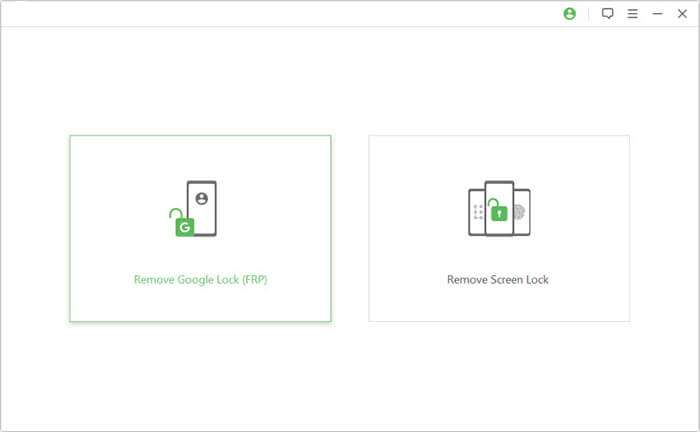
01Download and install Android Unlock on your Windows PC, then launch the software and select the "Remove Google Lock (FRP)" mode.
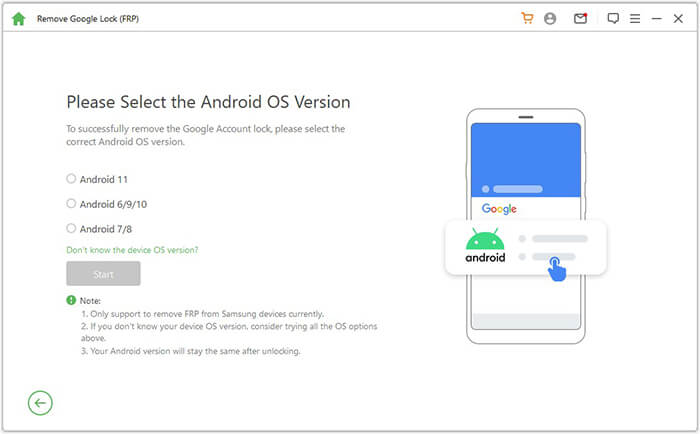
02Connect your Android phone to the computer using a USB cable. After the device is detected, choose your phone brand and continue.
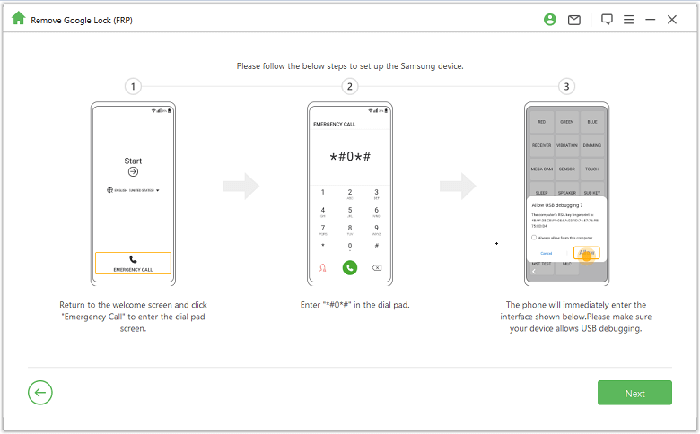
03Follow the on-screen instructions to put your phone into the required mode. The software will prepare the FRP bypass package automatically.
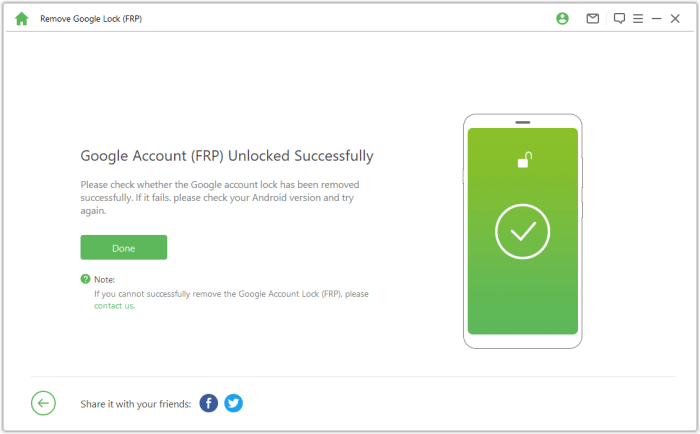
04Wait for the unlocking process to finish. Once completed, your Android phone will restart, and the Google account verification screen should be removed.
If the locked device belongs to you, recovering the original Google account is the safest and most official way to remove FRP without OTG. Instead of bypassing the security feature, this method helps you regain access to the previously synced account.
How to recover your Google account?
Step 1. On another device, visit Google Account Recovery.
Step 2. Enter the phone number or email address linked to the locked Android device.
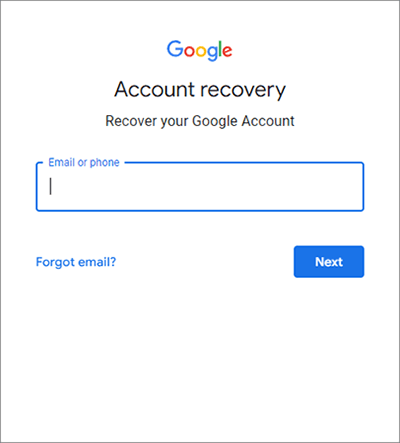
Step 3. Follow the verification instructions to reset your password or recover your account information.
Step 4. After resetting the password, wait for 24 to 72 hours before attempting to sign in on the locked phone again. Google may temporarily block immediate access for security reasons.
Step 5. Return to the locked Android phone and sign in using the recovered Google account credentials.
The Gboard method is an old FRP bypass trick that mainly works on some Android 6 or Android 7 devices. It uses the keyboard settings menu to access other system settings and bypass the verification screen. Keep in mind that this method may not work on newer Android phones.
How to use Gboard Settings to bypass FRP?
Step 1. Connect the Android phone to a Wi-Fi network and proceed to the Google verification screen.
Step 2. Tap the text input field to open the Google keyboard.
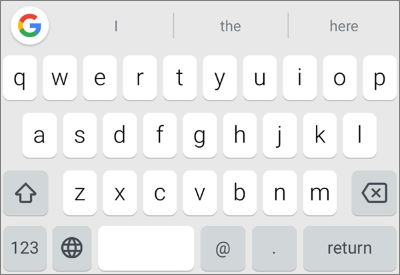
Step 3. Press and hold the "comma" key or tap the keyboard settings icon to enter the Gboard Settings menu.
Step 4. Tap the three-dot icon and choose "Help & Feedback".
Step 5. Open any article and select some text. Then, tap "Web Search".
Step 6. In the search box, open the browser or access device settings through available links.
Step 7. Navigate to "Settings" > "Accounts" and remove the existing Google account if possible. On some devices, you may also need to disable Google Play Services temporarily.
Step 8. Restart the phone and complete the setup process again.
Samsung SideSync is another classic FRP bypass method for older Samsung devices. It allows the phone to open a browser or Galaxy Apps page through a PC connection, helping users install apps that may assist with bypassing FRP.
Please note that this method is mainly effective on old Samsung phones running Android 6 or Android 7; it is no longer reliable for modern Samsung phones because newer Android security patches have blocked most SideSync loopholes.
How to use Samsung SideSync to bypass FRP without OTG?
Step 1. Download and install Samsung SideSync on your computer.
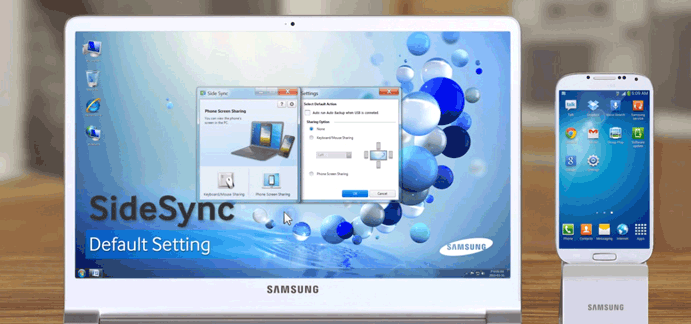
Step 2. Connect the locked Samsung device to the PC using a USB cable.
Step 3. Open SideSync on both the computer and the phone. A pop-up window may appear on the device asking which app to open.
Step 4. Select "Galaxy Apps" or "Chrome" from the pop-up window.
Step 5. Download and install the necessary FRP bypass APK files from the browser.
Step 6. Open the installed APK tool and follow the instructions to access phone settings.
Step 7. Add a new Google account or disable FRP-related services if required.
Step 8. Restart the device and complete the setup process.
1. Is FRP bypass legal?
FRP bypass is generally legal if you are unlocking a phone that you personally own or have permission to access. However, bypassing Google account verification on stolen or unauthorized devices may violate local laws and regulations.
2. Does FRP bypass erase data?
In most cases, FRP appears after a factory reset, meaning the original data has already been erased. Some FRP removal tools may perform additional resets during the process, so it is important to back up your Android's important files whenever possible.
3. Will the FRP lock come back after bypass?
It depends on the Android version and the FRP bypass method you use. If you remove the Google lock through official account recovery or a reliable FRP unlocking tool, the device usually stays unlocked during normal use. However, some temporary bypass tricks, such as Gboard loopholes on old Android devices, may stop working after a factory reset or system update.
To reduce the risk of the FRP lock appearing again, it is recommended to properly remove the Google account from the device settings before performing another factory reset in the future.
In summary, there are several ways to bypass Google account without OTG, including official account recovery, old Android loopholes like Gboard, Samsung SideSync, and professional unlocking tools. For most users, the best choice depends on the device and Android version. If you want a higher success rate and a simpler process, tools like Android Unlock are usually the most reliable option.
All methods should only be used on devices you legally own. Since Android security is constantly improving, some manual tricks may no longer work on newer systems. To avoid FRP issues in the future, it is recommended to manage your Google account properly and remove it before performing a factory reset.
Related Articles:
Google FRP Bypass - A Comprehensive How-to Guide with 6 Top Picks
6 Hot Tips to Bypass Google Account Verification after Reset [NEW]
How to Fix "Please Sign in Using One of the Owner's Accounts"
[5 Ways] How to Remove Google Account from Samsung Without Password




 Free Download for PC


