TL;DR:
If your iPhone passcode suddenly stops working, try a force restart first to rule out temporary system glitches. If you remain locked out, you can use iPhone Unlocker, erase your device from the lock screen or iCloud, or restore it through a computer. Keep in mind that methods that remove the passcode generally erase your iPhone data, so restore from a backup if one is available.
When you pick up your iPhone to unlock it, but find that it won't unlock with the correct passcode, you might wonder why it shows an error despite entering the right password, or even locks you out of the device. Don't worry, this situation is actually quite common. In this article, we will thoroughly analyze the reasons behind the iPhone passcode not working and provide various effective solutions to help you quickly restore your device to normal use.
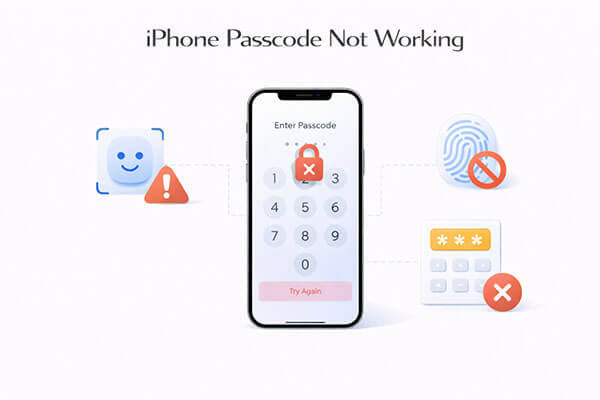
Before jumping into fixes, it's important to understand the root cause. When your iPhone passcode is not working all of a sudden, it's rarely random. Here are the most common reasons:
If your iPhone 16/17 passcode is not working, below are 7 proven solutions. Start with the simplest one and move down if needed.
If your iPhone passcode is not working due to a temporary system glitch, a force restart can refresh the system and fix minor bugs without data loss. This is always the safest first step. Steps to force restart the iPhone:
iPhone 8 and later:
iPhone 7 / 7 Plus:
iPhone 6s or earlier:

If your iPhone passcode is not working all of a sudden and you're locked out completely, using a professional iPhone unlock tool is one of the fastest solutions. iPhone Unlocker allows you to remove the passcode without needing to enter it. Besides the iPhone passcode, you can also use iPhone Unlocker to unlock MDM locks, Screen Time passcodes, and more.
Key features of iPhone Unlocker:
Here is how to fix the iPhone passcode not working using iPhone Unlocker:
01Open iPhone Unlocker and select "Unlock Screen Passcode". Click "Start to Unlock". Then, connect your iPhone to your computer via a USB cable.
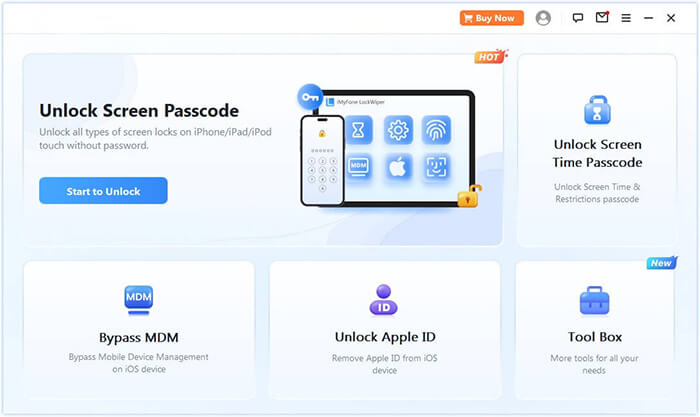
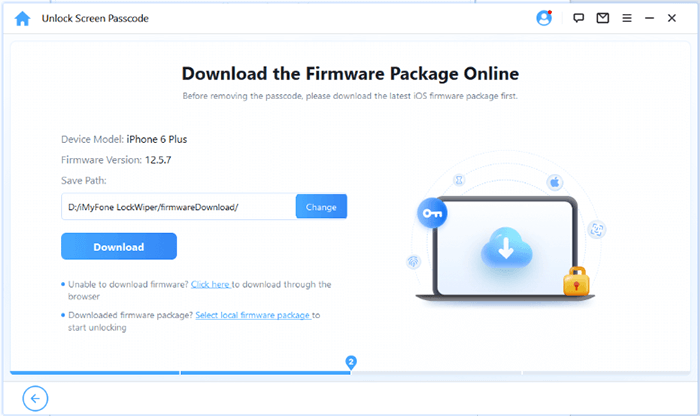
02Follow the on-screen instructions to enter Recovery Mode or DFU Mode. Once the program detects your device, choose a location to save the firmware package and click "Download".
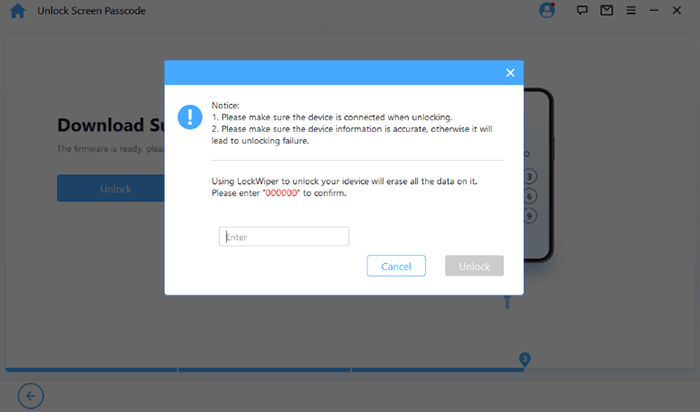
03After the firmware download is complete, click "Unlock". Carefully read the warning message, enter "000000" to confirm, and click "Unlock" again to proceed.
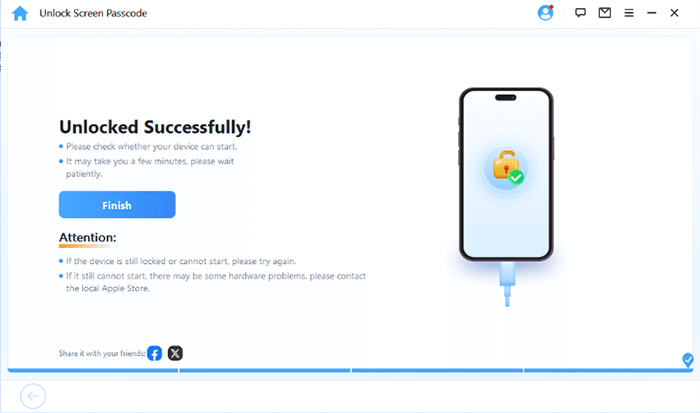
04Wait a few minutes as the program removes the screen passcode. Once done, you can set up a new passcode, Face ID, or Touch ID for your iPhone.
For devices running iOS 15.2 or later, Apple introduced a built-in option to erase your iPhone directly from the lock screen. This is useful if your iPhone passcode is not working after a restart and you don't have access to a computer. However, you will need to remember your Apple ID information.
Here is how to fix iPhone passcode not working using the Erase iPhone feature:
Step 1. Make sure your iPhone is connected to a cellular or Wi-Fi network.
Step 2. Continue entering the wrong passcode until the "iPhone Unavailable" or "Security Lockout" message appears.
Step 3. Tap the "Erase iPhone" button at the bottom-right corner of the screen.
Step 4. Next, enter your Apple ID and password to confirm the erasure process.
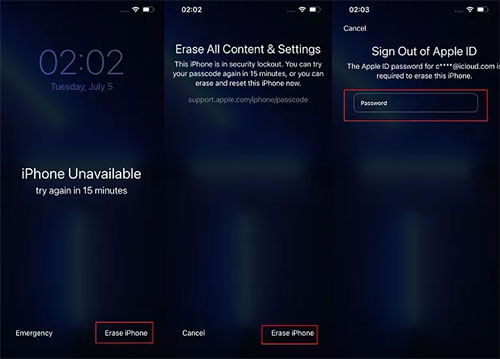
Note: If your iPhone is running iOS 17 or later, tap "Forgot Passcode" instead of the "Erase iPhone" option, then enter your Apple ID to begin the erasure process.
If you have "Find My iPhone" enabled, you can remotely erase the iPhone through iCloud to remove the screen password. This method is especially useful if the device is not with you or cannot be operated.
Here is how to fix the iPhone 16/17 passcode not working via iCloud:
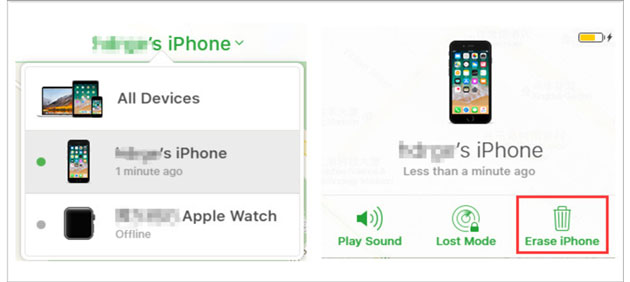
Step 1. Open iCloud.com on a computer or another iOS device and sign in with your Apple ID.
Step 2. Select "Find My iPhone", then click "All Devices" in the top corner of the browser and choose your iPhone from the list.
Step 3. Next, click "Erase iPhone" to remove all data along with the passcode. After that, you can restore your iPhone from a backup or set it up as a new device.
Another way to fix the iPhone passcode not working issue is to restore your iOS device using iTunes. However, this requires that you have previously synced your iPhone with iTunes on a PC and that the "Find My iPhone" feature has been disabled.
Here is how to do it:
Step 1. Open iTunes on your computer and connect your iPhone to the PC.
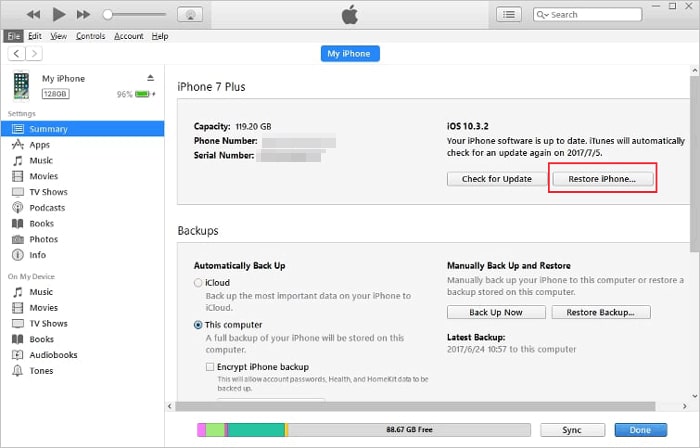
Step 2. Click the phone icon to view your device information, then select the "Summary" tab in the left sidebar.
Step 3. Under the "Backups" section, click "Back Up Now" to secure your data.
Step 4. After that, click "Restore iPhone" and follow the on-screen instructions. The process may take some time as your device is restored to factory settings.
If you have never synced your iPhone with iTunes or enabled "Find My iPhone" in iCloud, the two methods above may not work for you. In this situation, you can use Recovery Mode to fix the iPhone/iPad passcode not working issue and restore your device as new. Simply follow the steps below.
Step 1. Connect your iPhone to your computer and open the latest version of iTunes.
Step 2. Once your device is connected, follow the instructions in Fix 1 to put your iPhone into Recovery Mode.
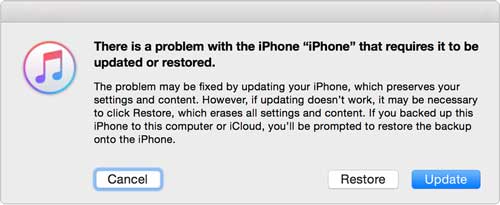
Step 3. When iTunes detects your disabled iPhone, you will see the options "Restore" or "Update". Select "Restore" to continue.
Step 4. iTunes will begin downloading the required software for your iPhone. Wait for the process to finish. Your device will be reset to factory settings, and you can then set up a new passcode.
If none of the above methods work, the issue may be hardware-related (especially after screen replacement). In that case, contacting Apple Support is the safest option.
As you can see, if your iPhone passcode is not working, there are several practical solutions you can try to resolve the issue. Depending on your situation, choose the method that works best for you. You can also download iPhone Unlocker to fix issues where your iPhone won't unlock even with the correct passcode.
If you have any questions about these methods or know of other solutions, feel free to leave a comment below.
Related Articles:
Passcode Expired on Your iPhone & Unlock Passcode Has Expired [5 Ways]
7 Easy Ways to Fix the Must Change iPhone Passcode Issue
4 Best Methods to Factory Reset iPhone without Password/Passcode
Forgot iPhone Password: 4 Easy Ways to Unlock It without Losing Data




 Free Download for PC
  Free Download for Mac


