TL;DR:
This guide explains how to record Google Meet on PC, Mac, Android, and iPhone.
In remote work, online classes, and cross-regional collaboration, Google Meet has become one of the mainstream video conferencing tools. Whether for meeting notes, class replays, or project reviews, many users need to record and save meeting content. However, some users have reported difficulties recording Google Meet and are unable to do it properly. Don't worry; this article will show you how to record Google Meet with ease. Let's get started!
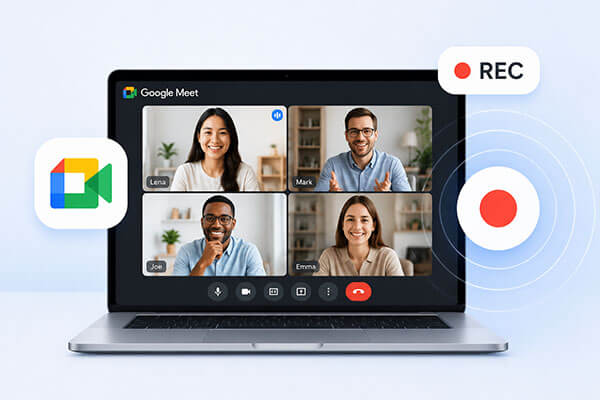
Yes, you can easily record Google Meet meetings, but not everyone is able to do so. If you want to record a video meeting, you need to meet the following requirements:
Does Google Meet have a built-in recorder? Of course. If you are the meeting host or a participant, you can easily record the meeting using Google Meet's built-in recording feature. Please note that as a participant, you can only use this feature if the host grants permission. In addition, this feature is only available to paid Google Workspace users who have purchased specific plans (such as Business Standard, Business Plus, or Enterprise).
Here is how to record Google Meet on a laptop with audio using the Google Meet built-in recorder:
Step 1. Start or join a Google Meet session on your computer and make sure you are signed in with a Google Workspace account that supports recording.
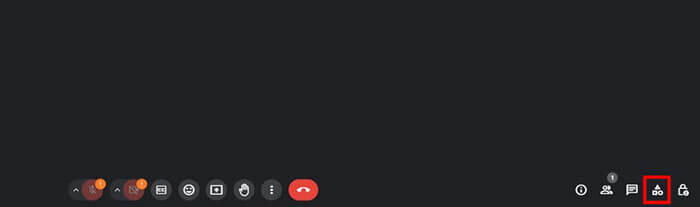
Step 2. In the bottom-right corner, click the "three-dot" menu (Activities).
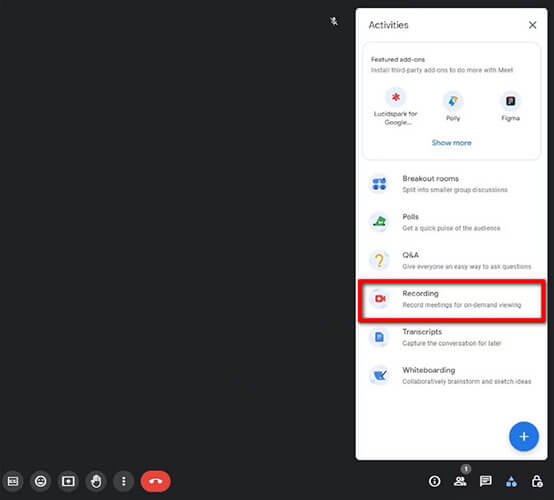
Step 3. Choose "Recording" from the menu, then click "Start".
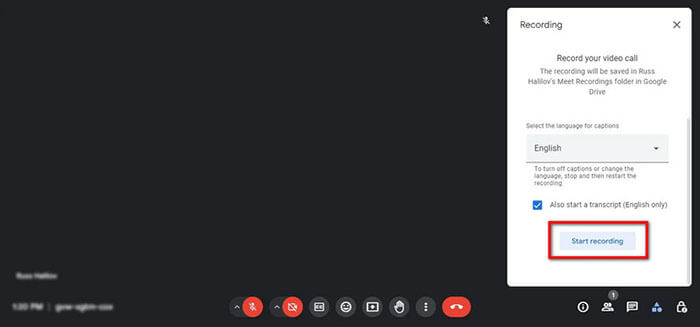
Step 4. A consent prompt will appear. Click "Start recording" to begin recording. All participants will see a recording notification in the top-left corner of the screen.
Step 5. To stop the recording, go back to the menu and select "Activities" > "Stop recording".
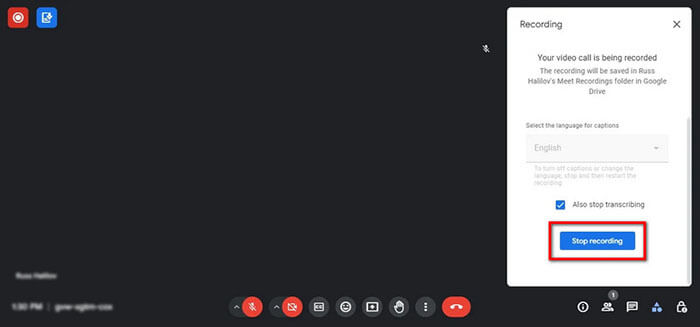
Step 6. The recording will be automatically saved to the organizer's Google Drive under "My Drive" > "Meet Recordings". A link will also be sent by email to the organizer and the person who started the recording.
If you don't have recording permission, you can use your computer's built-in screen recording feature to record Google Meet for free.
On Windows:
Step 1. Open the Google Meet meeting in your browser.
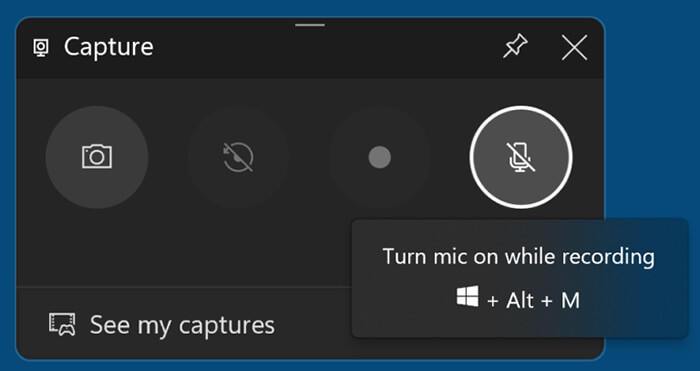
Step 2. Press "Win" + "G" to open Xbox Game Bar.
Step 3. Click the "Capture" panel and press "Start Recording".
Step 4. Return to your meeting window. Click Stop recording when finished.
Step 5. Find your video in the "Videos" > "Captures" folder.
On Mac:
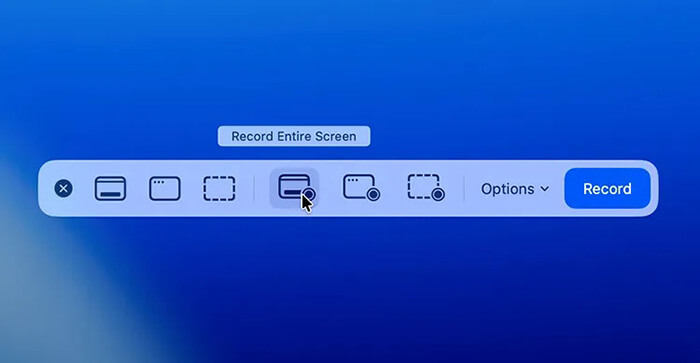
Step 1. Press "Command" + "Shift" + "5" to open the macOS screen recording toolbar.
Step 2. Choose either "Record Entire Screen" or "Record Selected Portion".
Step 3. Click "Options" to select microphone input if needed.
Step 4. Open your Google Meet meeting in a browser.
Step 5. Click "Record" to start capturing the meeting.
Step 6. Conduct your meeting normally while recording runs in the background.
Step 7. Click the "Stop" button in the menu bar when finished.
Step 8. The recording will automatically be saved to your desktop.
The built-in recording feature is limited, and the system's default screen recording tools are too basic to meet the needs of high-quality meeting recording. Therefore, if you want to record Google Meet sessions without restrictions and need a more professional recording experience, using dedicated screen recording software is the best choice. Coolmuster Screen Recorder is one such tool.
It is specifically designed for screen recording scenarios and is ideal for recording online meetings, classes, webinars, and remote collaboration content. Compared with built-in system tools, it offers higher video quality, more flexible recording controls, and more stable long-duration recording performance.
The highlights of Coolmuster Screen Recorder:
How do I record Google Meet if I am not the host? Follow the steps below:
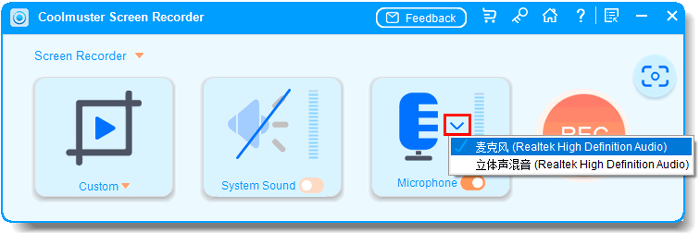
01Open Coolmuster Screen Recorder and select either "Full Screen" or "Custom" mode to capture your Google Meet session.
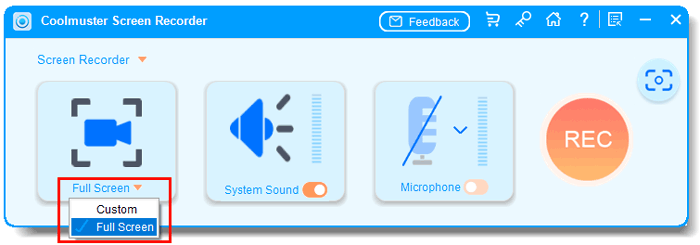
02Choose your audio source, such as system sound, microphone, or no audio.
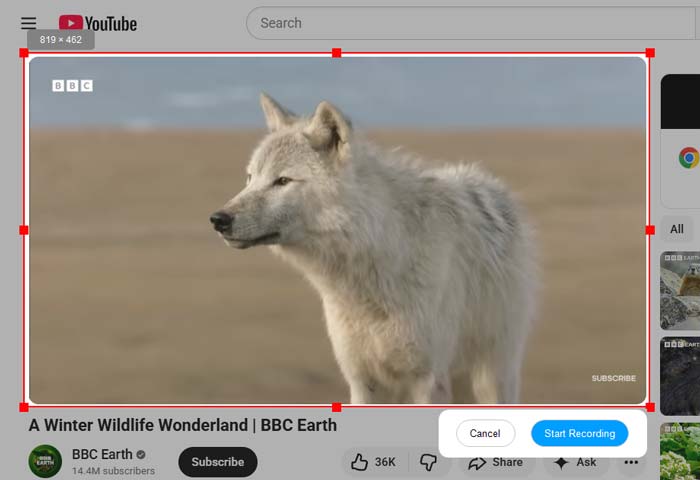
03Click the orange "REC" button and select "Start Recording" after the countdown ends. Your Google Meet recording will begin immediately.
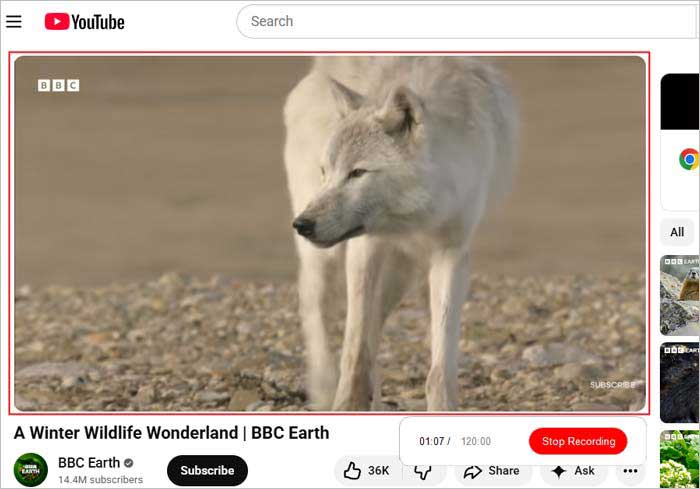
04When finished, click "Stop Recording". The video will be saved automatically as an MP4 in your selected folder, and you can copy it for easy sharing.
Video Tutorial:
Google Meet recording is currently only available on computers, but you can also use your mobile device's built-in screen recording feature to capture the meeting. Below is how to record Google Meet on a phone with audio.
Step 1. Download Google Meet on your Android device and open it, then join the meeting using the invitation link or meeting code.
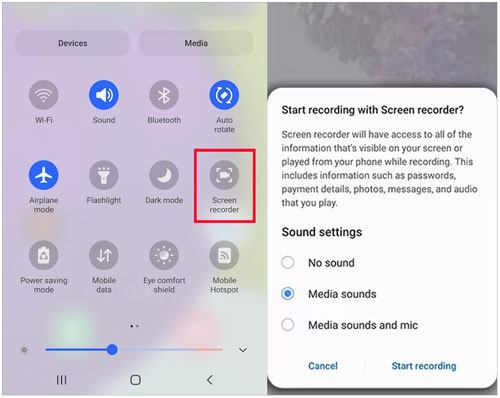
Step 2. Swipe down from the top of the screen to open "Quick Settings" and tap "Screen Recorder".
Step 3. Allow any required permissions and tap "Start Recording" to begin recording Google Meet.
Step 4. When the meeting ends, tap the red stop button to finish recording, and the video will be saved to your phone's gallery.
Step 1. Open the Google Meet app on your iPhone and join or start a meeting.
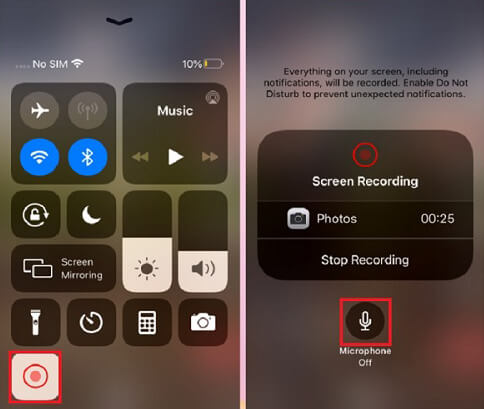
Step 2. Go to "Settings" > "Control Center" and add "Screen Recording" if it is not already included.
Step 3. When the meeting begins, swipe down from the top-right corner of the screen to open Control Center.
Step 4. Tap the "Screen Recording" icon and wait for the 3-second countdown to start recording.
Step 5. To finish, tap the red status bar or red circle at the top of the screen and select "Stop", and the video will be saved to the Photos app.
Q1. What can you record in a Google Meet recording?
A Google Meet recording includes meeting audio and video, chat messages (if enabled), and any content shared on the screen during the session.
Q2. Why can't I record a Google Meet meeting?
To record a Google Meet meeting, you must meet the following requirements:
If any of these requirements are not met, the "Start recording" option will not appear in the More options menu.
Q3. How to know if my Google Meet is being recorded or not?
If you are using Google Meet's built-in recording feature on desktop, a notification will appear indicating that the meeting is being recorded. However, if you are using your device's built-in screen recorder or a third-party tool, no such notification will be shown.
Q4. Where are Google Meet recordings saved?
When you use Google Meet's built-in recording feature, the video is automatically saved to the meeting organizer's Google Drive in the "Meet Recordings" folder.
Q5. How long does it take for a Google Meet recording to appear?
According to Google, it may take up to 24 hours for a Google Meet recording to become available, although it usually appears much sooner. The recording is still being processed, so there's no need to worry—just wait a while, and it should show up shortly.
That's about how to record Google Meet on different devices. If you are using a computer with a supported Google Workspace plan, the built-in recording feature is the simplest and most direct. If you want high-quality recordings, I recommend using Coolmuster Screen Recorder. It offers a smooth and reliable recording experience that's worth trying.
Related Articles:
3 Effective Methods to Screen Record Instagram Story: Step-by-Step
Ultimate Guide to Screen Recorders for Windows: 9 Best Tools Inside!
How to Screen Record on Mac Step by Step: Comprehensive Guide
Step-by-Step Guide to Screen Record on Dell Laptop in Minutes




 Free Download for PC


