TL;DR:
This guide walks you through step-by-step methods to screen record Instagram Stories on iPhone, Android, and Windows.
When using Instagram on a daily basis, many users come across interesting Instagram Stories, such as tutorial videos, travel highlights, product showcases, and more. Sometimes, you may want to save these stories for future viewing or sharing. Since Instagram Stories are temporary content and the platform does not provide a built-in download button, screen recording is one of the simplest and most practical ways to save them. In this article, we'll show you how to screen record an Instagram Story on iPhone, Android devices, and computers.
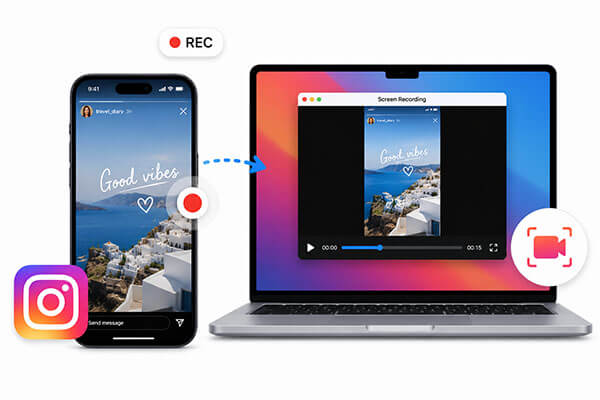
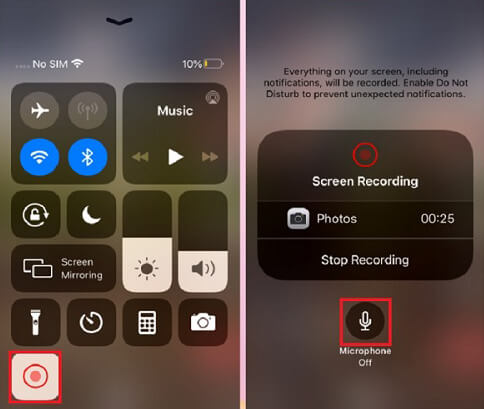
If you want to screen record an Instagram story on iPhone, the built-in iOS screen recording feature is the easiest and most efficient method. It allows you to capture everything happening on your screen without installing any third-party apps.
Here is how to screen record an IG story on iPhone:
Step 1. Open "Settings" on your iPhone, go to "Control Center", and add "Screen Recording" if it isn't already enabled.
Step 2. Launch Instagram and open the Story you want to save.
Step 3. Open Control Center and tap the "Screen Record" button.
Step 4. After the 3-second countdown, play the Instagram Story and let it record.
Step 5. Tap the "red status bar" to stop recording. The video will be saved automatically in the Photos app.
Is your iPhone screen recording not working? You can read this article to find the reasons and solutions.
iPhone Screen Recording Not Working: Reasons and 9 Best FixesMost Android phones also come with a built-in screen recording feature. While the interface may vary slightly between brands, the overall process is very similar. This feature allows you to quickly save Instagram Stories and supports high-quality video recording with audio capture.
Here is how to screen record an IG story on Android:
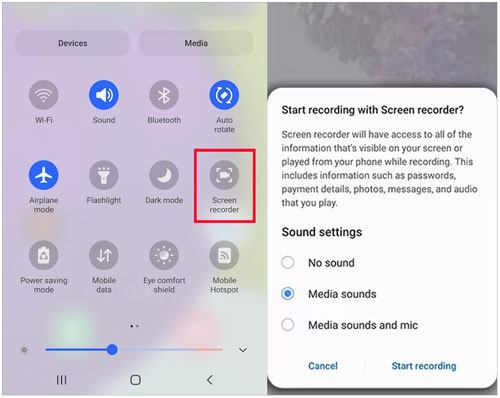
Step 1. Swipe down from the top of your screen to open the "Quick Settings" panel.
Step 2. Look for the "Screen Recorder" icon. If it's missing, add it by editing the Quick Settings.
Step 3. Open the Instagram app and navigate to the Story you want to capture. Make sure it's fully loaded and ready to play.
Step 4. Tap the "Screen Recorder" icon in Quick Settings. Adjust any settings, such as enabling internal audio, the microphone, or both.
Step 5. Press "Start" and wait for the countdown (usually 3 seconds).
Step 6. Play the Story as usual. Your device will record the video and audio (if enabled) while you watch.
Step 7. When finished, swipe down from the top of the screen to access the notification panel and tap "Stop".
Step 8. The recording will be saved automatically to your Gallery or Photos app, ready for viewing, editing, or sharing.
Note: Android 10 and earlier versions do not have a built-in screen recording feature. Therefore, if you want to record Instagram Stories on Android 10, you can click here to learn about popular Android screen recording apps that can help you capture Instagram Stories.
If you prefer browsing Instagram on your computer or need higher-quality recordings, using a professional screen recorder software can be a more convenient option. We recommend Coolmuster Screen Recorder, a reliable and easy-to-use Windows screen recording tool that supports full-screen recording and custom area recording.
Key features of Coolmuster Screen Recorder:
How do I screen record Instagram Story on Windows? Follow the steps below:
01Open Coolmuster Screen Recorder and choose either "Full Screen" or "Custom" area recording.
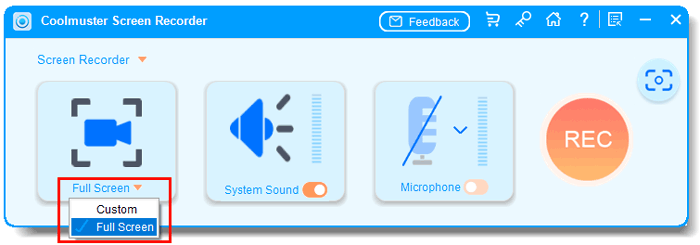
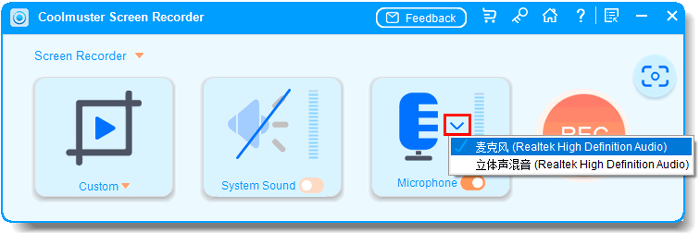
02Select an audio source: "System Sound", "Microphone", or no audio.
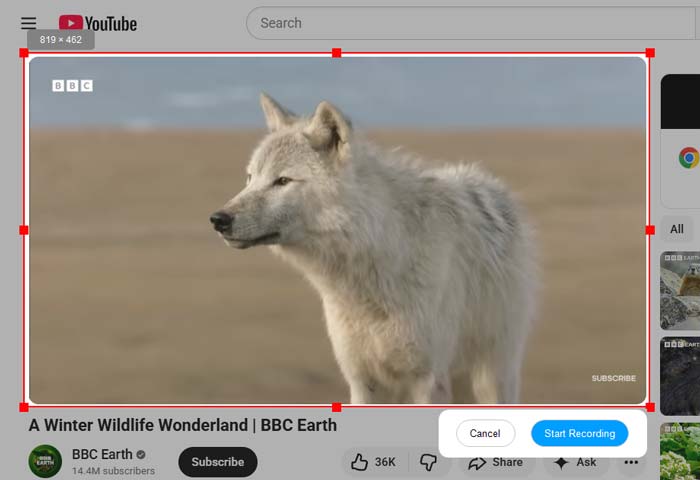
03Press the orange "REC" button and click "Start Recording". Recording will begin after a short countdown.
04Click "Stop Recording" when done. The video will be saved as an MP4 in your chosen folder, and you can use "Copy" to duplicate it for sharing.

Video Tutorial:
Q1. Does Instagram notify when you screen record a story?
Instagram doesn't notify users if you screen record their Stories. You can record or take screenshots of Stories, Reels, posts, and normal chat messages without them being alerted. The only exception is disappearing messages or "View Once" content, which does send a notification when captured.
Q2. Can you see who views your Instagram Story?
Yes. Instagram lets you see who has viewed your Story. To check, open your Story and swipe up on the screen. You'll then see the list of viewers, including their usernames, along with the total number of views.
Q3. Does Instagram notify users if you screen record a photo in DMs?
It depends. Standard photos sent in direct messages can be screen recorded without alerting the sender. However, if the image or video is sent as "View Once", the sender will be notified if you try to capture it.
If you want to save an Instagram Story, screen recording is currently the most convenient and versatile method. Whether you're using an iPhone, Android device, or computer, you can easily record the screen.
For regular users, the built-in screen recording feature is usually enough. However, for content creators, you may consider using more professional screen recording tools, such as Coolmuster Screen Recorder, to improve video quality and efficiency.
Related Articles:
How to Record Roblox on PC, Mac & Mobile Easily: Step-by-Step
How to Record Live TV: A Complete Guide for All Devices
10 Best Game Recording Software to Record Gameplay Without Hassle
How to Screen Record on Mac Step by Step: Comprehensive Guide






 Free Download for PC


