Summary: This article reviews 14 of the best screen recording software options for different needs, including tutorials, gameplay, online meetings, and professional video creation. It covers beginner-friendly tools like Movavi Screen Recorder, ClipChamp, and ScreenRec, as well as advanced solutions such as OBS Studio, Camtasia, and Bandicam for professionals and gamers. The article compares each tool's features, advantages, and drawbacks to help users choose the right option. Among them, Coolmuster Screen Recorder stands out as a lightweight and stable Windows-only solution with HD recording, simple controls, and reliable everyday performance.
Nowadays, screen recording has become an essential tool for content creators, educators, gamers, and professionals alike. Whether you need to make tutorials, record gameplay highlights, capture online meetings, or create promotional videos, choosing the best screen recording software can elevate your content quality and workflow efficiency.
Below, we've compiled a comprehensive review of the 14 best screen recording software, including detailed introductions, pros, and cons, to help you make an informed decision.
Coolmuster Screen Recorder is a lightweight and easy-to-use screen recording tool designed exclusively for Windows users. As one of the options for the best screen recording software, it allows users to capture full screen or a selected custom region with stable performance and smooth HD video output. It is suitable for recording online meetings, tutorials, presentations, gameplay, and streaming videos.
In addition, it includes a built-in screenshot feature, making it easy to capture important moments instantly during recording. With its clean interface and straightforward workflow, it is especially beginner-friendly and ideal for users who need a simple and reliable daily recording tool.
Key features of Coolmuster Screen Recorder:
Here is how to record a screen on your Windows computer using Coolmuster Screen Recorder:
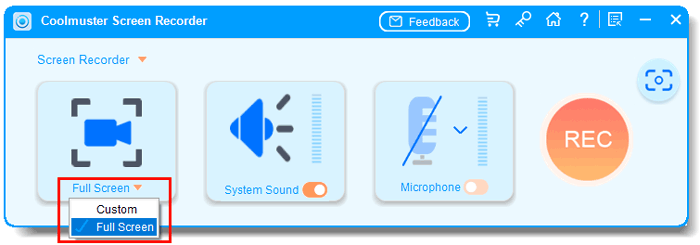
01Launch Coolmuster Screen Recorder and choose either "Full Screen" or "Custom" recording mode.
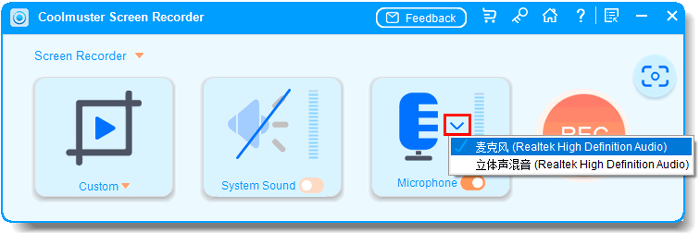
02Select your preferred audio source by enabling "System Sound" or "Microphone". You can also turn both off for silent recording.
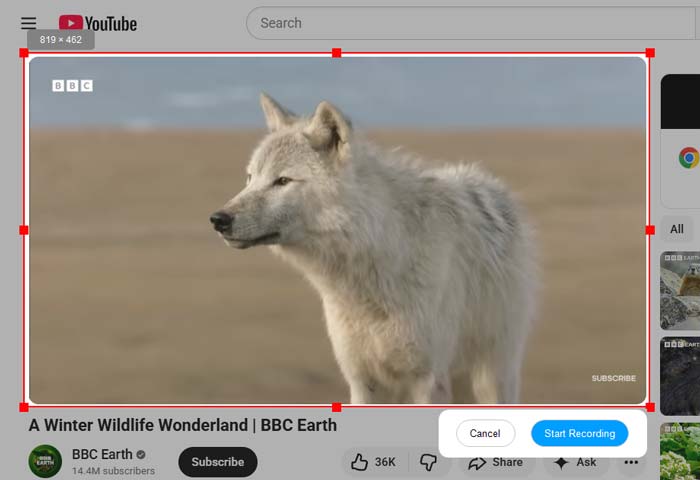
03Click the orange "REC" button, then choose "Start Recording". The recording will start automatically after a brief countdown.
04Once finished, click "Stop Recording". Your video will be saved locally in MP4 format, and you can use the "Copy" option for quick sharing.

Video Tutorial:
Pros:
- Simple and intuitive interface, easy for beginners.
- Support full-screen and custom-area recording.
- Stable HD recording with smooth performance.
- Built-in screenshot feature for quick capture.
- Lightweight and optimized for Windows systems.
- Good for tutorials, meetings, and basic content creation.
Cons:
- Only supports Windows (no macOS version).
- Cannot record system audio and microphone simultaneously.
- Lack advanced video editing features.
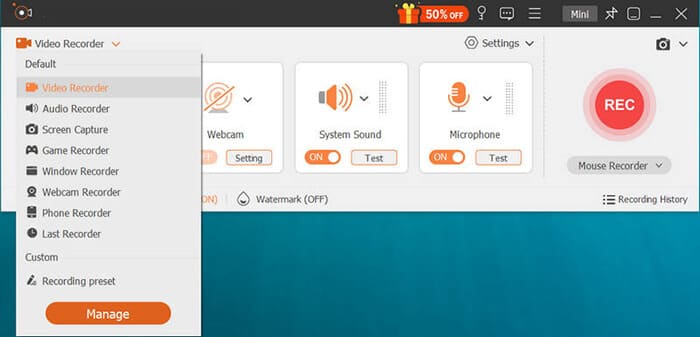
Aiseesoft Screen Recorder is a feature-rich and user-friendly screen recording software available for both Windows and macOS users. It supports full-screen, window, or custom area recording, while also enabling simultaneous capture of system sound and microphone audio. In practice, the software performs stably with high image clarity, making it ideal for recording tutorial videos, demonstration operations, or online video content. It also comes with built-in screenshot and annotation features, making post-processing more convenient. This makes it an easy-to-use choice for both beginners and advanced users.
Pros:
- Watermark-free outputs for all recorded content and screenshots.
- Intuitive interface with hotkeys for quick start/stop operations.
- Support recording both the microphone and system audio.
- Stable performance for long-duration recordings.
- Very easy for beginners to use.
- Ad-free interface for a distraction-free experience.
- Available for both Windows and Mac computers.
Cons:
- The free version only allows exporting the first 3 minutes of recordings.
- Limited advanced editing features.
- Webcam parameter adjustments are relatively basic.
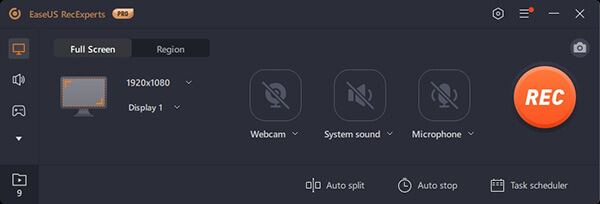
EaseUS RecExperts stands out as a versatile, all-in-one screen recorder software for Windows and Mac, ideal for gamers, educators, and business professionals. It supports high-frame-rate recording up to 144 FPS, making it perfect for capturing smooth gameplay and fast-moving visuals.
The software offers multiple recording modes, including full screen, custom region, game mode, and webcam-only recording, with the ability to sync system audio, microphone, and webcam footage. It also includes a built-in video editor for trimming, merging, and adding annotations, eliminating the need for third-party tools. EaseUS RecExperts is praised for its low CPU usage, ensuring stable performance even during long recordings.
Pros:
- Built-in AI noise reduction can remove noise from both video and audio.
- Built-in editor for basic post-recording adjustments.
- User-friendly interface suitable for beginners and pros.
- Offers a free plan with core recording features.
- Compatible with Windows 7-11 and macOS 10.13 or later.
Cons:
- Advanced features like scheduled recording require a premium subscription.
- The free version may have occasional pop-up notifications.
- Export format options are less extensive than some competitors.
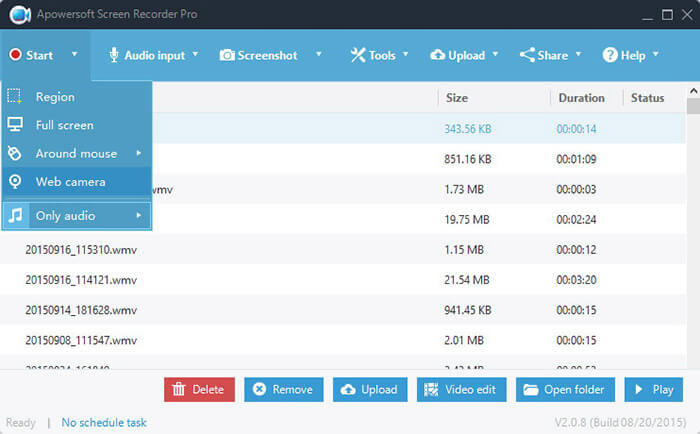
Apowersoft Screen Recorder Pro is a feature-rich tool designed for professionals seeking high-quality recordings and flexible customization. It supports full-screen, region, window, and game recording, with advanced encoding technology that balances clarity and file size efficiency.
The software allows real-time editing during recording, including adding text, arrows, highlights, and shapes—making it ideal for tutorial creators. It supports multiple output formats (MP4, AVI, WMV, FLV, etc.) and offers hardware acceleration to speed up encoding while reducing CPU usage. Additionally, it enables scheduled recording, webcam overlay, and audio-only recording for podcasts or voiceovers.
Pros:
- Real-time annotation tools for dynamic tutorials.
- Hardware acceleration for fast, efficient encoding.
- Supports scheduled recording for time-sensitive content.
- Multi-format output with customizable bitrate and resolution.
- Cross-platform compatibility with Windows and Mac.
Cons:
- Free trial has watermarks and limited recording time.
- The interface may feel cluttered for first-time users.
- Premium subscription is relatively pricey compared to alternatives.
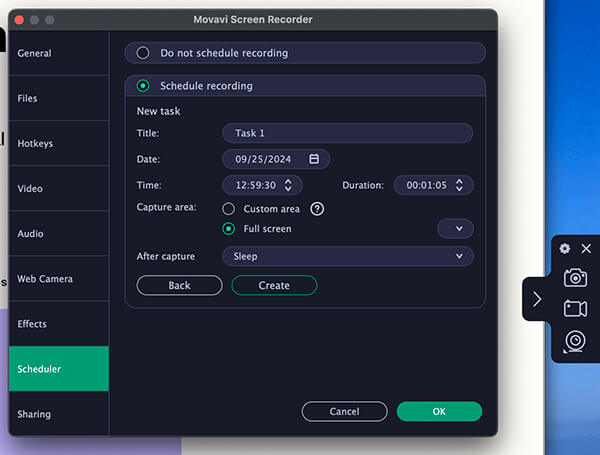
Movavi Screen Recorder is a lightweight yet powerful screen recording app that combines simplicity with essential recording features. It's compatible with Windows and Mac, offering easy-to-use controls for capturing full screens, custom regions, or specific applications. The software supports high-definition recording up to 1080p and 60 FPS, ensuring crisp visuals for tutorials and gameplay. It includes basic editing tools for trimming recordings, adding captions, and adjusting audio levels. Movavi also offers a user-friendly interface with customizable hotkeys and a floating control panel for quick access during recording.
Pros:
- Lightweight design with minimal impact on system performance.
- Intuitive interface ideal for beginners.
- Built-in basic editor for quick post-processing.
- Supports 60 FPS recording for smooth videos.
- Affordable premium plans compared to professional suites.
Cons:
- Free version adds a watermark to recordings.
- Lacks advanced features like chroma key or multi-track editing.
- Limited output formats compared to Apowersoft or Camtasia.
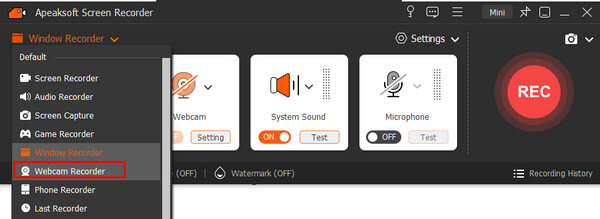
Apeaksoft Screen Recorder is a versatile screen recording software designed for content creators, educators, and professionals who need reliable, high-quality recordings. It supports capturing full screens, custom regions, webcams, and external devices, with the ability to sync system audio and microphone for comprehensive recordings. The software offers real-time editing features, such as adding annotations, highlights, and trimming clips, to enhance instructional videos. It supports multiple output formats and easy sharing options, making it suitable for distributing content across platforms. Apeaksoft is compatible with both Windows and Mac, with a clean interface that simplifies the recording process.
Pros:
- Flexible recording options for screens, webcams, and external devices.
- Real-time annotation tools for interactive tutorials.
- High-quality output with customizable resolution and frame rate.
- User-friendly interface with straightforward controls.
- Supports multiple output formats for cross-platform compatibility.
Cons:
- Free trial has recording time limits and watermarks.
- Advanced editing features are limited compared to premium tools.
- Customer support response time can be slow.
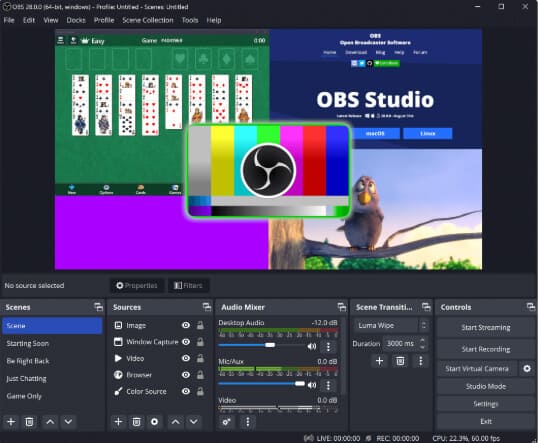
OBS Studio is a free, open-source video recording software beloved by streamers, content creators, and advanced users. It supports Windows, Mac, and Linux, offering powerful features for recording and live streaming. The software allows multi-source recording, enabling users to overlay webcam footage, text, images, and multiple screen sources on different layers. It includes a robust audio mixer for adjusting levels of system audio, microphone, and other sources, as well as filters for color correction, chroma key, and noise reduction. OBS Studio is highly customizable, with support for hotkeys, transitions, and third-party plugins to extend functionality.
Pros:
- Completely free and open-source with no watermarks or limits.
- Advanced multi-source recording and live streaming capabilities.
- Extensive customization via filters, transitions, and plugins.
- Cross-platform compatibility (Windows/Mac/Linux).
- Powerful audio mixer for professional sound control.
Cons:
- Steep learning curve for beginners due to the complex interface.
- No built-in video editor; requires third-party tools for post-processing.
- Resource-intensive on low-end computers.
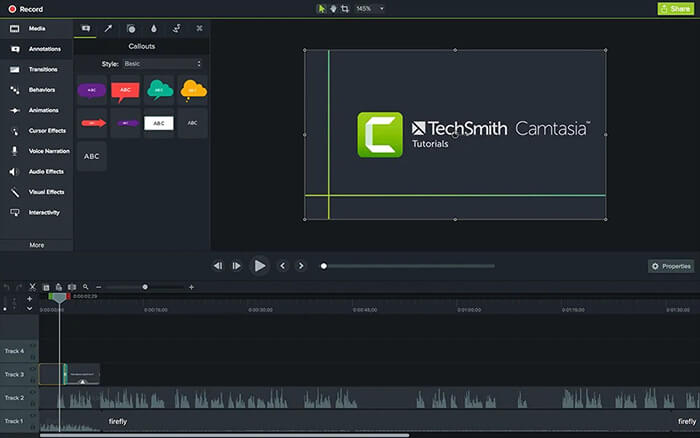
Camtasia is a premium all-in-one video screen recorder and video editing software designed for professionals creating high-quality tutorials, presentations, and training videos. Developed by TechSmith, it's compatible with Windows and Mac, offering a seamless workflow from recording to editing. Camtasia supports full-screen, region, and window recording, with the ability to capture cursor movements, keystrokes, and system audio. Its powerful editing suite includes annotations, transitions, animations, interactive quizzes, and hotspots, allowing users to create engaging, professional content. It also offers a built-in media library with stock assets and supports export to multiple formats, including YouTube, Vimeo, and LMS platforms.
Pros:
- All-in-one recording and advanced editing solution.
- Interactive features (quizzes, hotspots) for e-learning content.
- Built-in media library with stock images, music, and templates.
- User-friendly interface despite advanced capabilities.
- Excellent customer support and regular updates.
Cons:
- Expensive one-time purchase price compared to subscription-based tools.
- Resource-intensive on older or low-spec computers.
- Overkill for users needing only basic recording features.
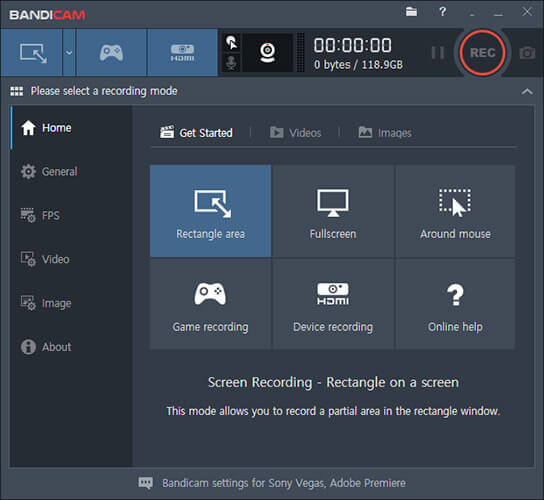
Bandicam is a lightweight, high-performance screen recording app primarily designed for gamers and users who prioritize video quality and low CPU usage. It supports Windows and Mac, offering recording modes for screens, games (DirectX/OpenGL), and external devices (webcams, HDMI inputs). The software can record up to 480 FPS for ultra-smooth gameplay, with advanced compression technology that maintains clarity while keeping file sizes manageable. It includes real-time drawing tools, webcam overlay, and scheduled recording features. Bandicam is known for its stability, even during long gaming sessions, and supports output to MP4, AVI, and WebM formats.
Pros:
- Ultra-high FPS support (up to 480 FPS) for gaming recordings.
- Low CPU usage to avoid impacting gameplay performance.
- Real-time drawing tools for highlighting in recordings.
- Supports external device recording (webcams, HDMI).
- Simple interface with easy-to-learn controls.
Cons:
- Free version adds a watermark and limits recordings to 10 minutes.
- Support Windows only.
- Basic editing capabilities; lacks advanced post-processing tools.
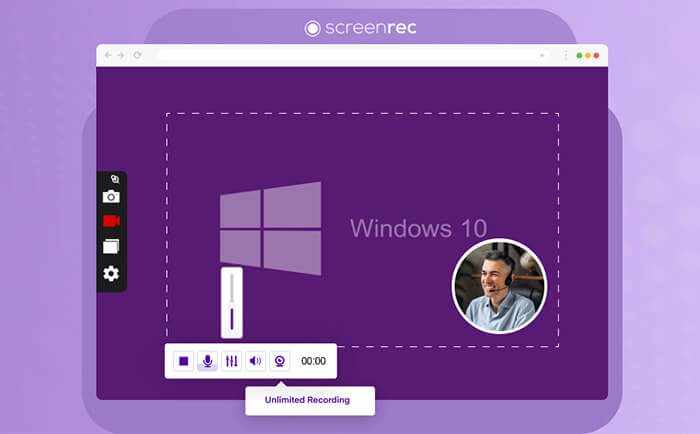
ScreenRec is a simple, cloud-integrated screen recorder compatible with Windows and Mac, ideal for quick recordings and easy sharing. It supports full-screen, region, and window recording, with the ability to capture system audio, microphone, and webcam footage. The software automatically generates a shareable link after recording, making it perfect for team collaboration and quick feedback. ScreenRec offers 1080p HD recording, with customizable video quality to balance clarity and file size. It supports MP4 and WebM formats, with WebM being ideal for online sharing due to its small size.
Pros:
- One-click recording and automatically shareable links.
- 1080p HD recording with customizable quality settings.
- Cloud integration for easy storage and sharing.
- No watermarks on recordings (even in the free version).
- Lightweight and fast, with minimal system impact.
Cons:
- Free version limits single recordings to 5 minutes.
- Lacks advanced features like annotation or editing tools.
- 4K recording and no-time-limit require a premium subscription.
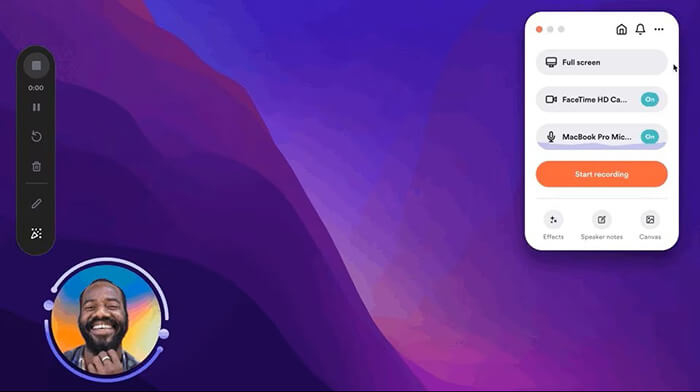
Loom is a browser-based program to record screen, focused on asynchronous video communication for teams and businesses. It supports recording screens, webcams, or both simultaneously, with AI-powered features that enhance content quality. Key AI tools include automatic filler word removal (eliminating "um" and "ah"), real-time transcription in over 100 languages, and eye contact correction (making it appear you're looking at the camera). Loom offers a user-friendly interface with team collaboration features, such as comments, reactions, and branded templates for consistent branding. It's compatible with Windows, Mac, and Chromebooks via a browser or desktop app.
Pros:
- AI-powered features (filler word removal, transcription, eye correction).
- Seamless team collaboration with comments and reactions.
- Browser-based and desktop app options for flexibility.
- Branded templates for professional team content.
- Free plan available for basic personal use.
Cons:
- Advanced features (4K export, long recordings) require a subscription.
- Relies on internet connection for cloud-based functions.
- Limited advanced editing compared to dedicated video tools.
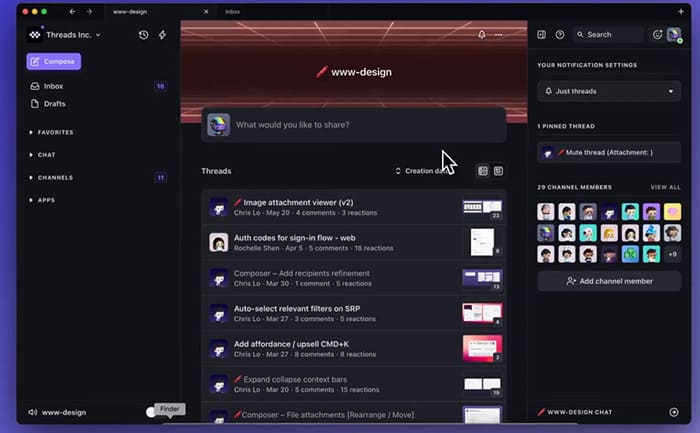
Screen Studio is a premium screen recording tool designed for Mac users who prioritize sleek design and professional output. It offers high-quality 4K recording, with advanced features like cursor highlighting, click effects, and customizable recording regions. The software includes a built-in editor for trimming, adding transitions, and adjusting audio levels, as well as support for picture-in-picture webcam overlay. Screen Studio is known for its intuitive interface and seamless integration with Mac ecosystems, making it ideal for content creators and professionals who want polished, visually appealing recordings without complex setups.
Pros:
- Sleek, user-friendly interface optimized for Mac.
- 4K recording with cursor highlighting and click effects.
- Built-in editor for basic post-recording enhancements.
- Seamless Mac ecosystem integration.
- High-quality output with minimal file size.
Cons:
- Premium pricing with no free plan.
- Fewer advanced features than Camtasia or OBS Studio.
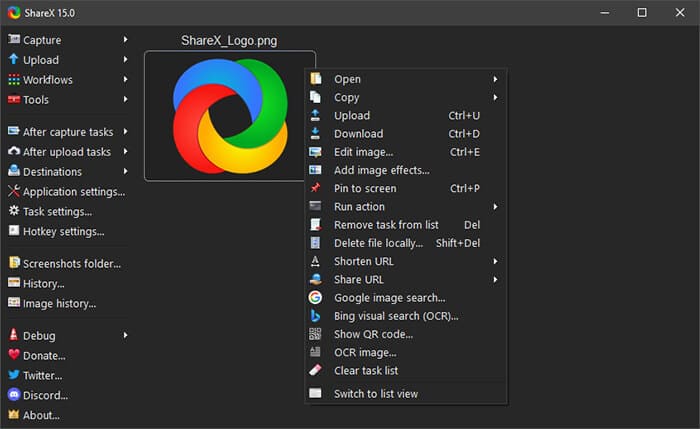
ShareX is a free, open-source screen recorder and screenshot tool for Windows, designed for power users and content creators who want extensive customization. It supports multiple recording modes, including full screen, region, window, and scrolling capture, with the ability to record audio and webcam footage. The software offers a wide range of post-recording tools, such as image editing, video trimming, and OCR text extraction. ShareX also includes advanced features like scheduled recording, hotkey customization, and automatic sharing to over 80 platforms (cloud storage, social media, etc.). It's highly customizable via plugins and scripts, making it a favorite among tech-savvy users.
Pros:
- Completely free and open-source with no limitations.
- Extensive customization via hotkeys, plugins, and scripts.
- Built-in editing and OCR tools.
- Automatic sharing to multiple platforms.
- Lightweight with low system resource usage.
Cons:
- Windows-only compatibility.
- The interface is overwhelming for beginners.
- Limited video editing features compared to premium tools.
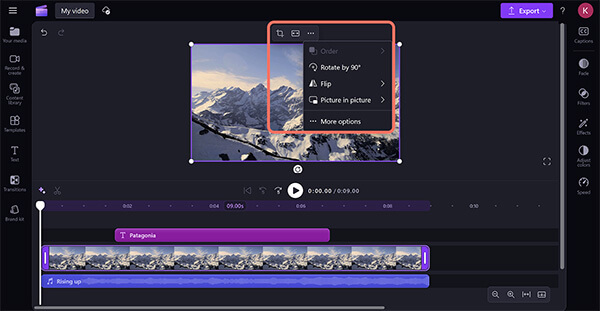
ClipChamp is a free, user-friendly screen recorder and video editor owned by Microsoft, integrated into Windows 11 and available via web browsers for Mac users. It supports recording full screens, specific windows, or browser tabs, with optional webcam and audio capture. The software includes a built-in editor with basic tools for trimming, adding captions, green screen effects, and AI-driven speaker coaching (to improve voice clarity). ClipChamp offers watermark-free exports for all users, with support for high-quality output. It's ideal for beginners, students, and professionals who need a simple, accessible tool for quick recordings and basic edits.
Pros:
- Free to use with no watermarks or recording limits.
- Built-in editor with AI-powered tools.
- Integrated into Windows 11 for easy access.
- Web-based version for Mac and cross-device use.
- User-friendly interface for beginners.
Cons:
- Advanced features (4K export, premium templates) require a subscription.
- Web-based version relies on a stable internet connection.
- Limited advanced editing compared to professional suites.
Finding the best screen recording software depends on your specific needs:
For users looking for a simple and stable Windows-only solution, Coolmuster Screen Recorder is a practical choice for everyday screen recording tasks.
Related Articles:
Comprehensive Review: 7 Best Screen Recorders for Android
5 Methods: How to Screen Record on Android [Hassle-Free Guide]
A Comprehensive AZ Screen Recorder Review and 4 Best Alternatives
The 11 Best TechSmith Snagit Alternatives in 2026: Detailed Reviews






 Free Download for PC
  Free Download for Mac


