Watching live TV is great, but sometimes you may want to record your favorite shows, sports events, or news programs to watch later. This is where learning how to record live TV becomes essential. Whether you're using a computer, smart TV, or mobile device, there are several simple and efficient ways to capture live broadcasts. In this guide, we'll walk you through how to record live TV on different devices, so you can choose the best method based on your needs.
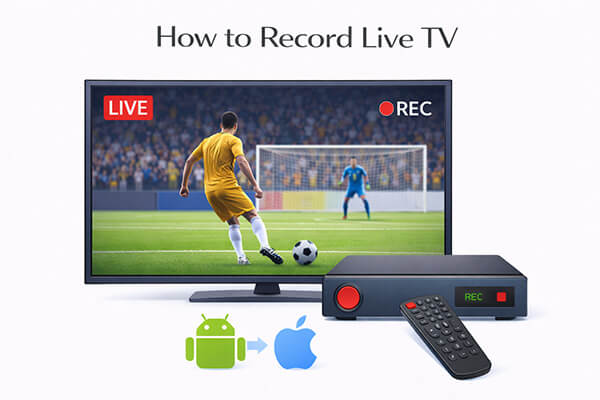
What's the best way to record live TV? If you often watch live TV through websites or streaming platforms on your computer, using professional screen recorder software is one of the easiest and most flexible solutions. Compared with built-in recording tools, dedicated software offers better video quality, smoother performance, and more flexible recording options.
Coolmuster Screen Recorder is a reliable solution. It allows you to record live TV shows, sports events, movies, and streaming content in high quality while clearly capturing system audio. The software is beginner-friendly and well-suited for Windows users.
What can Coolmuster Screen Recorder do for you?
How do I record live TV on a Windows computer using Coolmuster Screen Recorder?
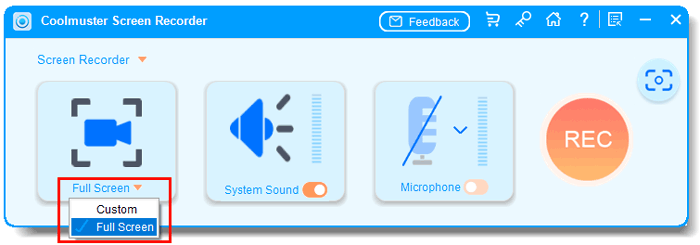
01Launch Coolmuster Screen Recorder and choose either "Full Screen" or "Custom" mode.
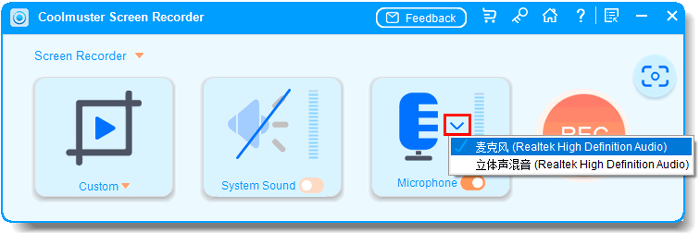
02Set your audio preferences by enabling "System Sound", "Microphone", or neither.
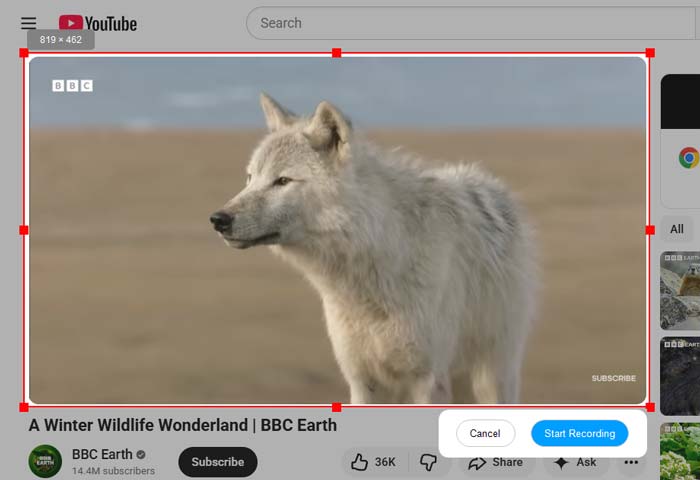
03Click the orange "REC" button, then select "Start Recording". Recording will begin after a short countdown.
04Click "Stop Recording" when finished. Your recording will be saved locally as an MP4 file, and you can use "Copy" to quickly duplicate it for sharing.

Video Tutorial:
If you're watching live TV directly through a smart TV, you can record without using a computer. Below, we'll introduce two common methods for doing so.
Most smart TVs come with a USB port that supports external storage, allowing you to save live TV recordings directly to a USB drive. Before you begin, make sure your USB drive is compatible with your smart TV (most TVs support FAT32 or NTFS formats) and has enough storage space (at least 8GB is recommended for HD recordings). Follow these steps to record live TV on your smart TV using a USB drive:
Step 1. Connect a USB HDD or flash drive to the TV's USB port. Some TVs will prompt you to format it for recording—accept this, but be aware that it will erase any existing data.
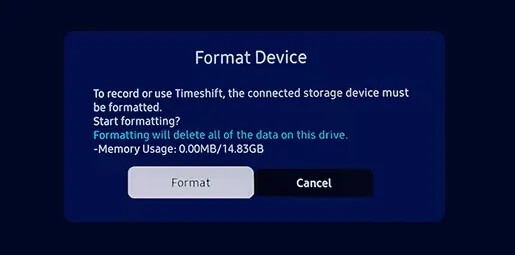
Step 2. Use the TV's built-in tuner to find the live broadcast and press the "Record" button on your remote.
Step 3. To record a future program, open the "Guide (EPG)", highlight the desired show, and select "Record" or "Schedule Recording". This allows the TV to record even when it's in standby mode.
Is there a way to record live TV without cable? Live TV streaming services now offer cloud DVR storage integrated directly into their apps, which you can use on most Smart TVs. This is an ideal choice if you're already using platforms like YouTube TV, Hulu + Live TV, Fubo, or DirecTV Stream.
To get started:
Step 1. Install the live TV streaming app on your Smart TV and log in to your account.
Step 2. Open the live guide and find the channel or show you want to record.
Step 3. Look for a button like "+", "Record", or "Add to Library" in the show details.
Step 4. Select whether you want to record just the current airing or the whole series.
Step 5. Later, head to the app's "Library" or "Recorded" section to watch your cloud DVR recordings from any supported device.
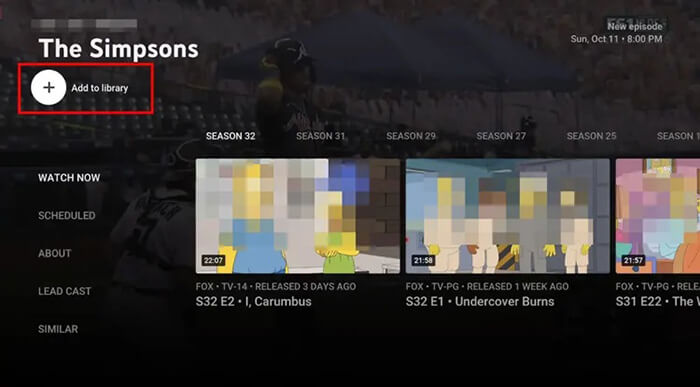
Cloud DVR works seamlessly across Smart TVs, streaming sticks, phones, and tablets, offering a flexible way to record live TV without the hassle of managing local storage.
With the widespread use of mobile devices, more and more users are choosing to watch live TV on their phones. Therefore, knowing how to record on mobile devices is equally important. Fortunately, both iOS and Android devices have built-in screen recording features that allow you to record live TV directly on your phone—no extra apps required. This method is perfect for on-the-go users who want to record a live show while away from home, and it's quick and easy to use. Below is a step-by-step guide for both iPhone and Android devices, so you can learn how to record live TV on your mobile phone.
For iPhone:
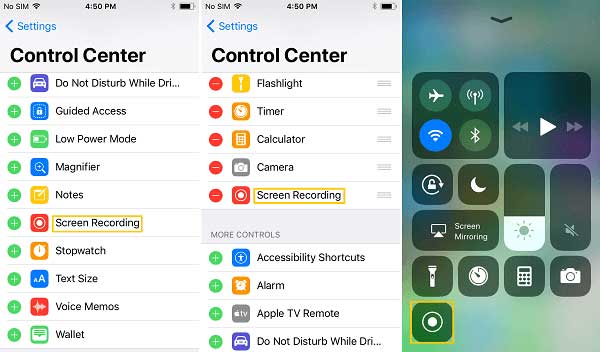
Step 1. Go to "Settings" > "Control Center" > "Customize Controls", then tap the "+" next to "Screen Recording" to add it to the Control Center.
Step 2. Open the live TV app you want to record (such as ESPN, ABC News, or Hulu Live), ensure the program is playing correctly, and turn up the phone's volume.
Step 3. Swipe down from the top-right corner (or swipe up from the bottom on older iPhones) to open the Control Center, then tap the "screen recording" icon. There will be a 3-second countdown before the recording starts.
Step 4. When you're done recording, open the Control Center again and tap the red icon to stop, or tap the red status bar at the top of the screen and select "Stop".
Step 5. The recorded video will be saved in the "Photos" app under the "Recents" album, where you can view, edit, or share it.
For Android:
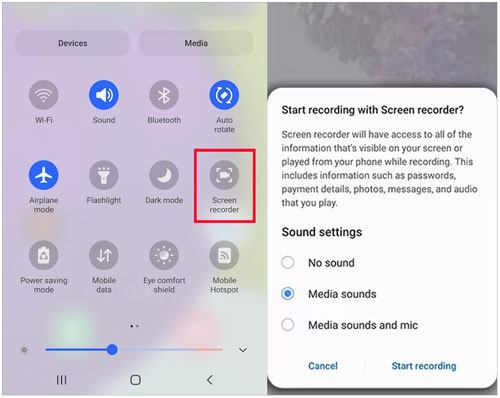
Step 1. Swipe down from the top of your screen to open the Quick Settings panel and find the "Screen Recorder" icon. If it's not there, tap the "Edit" button (usually a pencil icon) to add it.
Step 2. Tap the "Screen Recorder" icon, then adjust the audio settings by selecting "System Audio" for live TV sound (make sure your phone's volume is up) and turning off "Microphone" unless you want to add commentary. You can also choose video resolution and frame rate if needed.
Step 3. Open the live TV app you want to record, ensure the stream is playing, and tap "Start Recording" in the pop-up menu. A 3-second countdown will appear before recording begins, and a small icon will show on your screen to indicate it's recording.
Step 4. To stop the recording, tap the small recording icon in the corner of your screen and select "Stop", or swipe down to open Quick Settings and tap the "Screen Recorder" icon again.
Step 5. The recorded video will be saved in your Android device's Gallery app under the "Screen Recordings" album, where you can view, edit, or share it.
Now you know exactly how to record live TV across different devices, including computers, smart TVs, and smartphones. Each method has its own strengths, so choosing the right one depends on your viewing habits and recording needs.
Among all the solutions, Coolmuster Screen Recorder stands out as one of the best options for computer users. It provides high-quality recording, clear audio capture, customizable recording areas, and an easy-to-use interface, making it ideal for beginners and advanced users alike.
Related Articles:
Top 8 OBS Screen Recorder Alternative Tools for Easy Recording
Step-by-Step Guide to Screen Record on Dell Laptop in Minutes
How to Screen Record on Mac Step by Step: Comprehensive Guide
10 Amazing MP4 Screen Recorder Options: Record MP4 Videos Easily






 Free Download for PC


