Summary: OBS Studio is a powerful free screen recorder, but its complex interface can be difficult for beginners. This article introduces 9 easier and more user-friendly OBS alternatives for different recording needs, including tutorials, gameplay, meetings, and professional video creation. Tools like Coolmuster Screen Recorder and Aiseesoft Screen Recorder focus on simplicity and HD recording, while options like Camtasia and ScreenFlow provide advanced editing features for professionals.
Among them, Coolmuster Screen Recorder stands out as a lightweight and beginner-friendly choice with stable performance, HD recording, and easy operation.
Open Broadcaster Software (OBS) is a popular free and open-source screen recording tool, widely used by content creators, gamers, and professionals for screen capture and live streaming. However, OBS Studio's complex interface and steep learning curve make it challenging for beginners or users who need a straightforward, efficient recording solution.
If you're searching for a reliable OBS screen recorder alternative that balances ease of use, performance, and functionality, you've come to the right place. Below, we've compiled the top 9 OBS Studio screen recorder alternative tools, each with pros and cons, to help you find the perfect fit for your recording needs—whether you're creating tutorials, capturing gameplay, recording online meetings, or producing professional videos.
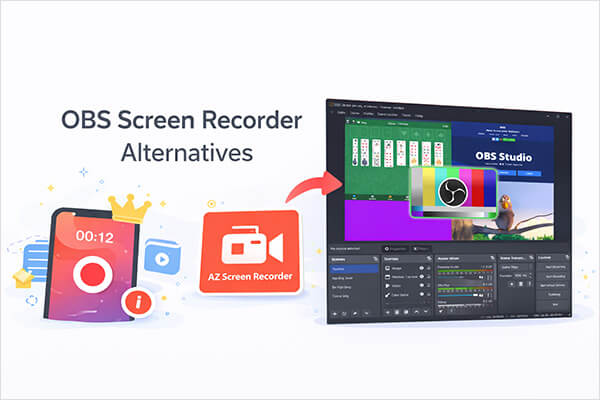
Coolmuster Screen Recorder is a simple and lightweight OBS screen recorder alternative for users who want quick and stable screen recording without complicated settings. It supports recording the full screen or selected areas in HD quality and lets you capture either system audio or microphone sound separately during recording. Besides screen recording, it also includes a built-in screenshot feature that allows users to capture full-screen or custom-area images easily, making it useful for tutorials, presentations, online meetings, and daily work tasks.
Key features of Coolmuster Screen Recorder:
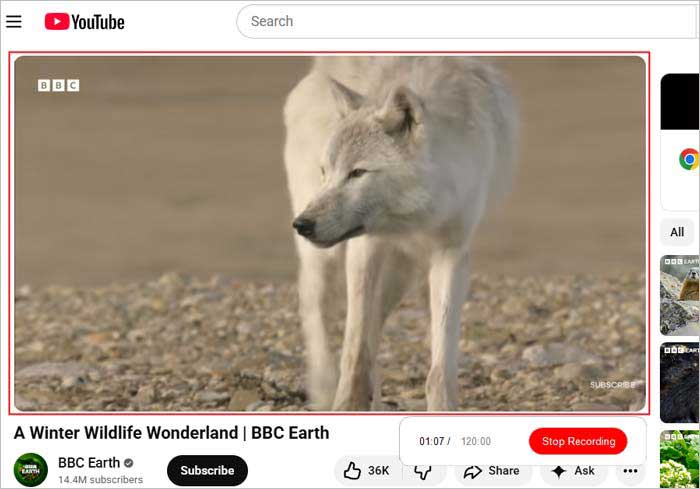
Here is how to use Coolmuster Screen Recorder to record your screen on a Windows computer:
01Launch Coolmuster Screen Recorder and select either "Full Screen" or "Custom" mode.
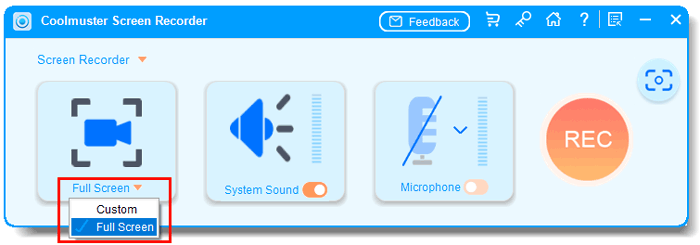
02Choose your audio source by turning on "System Sound" or "Microphone", or disable both for silent recording.
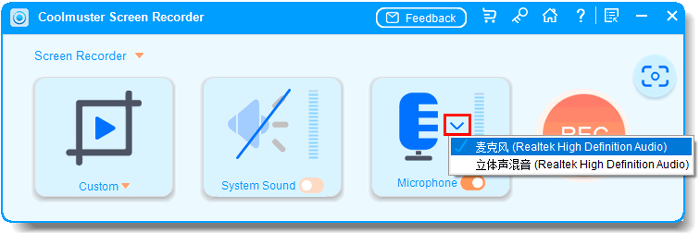
03Click the orange "REC" button and select "Start Recording". Recording will begin after a short countdown.
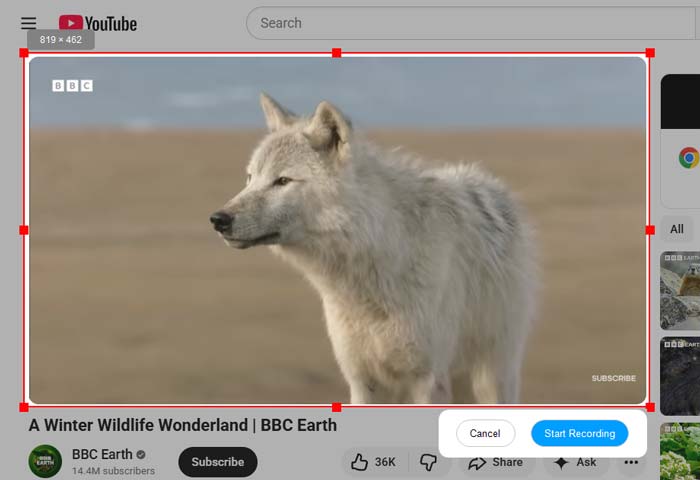
04When finished, click "Stop Recording". The video will be saved locally in MP4 format, with a "Copy" option available for quick sharing.
Video Tutorial:
Pros:
- Easy and beginner-friendly interface.
- Record screen in HD quality.
- Support recording system audio or microphone audio.
- Include built-in screenshot functionality.
- Lightweight and stable performance.
Cons:
- Cannot record system sound and microphone simultaneously.
- Limited advanced editing features.
- No live streaming support.
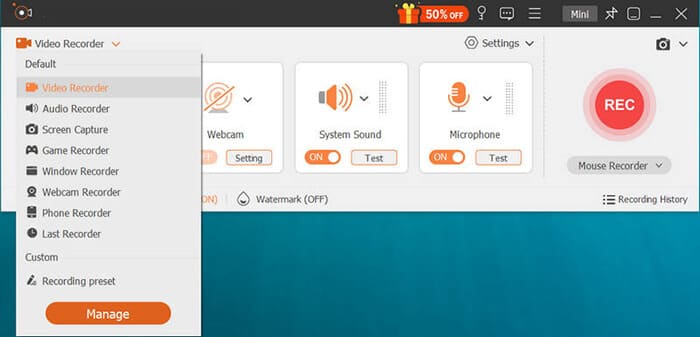
Unlike OBS,Screen Recorder features a clean and intuitive interface, allowing users to start recording in just a few clicks. It also offers scheduling options, customizable hotkeys, and multiple output formats, making it ideal for tutorials, online courses, meetings, and presentations.
Pros:
- Intuitive, beginner-friendly interface that requires no technical expertise to navigate.
- Versatile recording modes (full screen, custom region, window capture) for all use cases.
- Dual audio capture (system sound + microphone) with clear output quality.
- Compatible with both Windows and macOS, ensuring cross-device usability.
- Adjustable output settings to optimize video quality and file size based on your needs.
- Offer powerful editing tools to trim videos, add watermarks, and adjust recording effects.
- Support screenshots and scrolling screen capture.
- Provide five video quality options: Low, Normal, High, Very High, and custom bitrate settings.
Cons:
- The free trial is heavily limited (typically 3 minutes per recording) and does not unlock all premium features.
- Does not support live streaming.
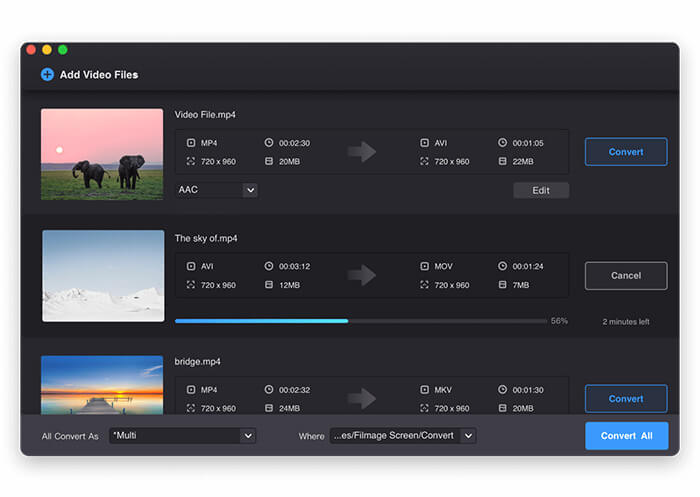
Filmage Screen is an all-in-one open broadcaster software alternative that combines screen recording, video editing, video conversion, and a media player into a single toolkit, making it a great choice for users who want a comprehensive solution without switching between multiple apps. Available primarily for macOS, it supports high-quality 1080P/4K screen recording, customizable capture regions, and the ability to record iOS screens via Wi-Fi or USB mirroring— a unique feature that sets it apart from many other alternatives.
It also includes rich editing tools (text, shapes,freehand drawing, music, and voiceover), supports batch video conversion to over 500 formats, and allows exporting recordings as GIFs for easy sharing on social media.
Pros:
- All-in-one toolkit (recording, editing, conversion, playback) eliminates the need for multiple software.
- High-quality 4K recording support and customizable capture regions for precise recording.
- Unique iOS screen recording feature via Wi-Fi or USB connection.
- User-friendly interface with easy setup, suitable for both beginners and advanced users.
- Supports GIF export and batch video conversion to 500+ formats.
Cons:
- Only available for macOS.
- Some users report occasional sound quality issues (crackling audio) during recording.
- Adding music tracks to edited videos can be problematic, with unresolved bugs reported by users.
- No regular software updates, leading to compatibility issues with newer OS versions over time.
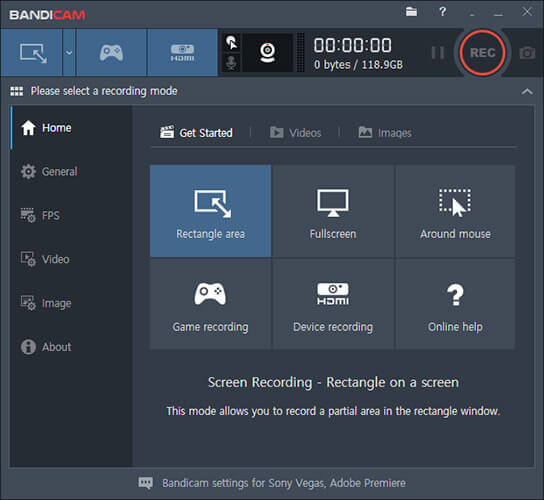
Bandicam is a specialized OBS screen recorder alternative tailored specifically for gamers and users who need high-performance, low-latency screen recording for fast-paced content. Compatible exclusively with Windows, it excels in capturing gameplay at up to 4K resolution and 144 FPS, with minimal impact on system performance—making it a top choice for gamers who want to record smooth, high-quality gameplay without frame drops.
It also supports real-time drawing during recording (ideal for highlighting in tutorials), customizable recording settings (bitrate, codec), and the ability to capture external devices (e.g., Xbox, PlayStation) via HDMI. While it's primarily designed for gaming, it can also be used for recording desktop activities, tutorials, and online meetings, though it lacks some of the editing features found in more versatile OBS Studio alternatives.
Pros:
- Exceptional performance for gameplay recording (4K/144 FPS) with minimal CPU/GPU usage, outperforming OBS Studio in low-latency scenarios for gaming.
- Real-time drawing tool during recording, allowing users to highlight key points or annotate gameplay without post-editing.
- Support external device capture (Xbox, PlayStation, cameras) via HDMI, expanding recording versatility beyond the desktop.
- Customizable bitrate and codec settings, enabling users to balance video quality and file size according to their needs.
- Lightweight software that runs smoothly on most Windows devices, even during long recording sessions.
Cons:
- Compatible exclusively with Windows, making it unavailable for macOS or Linux users (a major downside compared to OBS Studio's cross-platform support).
- Lack built-in advanced editing tools; post-recording edits require separate software.
- Free version adds a watermark to recordings, and the premium license is relatively expensive for individual users.
- No support for live streaming, unlike OBS Studio, which is widely used for streaming to platforms like Twitch and YouTube.
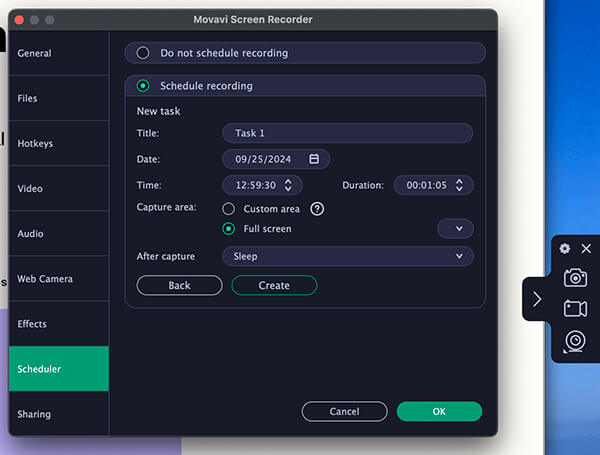
Movavi Screen Recorder is a user-friendly and feature-rich OBS Studio screen recorder alternative compatible with both Windows and macOS, designed to meet the needs of beginners and casual content creators who prioritize simplicity without sacrificing core functionality. This tool offers flexible screen capture options—full screen, custom region, or specific window—along with the ability to record webcam footage, system audio, and microphone input simultaneously. It stands out for its one-click recording feature, which allows users to start capturing content in seconds, and its built-in editing tools that let you trim, cut, and add text or annotations to recordings without needing separate software.
Additionally, Movavi Screen Recorder supports scheduled recording (ideal for capturing live streams or online events when you're away) and allows exporting recordings in multiple formats (MP4, AVI, MOV, etc.) or directly sharing to YouTube, Google Drive, or Dropbox.
Pros:
- Extremely user-friendly interface with one-click recording, making it much easier to use than OBS Studio for beginners.
- Cross-platform compatibility (Windows + macOS), ensuring consistent performance across devices.
- Built-in basic editing tools (trimming, cutting, annotations) for quick post-recording tweaks.
- Scheduled recording feature, allowing users to set timers for automatic recording of live events or streams.
- Multiple export options and direct sharing to popular platforms, saving time on file management.
- Lightweight software that runs smoothly on most devices, with minimal performance impact.
Cons:
- Free trial adds a watermark to recordings and limits video length to 5 minutes per capture.
- Advanced features (like 4K recording or video stabilization) are only available in the premium version.
- Editing tools are basic compared to professional video editors or even some other OBS screen recorder alternative options (e.g., Camtasia).
- Occasional lag when recording high-resolution content (1080P+) on low-end devices.
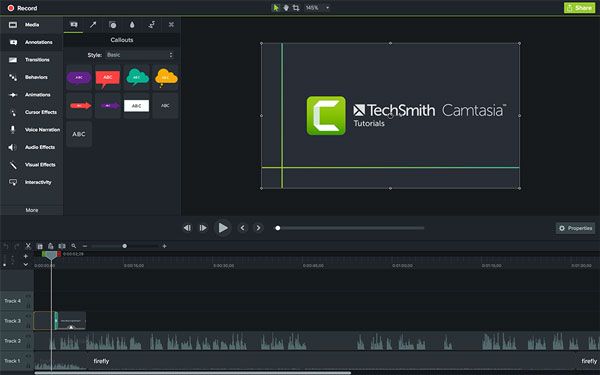
Camtasia is a professional-grade OBS screen recording alternative that combines powerful screen recording with advanced video editing capabilities, making it the top choice for professionals, educators, and content creators who need to produce high-quality, polished videos. Compatible with Windows and macOS, Camtasia excels in recording detailed tutorials, online courses, and professional presentations, offering features like customizable capture regions, simultaneous screen + webcam recording, and multi-track audio editing.
What sets it apart from OBS Studio and other alternatives is its comprehensive editing suite—including pre-built templates, animations, transitions, green screen effects, and interactive elements (quizzes, hotspots)—that allows users to create professional-looking videos without needing additional software. It also supports 4K recording, batch processing, and direct export to all major platforms (YouTube, Vimeo, LinkedIn) or learning management systems (LMS).
Pros:
- All-in-one professional solution: powerful screen recording + advanced video editing, eliminating the need for separate tools (unlike OBS Studio, which requires external editors).
- Comprehensive editing features (templates, animations, green screen, interactive elements) for creating polished, professional videos.
- Cross-platform compatibility (Windows + macOS) with consistent performance and feature parity.
- Support 4K recording and multi-track audio editing, ideal for high-quality content production.
- User-friendly interface for a professional tool—more intuitive than OBS Studio for editing-focused users.
- Excellent customer support and regular software updates, ensuring compatibility with new OS versions and feature improvements.
Cons:
- Very expensive compared to other OBS screen recorder alternative options—priced for professionals, which may be cost-prohibitive for beginners or casual users.
- Resource-intensive software that requires a powerful device to run smoothly, especially during editing.
- Steeper learning curve than basic alternatives (e.g., Movavi), though still more accessible than OBS Studio for editing.
- Overkill for users who only need basic screen recording (no advanced editing), making it a waste of features and money.
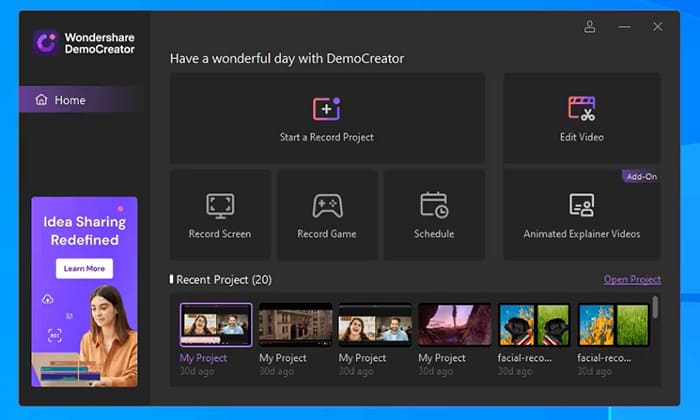
Wondershare DemoCreator is a beginner-friendly yet capable open broadcaster software alternative designed specifically for creating demos, tutorials, and gameplay videos. Available for Windows and macOS, it offers a simplified interface that prioritizes ease of use, while still providing core features like flexible screen capture (full screen, custom region, window), simultaneous webcam + screen recording, and real-time annotation tools (text, shapes, arrows, highlights).
DemoCreator also includes a built-in editing suite with basic trimming, cutting, and transition tools, as well as a library of pre-built templates, stickers, and music to enhance videos quickly. It supports 1080P recording, GIF export, and direct sharing to YouTube, TikTok, and other social media platforms, making it a great choice for content creators who want to produce engaging videos without technical hassle.
Pros:
- Beginner-focused interface that's much easier to navigate than OBS Studio, with intuitive controls for recording and editing.
- Built-in real-time annotation tools, perfect for tutorials and demos (no need for post-editing annotations).
- Cross-platform support (Windows + macOS) with consistent performance.
- Library of pre-built templates, stickers, and music to quickly enhance videos without design skills.
- Support GIF export and direct sharing to social media, ideal for short-form content creators.
- Affordable pricing compared to professional alternatives like Camtasia.
Cons:
- Free version adds a prominent watermark and limits recording length to 15 minutes per video.
- Advanced features (4K recording, multi-track editing, green screen) are only available in the premium version.
- Editing tools are less powerful than professional options like Camtasia or even Filmora.
- May experience occasional crashes or glitches when recording long sessions (over 1 hour).
- No support for live streaming, unlike OBS Studio.
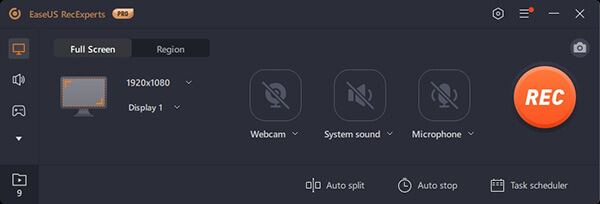
EaseUS RecExpert is a reliable and affordable OBS Studio alternative compatible with Windows and macOS, designed to offer a balance of simplicity and functionality for users of all skill levels. This tool supports multiple recording modes: full screen, custom region, window, webcam-only, and audio-only, making it versatile for a wide range of use cases—from recording tutorials to capturing online meetings or gameplay.
It offers high-quality recording (up to 4K) with customizable frame rates (15-60 FPS), supports simultaneous recording of system audio and microphone input, and includes basic editing tools (trimming, cutting, merging) for quick post-processing. EaseUS RecExpert also stands out for its lightweight design, low CPU usage, and scheduled recording feature, making it a great choice for users with low-end devices or those who need to record content automatically.
Pros:
- Lightweight software with low CPU usage, running smoothly on even low-end devices (outperforming OBS Studio on less powerful hardware).
- Versatile recording modes (screen, webcam, audio-only) for all common use cases.
- Cross-platform compatibility (Windows + macOS) with a consistent, user-friendly interface.
- High-quality 4K recording support with customizable frame rates (15-60 FPS).
- Scheduled recording and auto-stop features, ideal for capturing live streams or events when away.
- Affordable premium license compared to other OBS screen recorder alternative options, with a generous free trial (no watermark for short recordings).
Cons:
- Free trial limits recording length to 10 minutes per video (no watermark, which is a plus, but still restrictive).
- Editing tools are basic and lack advanced features like annotations or transitions.
- No support for live streaming, unlike OBS Studio.
- Occasional audio sync issues (audio out of sync with video) are reported by some users.
- Limited export formats compared to more versatile alternatives (e.g., Filmage Screen).
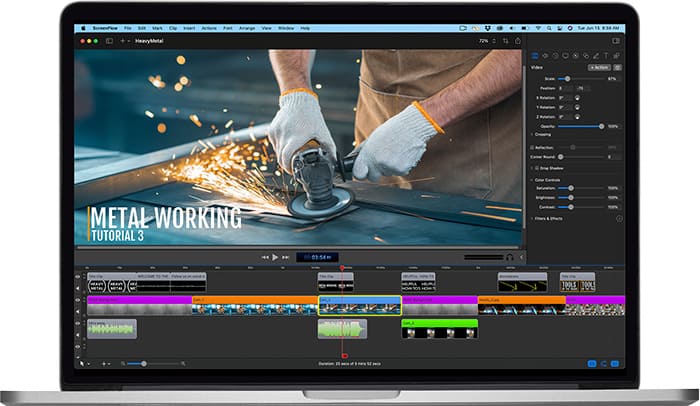
ScreenFlow is a macOS screen recorder that combines high-quality screen recording with professional video editing, making it the top choice for macOS users (content creators, educators, professionals) who need a polished, Apple-optimized solution. Designed specifically for macOS, it offers seamless integration with Apple devices (Mac, iPhone, iPad) and supports 4K/60 FPS screen recording, customizable capture regions, and simultaneous recording of screen, webcam, and multiple audio sources.
What sets ScreenFlow apart is its intuitive yet powerful editing suite—including multi-track editing, green screen effects, animations, transitions, and a library of stock media (images, music, sound effects)—that allows users to create professional videos without needing additional software. It also supports direct export to YouTube, Vimeo, Apple TV, and other platforms, as well as iOS screen recording via AirDrop or USB.
Pros:
- Optimized exclusively for macOS, offering seamless performance and integration with Apple devices (better macOS compatibility than OBS Studio).
- High-quality 4K/60 FPS recording with crisp video and audio output.
- Professional editing features (multi-track editing, green screen, animations, stock media) for polished videos.
- Easy iOS screen recording via AirDrop or USB, ideal for mobile app demos or iOS tutorials.
- Intuitive interface that balances power and simplicity—easier to use than OBS Studio for macOS users focused on editing.
- Regular updates with new features and compatibility with the latest macOS versions.
Cons:
- Exclusive to macOS—no Windows or Linux support (a major downside compared to OBS Studio’s cross-platform capabilities).
- Expensive, with a one-time purchase fee that may be cost-prohibitive for beginners or casual users.
- Resource-intensive, requiring a powerful Mac to run smoothly during editing (especially for 4K videos).
- Steeper learning curve than basic macOS alternatives (e.g., Filmage Screen).
Although OBS Studio is powerful, it is not always the easiest choice for everyday users. Choosing a simpler and more user-friendly OBS screen recorder alternative can greatly improve your recording efficiency and overall experience.
Among all the options above, Coolmuster Screen Recorder stands out for its easy operation, stable performance, HD recording quality, and low system usage. For users who want reliable screen recording without the complexity of OBS, it is one of the best alternatives worth trying.
Related Articles:
Comprehensive Review: 7 Best Screen Recorders for Android
How to Screen Record on Mac Step by Step: Comprehensive Guide
Ultimate Guide to Screen Recorders for Windows: 8 Best Tools Inside!
10 Amazing MP4 Screen Recorder Options: Record MP4 Videos Easily






 Free Download for PC
  Free Download for Mac


