TL;DR:
This guide explains how to change your YouTube TV location when you're outside your home region. It introduces three practical methods: using a GPS location spoofer, connecting through a VPN, or updating your YouTube TV home area, so you can access content from different regions more easily.
YouTube TV is an amazing platform to stream and watch online content. Provided you're within the unrestricted locations, you can watch any content on YouTube TV. What happens if you're outside the allowed regions? Is it possible to change your location? Well, to help answer that, this article will provide a detailed guide on how to change location on YouTube TV. You'll learn about the third-party location spoofers and VPNs to use.
Q1. Is it possible to watch YouTube TV outside my home area?
Yes, it's possible to watch YouTube TV outside your home area. Although you'll have this restricted under normal circumstances, you can use a reliable VPN tool that will allow you to watch YouTube TV undetected from a different location.
Q2. Can I use a VPN to change location on YouTube TV?
The primary objective of a VPN is to allow you to access a product or service restricted to a given area. When turned on, the VPN servers will hide your exact location and allow you to use the location where watching YouTube TV isn't restricted. Therefore, this tool is reliable when performing a YouTube TV location change.
Q3. Can YouTube TV block a VPN?
Though not always, YouTube TV can block the IP address used by your VPN server. This mostly happens if your VPN is not a strong one. Therefore, when choosing VPNs, go for reputable ones that won't stop you from accessing this service. This article will outline some of the reliable VPNs currently in use.
Q4. Why is my YouTube TV not showing the correct location?
YouTube TV can display the wrong location if you constantly access it outside your home area with a device different from the one used during the initial setup. If you encounter this issue, the best thing is to update your location settings.
Location spoofers allow you to fake your location to access products and services in restricted regions. This also applies to streaming YouTube TV. With a strong spoofer, you'll stream YouTube TV services uninterrupted without detection. This is because the spoofers allow you to select a virtual location from which YouTube TV access is allowed.
Location Changer is the best tool we recommend for iOS and Android users if you want to change your YouTube TV location and stream freely. This location spoofer tool allows you to fake your location and access the most restricted services. It's very easy to get started with this tool since you'll only need to select a virtual location on a GPS-enabled map and then start streaming YouTube TV like a pro.
Its core features include the following:
Are you eager to perform a YouTube TV location hack using Location Changer? Follow the steps below to use it:
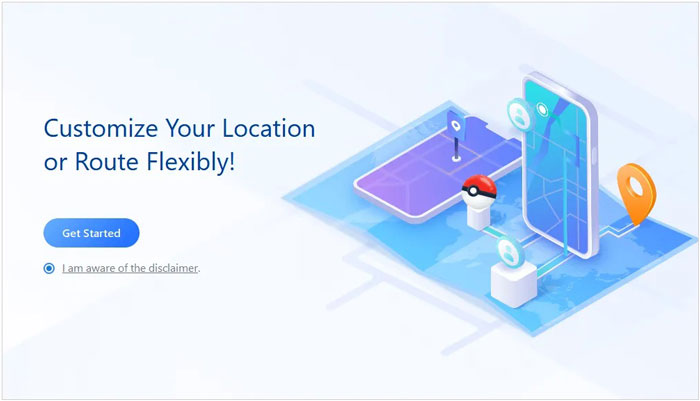
01Launch Location Changer on your computer and click the Get Started button in its main interface. Next, connect your Android or iPhone via USB and select the option Trust this Computer.
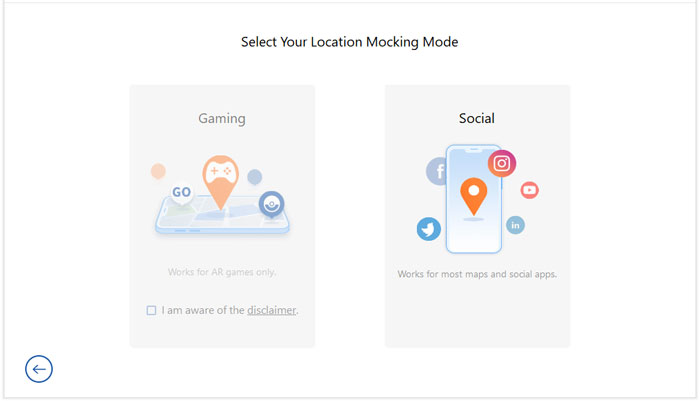
02After the connection is successful, you need to select the appropriate mode. For YouTube TV, you can simply choose the Social mode.
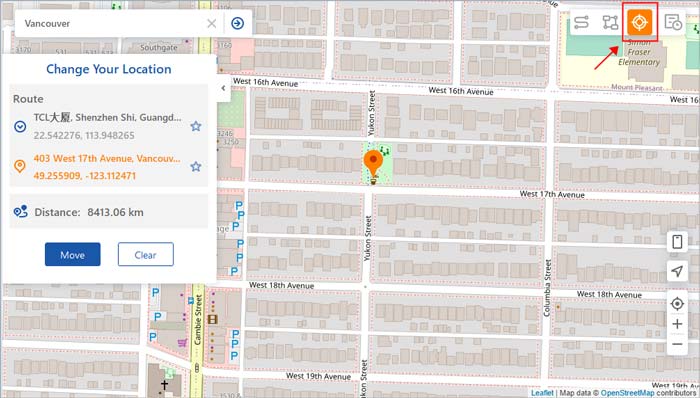
03Wait for a moment, and a map showing your current location will load. Next, click on Teleport Mode at the top right to pick a virtual location with no YouTube TV restrictions.
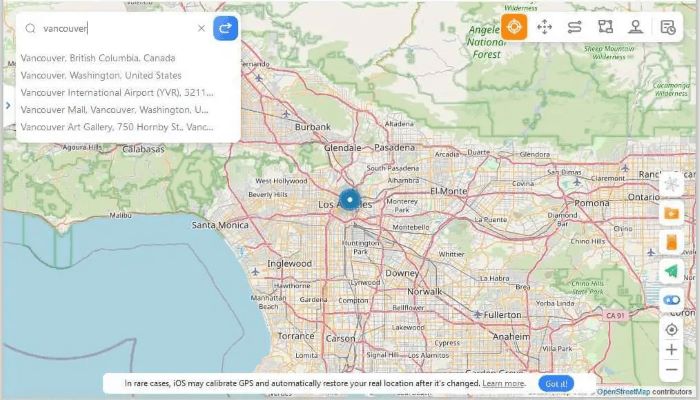
04Click the Move button to switch to the new location you've selected from the map. From there, you can start streaming YouTube TV without any location limitations.
A virtual private network (VPN) service allows you to access streaming services restricted to specific regions worldwide. With a good VPN, you can stream YouTube TV, Hulu, Netflix, Disney+, etc. Concerning YouTube TV, a VPN allows you to bypass the settings for changing your location and stream from restricted regions.
Below are the steps on how to trick YouTube TV location using a VPN:
Step 1. Register for a VPN service and install its software.
Step 2. Log into the VPN app and connect to a server in a location that doesn't restrict YouTube TV.
Step 3. Lastly, sign in to your YouTube TV account. From there, you can start streaming the service without restrictions.
Below is a list of trusted VPN services you can try out.
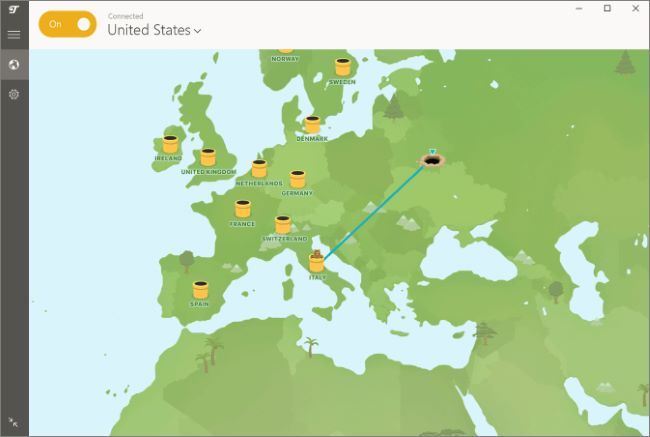
TunnelBear is a VPN service that provides users with a secure and private connection to the internet. It supports 256-bit AES encryption and has a no-logs policy; it doesn't store any of your personal data. It also has a kill switch feature. TunnelBear VPN offers obfuscated connections, a feature called GhostBear. This VPN service includes split tunneling, which lets you designate what traffic should pass through the VPN or bypass the VPN.
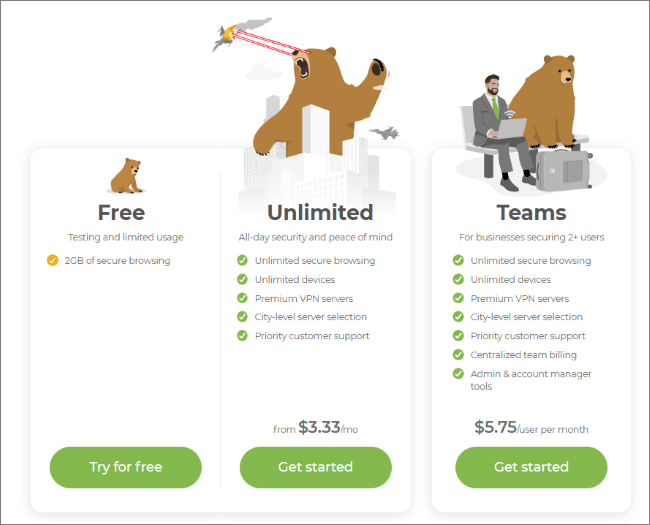
Here are the pricing plans of this VPN:
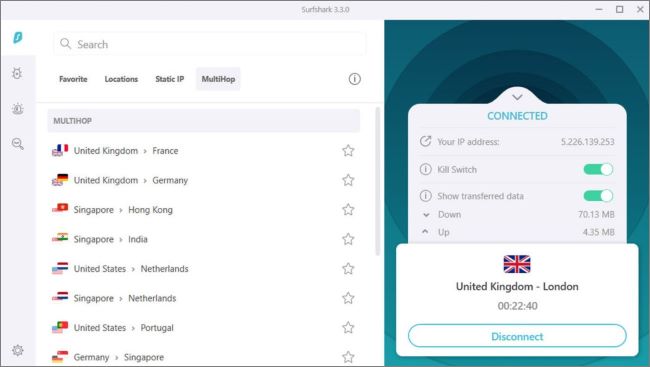
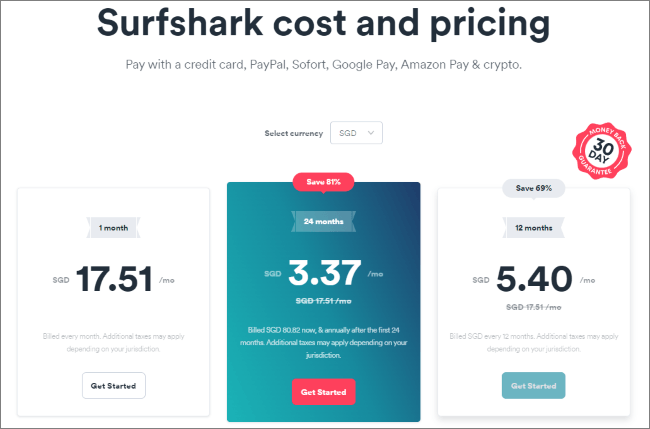
Surfshark allows you to access YouTube TV content using its US-based servers. It promotes data privacy with its encryption feature that helps to hide your browsing history. This YouTube TV spoof location tool allows you to change your virtual location anywhere.
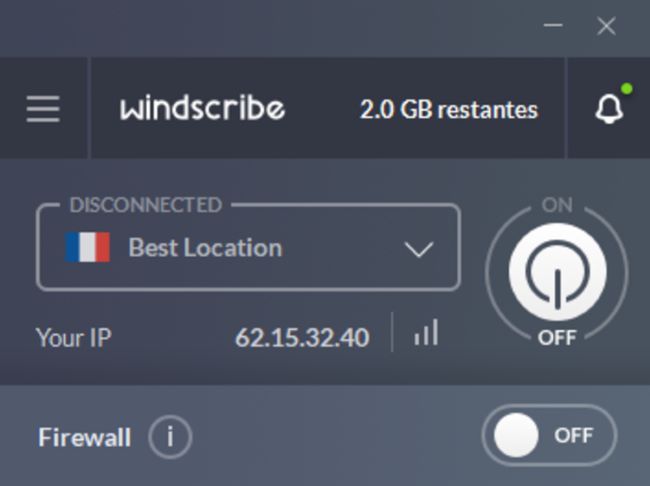
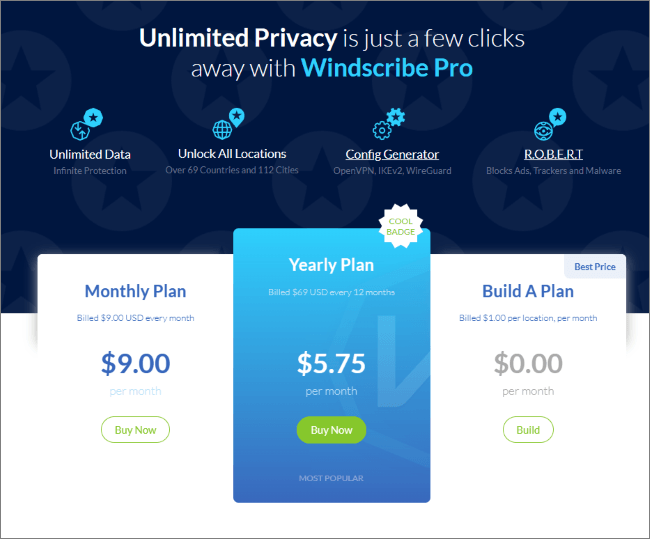
Windscribe is a VPN desktop application that works together to block ads and trackers, restore access to blocked content, and help you safeguard your privacy online. It uses virtual private network protocols to encrypt and route a user's connection to one of its servers. It also helps you stop tracking and browse privately on the web.
Windscribe VPN has paid versions that you can buy, but the free package can also handle some basic needs.
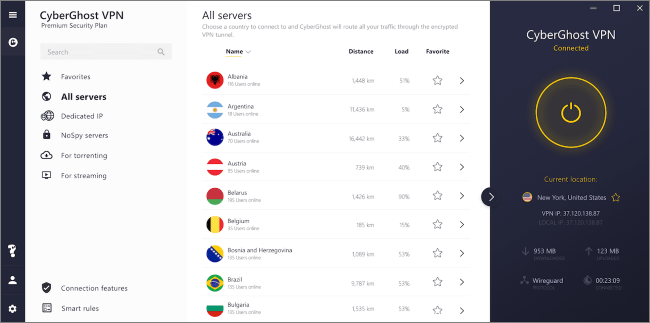
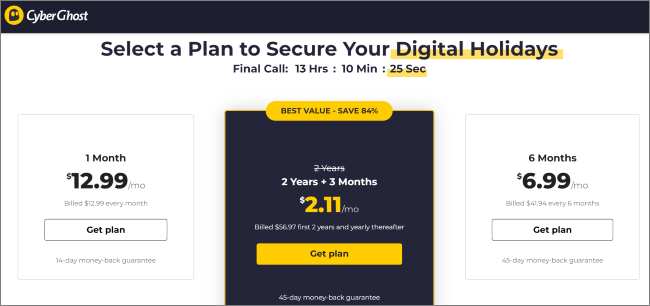
CyberGhost allows you to change YouTube TV locations in just one click. Its digital security features allow you to securely connect anywhere in the world using an IP address. This VPN service uses encrypted protocols, allowing you to browse the web anonymously without anyone tracking you.
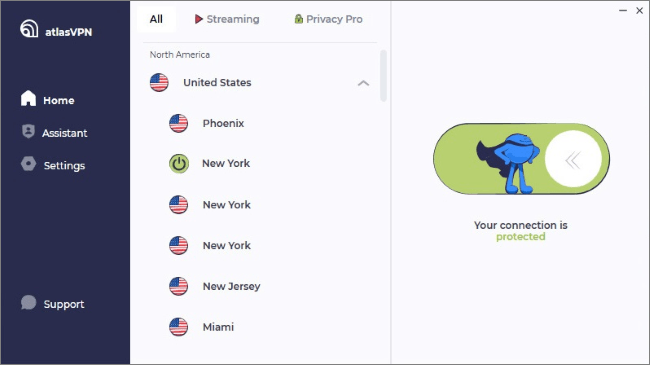
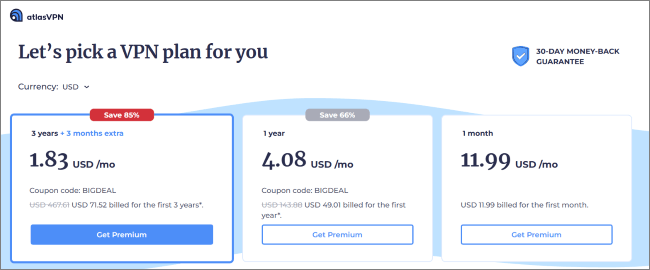
Atlas VPN allows you to freely access more than 42 locations worldwide. Powered by over 1000 servers, this VPN service lets you watch your favorite YouTube TV content from anywhere. This is because it easily bypasses location restrictions set up by YouTube and allows you to stream any service you want.
YouTube TV recognizes your home areas based on a specific ZIP code. You'll normally provide this information when signing up for the service. Once you've signed up for a given home area, YouTube will allow you to view the programs for that region. If you want to change your home area, you can do it twice a year. You can change your home area using the following methods.
Change Home Area on Computer/Android:
Step 1. Sign in to YouTube TV and select your profile. Go to Settings, then tap on Area.
Step 2. Next, locate and click on the Home Area option. Click on the Update option. This will update the home area to your current location.
Change Home Area on iOS:
Step 1. Access your YouTube TV account and go to your profile. Tap on Settings, then Area.
Step 2. Navigate to the Home Area section and select the Update option. YouTube TV will detect and update your latest location as your home area.
Note: You can only change your home area twice a year.
This article has provided a detailed guide on how to change location on YouTube TV. The most recommended way to easily change your YouTube TV location is via location spoofers like Location Changer. Additionally, you can try out the VPN tools that we've discussed. Don't let YouTube TV restrict you; it's quite possible to change your location and access all the restricted content.
Related Articles:
How to Bypass YouTube TV Verify Location [Full Tutorial]
Strategies to Fix YouTube Not Working on Android [Can't Miss]
How to Recover Deleted YouTube History with Easy Steps in 2026
8 Effective Ways to Download YouTube Private Videos Successfully




 Free Download for PC
  Free Download for Mac


