TL;DR: Facebook tracks your activity through websites, apps, ads, browsers, and location services. To reduce tracking, you can turn off Off-Facebook Activity, disable ad personalization, restrict app permissions, block third-party cookies, and limit location access.
While you cannot completely eliminate tracking, these settings can significantly reduce how Facebook collects and uses your personal data across devices and platforms.
Facebook is one of the most widely used social platforms, but it also collects a large amount of user data through its app, websites, ads, and tracking technologies. Many users are increasingly concerned about their digital privacy and want to reduce how much information is being shared in the background.
If you are wondering how to stop Facebook from tracking me, the good news is that there are several effective settings and tools you can use to limit or block tracking across your phone, browser, ads, and location services. While it may not be possible to completely eliminate all tracking, you can significantly reduce Facebook's ability to collect and use your personal data by adjusting a few key privacy options. This guide will walk you through all the practical methods step by step so you can take back control of your online privacy.
Facebook uses tools like Facebook Pixel, cookies, and embedded social plugins to track user activity across external websites. This allows Meta to build browsing profiles even outside its platform.
To stop this tracking, follow these steps:
Step 1. Open the Facebook app or visit facebook.com in a browser. Go to "Menu" > "Settings & privacy" > "Settings" > "Accounts Center".
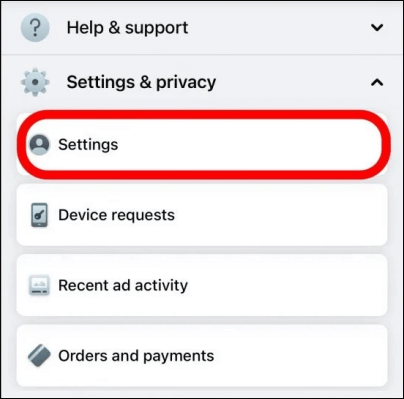
Step 2. Tap "Your Activity Off Meta Technologies" > "Clear Previous Activity" to delete stored tracking data.
Step 3. Tap "Manage Future Activity" and turn off future tracking.
Step 4. Open your browser (Chrome, Safari, or Firefox) > "Settings" > "Privacy and Security". Block third-party cookies.
Step 5. Avoid using "Login with Facebook" on external websites and use email login instead.
Facebook collects data from mobile devices through app permissions, background activity, and system-level tracking features.
If you want to stop Facebook tracking on mobile, do the following:
Step 1. Open your phone Settings app (iPhone or Android). Go to "Apps" > "Facebook" > "Permissions".
Step 2. Disable access to Contacts, Camera, Microphone, and Storage.
Step 3. Go back to "Settings" > "Apps" > "Facebook" > "Battery" (or "Background Activity"). Turn off background activity or background data usage.
Step 4. Open "Facebook" app > "Menu" > "Settings & privacy" > "Settings" > "Permissions". Turn off "Contact Uploading and syncing".
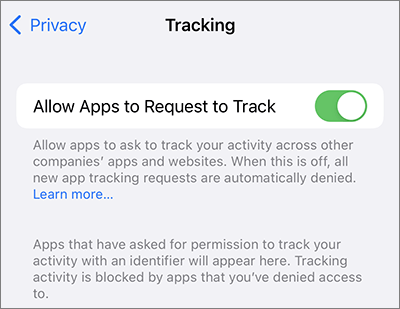
Step 5. On iPhone: "Settings" > "Privacy & Security" > "Tracking" > turn off "Allow Apps to Request to Track".
On Android: "Settings" > "Google" > "Ads" > turn off "ad personalization".
Facebook advertising systems rely heavily on user behavior, interests, and cross-platform activity to deliver personalized ads.
To reduce ad-based tracking, follow these steps:
Step 1. Open the Facebook app or facebook.com. Go to "Menu" > "Settings & privacy" > "Settings" > "Accounts Center".
Step 2. Tap "Ad Preferences" > "Personalized ads" and turn them off.
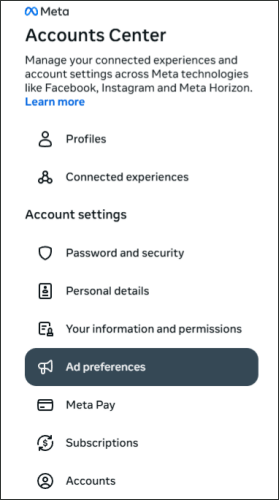
Step 3. Turn off Ads based on data from partners.
Step 4. Turn off Ads based on your activity on Meta technologies.
Step 5. Go to "Ad Interests" and remove all saved interests.
Facebook uses cookies, tracking scripts, and fingerprinting techniques to monitor browsing behavior across websites.
Here's how to stop Facebook tracking in your browser:
Step 1. Open your browser (Chrome/Safari/Firefox). Go to "Settings".
Step 2. Go to "Privacy and Security" > "Cookies". Block third-party cookies.
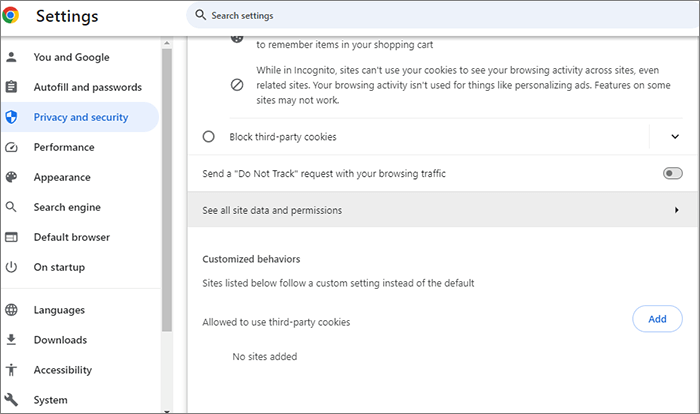
Step 3. Open a privacy-focused browser like Firefox, Brave, or Safari (with tracking protection enabled).
Step 4. Install extensions like uBlock Origin, Privacy Badger, or Facebook Container (Firefox only).
Step 5. Go to browser settings > "Clear browsing data" > "delete cookies and cache".
Facebook collects location data using GPS, Wi-Fi signals, and IP-based positioning to build movement and behavior profiles.
To disable location tracking, follow these steps:
Step 1. Open your phone Settings app (iPhone or Android). Go to "Privacy" > "Location Services".
Step 2. Find Facebook in the app list and set location access to "Never".
Step 3. Turn off "Precise Location" (iPhone) or "High Accuracy location" (Android).
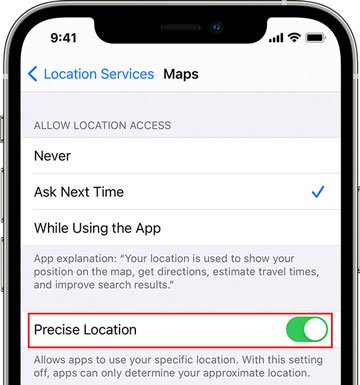
Step 4. Open Facebook app > "Menu" > "Settings & privacy" > "Settings" > "Location". Turn off "Location History".
Step 5. Disable location tagging in posts, stories, and check-ins inside Facebook.
Although turning off location permissions can block most GPS-based tracking, some system-level signals and IP-based positioning may still provide approximate location information. In such cases, using a location spoofing tool can add an additional layer of privacy protection by masking your real GPS location and reducing location-based tracking accuracy.
If you want stronger control over how to stop Facebook from tracking me through location data, you can use a dedicated tool like Location Changer. Location Changer is a location spoofing tool that allows users to change their GPS location virtually without physically moving their device. It is designed to help users control how apps like Facebook access and interpret location data, making it easier to manage location-based tracking and privacy settings.
Key features of Location Changer
Follow the steps below to change your virtual location and reduce Facebook's ability to track real GPS data:
01Download the software and launch it on your computer to begin the setup process.
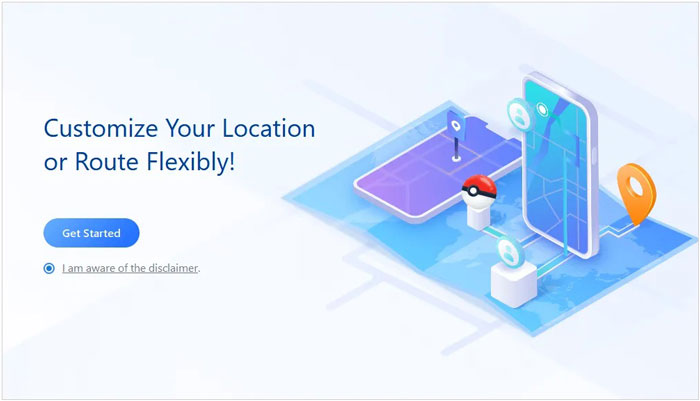
02Click "Get Started", then connect your Android or iOS device to the computer using a USB cable.
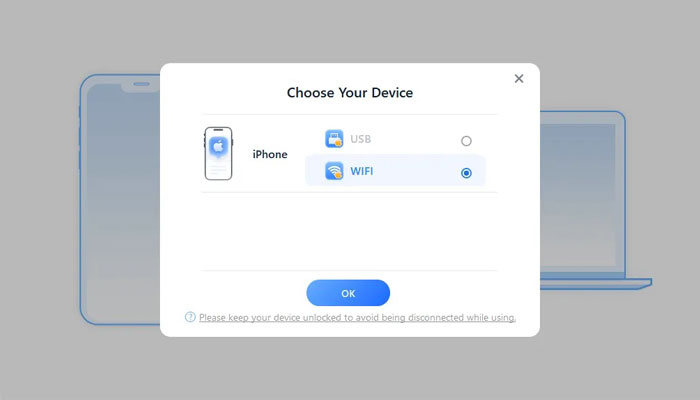
03Once your device is detected, a window titled Choose Your Device will appear. Select your device from the list and confirm it if prompted again.
04On the main interface, switch to the "Social" mode to access social platform location settings.
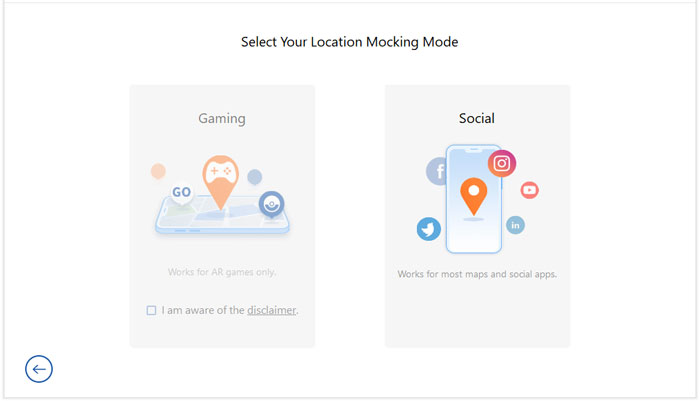
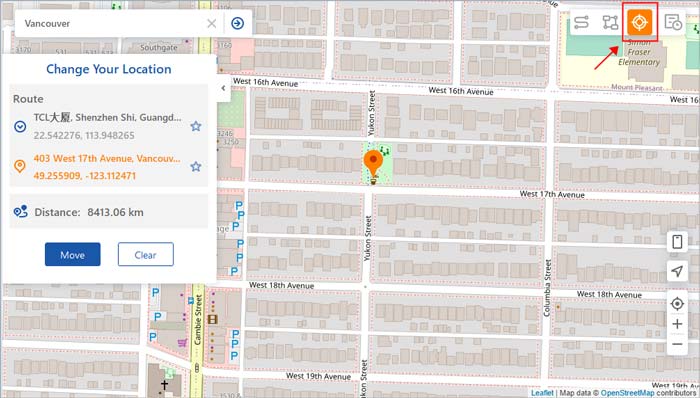
05Select the third option labeled "Teleport Mode" in the top-right corner. Then choose a target location on the map and click "Move" to apply the new virtual location.
Facebook tracking comes from multiple sources, including websites, mobile apps, advertising systems, browser activity, and location services. Because of this, there is no single setting that can completely stop all tracking at once.
However, if you follow the steps in this guide on how to stop Facebook from tracking me, you can significantly reduce how much data Facebook collects about your online behavior, device activity, and location. Adjusting privacy settings, blocking cookies, limiting app permissions, and managing ad preferences all work together to improve your overall privacy protection.
For users who want additional control over location-based tracking, tools like Location Changer can provide an extra layer of privacy by modifying virtual GPS signals.
Related Articles:
How to Stop Parents from Tracking Your Phone [5 Solutions]
How to Stop Someone from Spying on My Cell Phone? [With Preventions]
How to Stop Sharing Location Without Them Knowing [Updated in 2026]
How to Change Location on Facebook Dating in 4 Secure Ways [Solved]




 Free Download for PC
  Free Download for Mac


