When it comes to managing your iPhone, iPad, or iPod Touch data, one of the most essential tasks is to back up and restore your data regularly. Losing photos, messages, or contacts can be frustrating, but fortunately, Apeaksoft iOS Data Backup & Restore is here to solve that problem. This powerful tool allows iOS users to back up and restore their data easily without relying on iTunes.
In this Apeaksoft iOS Data Backup & Restore review, we'll dive deep into its features, pricing, pros and cons, and how it works to help you decide if it's the right tool for your data management needs.
Apeaksoft iOS Data Backup & Restore is a professional and user-friendly software specifically designed for iOS users (iPhone, iPad, and iPod touch) to safely back up their device data and easily restore lost or deleted data. Unlike iTunes, which often overwrites existing data during restoration, Apeaksoft iOS Data Backup & Restore allows selective backup and restoration, ensuring that your original data remains intact.
It is compatible with both Windows and Mac operating systems, supporting all popular iOS versions from iOS 5 to the latest iOS 26, as well as all iOS device models, including the latest iPhone 17 series and iPad 11. Whether you're a tech-savvy user or a beginner, this tool's intuitive interface makes it easy to back up and restore your iOS data without any technical hassle.
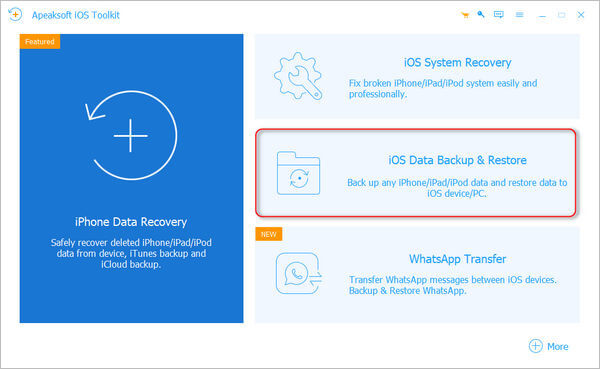
Apeaksoft iOS Data Backup & Restore offers several key features that make it an essential tool for iOS users:
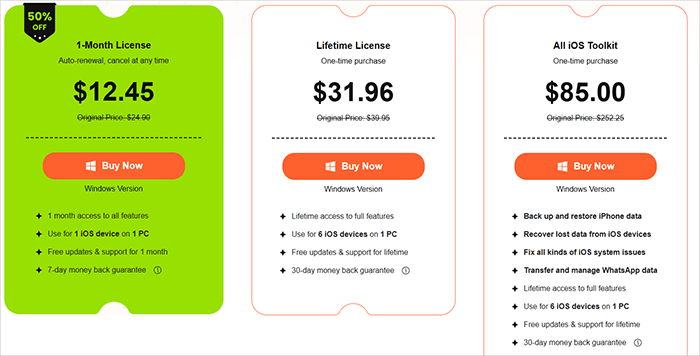
Apeaksoft iOS Data Backup & Restore offers flexible pricing plans to suit different user needs, with regular discounts available on the official store. As of 2026, the software is currently on a 50% discount, making it more affordable for users. The price is the same for both Windows and Mac. The main pricing plans are as follows:
Pros of Apeaksoft iOS Data Backup & Restore:
* User-Friendly: Intuitive interface that is easy to use, even for beginners.
* Selective Backup and Restoration: Allows you to back up only the data you need and restore specific files without overwriting existing data, unlike iTunes and iCloud.
* Encrypted Backup: Provides an extra layer of security for sensitive data, ensuring privacy protection.
* Wide Device Compatibility: Supports a wide range of iOS devices and versions, from older iPhones to the latest iPhone 17 and iOS 26.
* Secure and Reliable: 100% safe, free from viruses and malware, and does not harm your iOS device or data.
* No iTunes Dependency: Unlike iTunes, Apeaksoft doesn't require an internet connection or strict connection processes, making it more flexible and convenient.
Cons of Apeaksoft iOS Data Backup & Restore:
* Slow Large File Restoration: Restoring large backup files may take a significant amount of time, which can be inconvenient for users with large data sets.
* Limited Free Trial: The free trial allows you to scan and preview backup files, but full backup and restoration require purchasing a license.
* Relatively High Price: While the software offers great features, the price may be higher than some alternatives, especially for users who only need basic backup functions.
* Limited Cloud Backup: Apeaksoft doesn't support cloud-based backups (like iCloud), so it may not be ideal for users who prefer cloud storage.
* USB Connection Required: The software requires a physical connection between the device and the computer, which may not be convenient for all users.
Using Apeaksoft iOS Data Backup & Restore is straightforward, with simple step-by-step processes for both backup and restore. Below is a detailed guide on how to use the software:
Step 1. First, visit the official Apeaksoft website and download and install the tool for your operating system (Windows or Mac).
Step 2. After that, launch the software and choose "iOS Data Backup & Restore" to enter the main interface. You can now select between "iOS Data Backup" or "iOS Data Restore".
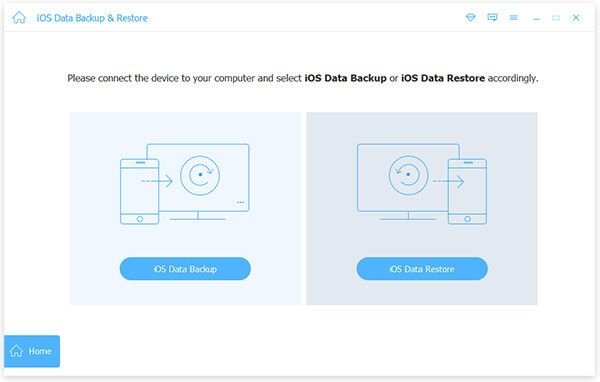
To Back Up iOS Data:
Step 1. Click the "iOS Data Backup" button and connect your iOS device to the computer. You'll have two backup options: Standard Backup and Encrypted Backup.
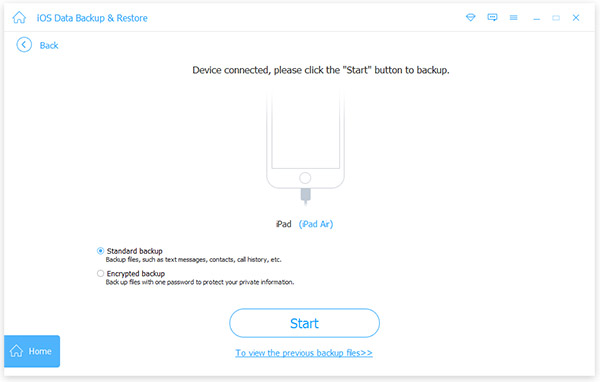
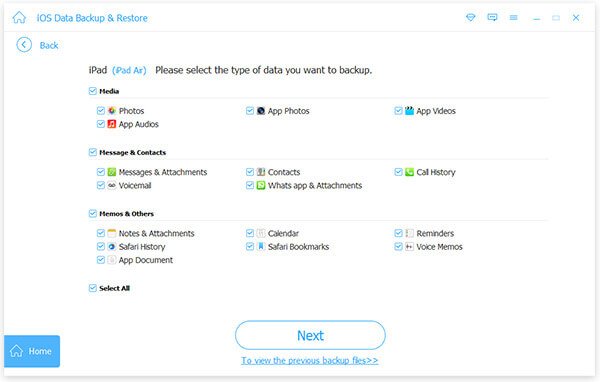
Step 2. For Standard Backup, select the data types you want to back up, such as contacts, messages, call history, photos, notes, etc. For Encrypted Backup, first set a password to protect your backup. After setting the password, choose the file types you want to back up.
Step 3. Once you've selected the data types, click "Next" and choose a folder to save the backup. The program will then start backing up the selected data from your iOS device.
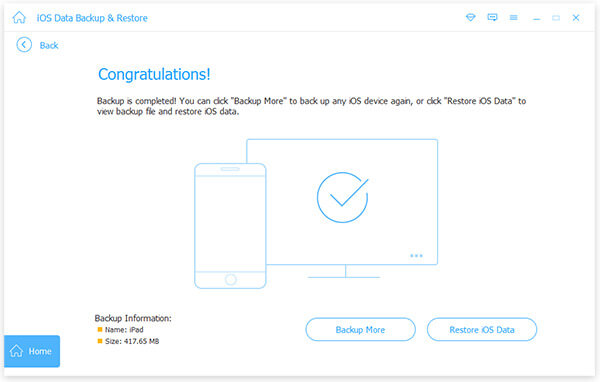
Step 4. After the backup is complete, Apeaksoft iOS Data Backup & Restore will show the backup details, including size and storage path. Click "OK" to confirm, and you can find the backup in the list. You can then easily view the backup and selectively restore the data to your iOS device or PC as needed.
To Restore Backup to iOS Device:
Step 1. Select "iOS Data Backup & Restore", then click the "iOS Data Restore" button.
Step 2. You will now see a list of all available backup files. Choose the backup you want and click the "View Now" button. This will allow you to view the detailed data information in the interface.
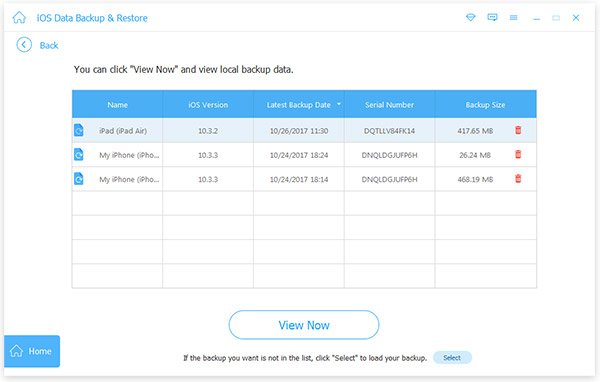
Step 3. Select the data you wish to restore. To restore data to your iOS device, click "Restore to Device". To restore data to your PC, click "Restore to PC", then choose the folder where you'd like to save the backup. Finally, click the "Restore" button.
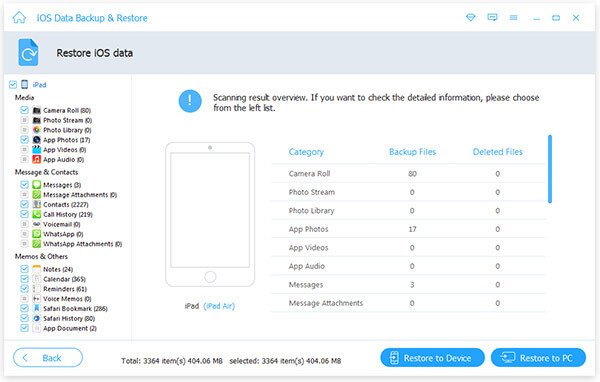
Note: Currently, only contacts and notes can be restored directly to the iOS device. For other types of data, you can restore them to your PC without any limitations.
While Apeaksoft iOS Data Backup & Restore is a reliable tool, if you're looking for a more feature-rich and flexible alternative, Coolmuster iOS Assistant is the best choice. Coolmuster iOS Assistant is a powerful iOS data management tool that not only offers backup and restore features but also provides comprehensive data transfer and management capabilities, making it a one-stop solution for iOS users.
The highlights of iOS Assistant:
Follow these steps to back up and restore your iPhone using iOS Assistant:
01Download and install the appropriate version of the software. Open the program and connect your device to the computer using a USB cable.
02The software will automatically detect your device, and a pop-up window will appear. Tap "Trust" on your device and click "Continue" on your computer to proceed. Once your device is recognized, the main interface will display various file folders.
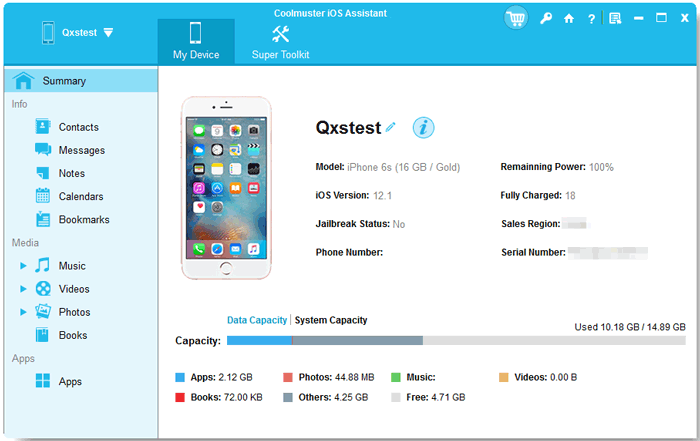
03Easily back up and restore your iPhone/iPad with a single click.
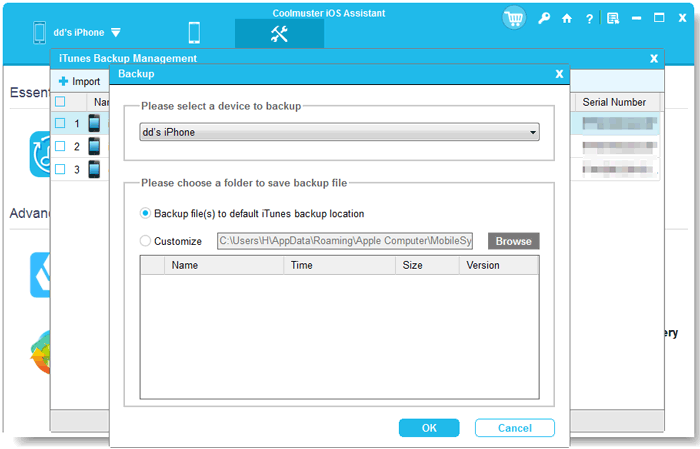
To Back Up iDevices to iTunes or Computer: Go to "Super Toolkit" and click on the "iTunes Backup & Restore" tab. Select the "Backup" option, choose your device from the drop-down menu, and click "Browse" to select a location for the backup files. Finally, click "OK" to begin backing up your iOS data.
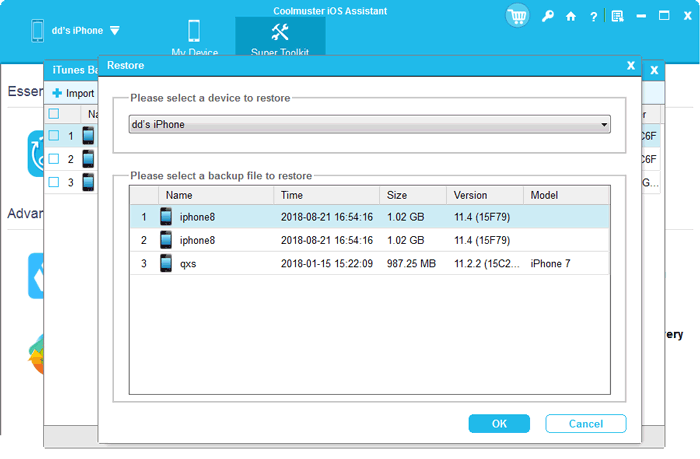
To Restore iTunes Backup to iDevices: Navigate to "Super Toolkit" > "iTunes Backup & Restore", and click the "Restore" option. Select your device from the drop-down menu, choose a backup file from the list, and click "OK". Review the pop-up notes and click "OK" again to start restoring the iTunes backup to your iOS device.
Video Tutorial:
After a thorough Apeaksoft iOS Data Backup & Restore review, it's clear that this software is a reliable and user-friendly tool for iOS data backup and restore. It offers selective backup and restoration, encrypted backup for security, wide compatibility with iOS devices and versions, and an intuitive interface that is suitable for both beginners and tech-savvy users.
However, if you need more comprehensive iOS data management features, such as direct data editing and fast data transfer, Coolmuster iOS Assistant is the best alternative. It offers all the backup and restore features of Apeaksoft iOS Data Backup & Restore, plus additional tools to manage your iOS data more efficiently.
Whether you choose Apeaksoft iOS Data Backup & Restore or Coolmuster iOS Assistant, the key is to back up your iOS data regularly to avoid permanent data loss.
Related Articles:
Aiseesoft iOS Data Backup and Restore Review & Best Alternative
Apeaksoft iPhone Transfer Review 2026: Full Features, Pricing, Pros & Cons
Apeaksoft iOS Unlocker Review: Features, Price, Pros, Cons & Best Alternative
Apeaksoft iPhone Data Recovery Review: Features, Pros & Cons







 Free Download for PC
  Free Download for Mac


