TL;DR:
This guide explains four methods to back up and restore OnePlus text messages:
Each method offers a different way to protect your text messages depending on your needs.
Text messages often contain important information, such as verification codes, business conversations, personal memories, and contact details. Whether you're upgrading to a new OnePlus 15, resetting your device, or simply safeguarding your data, creating a backup of your SMS messages is a smart move.
Fortunately, OnePlus offers several ways to back up and restore text messages. In this guide, we'll walk you through four effective methods, ranging from a professional backup tool to built-in backup features and third-party apps. Let's explore how to back up and restore OnePlus text messages with ease.

If you're looking for the easiest and most reliable way to back up and restore OnePlus text messages, Coolmuster Android Backup Manager is worth considering. This dedicated Android backup tool allows you to save your SMS messages to a computer and restore them whenever needed, making it especially useful before a factory reset, phone upgrade, or unexpected data loss. With its straightforward interface and one-click operation, even beginners can complete the process without difficulty.
Key features of Android Backup Manager
How to back up OnePlus text messages to a computer?
01Download, install, and launch Android Backup Manager on your computer. Connect your OnePlus phone to the computer using a USB cable and enable USB debugging if prompted. Once the device is recognized, you will see the main interface.
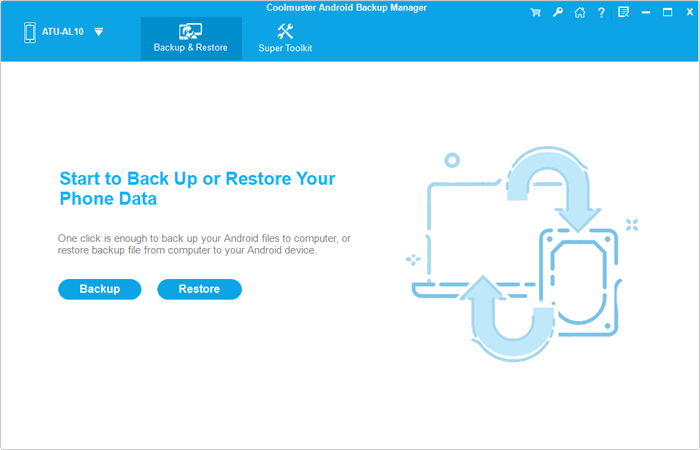
02Click the "Backup" option. From the list of data categories, select "Messages". Choose a location on your computer where you would like to save the backup file.
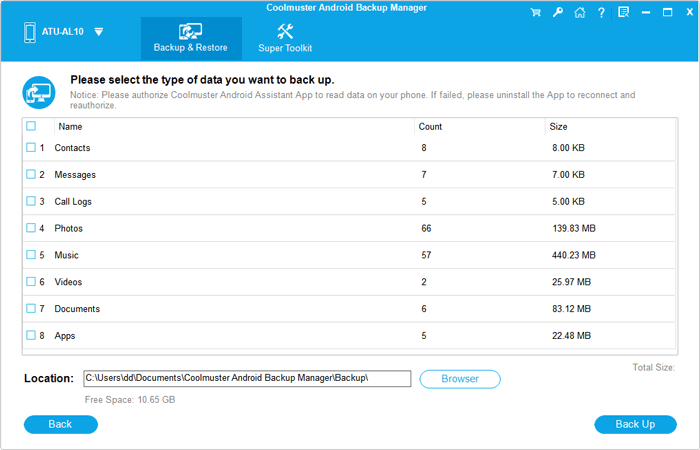
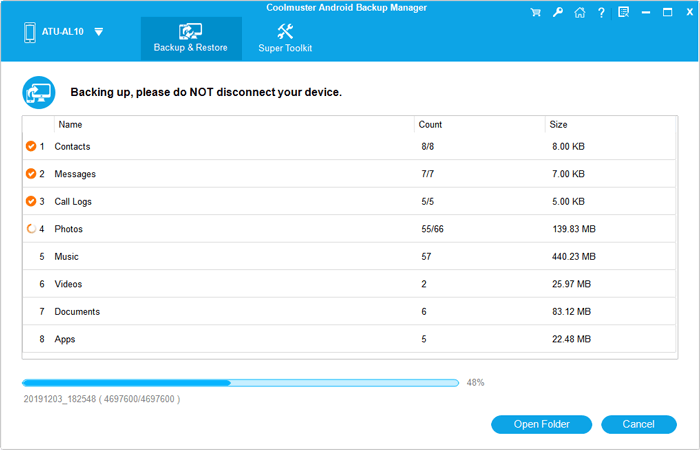
03Click the "Back Up" button to start backing up your OnePlus text messages. The software will quickly save all SMS data to your computer.
How to restore OnePlus text messages from a backup?
01Launch the program and connect your OnePlus phone to the computer. After the device is detected, select the "Restore" option from the main interface.
02Choose the backup file that contains your text messages and check the "Messages" category.
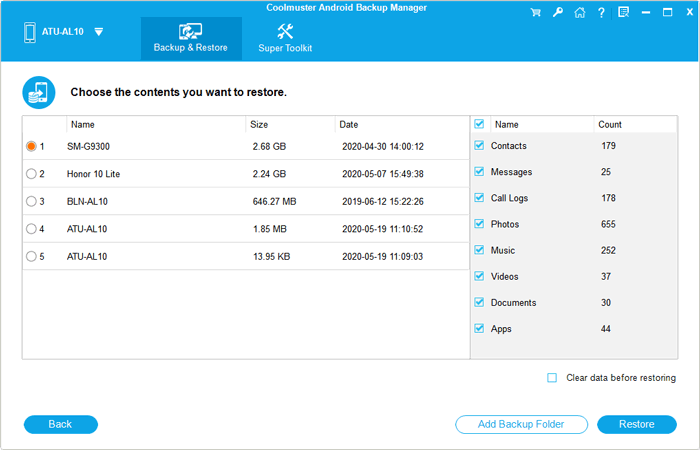
03Click "Restore" and wait for the software to transfer the backed-up text messages back to your OnePlus device.
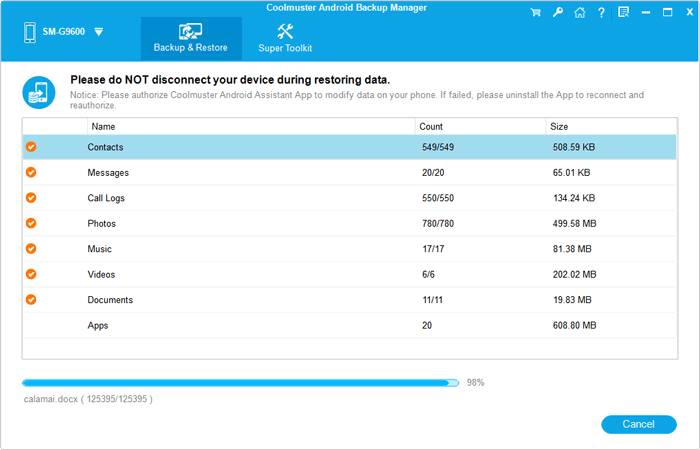
If you'd like to see the entire backup and restore process in action, check out the video tutorial below:
Some OnePlus devices running OxygenOS provide a built-in local backup feature that allows you to save device data to internal storage. You can later restore the backup after resetting the device or moving data back to the phone.
How to back up OnePlus text messages via Local Backup?
Step 1. Open the "Settings" app on your OnePlus phone.
Step 2. Go to "Additional Settings" > "Back up and reset" > "Local backup".
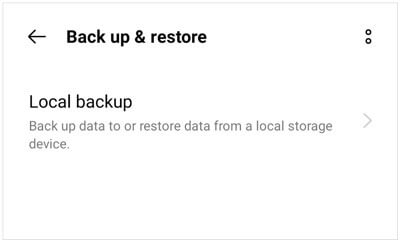
Step 3. Tap "New Backup" and select the data you want to save, including messages if supported by your device version.
Step 4. Tap "Start" and wait for the backup process to finish.
How to restore OnePlus text messages from Local Backup?
Step 1. Open "Settings" and navigate to "Additional Settings" > "Back up and reset" > "Local backup".
Step 2. Locate the backup file stored on your device.
Step 3. Select the backup and tap "Restore".
Step 4. Follow the on-screen instructions to complete the restoration process.
Note: The location and availability of the local backup feature may vary depending on your OnePlus model and OxygenOS version.
Google's backup service offers a convenient way to save SMS messages to the cloud. Once enabled, your messages can be restored during the setup process of a new or reset Android device.
How to back up OnePlus text messages to Google account?
Step 1. Open Settings on your OnePlus phone.
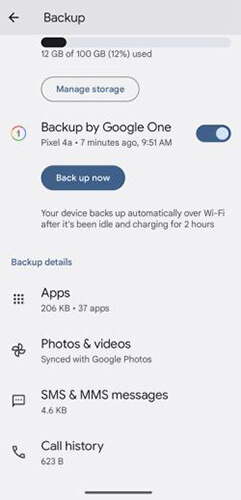
Step 2. Tap "Google" > "Backup".
Step 3. Turn on "Backup by Google One".
Step 4. Tap "Back Up Now" to manually create a fresh backup.
How to restore OnePlus text messages from Google backup?
Step 1. Reset your device or start setting up a new OnePlus phone.
Step 2. Sign in with the same Google account used for the backup.
Step 3. When prompted, choose to restore data from the available backup.
Step 4. Complete the setup process and wait for your messages to be restored.
SMS Backup & Restore is a popular Android application specifically designed for backing up and restoring SMS messages, MMS messages, and call logs.
How to back up OnePlus text messages with SMS Backup & Restore?
Step 1. Install and open SMS Backup & Restore from the Google Play Store.
Step 2. Tap "Set Up a Backup".
Step 3. Select "Messages" and choose whether to include MMS messages.
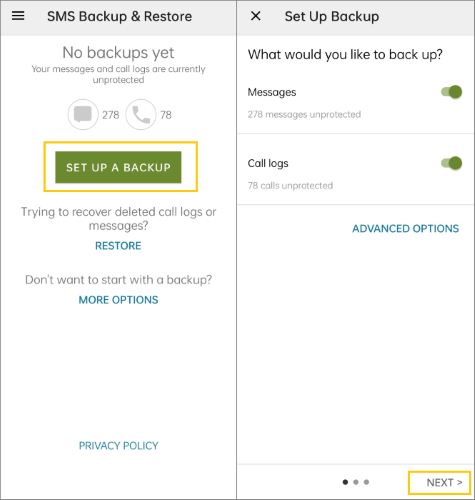
Step 4. Choose a backup destination, such as Google Drive, Dropbox, OneDrive, or local storage.
Step 5. Tap "Back Up Now" to create the backup file.
How to restore OnePlus text messages using SMS Backup & Restore?
Step 1. Install SMS Backup & Restore on your OnePlus device.
Step 2. Open the app and tap "Restore".
Step 3. Select the backup file you want to restore.
Step 4. Choose "Messages" and follow the prompts.
Step 5. Temporarily set SMS Backup & Restore as the default messaging app if requested, then complete the restoration.
Now you know four practical ways to back up and restore OnePlus text messages. If you simply want a cloud-based solution, Google account backup works well. If your device supports it, Local Backup can be useful for creating offline backups. SMS Backup & Restore is ideal for users who want more control over SMS backups and scheduling.
However, if you're looking for the easiest and most comprehensive solution, Coolmuster Android Backup Manager stands out. It supports one-click backup and restoration, allows you to save SMS directly to your computer, and makes managing your OnePlus data much more convenient and secure.
Related Articles:
OnePlus Backup and Restore: 4 Simple Ways to Keep Your Data Safe
Top 4 Methods to View OnePlus Text Messages on Computer






 Free Download for PC
  Free Download for Mac


