Redmi smartphones have become an integral part of our daily lives, housing a multitude of apps that store crucial data, cherished memories, and personalized settings. Whether you're planning to switch to a new Redmi device, perform a factory reset, or simply safeguard against unexpected data loss, backing up your Redmi apps is a vital step.
Losing access to your favorite apps or their associated data can be frustrating and inconvenient. Fortunately, there are several straightforward and effective methods to back up Redmi apps. In this article, we will walk you through four reliable approaches, helping you choose the one that best fits your needs.
When it comes to backing up Redmi apps efficiently and comprehensively, Coolmuster Android Backup Manager stands out as a top choice. This professional tool is designed to simplify the backup process, allowing you to back up not only apps but also other data from your Redmi device to a computer with just a few clicks. Its user-friendly interface, fast backup speed, and high compatibility make it a favorite among Android users.
Key features of Coolmuster Android Backup Manager:
How to back up Redmi apps with Coolmuster Android Backup Manager?
01Begin by downloading and installing Coolmuster Android Backup Manager on your computer.
02Once installed, launch the program and connect your Redmi phone via USB or Wi-Fi. You may need to enable USB Debugging on your device, following the on-screen instructions.
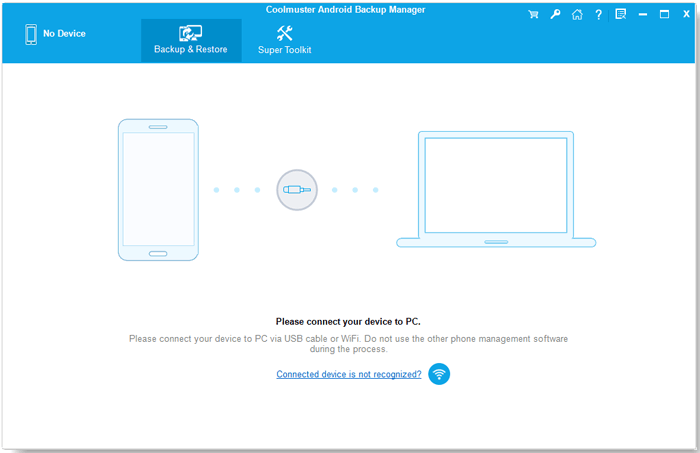
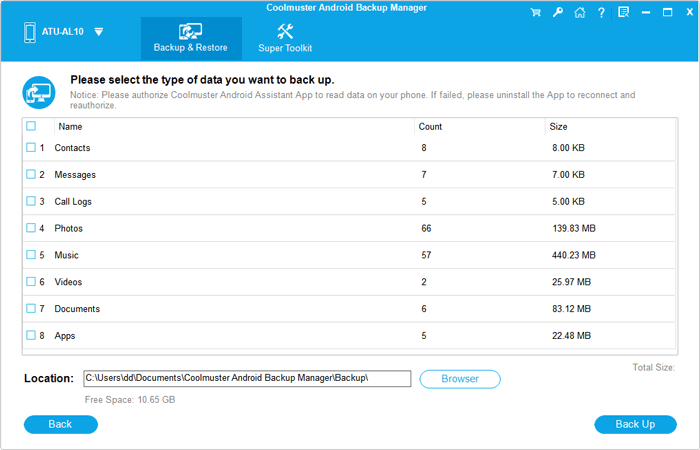
03After your device is recognized, click the "Backup" module on the main interface. You'll be prompted to select the types of data you want to back up. Choose "Apps" and any other data you wish to protect.
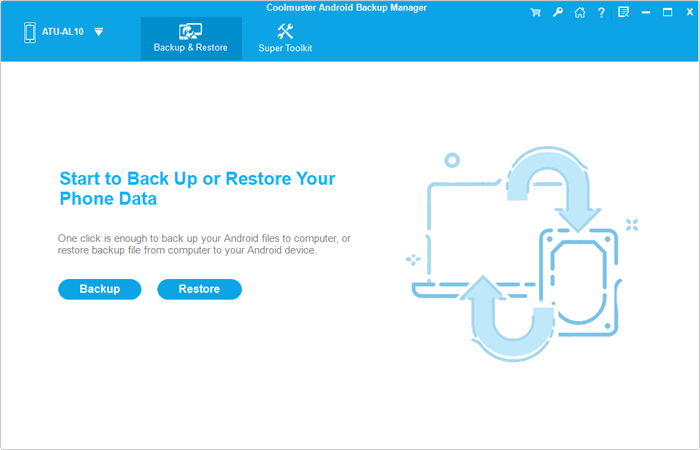
04Select a folder on your computer where you want to store your backup. Once you confirm your selections, click "Back Up". The software will quickly back up all selected data to your PC, ensuring your apps and other files are securely stored.
For a visual guide on how to back up your Redmi apps, check out our video tutorial below. This step-by-step walkthrough will show you exactly how to use Coolmuster Android Backup Manager for a seamless backup experience.
Mi Cloud is Xiaomi's official cloud storage service, which comes pre-installed on all Redmi devices. It offers a convenient way to back up various data, including apps, app data, contacts, messages, call logs, and more, to the cloud. This method is ideal for users who prefer wireless backup and easy access to their data across multiple Xiaomi devices.
Step 1. On your Redmi device, start by opening the Settings app from the home screen.
Step 2. Scroll down and tap on your Xiaomi account at the top of the Settings menu. If you haven't logged in yet, enter your Mi account credentials to sign in.
Step 3. After signing in, tap on "Mi Cloud" from the list of options available.
Step 4. In the Mi Cloud settings, you'll see a list of data types that can be backed up. Locate and enable the "Apps" toggle switch to back up your apps to Mi Cloud. You can also enable other types of data, such as contacts and photos, if you want to back them up as well.
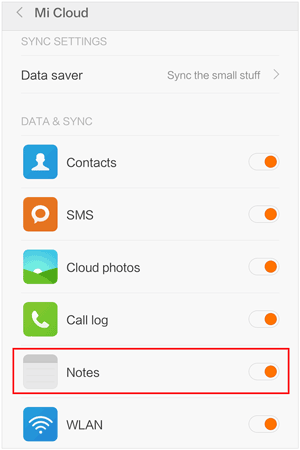
Step 5. Once enabled, Mi Cloud will automatically back up your apps and other selected data whenever your device is connected to a Wi-Fi network and charging. To perform an immediate backup, scroll down to the bottom of the Mi Cloud page and tap on "Back up now".
Note: Mi Cloud provides a limited amount of free storage (usually 5GB). If you need more storage space for your backups, you can upgrade to a paid Mi Cloud plan. Additionally, some app data may not be backed up by Mi Cloud due to app-specific restrictions.
As Redmi devices run on the Android operating system, you can also use your Google account to back up apps and app data. This method is convenient for users who already use Google services and want to sync their app data across different Android devices.
Step 1. Open the "Settings" app on your Redmi device.
Step 2. Scroll down and tap on "System" > "Backup".
Step 3. Enable the "Backup by Google One" toggle switch. If you haven't installed the Google One app yet, you may be prompted to download and install it from the Google Play Store.
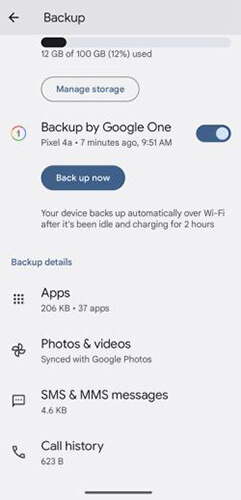
Step 4. Tap on "Account storage" to choose your Google account for backups. If you have multiple Google accounts signed in on your device, select the one you want to use for backing up your apps.
Step 5. Once selected, tap on "Back up now" to start the immediate backup process. Google will automatically back up your app data and other selected items whenever your device is connected to Wi-Fi, charging, and idle.
It's important to note that Google's backup service may not back up all app data. Some apps may not support Google's backup functionality, so it's advisable to check individual apps for their backup options. Additionally, Google provides 15GB of free storage for each account, which is shared across Gmail, Google Drive, and Google Photos.
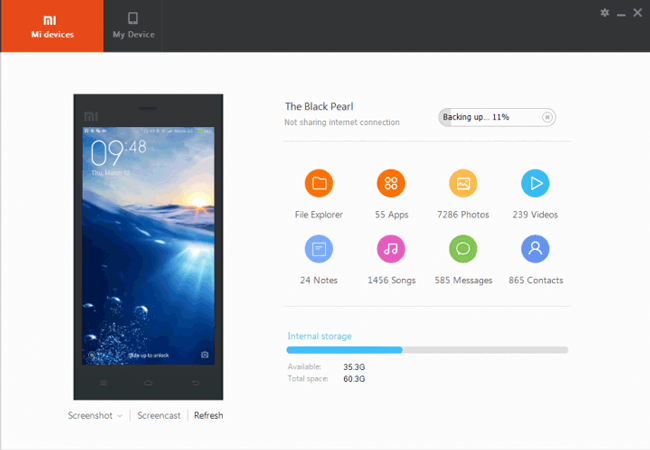
Mi PC Suite is another official tool from Xiaomi that allows you to manage and back up data from your Redmi device to a computer. This tool is specifically designed for Xiaomi and Redmi devices, offering features such as data backup, file transfer, and device management. You can use Mi PC Suite to back up apps, contacts, messages, photos, and other data to your computer.
Follow these steps to back up Redmi apps using Mi PC Suite:
Step 1. Download and install Mi PC Suite on your computer.
Step 2. Connect your Redmi device to the computer via USB cable.
Step 3. Launch Mi PC Suite and allow it to detect your device.
Step 4. Choose the "Backup" option and select "Apps" to back up.
Step 5. Click "Start Backup" to begin the process.
In this article, we've explored several effective methods to back up your Redmi apps and data, ensuring that your valuable information is safe and secure. Whether you prefer the convenience of Mi Cloud, the automatic backups offered by Google Account, or the flexibility and security of Coolmuster Android Backup Manager, each method provides a reliable solution to safeguard your apps.
Among these options, Coolmuster Android Backup Manager stands out as a powerful tool, offering a one-click backup and restore solution that lets you easily manage your data from a PC. Its versatility and ease of use make it a top choice for anyone looking for a comprehensive, secure, and efficient way to back up their Redmi apps.
Related Articles:
How to Perform Redmi Backup and Restore: Step-by-Step Methods
[Solved] How to Transfer Text Messages from Redmi to iPhone Easily?





 Free Download for PC
  Free Download for Mac


