TL;DR:
Can't factory reset your Android phone? This issue can happen due to forgotten passwords, Google security protection, software glitches, or system errors. This guide explains why Android factory reset fails and provides practical solutions to fix the problem and reset your device successfully.
"I recently got locked out of my phone due to forgetting the new password, and I have been trying to factory reset my phone to get back in, but I can't."
- From Reddit
Being unable to reset a locked device can be frustrating, especially when you need to regain access to your phone or prepare it for a fresh start. Many Android users encounter situations where the usual reset methods do not work, leaving them unsure how to fix the problem.
If you can't factory reset your Android phone successfully, this guide will walk you through the possible reasons and effective solutions to resolve the issue. From restarting your device and using recovery mode to repairing Android system problems and erasing data with a professional tool, we will cover different methods to help you reset your Android phone.
Before fixing the problem, it helps to understand why a factory reset may fail. The most common reasons include:
If you cannot unlock your phone, you may not be able to access the Settings menu where the factory reset option is located.
Factory Reset Protection (FRP) prevents unauthorized users from resetting and using an Android phone. After resetting, you may need to verify the previously connected Google account. (How to remove Google FRP lock on any phone?)
System bugs, corrupted files, failed updates, or software crashes may prevent the phone from completing a factory reset.
Different Android brands use different button combinations for recovery mode. Using the wrong method may only restart the device instead of opening the reset menu.
If your Android phone refuses to factory reset, try the following methods. Start with simple troubleshooting steps and move to more advanced solutions if needed.
A temporary system glitch may prevent your Android phone from opening the reset menu or completing the factory reset process. Restarting the device can refresh system services and fix minor errors.
This method is especially useful when:
Steps to restart your Android phone:
Step 1. Press and hold the "Power" button until the power menu appears.
Step 2. Tap "Restart". Wait for the phone to turn on completely.
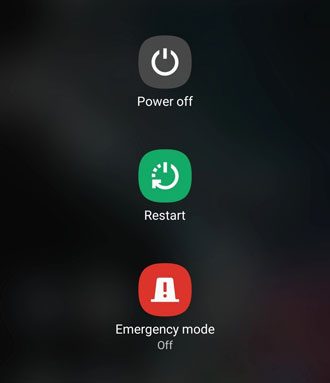
Step 3. Open "Settings" > "System" > "Reset options". Try the factory reset process again.
If your phone is frozen and does not respond, you can try a force restart by holding the "Power" button for several seconds. The exact method depends on your Android model.
If you can still access your Android phone, removing your Google account before performing a factory reset can help avoid activation problems caused by Factory Reset Protection.
This method is recommended when:
Steps to remove Google account:
Step 1. Open "Settings" on your Android phone.
Step 2. Scroll down and tap "Accounts" or "Passwords & accounts".
Step 3. Select the Google account connected to your phone.
Step 4. Tap "Remove account". Confirm your choice.
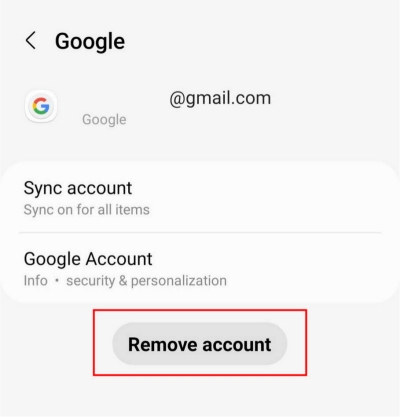
Step 5. Restart your phone and try the factory reset again.
Note: If you are locked out of your device, you may not be able to remove the account manually.
Recovery Mode is one of the most effective ways to factory reset an Android phone when you cannot access the Settings app.
It is useful for situations such as:
Steps to factory reset Android from Recovery Mode:
Step 1. Turn off your Android phone completely.
Step 2. Press and hold the recovery mode button combination. Common combinations include:
Step 3. Release the buttons when the Android Recovery screen appears.
Step 4. Use the "Volume" buttons to navigate.
Step 5. Select "Wipe data/factory reset".
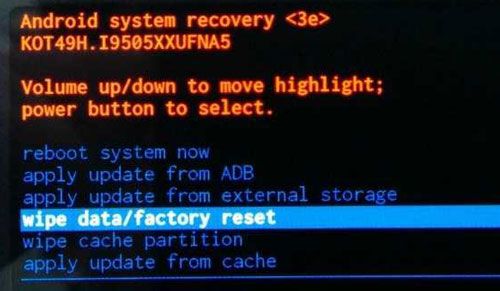
Step 6. Press the "Power" button to confirm.
Step 7. Choose "Factory data reset" or "Yes". Wait for the reset process to complete.
Step 8. Select "Reboot system now".
The steps may vary depending on your phone brand. If your phone only restarts instead of entering recovery mode, check the correct key combination for your specific model.
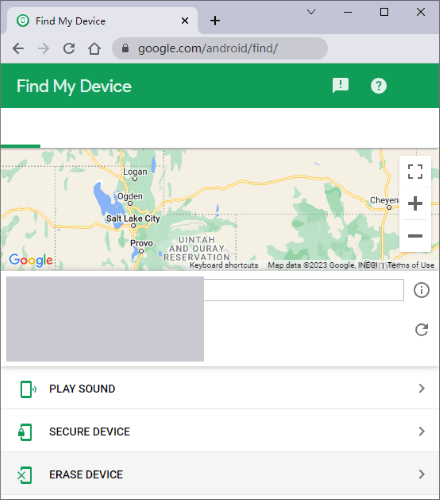
Google Find My Device provides a remote erase option that allows you to reset your Android phone without accessing the device directly.
This method is helpful when:
Before using Find My Device, make sure:
Steps to erase Android phone remotely:
Step 1. Open Google Find My Device on another phone or computer.
Step 2. Sign in using the Google account linked to your Android phone.
Step 3. Select the target device.
Step 4. Click "Erase device". Confirm the action and wait for the phone to be wiped remotely.
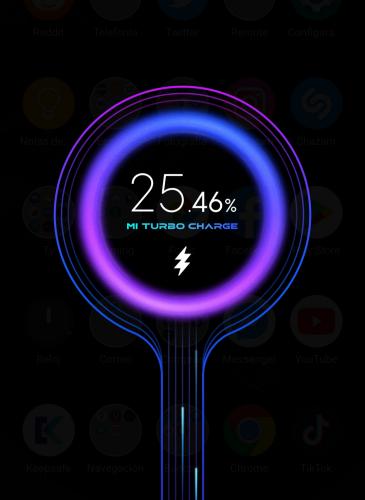
Although factory resetting deletes personal data, your Android phone still needs enough power and system resources to complete the operation.
A reset may fail when:
What you can do:
A software bug may prevent Android from performing a factory reset correctly. Installing the latest system update can fix known issues and improve system stability. If your phone cannot boot normally, this method may not be available.
Steps to update Android:
Step 1. Open "Settings".
Step 2. Tap "System" or "System update".
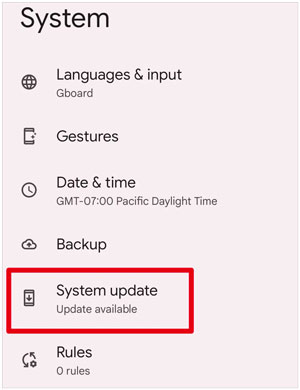
Step 3. Select "Check for updates".
Step 4. Download and install the available update.
Step 5. Restart your phone and attempt the factory reset again.
If your Android phone still cannot be factory reset after trying the previous methods, the issue may be related to underlying system problems. Corrupted firmware, failed software updates, or serious system errors can prevent your device from working properly and interfere with the normal reset process.
In this case, using a professional Android system repair tool can be a practical solution. Android Repair is designed to diagnose and repair common Android system problems, helping restore normal device functions before you try to factory reset your phone again.
Key features of Android Repair:
How to use Android Repair to fix Android system issues?
01Launch Android Repair on your computer and access the repair options. Choose "System Repair" from the main screen, then select "Android Repair" to move forward.
02Connect your Android phone to the computer with a USB cable. Once the device is successfully recognized, click "Repair Now" to prepare for the repair process.
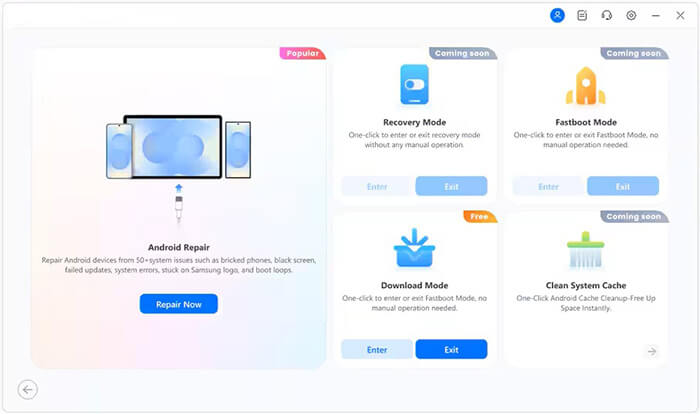
03Fill in the required device details, such as your phone's brand, model, region, and carrier information. After confirming the information, click "Start" to continue.
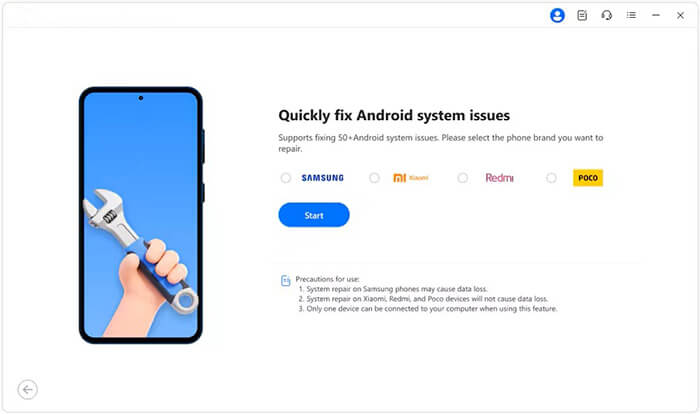
04Follow the instructions shown on the screen to boot your Android device into Download Mode. For some Samsung models, the program may require entering Odin Mode instead.
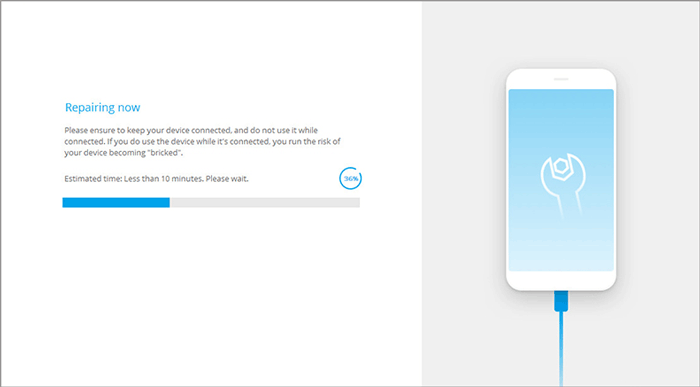
05After detecting the required mode, Android Repair will obtain the correct firmware package for your device and begin fixing the system. When the repair is complete, your phone will restart automatically, and issues preventing a successful factory reset may be resolved.
If you still cannot complete a factory reset through Android's built-in options, or you want to wipe all personal information from your phone before selling or giving it away, a dedicated erasing tool can provide a more convenient solution.
Coolmuster Android Eraser allows you to reset your Android phone by permanently removing existing data and restoring the device to a clean state. Unlike a regular factory reset, it can overwrite deleted files to help prevent personal information from being recovered.
Key features of Android Eraser:
How to factory reset an Android phone with Android Eraser?
01Download, install, and open Android Eraser on your Windows or Mac computer.
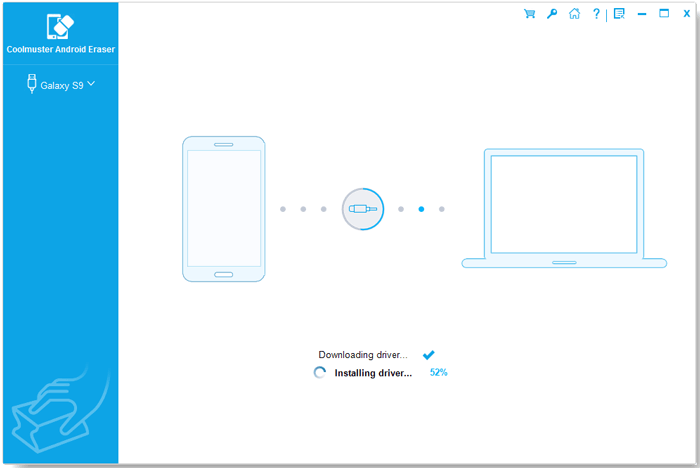
02Connect your Android phone to the computer using a USB cable. If USB debugging is disabled, follow the on-screen instructions to enable it and allow the required permissions. Once your phone is recognized, click "OK" to continue.
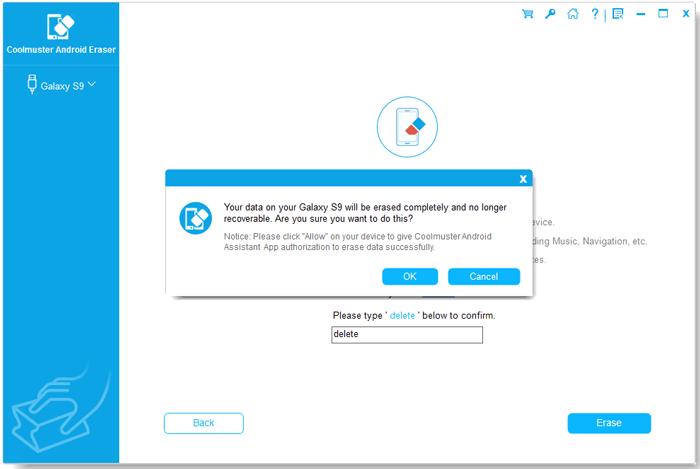
03Click "Erase" and select the desired security level from Low, Medium, or High. Confirm your choice by clicking "OK", then type delete in the confirmation field. Click "Erase" again to start the data removal process.
04Follow the instructions provided by the program to complete the factory reset process through your Android phone's settings. After the reset is finished, complete the initial setup to use your device again.
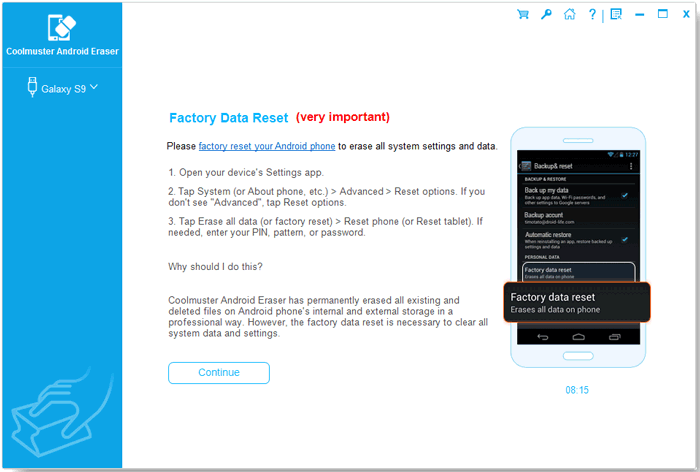
For a more detailed walkthrough, you can also watch the following video tutorial to see how to factory reset an Android phone with Android Eraser step by step.
When you can't factory reset your Android phone, the problem may come from forgotten passwords, Google security protection, system errors, or incorrect reset methods. Trying solutions such as recovery mode, Find My Device, and system updates can help resolve most common reset failures.
However, if the issue is caused by deeper Android system problems, repairing the system first may be necessary. Tools like Android Repair can help fix software-related issues, while Coolmuster Android Eraser provides a convenient way to completely erase Android data when you need a fresh start.
Related Articles:
The Ultimate Guide on How to Hard Reset Android Phone
How to Reset Android Phone when Locked? Top 5 Reliable Ways
How to Fix Android Boot Loop with Top 8 Solutions [Updated in 2026]







 Free Download for PC
  Free Download for Mac


