TL;DR:
You can recover deleted HEIC photos from Android by checking built-in trash folders, cloud backups, or using a recovery tool.
HEIC photos are no longer limited to iPhones. Some Android phones can also capture and store images in this space-saving format, which means losing them can be frustrating, especially when they are not easy to replace. Whether you accidentally deleted them from your Gallery, formatted an SD card, or lost access to a cloud backup, there are several ways to recover deleted HEIC photos from Android. This guide covers six practical recovery methods, including a dedicated Android recovery tool, so you can choose the one that fits your situation.
Yes, you may be able to recover deleted HEIC photos from an Android phone, depending on where they were stored, how they were deleted, and whether a backup is available. Here are a few things worth knowing before trying recovery.
1. Is HEIC Supported on Android Phones?
Yes. Some Android phones, including certain Samsung Galaxy models, support HEIC (HEIF) photos. You may also receive HEIC images from iPhones or download them from cloud storage. (How to Open HEIC Files on Android?)
2. Where Are Deleted HEIC Photos Stored?
Deleted HEIC photos may remain in your phone's Gallery Recycle Bin, Google Photos Trash, or an SD card. Their availability depends on the app and storage location.
3. Is It Possible to Recover Permanently Deleted HEIC Photos?
Yes, sometimes. You can restore photos from an available backup or try a data recovery tool if no backup exists. However, recovery is not guaranteed, especially if new data has overwritten the deleted files.
If you cannot find your deleted HEIC photos in the Gallery Recycle Bin or Google Photos Trash, try Coolmuster Lab.Fone for Android. This tool helps recover deleted photos, videos, contacts, messages, and other files from Android devices and SD cards. It supports various photo formats, including HEIC, JPG, PNG, and BMP. You can scan your device, preview the available files, and select the photos you want to restore to your computer.
Key Features of Coolmuster Lab.Fone for Android:
How to Recover Deleted HEIC Photos from Android:
01Download and install Coolmuster Lab.Fone for Android on your computer. Launch it and connect your Android phone using a USB cable. Enable USB debugging on your phone and follow the on-screen instructions to install the necessary driver and authorize the connection.
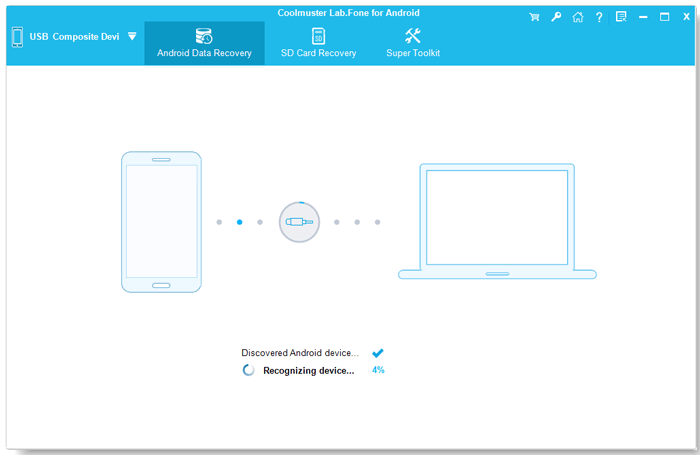
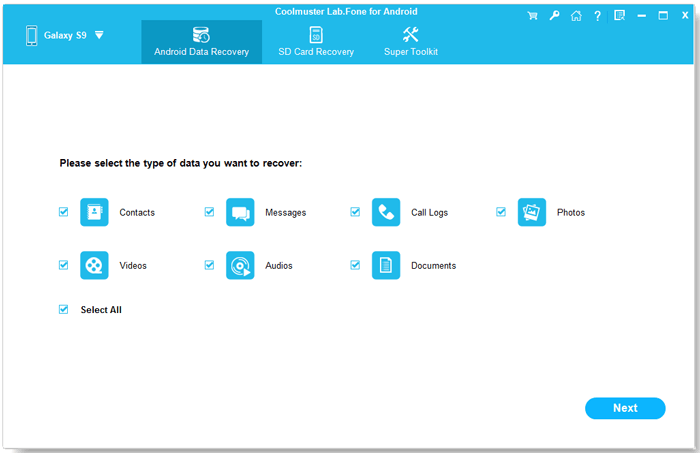
02Once connected, select "Photos" from the available file types and click "Next".
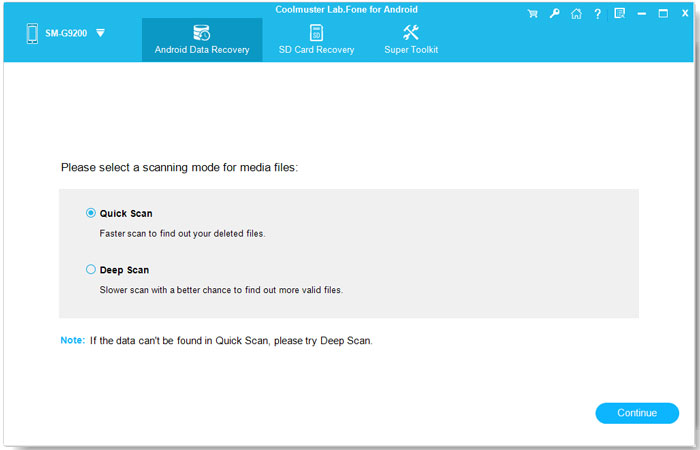
03Choose "Quick Scan" or "Deep Scan" and click "Continue" to scan your phone.
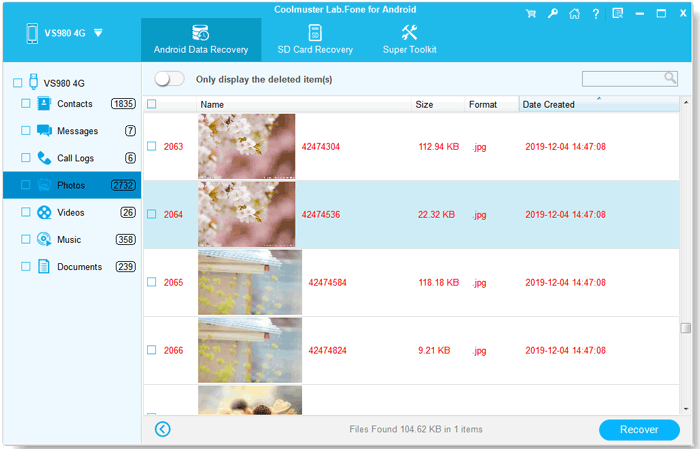
04After scanning, browse the detected photos. Enable "Only display the deleted item(s)" to find deleted pictures more easily. Select the HEIC photos you want to restore, then click "Recover" to save them to your computer.
Video Guide:
If you previously backed up your HEIC photos to Google Photos, check the Trash folder first. Deleted backed-up photos usually stay there for 60 days, giving you time to restore them.
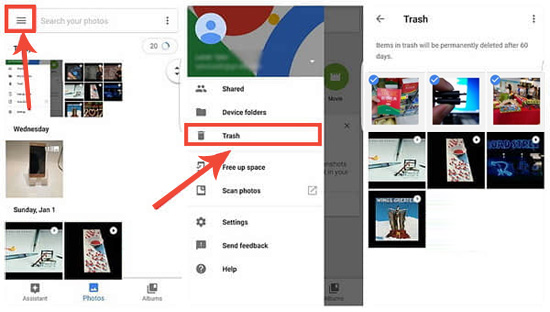
Once restored, the photos will reappear in your Google Photos library and your phone's gallery if they are available locally.
Note: Photos that were not backed up before deletion may stay in Trash for only 30 days. If they have been permanently deleted from Trash, you cannot restore them through Google Photos.
If you use a Samsung Galaxy phone, check the Gallery Recycle Bin before trying other recovery methods. Deleted photos are usually kept there for 30 days before being permanently removed.
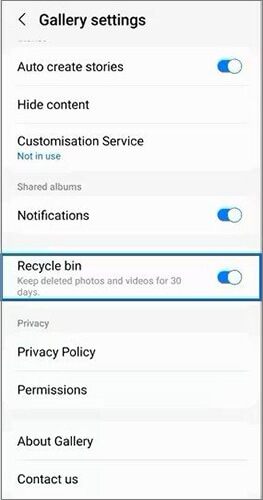
After restoration, check your Gallery to see if the HEIC photos are back.
If your HEIC photos were saved on an external SD card, Coolmuster Lab.Fone for Android can help you retrieve them. Its SD Card Recovery mode lets you scan the card directly from your computer without connecting or rooting your Android phone. You can preview the recoverable photos and save the selected files to your computer.
1. Download, install, and launch Coolmuster Lab.Fone for Android on your computer. Remove the SD card from your Android phone and insert it into your computer using a card reader. Select "SD Card Recovery" from the top menu and click "Next".
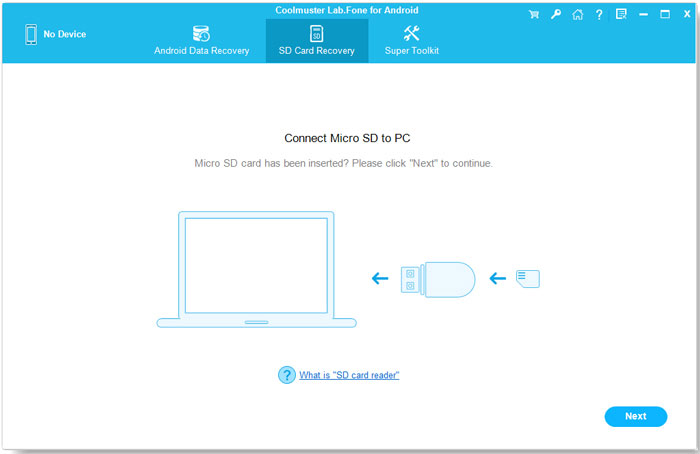
2. Choose your SD card from the available drives and click "Next" to start scanning.
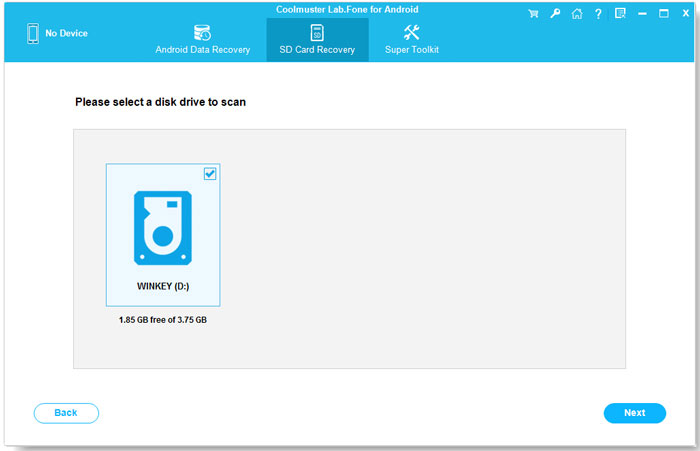
3. Once the scan finishes, open the "Photos" category and preview the recoverable pictures. Select the HEIC photos you want and click "Recover" to save them to your computer.
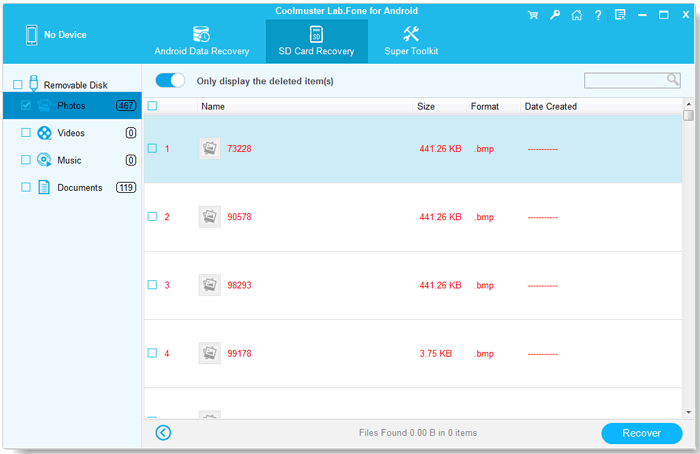
Note: Do not save recovered photos back to the same SD card, as this may overwrite other deleted data. Save them to your computer or another storage device instead.
Video Guide:
If you previously backed up your HEIC photos to a cloud service, you may be able to download them even after deleting the originals from your Android phone. Besides Google Photos, check Google Drive, OneDrive, or other cloud storage services you use.
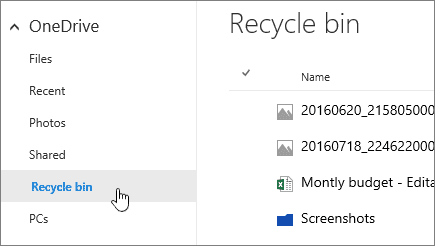
Keep in mind that this method only works if the HEIC photos were uploaded before they were deleted from your phone. If no cloud backup exists, try one of the recovery methods above.
Q1: Can I recover deleted HEIC photos from Android without a computer?
Yes. If the photos are still in your Gallery Recycle Bin or Google Photos Trash, you can restore them directly on your phone. However, recovering permanently deleted photos without a backup may require a computer-based recovery tool.
Q2: Can I recover HEIC photos from a broken Android phone?
It depends on the damage. If the phone can still power on and communicate with a computer, recovery may be possible. If the internal storage is physically damaged or inaccessible, recovery becomes much more difficult.
Q3: Will recovered HEIC photos keep their original quality?
In most cases, yes. If the original image data is recovered successfully, the photo should retain its original resolution and quality. However, partially recovered or corrupted files may not open properly.
Q4: Why can't my Android phone open recovered HEIC photos?
Your phone's Gallery app or image viewer may not support HEIC. Try opening the files with a compatible image viewer or transferring them to a device that supports this format. You can also convert HEIC to JPG for wider compatibility.
Q5: How can I prevent HEIC photos from being deleted again?
Back up important photos regularly to Google Photos, a computer, or an external storage device. Keeping more than one copy is a simple way to reduce the risk of losing your pictures.
Losing HEIC photos does not always mean they are gone for good. Start by checking your Gallery Recycle Bin, Google Photos Trash, and available cloud backups. If those options do not help, Coolmuster Lab.Fone for Android offers another way to scan your phone or SD card for recoverable files. Whatever method you choose, avoid saving new data to the affected storage until you have tried recovery. Regular backups are still the best way to protect your photos.
Related Articles:
How to Recover Deleted Photos from Android Without Root
4 Effective Methods to Recover HEIC Photos on iPhone/iPad
[Step-by-Step Guide] How to Convert HEIC to JPG on Android?
Ultimate Guide on How to Recover Deleted Camera Photos from Android







 Free Download for PC
 Free Download for Mac


