TL;DR:
Losing important contacts can be frustrating, especially after accidentally deleting them, performing a factory reset, or switching to a new Samsung phone. Fortunately, if your contacts were previously synced with your Samsung account, you may be able to restore them in just a few minutes.
In this guide, we'll explain whether your Samsung account can restore contacts, walk you through the official recovery process to restore contacts from Samsung account, and introduce a more effective solution if your contacts weren't backed up. Whether you're using a Samsung Galaxy S26, S25, S24, or another Galaxy device, you'll find the method that works best for your situation.
Yes, you can restore contacts from your Samsung account if they were previously synced or backed up. If your contacts were never synchronized before they were lost, Samsung's built-in restore feature won't be able to recover them.
Before restoring your contacts, it's important to understand the difference between a Samsung account and Samsung Cloud.
In other words, a Samsung account doesn't automatically save your contacts. Your contacts can only be restored if they were previously synced with Samsung Cloud or stored under your Samsung account through the Contacts app.
To restore contacts successfully, make sure that:
If these conditions are met, you can restore your contacts using Samsung's built-in recovery feature. Otherwise, you'll need to use another recovery method, which we'll introduce later in this guide.
If your contacts were previously synced to your Samsung account, you can restore them through Samsung Cloud or the built-in Restore data feature on your Samsung phone. The exact menu names may vary slightly depending on your One UI version, but the overall process is similar.
This is the official way to restore contacts that have been backed up to Samsung Cloud. (Samsung Cloud backup failed?)
Step 1. Open the Settings app on your Samsung phone.
Step 2. Tap "Accounts and backup" > "Samsung Cloud". On some devices, you may need to tap your Samsung account first.
Step 3. Select "Restore data".
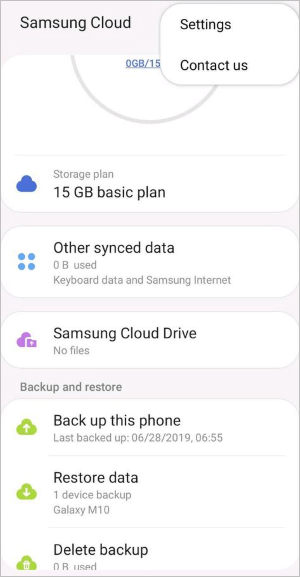
Step 4. Choose the backup that contains your contacts.
Step 5. Check the box next to "Contacts", then tap "Restore".
Step 6. Wait for the restoration to complete. Once finished, open the Contacts app to confirm that your contacts have been restored.
Note: If you don't see Samsung Cloud, your device may use a newer version of One UI. Simply go to "Settings" > "Accounts and backup" > "Restore data" and follow the on-screen instructions.
If your contacts are stored in your Samsung account but aren't showing on your phone, manually syncing your account may bring them back.
Step 1. Open "Settings" and tap "Accounts and backup".
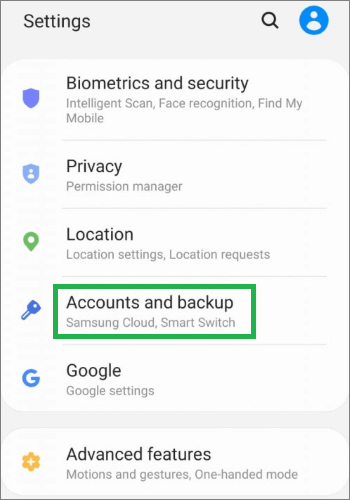
Step 2. Select "Manage accounts", then tap your Samsung account.
Step 3. Tap "Sync account".
Step 4. Turn on the toggle next to "Contacts" if it's disabled.
Step 5. Tap "Sync now" and wait for the synchronization to finish.
After syncing, open the Contacts app to check whether your contacts have reappeared.
If you can't restore your contacts from your Samsung account because no backup is available, don't worry. There's still a chance to recover them before they're overwritten.
Coolmuster Lab.Fone for Android is a professional Android data recovery tool that can scan your Samsung phone's internal storage and recover deleted contacts, even if they aren't stored in Samsung Cloud. Compared with the official restore method, it doesn't rely on a previous cloud backup, making it an ideal solution for accidental deletion, factory resets, or failed synchronization.
Why choose Coolmuster Lab.Fone for Android?
How to restore Samsung contacts with Coolmuster Lab.Fone for Android?
01Download and install Coolmuster Lab.Fone for Android on your Windows or Mac computer, then launch the program.
02Use a USB cable to connect your Samsung device to the computer. Follow the on-screen instructions to enable USB debugging if prompted. Once connected successfully, select "Contacts" and click "Next".
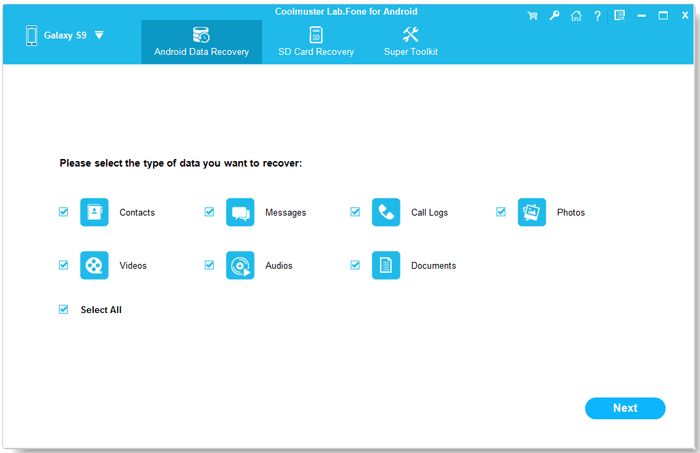
03Choose either "Quick Scan" or "Deep Scan" according to your needs. The software will search your device for existing and deleted contacts.
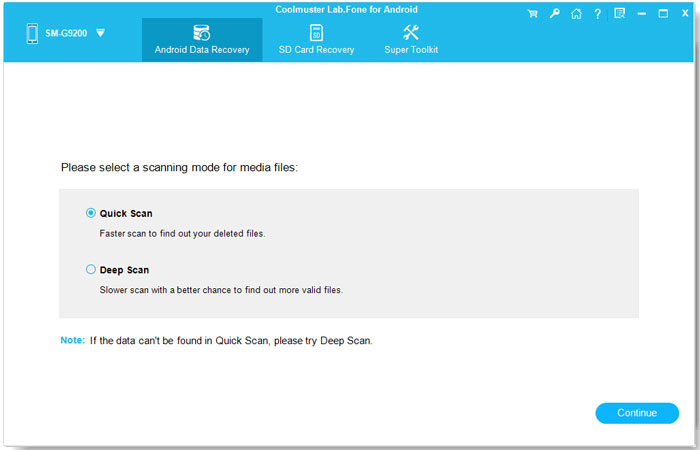
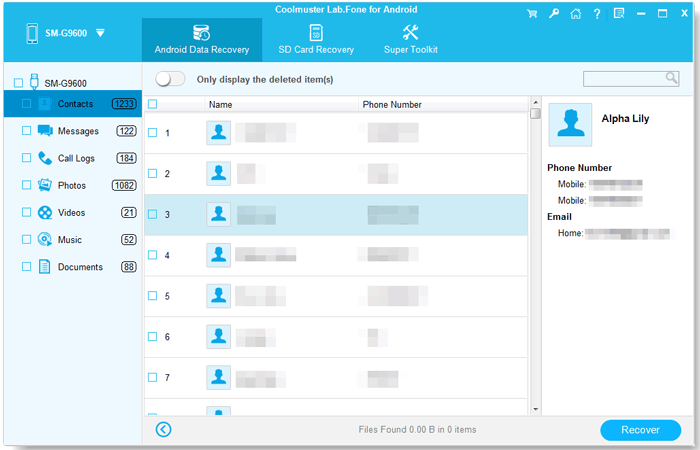
04After the scan is complete, click "Contacts" in the left panel to preview all recoverable contacts. Select the contacts you want to recover, then click "Recover" to save them to your computer.
If necessary, enable the "Only display the deleted item(s)" option to show only deleted contacts, making it easier to locate the files you want to recover.
If you prefer a visual walkthrough, watch the video tutorial below to see the entire recovery process in action.
1. Does my Samsung account save my contacts?
Not automatically. A Samsung account itself doesn't store your contacts, it simply gives you access to Samsung services, including Samsung Cloud. Your contacts will only be saved if you've enabled Contact Sync or backed them up to Samsung Cloud. If synchronization wasn't turned on before your contacts were lost, you won't be able to restore them from your Samsung account.
2. Will restoring contacts from Samsung account overwrite existing phone contacts?
In most cases, no. Restoring contacts from Samsung Cloud adds the backed-up contacts to your device rather than replacing your existing ones. However, if some contacts already exist on your phone, you may end up with duplicate entries. To avoid confusion, it's a good idea to back up your current contacts before performing a restore.
3. Why can't I restore contacts from my Samsung account?
There are several possible reasons:
If none of these issues apply, you may need to use Android data recovery software to recover contacts directly from your device.
Restoring contacts from your Samsung account is quick and convenient, as long as your contacts were previously synced to Samsung Cloud. Simply sign in with the correct Samsung account and restore or sync your contact data using the built-in settings.
However, if no Samsung Cloud backup is available, don't lose hope. A professional recovery tool like Coolmuster Lab.Fone for Android can help recover deleted contacts directly from your Samsung device, giving you another chance to retrieve important information.
Related Articles:
How to Recover Contacts from Damaged Samsung Galaxy: 4 Effective Methods
Samsung Contacts Disappeared? | Full Troubleshooting Guide
How to Recover Data from Lost Samsung Phone [High Success Rate]






 Free Download for PC
  Free Download for Mac


