TL;DR:
Editing Samsung contacts on a computer is a convenient way to manage large contact lists more efficiently. This guide covers practical ways to update, organize, and manage Samsung contacts on a PC, including cloud-based management, desktop contact editing, and file-based editing methods. Whether you need to modify a few contacts or handle multiple entries at once, you can find a suitable solution here.
Managing contacts directly from a Samsung phone can sometimes be inconvenient, especially when you need to update multiple names, phone numbers, or email addresses at once. Editing large amounts of contacts on a small phone screen is time-consuming and frustrating. Fortunately, you can edit your Samsung contacts on a PC easily.
This article introduces three practical methods to help you edit Samsung contacts on your computer effortlessly. Whether you prefer using Google Contacts, a professional desktop tool, or exporting contacts to a file, you'll find the right solution here.
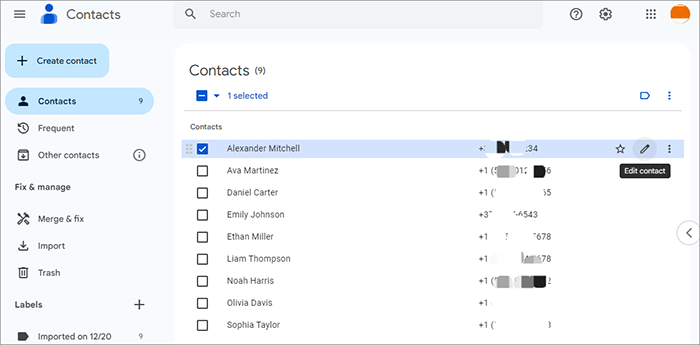
If your Samsung contacts are synced with your Google account, you can manage and edit them directly from Google Contacts on your computer. This method is easy, free, and requires no extra software.
Steps to edit Samsung contacts on PC with Google Contacts:
Step 1. On your Samsung phone, go to "Settings" > "Accounts and backup" > "Manage accounts".
Step 2. Select your Google account, and enable "Sync Contacts".
Step 3. On your computer, open a browser and visit https://contacts.google.com.
Step 4. Sign in using the same Google account logged in on your Samsung device.
Step 5. Now you can view, add, delete, and edit your contacts in bulk. Changes will automatically sync back to your phone.
Pros:
Cons:
If you want a more direct and flexible way to manage Samsung contacts on your PC without relying on cloud syncing, Coolmuster Android Assistant is a great choice. It allows you to view, edit, delete, import, export, and add contacts directly from your computer.
Key Features of Coolmuster Android Assistant:
How to edit contacts on a computer for Samsung Galaxy S26/S25?
01First of all, click the above button to download and install this Contacts Editor on your PC (here we set Windows version as an example). Launch it and then connect your Samsung phone to the computer through a USB cable.
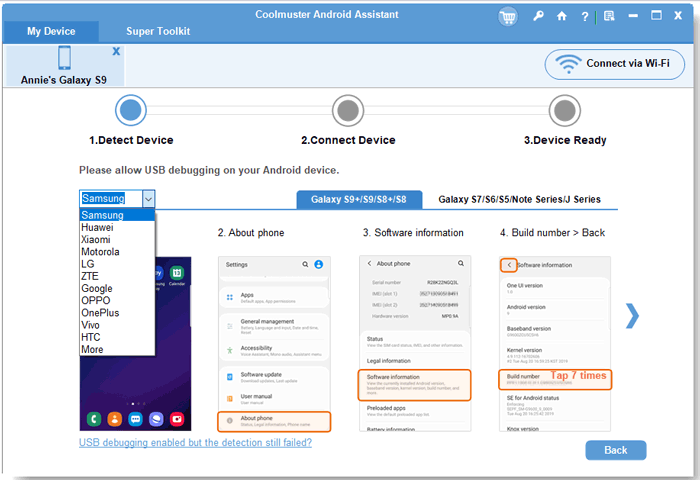
02If it is the first time running this software, you may encounter the following picture, which requires you to enable USB debugging on your phone at first. If your device can be detected by the program, you can directly skip to the next step. Here is an article telling you how to enable USB debugging on your Samsung device.
03After enabling the USB debugging, click "Allow" on your phone to allow the program superuser authorization when a Superuser Request pops up. Then, all your phone information, including phone model, system version, and storage space size, will be shown in the main interface, like below.
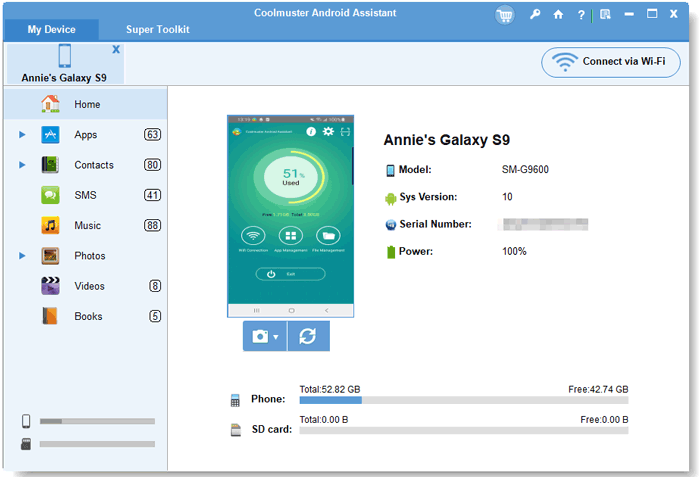
04All your phone data will be detected and categorized on the left side menu automatically. For this topic, you just need to go to click the "Contacts" > "All Contacts" icons to enter the Contacts window. Then, all the contacts in your Samsung phone will show in a list in the middle.
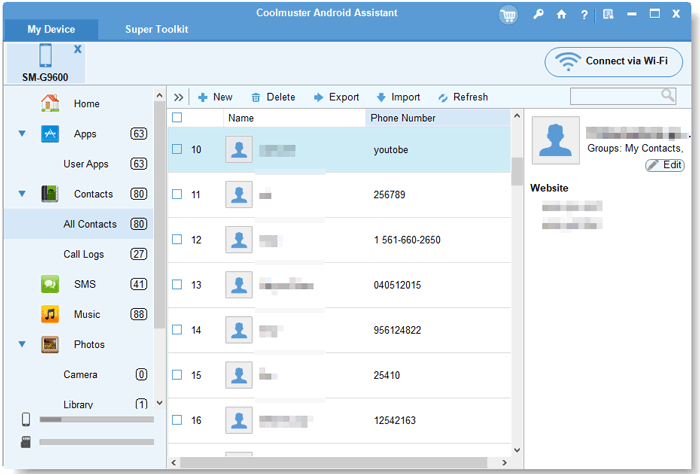
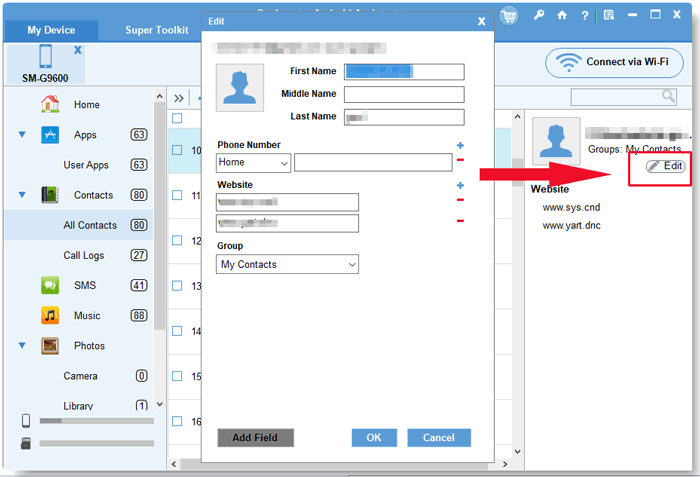
05Mark the contacts you want to edit on your computer and click the button of "Edit" button to edit the contact information in the right side box, including name, groups, website, address, phone number, note, nickname, email, etc.
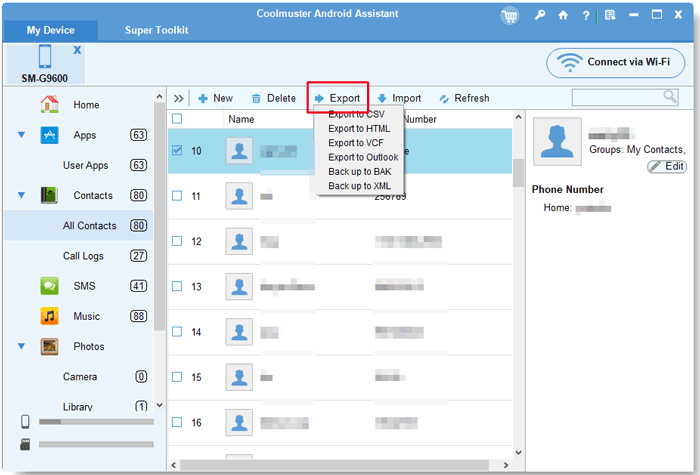
Export: When you want to create a backup of your Samsung contacts, you can click on the "Export" button in the top menu. Then, a "Path" choosing dialog will pop up, from which you can choose an output location for the exported contacts.
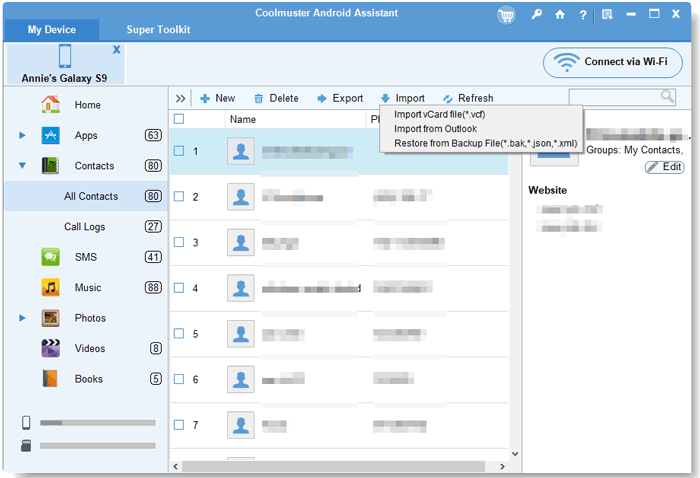
Import: Import the backup contacts from the computer to your Android device.
Add: Create new contacts from your computer to your Android phone.
Delete: Remove useless and duplicate contacts from your Android phone.
Video Tutorial
Another method is to export your Samsung contacts to a contact file, edit it on your computer, and then re-import the updated file to your phone.
Here are the steps for exporting Samsung contacts:
Step 1. On your Samsung phone, open the Contacts app.
Step 2. Tap "Menu (three dots)" > "Manage contacts" > "Export".
Step 3. Export contacts to a .vcf (vCard) file.
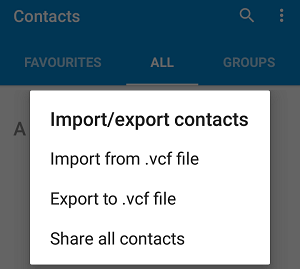
Step 4. Transfer the exported file to your computer via USB, Email, or Cloud.
Step 5. Open the VCF/CSV file using Excel or a compatible contact editor. Make your edits and save the file.
Step 6. Transfer the updated file back to your Samsung phone.
Step 7. In Contacts, tap "Import" to restore the edited contact list.
Pros:
Cons:
Editing Samsung contacts on a PC can save time and make managing large contact lists much easier.
Choose the method that best fits your needs and start managing your Samsung contacts effortlessly.
Related Articles:
How to Transfer Contacts from Samsung to PC [6 Useful Ways]
How to Edit Contacts on Android with 2 Easy Ways and 5 Great Editors
How to Export Samsung Contacts to Excel Easily (4 Proven Ways)
A Comprehensive How-to Guide of Samsung Contacts Sync with Google





 Free Download for PC
  Free Download for Mac


