For many Android users, keeping in touch through text messages is a daily routine. However, constantly reaching for your phone while working on your Mac can be inconvenient. Fortunately, there are several ways to seamlessly send and receive Android messages directly on your Mac. This not only helps you stay productive but also ensures that you never miss a text message while you're working.
In this article, we'll explore the top 4 methods for sending and receiving Android messages on a Mac, including web-based solutions, desktop apps, and third-party tools. Let's dive in.
Google Messages for Web is the most straightforward and cost-effective solution, as it's a free official tool developed by Google. It's ideal for users who already use Google Messages as their default SMS app on Android, as it leverages native synchronization to enable message sending and receiving on Mac. Here's how to set it up:
Step 1. Prepare Your Android Phone
First, ensure that Google Messages is set as your default SMS/MMS app on your Android device. If not, download it from the Google Play Store and follow the prompts to set it as the default. Once set, open the Google Messages app, tap the three-dot menu icon in the top-right corner, and select "Device pairing" (some devices may label this "Messages for web").
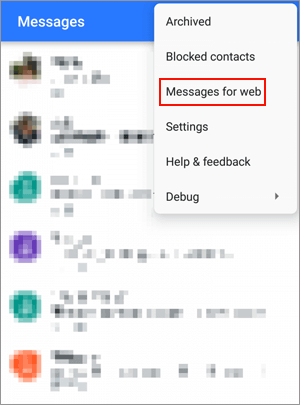
Step 2. Pair with Your Mac
On your Mac, open any modern web browser (Chrome, Safari, Firefox, etc.) and navigate to messages.google.com/web. You'll see a QR code displayed on the screen. Return to your Android phone, tap "Scan QR code", and point your phone's camera at the QR code on your Mac to complete the pairing process.
Step 3. Start Sending and Receiving Messages
Once paired, your Android message history will sync to the web interface automatically. You can now view all your existing messages, send new messages by clicking the "New message" button (pencil icon), and reply to incoming messages directly from the browser window. To avoid re-pairing every time, check the "Remember this computer" box during setup.
If you need more than just basic message sending/receiving, such as batch message management, message backup, or integration with other Android data (contacts, call logs), Coolmuster Android Assistant is an excellent choice. This desktop tool offers both USB and Wi-Fi connection options, making it flexible for different usage scenarios. It's a paid tool with a free trial, ideal for power users who want comprehensive control over their Android data on a Mac.
Key features of Coolmuster Android Assistant:
How to send and receive Android messages on Mac with Coolmuster Android Assistant:
01Install and Launch Coolmuster Android Assistant
Download and install Coolmuster Android Assistant on your Mac. Once installed, launch the program to get started. The software is also available for Windows, making it a cross-platform solution.
02Connect Your Android Phone to Mac
Use a USB cable to connect your Android phone to your Mac. Follow the on-screen instructions to enable USB debugging on your Android device. Once connected successfully, your phone will appear in the main interface.
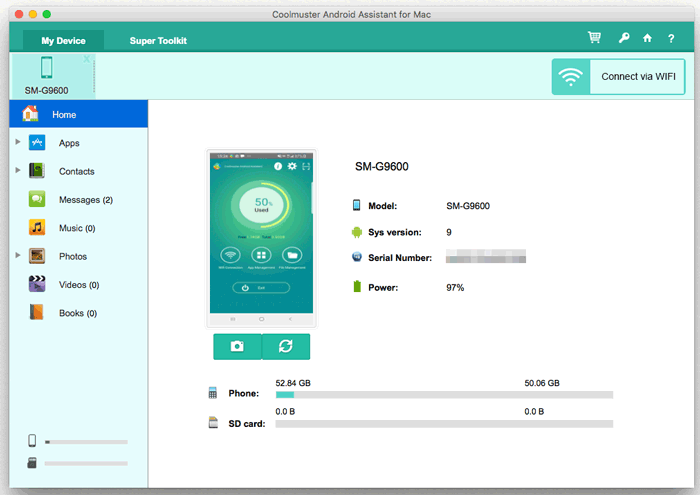
03Send and Receive Android Messages on Mac
Click the "SMS" tab in the left sidebar to access all your text message conversations. Here, you can preview message threads freely. To send a new message, click "New", choose a contact from the list, type your message, and then click "Send".
You can also reply to existing conversations, delete unwanted messages, or export important SMS records to your Mac.
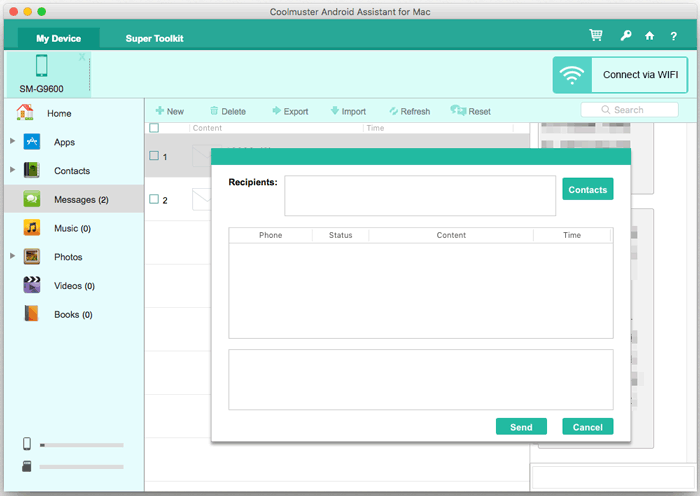
To help you get started quickly, the following step-by-step tutorial will walk you through the entire process in detail.
Pushbullet is a popular cross-device synchronization tool that excels at notification mirroring, and it also supports two-way SMS communication between Android and Mac. It's a great option if you want to unify all your device notifications (including SMS, app alerts, and emails) in one place on your Mac. Pushbullet offers a free version with limitations and a premium version for full features.
Step 1. Create a Pushbullet Account and Install Apps
Sign up for a free Pushbullet account on the official website (pushbullet.com).
Then, install the Pushbullet app on your Android phone from the Google Play Store, and install either the Pushbullet browser extension (for Chrome, Safari, etc.) or the desktop app on your Mac (available from the Mac App Store or Pushbullet's website).
Log in to the same Pushbullet account on all devices.

Step 2. Grant Permissions on Android
Open the Pushbullet app on your Android phone, go to Settings, and grant the necessary permissions: "Notification access" (to mirror notifications) and "SMS access" (to sync and send/receive SMS). Follow the on-screen prompts to complete the permission setup.
Step 3. Send and Receive SMS on Mac
Once set up, incoming Android SMS will appear as notifications on your Mac (via the browser extension or desktop app).
Pushbullet also supports cross-device clipboard sync, so you can copy text from your Mac and paste it into a message on your phone (or vice versa).
SyncMate is a powerful data synchronization tool that enables deep integration between Android devices and Mac. It supports syncing SMS, contacts, calendars, photos, and more, and allows two-way SMS communication directly from your Mac. SyncMate is a paid tool with a free trial, ideal for users who want comprehensive data sync alongside message management.
Step 1. Install SyncMate on Mac
Download and install SyncMate Expert (the paid version, as the free version only supports viewing SMS) on your Mac from the official website. The installation process is straightforward, follow the on-screen prompts to complete it.
Step 2. Connect Your Android Device to Mac
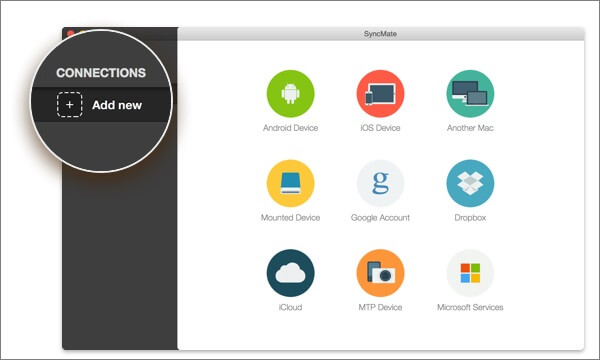
Open SyncMate on your Mac and click "Add new" in the top-left corner. Select "Android Device" from the list of available devices. You can connect via USB, Wi-Fi, or Bluetooth.
Step 3. Enable SMS Sync and Communication
After connecting your device, select the "Messages" option from the list of syncable data types. Check the box next to "Enable sync for Messages" and choose whether to sync automatically or manually. Once enabled, you can view all your Android messages in the SyncMate interface.
To send a new message, click "New Message", select a contact or enter a number, and type your message. Incoming messages will sync automatically, and you can reply directly from the Mac client.
Managing Android messages on a Mac has never been easier. Google Messages for Web provides a free and simple way to send and receive texts, Pushbullet is perfect for quick replies and unified notifications, and SyncMate offers full data syncing alongside messaging.
For users who want more control over their messages, such as backing up, exporting, or printing SMS, Coolmuster Android Assistant is an excellent choice. With its desktop interface and powerful features, it ensures you can manage your Android messages efficiently and stay connected from your Mac.
Related Articles:
How to Send & Receive Android Text Messages from Computer Easily
How to Transfer Messages from Android to Mac Effortlessly? (Proven)
How to Send SMS from Computer (Windows & Mac) to Mobile Phone
Top-Rated Approaches in Transferring Files from Android to Mac Effectively





 Free Download for Mac
 Free Download for PC


