"Phones have been crapping out for some reason today, with a message of System UI not responding. Phone craps out, and the only temp fix I have right now is restarting, but it seems to happen every 30 mins currently. Does anyone know a good fix? Never had this issue before."
- From Reddit
If you've ever used your Android device and suddenly encountered the "System UI Not Responding" error, you know how frustrating it can be. This issue can freeze your screen, interrupt your workflow, and even stop you from accessing basic functions like the home screen, notification panel, or navigation buttons.
Whether the problem appears occasionally or keeps happening repeatedly, it usually indicates that something is interfering with your device's core system interface. In this guide, we'll explain what the "system UI not responding Android" error means, explore the common causes behind it, and walk you through 10 effective solutions to fix it.
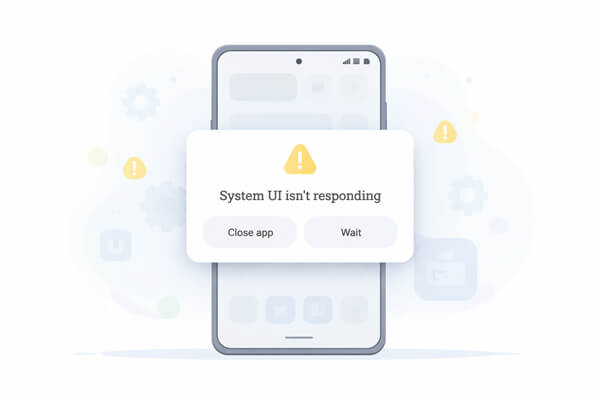
The "System UI not responding" message indicates that the core interface of your Android system has stopped working properly. The System UI is responsible for essential functions like the home screen, status bar, notifications, and navigation buttons.
This issue can be triggered by several factors:
Understanding these causes helps you apply the right fix instead of trying random solutions.
We've organized the fixes from the simplest (and most likely to work) to the most advanced. Start with the first method and move down if the error persists.
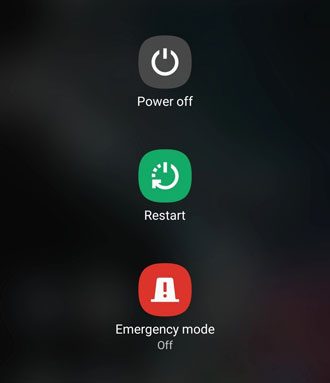
Restarting your Android device is the most basic yet effective fix for the "System UI Not Responding" error. It clears temporary glitches, frees up RAM, and terminates any abnormal processes that might be causing the System UI to crash.
To restart: Press and hold the "power" button until the power menu appears, then tap "Restart" (or "Reboot"). If your screen is frozen and unresponsive, perform a hard restart by holding the "power" button for 10-15 seconds until the device shuts off, then wait 30 seconds before turning it back on. This method often resolves one-time glitches and should be your first step.
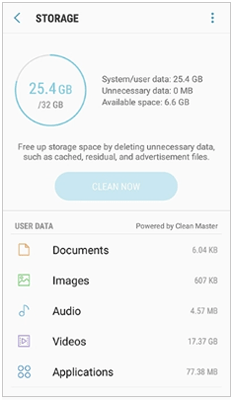
Low internal storage (especially less than 500MB of free space) can prevent the System UI from accessing the temporary files it needs to function, leading to crashes. To free up space: Go to "Settings" > "Storage", then review and delete unnecessary files like old photos, videos, unused apps, or cached data. You can also use the "Free Up Space" feature (available on most Android devices) to automatically remove junk files. Aim to keep at least 1GB of free space to ensure smooth operation of the System UI and other system processes.
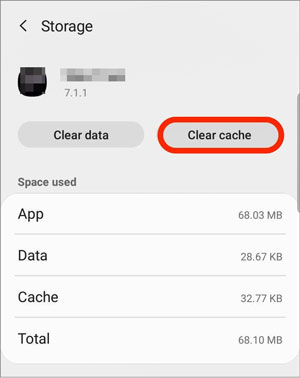
Corrupted cache files (temporary files stored by apps and the system) are a common cause of System UI issues. Clearing the cache for the System UI app and other related apps can resolve these glitches without deleting personal data.
Here's how:
Step 1. Go to "Settings" > "Apps" (or "App Management") > tap the three dots in the top-right corner > "Show System Apps".
Step 2. Locate "System UI" in the list, tap it, then go to "Storage" > "Clear cache".
For extra measure, you can also clear the cache for Google Play Services and your device's launcher app (e.g., One UI Launcher, Pixel Launcher), as these often interact with the System UI. Restart your device after clearing the cache to apply the changes.
Third-party apps (especially launchers, theme apps, security apps, or recently installed apps) often conflict with the System UI, causing it to crash. Similarly, faulty or outdated widgets on your home screen can overload the System UI.
To fix this:
Step 1. First, remove any recently added widgets by long-pressing them and selecting "Remove".
Step 2. Then, uninstall apps that you installed right before the error started, or apps that are known to cause conflicts (e.g., untrusted launchers or theme apps).
To uninstall an app: Long-press its icon on the home screen or app drawer, then tap "Uninstall" or drag it to the "Uninstall" option. After removing faulty apps or widgets, restart your device to check if the error persists.
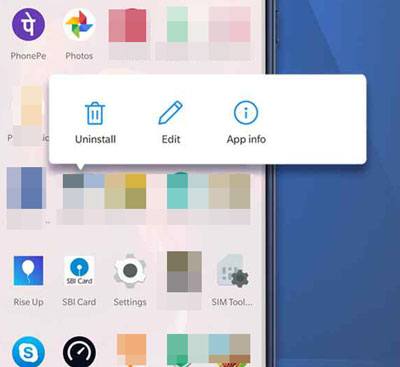
Safe Mode is a diagnostic feature that temporarily disables all third-party apps, helping you determine whether the "system UI not responding Android" issue is caused by an app or the system itself. This is one of the most effective ways to identify the root cause of the problem.
Here's how to enter Safe Mode:
Step 1. Press and hold the "Power" button until the power menu appears.
Step 2. Then long-press the "Power Off" option until you see the "Reboot to Safe Mode" prompt, and tap "OK".
Step 3. Your device will restart, and "Safe Mode" will appear at the bottom of the screen. On some devices, you may need to hold the "Volume Down" button while the phone is starting up to enter Safe Mode.
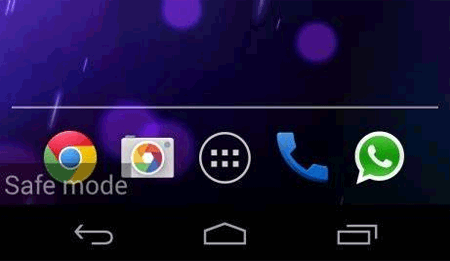
If the error disappears in Safe Mode, a third-party app is likely responsible. You can try removing recently installed apps to narrow down the cause, or move on to the next method to fix the issue more effectively. To exit Safe Mode, simply restart your device normally.
Once you've identified that a third-party app is causing the issue, reinstalling it is a more reliable way to fix corrupted files or incomplete updates that may be triggering the System UI error.
Step 1. First, uninstall the problematic app by long-pressing its icon and tapping "Uninstall", or go to "Settings" > "Apps" and remove it from there.
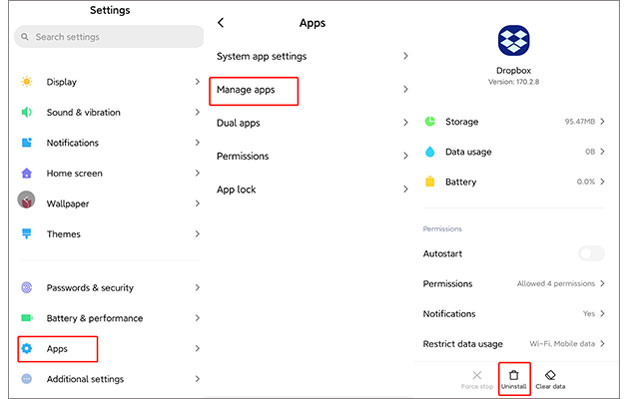
Step 2. After that, open the Google Play Store, search for the app, and tap "Install" to download it again.
Make sure you install the latest version, as updates often include bug fixes and compatibility improvements. If the issue persists after reinstalling, consider replacing the app with an alternative or avoiding unofficial APK sources to prevent similar problems in the future.
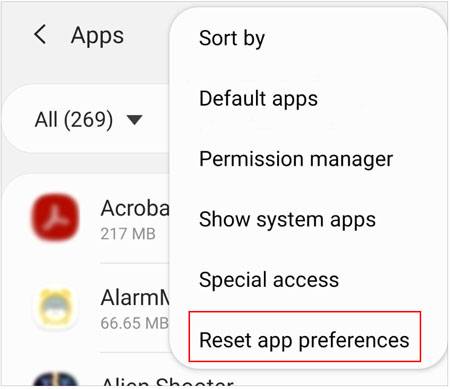
Resetting app preferences restores all app settings to their default state, which can fix hidden conflicts or misconfigurations that are causing the System UI to malfunction, without deleting any apps or personal data. This method resets default apps, disabled apps, app permissions, and background data restrictions.
To reset app preferences: Go to "Settings" > "Apps" (or "App Management") > tap the three dots in the top-right corner > "Reset App Preferences". Tap "Reset" to confirm. Restart your device after the reset to ensure the changes take effect.
Outdated apps or system software often contain bugs that can conflict with the System UI. Developers regularly release updates to fix these bugs and improve compatibility, so keeping your device and apps up to date is crucial.
To update apps: Open the Google Play Store, tap your profile icon in the top-right corner, then tap "Manage apps & device" > "Update all".
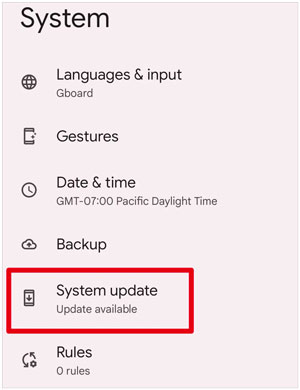
To update your system: Go to "Settings" > "System" > "System Update" (or "Software Update"), then tap "Check for update". If an update is available, download and install it (ensure your device is charged to at least 50% to avoid interruptions). Restart your device after updating to apply the changes.
If none of the methods above work, the "system UI not responding Android" issue may be caused by deeper system problems, such as corrupted system files or system crashes. In such cases, using a dedicated repair tool is often the most efficient way to fix the issue.
A tool like Android Repair can automatically detect and fix system-level errors without requiring technical expertise, making it suitable even for beginners.
Key features of Android Repair:
Steps to fix Android system issues:
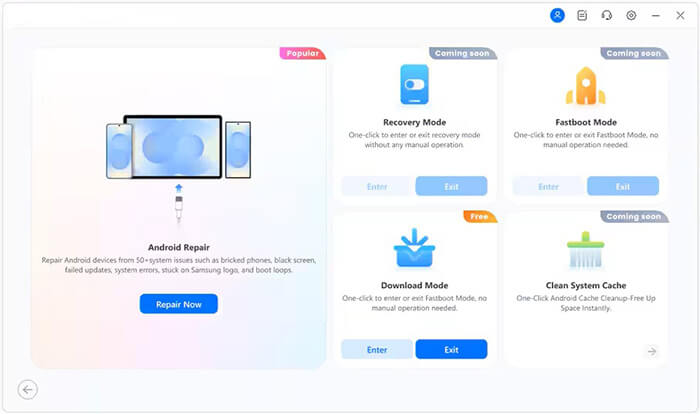
01Open Android Repair on your computer. On the main screen, click "System Repair", then select "Android Repair" to proceed.
02Use a USB cable to connect your phone to the computer. After the software recognizes your device, click "Repair Now" to continue.
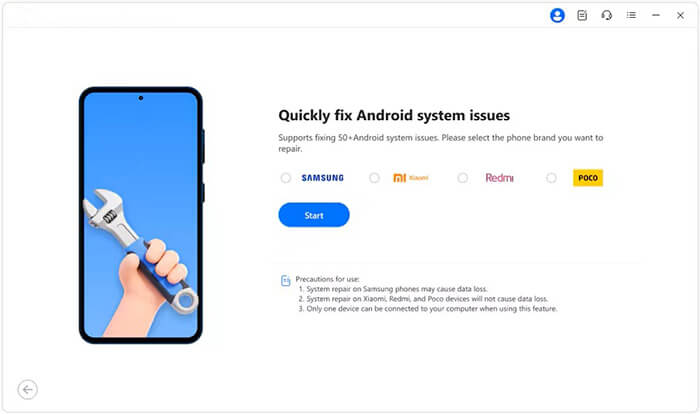
03Choose the correct device details, including brand, model, region, and carrier if needed, then click "Start".
04Follow the instructions shown on the screen to boot your device into Download Mode (also referred to as Odin Mode on certain devices).
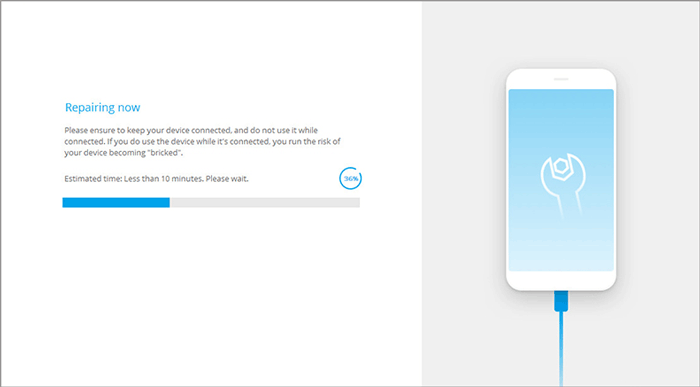
05Once in the required mode, the program will download the appropriate firmware package and begin repairing your system automatically. After the process is finished, your device will reboot, and the System UI issue should be fixed.
If all the previous methods fail to fix the "system UI not responding Android" issue, performing a factory reset may be necessary. This method restores your device to its original state by removing all data, settings, and potential system conflicts that could be causing the problem.
Before proceeding, make sure to back up your important files, including photos, contacts, and documents, since this process cannot be undone.
Here's how to factory reset your Android device:
Step 1. Go to "Settings" on your phone, then navigate to "System" > "Reset options".
Step 2. Tap "Erase all data (factory reset)", then review the warning message carefully. Once you're ready, confirm by selecting "Erase all data" again.
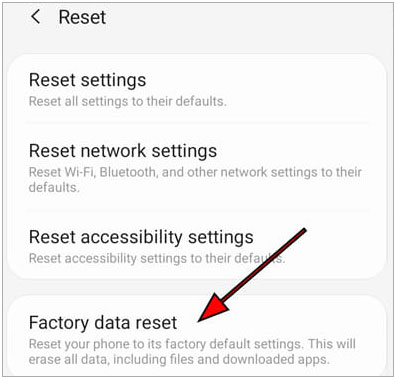
Your device will restart automatically and begin the reset process, which may take several minutes. After completion, your phone will return to its original setup state, just like when it was new.
Once the reset is finished, set up your device again and check whether the System UI issue has been resolved.
The "System UI not responding Android" error is usually caused by temporary system glitches, insufficient storage, corrupted cache files, or problematic third-party apps. In most cases, you can fix the issue by starting with simple solutions like restarting your device, freeing up space, and clearing cache, then gradually moving on to more advanced methods such as Safe Mode, system repair tools, or a factory reset if necessary.
By following the troubleshooting steps in order, you can quickly identify the root cause and restore your device's normal performance without unnecessary trial and error. If the problem persists even after trying all the methods, it may indicate deeper system issues that require professional repair or a full system reset. In such cases, using a dedicated tool like Android Repair can help automatically fix system-level errors and bring your device back to normal.
Overall, with the right approach, this error is completely manageable, and your Android device can return to smooth and stable operation.
Related Articles:
How to Get to Android System Recovery Mode and What Can It Do? [Answered]
How to Fix Android System Intelligence Won't Update [Must Read]
Android Crash? 10 Tricks to Fix Android System Crash to Normal
Troubleshooting Process System Isn't Responding on Android Devices




 Free Download for PC


