TL;DR:
There are multiple ways to transfer contacts from computer to HONOR phone. This guide covers four solutions, including a direct transfer tool, VCF file import, Google Contacts synchronization, and HONOR's official management tool. You will learn the steps, advantages, and limitations of each method to find the most suitable way to move your contacts.
When switching to a new HONOR phone or managing contacts across different devices, transferring contacts from a computer to HONOR can save time and prevent manually adding each contact one by one. However, since computers and phones use different contact formats and management systems, finding a simple and reliable transfer method can sometimes be challenging.
Fortunately, there are several ways to move contacts from a computer to an HONOR phone. You can directly transfer contacts with professional software, import a VCF file, sync contacts through Google Contacts, or use HONOR Suite for backup and restore. This guide will walk you through four practical methods to help you choose the one that best fits your needs.
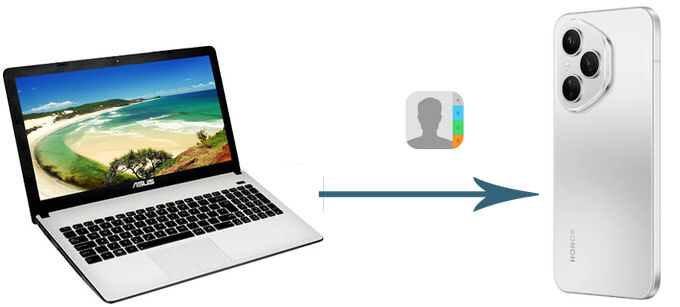
If you want a direct and efficient way to transfer contacts from a computer to an HONOR phone, using a professional Android management tool can be a good choice. Coolmuster Android Assistant allows you to manage Android data on your computer and transfer contacts between devices with a few clicks.
It supports importing, exporting, editing, and managing contacts, making it useful for users who need to handle a large number of contacts without complicated steps.
Key features of Android Assistant:
Steps to transfer contacts from computer to HONOR:
01Download and launch Android Assistant on your PC, then connect your HONOR phone to the computer with a USB cable.
02To allow the program to recognize your HONOR phone successfully, enable USB debugging on your device. Once detected, you will see the program interface as shown below.
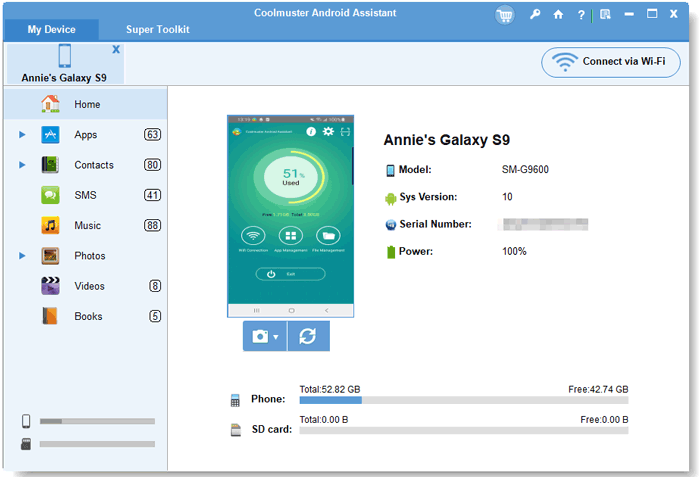
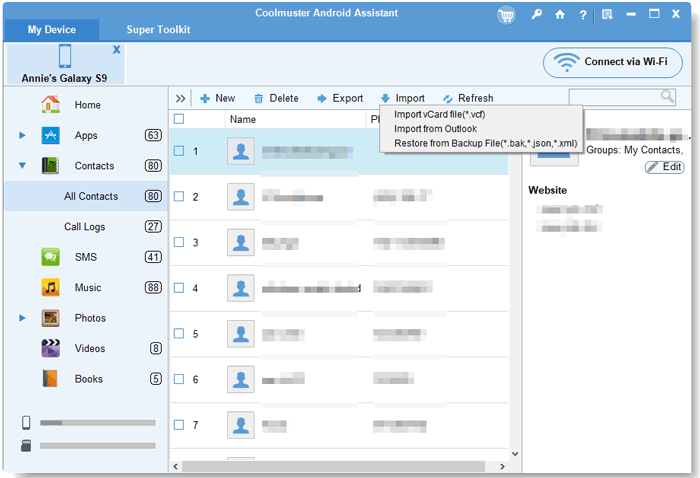
03Select "Contacts" from the left sidebar and click the "Import" button, then choose the contact file you want to transfer from your computer to your HONOR phone.
You can also watch the following video tutorial for a visual guide with Android Assistant.
A VCF (vCard) file is one of the most common formats for saving and transferring contacts. If you already have contacts stored on your computer as a .vcf file, you can import them directly into your HONOR phone.
Follow these steps to import contacts from VCF file to your HONOR:
Step 1. Connect your HONOR phone to your computer using a USB cable.
Step 2. Copy the VCF contact file from your computer to your phone storage.
Step 3. Open the Contacts app on your HONOR phone.
Step 4. Tap "Settings" > "Import/Export contacts".
Step 5. Select "Import from storage".
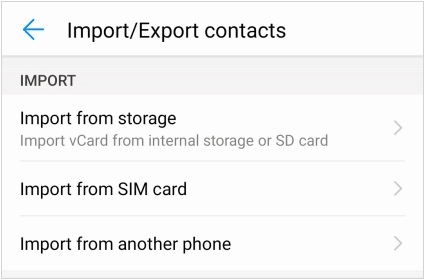
Step 6. Choose the VCF file and confirm the import. Your contacts will then be added to your HONOR phone automatically.
Pros:
Cons:
Google Contacts provides a convenient way to sync contacts between your computer and HONOR phone. This method is especially useful if you already use a Google account to manage your contacts.
How to move contacts from your computer to your HONOR device using Google Contacts:
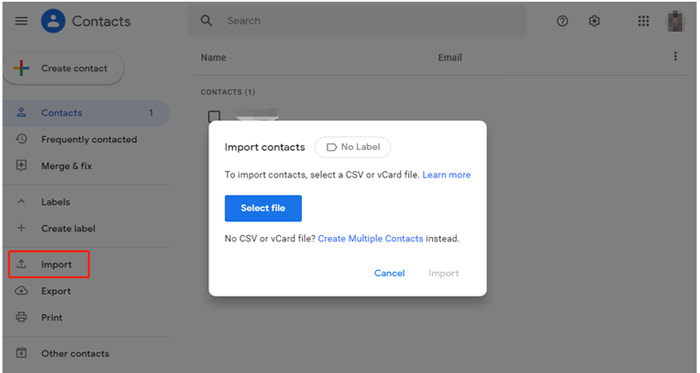
Step 1. Open Google Contacts on your computer browser.
Step 2. Sign in with your Google account.
Step 3. Click "Import" and upload your contact file (VCF or CSV). Wait for the contacts to be imported.
Step 4. On your HONOR phone, sign in with the same Google account.
Step 5. Enable contact synchronization in account settings. Once syncing is complete, your contacts will automatically appear on your HONOR phone.
Pros:
Cons:
If you prefer using an official HONOR solution, HONOR Suite can help you manage and transfer phone data between your HONOR device and computer. It is mainly designed for backing up and restoring HONOR phone data, including contacts, which makes it useful when you have previously saved contacts through an HONOR backup.
However, compared with directly importing a VCF file, HONOR Suite is more suitable for restoring contacts from a backup rather than importing standalone contact files from your computer.
Here is how to transfer contacts from computer to HONOR using HONOR Suite:
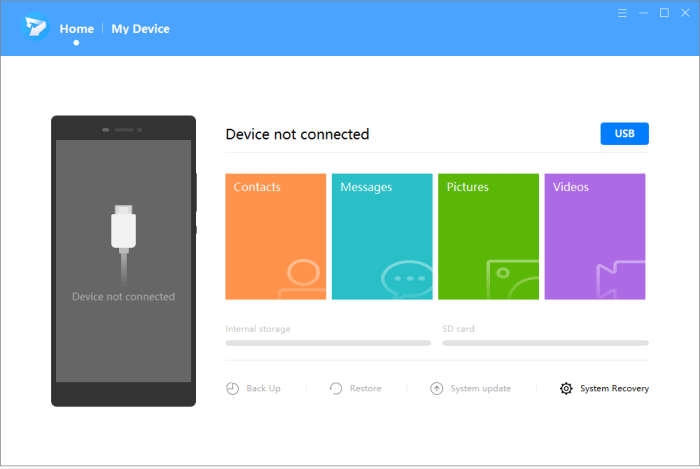
Step 1. Download and install HONOR Suite on your computer, then connect your HONOR phone to the PC using a USB cable.
Step 2. Enable HDB on your HONOR phone by going to "Settings" > "Security" > "More settings" > "Allow connection via HDB". Follow the on-screen instructions to authorize the computer connection and allow HONOR Suite to detect your device.
Step 3. After your HONOR phone is successfully connected, select the "Contacts" option from the HONOR Suite interface, then choose the available contact management or restore option to transfer contacts from the computer backup to your HONOR phone.
Pros:
Cons:
Transferring contacts from computer to HONOR phone can be completed in several ways, depending on where your contacts are stored and what tools you prefer. If you need a quick and direct solution, Coolmuster Android Assistant can help import contacts from your computer efficiently. For users with contact files, importing a VCF file or syncing through Google Contacts are also simple and reliable options.
If you have previously backed up your HONOR phone data, HONOR Suite provides an official way to restore contacts to your device. Choose the method that matches your situation, and you can move important contacts to your HONOR phone without manually saving each contact one by one.
Related Articles:
How to Edit HONOR Phone Contacts on Computer | 4 Easy Ways
[Full Guide] How to Transfer Contacts from iPhone to HONOR?
How to Sync Honor to PC with 5 Workable Solutions [2026]
How to Retrieve Deleted Contacts on HONOR Phone: 4 Proven Ways





 Free Download for PC
  Free Download for Mac


